To create a Playbook:
Browse to the Ask iManage side panel. For instructions, refer to Accessing Ask iManage in iManage Work at cloudimanage.com.
If you've opened the document in Microsoft Word, then open the Ask iManage panel in Microsoft Word. For instructions, refer to Asking questions in a document.Select Playbook to display the Playbooks dialog.
Figure: Select question list drop-down menu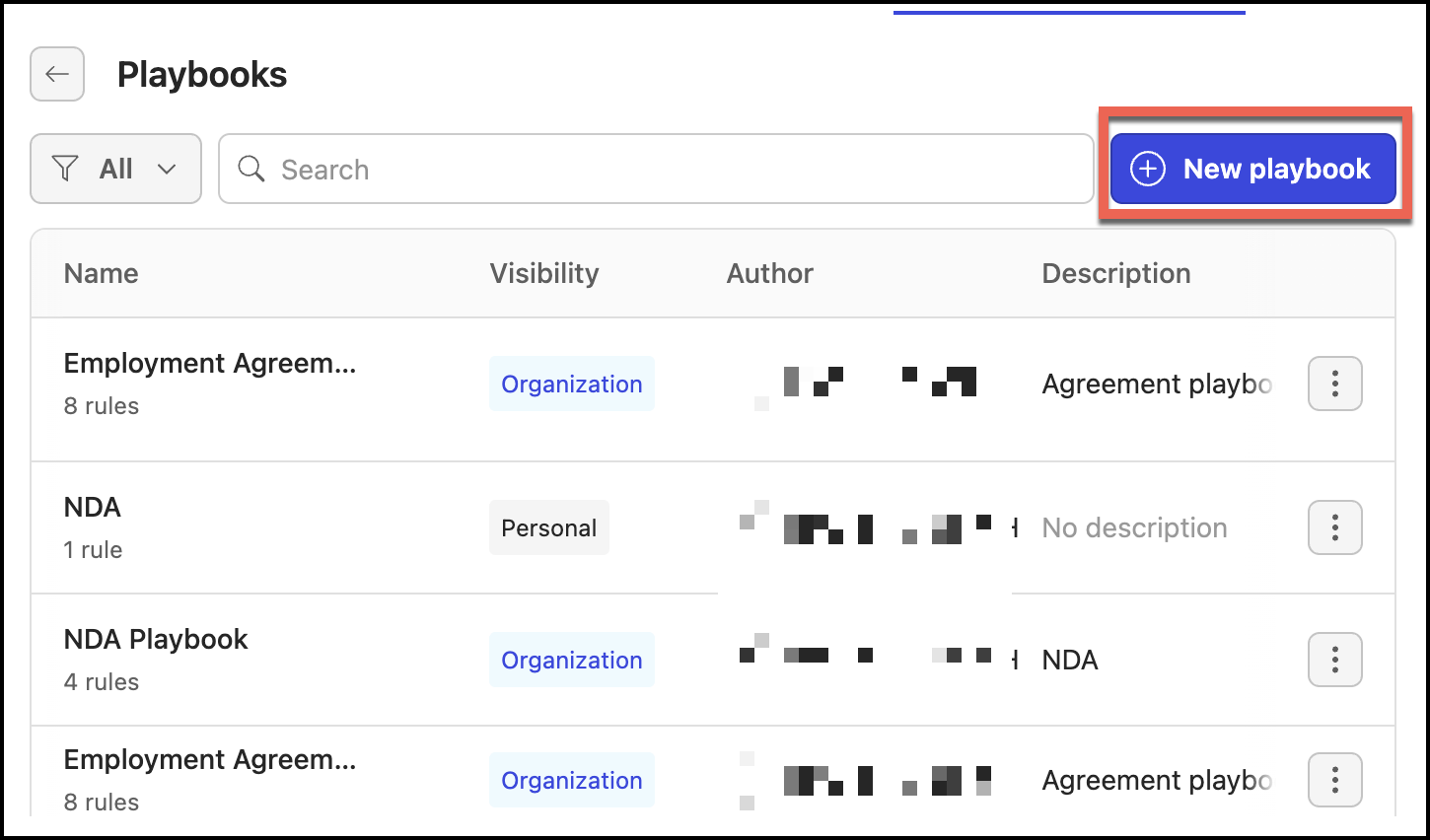
Select New playbook.
In the Create new playbook dialog, do the following:
Figure: Create new playbook dialog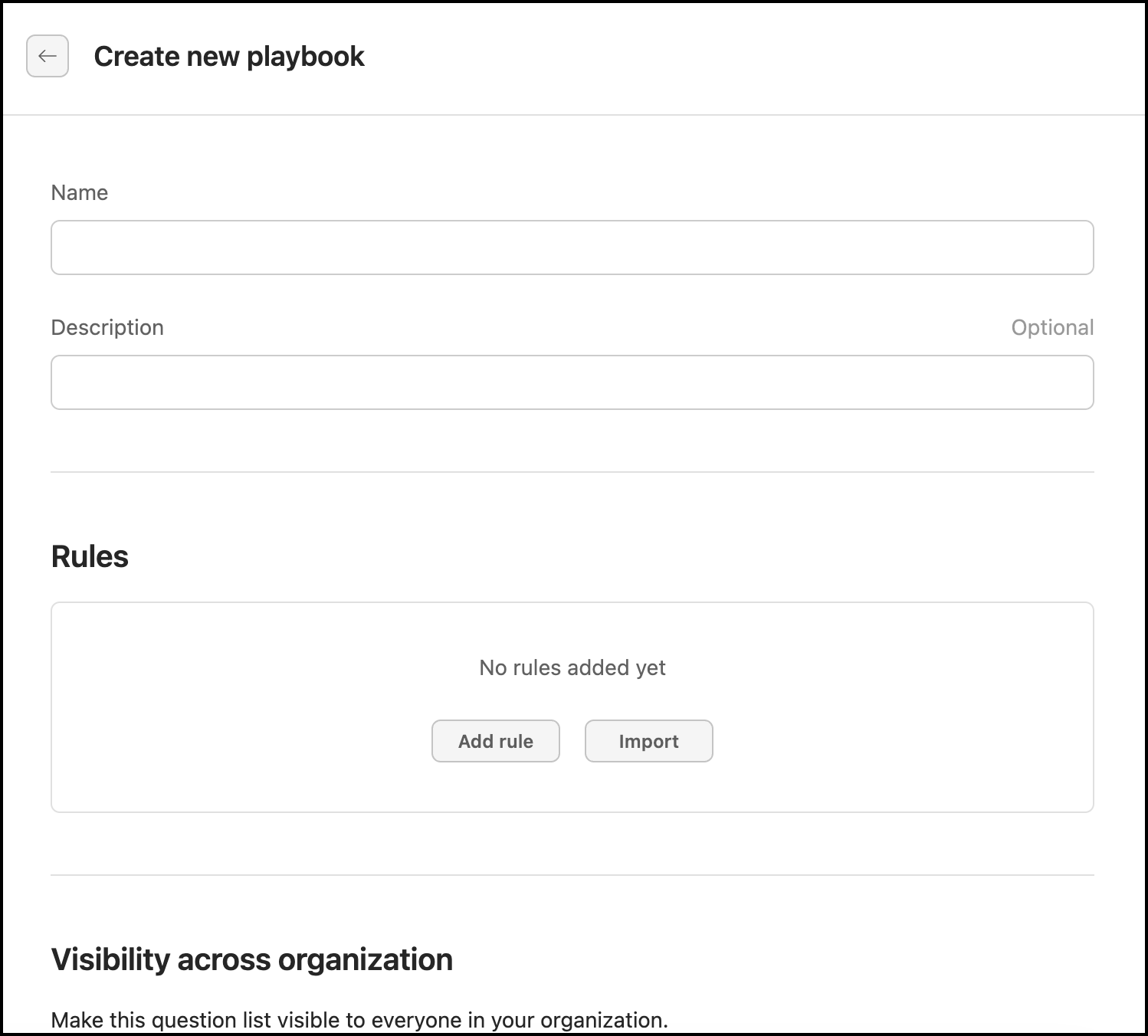
In Name, enter a name for the playbook that’s easily identifiable when applying it to a document.
In Description, enter any information that can provide additional information about the playbook—for example, information that can help you understand the purpose of the playbook and what it contains.
In Visibility across organization, move the slider to right to enable the playbook to be visible to the organization.
A Playbook must have at least one rule in it. To add a rule, select Add rule.
Figure: Adding rules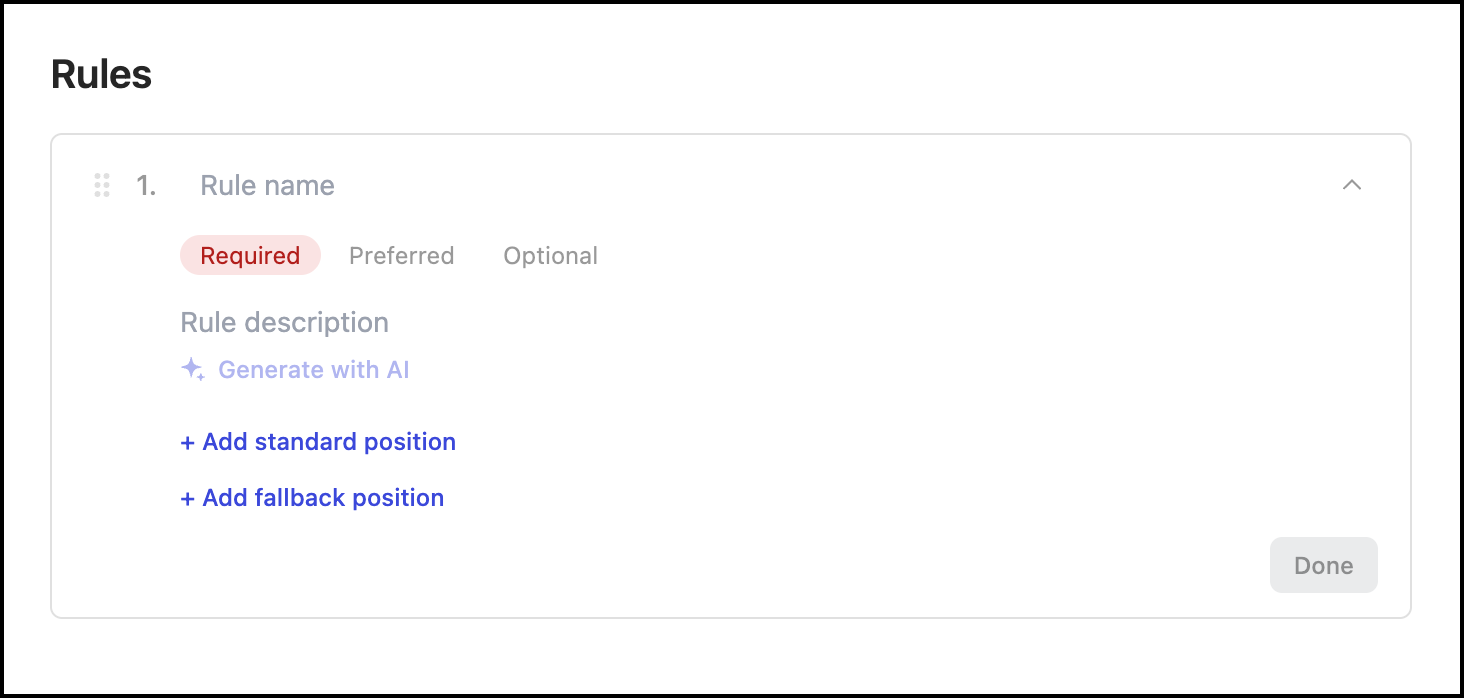
In Rule name, add a short name for the rule. For example, Agreement terms.
Select if the rule is Required, Preferred, or Optional.
In Rule description, enter the description of the rule. You can also select Generate with AI for Ask iManage to generate a rule based on the name. If you're using AI to generate the description, select Accept to Reject to accept or reject the rule.
Figure: Accepting or rejecting the rule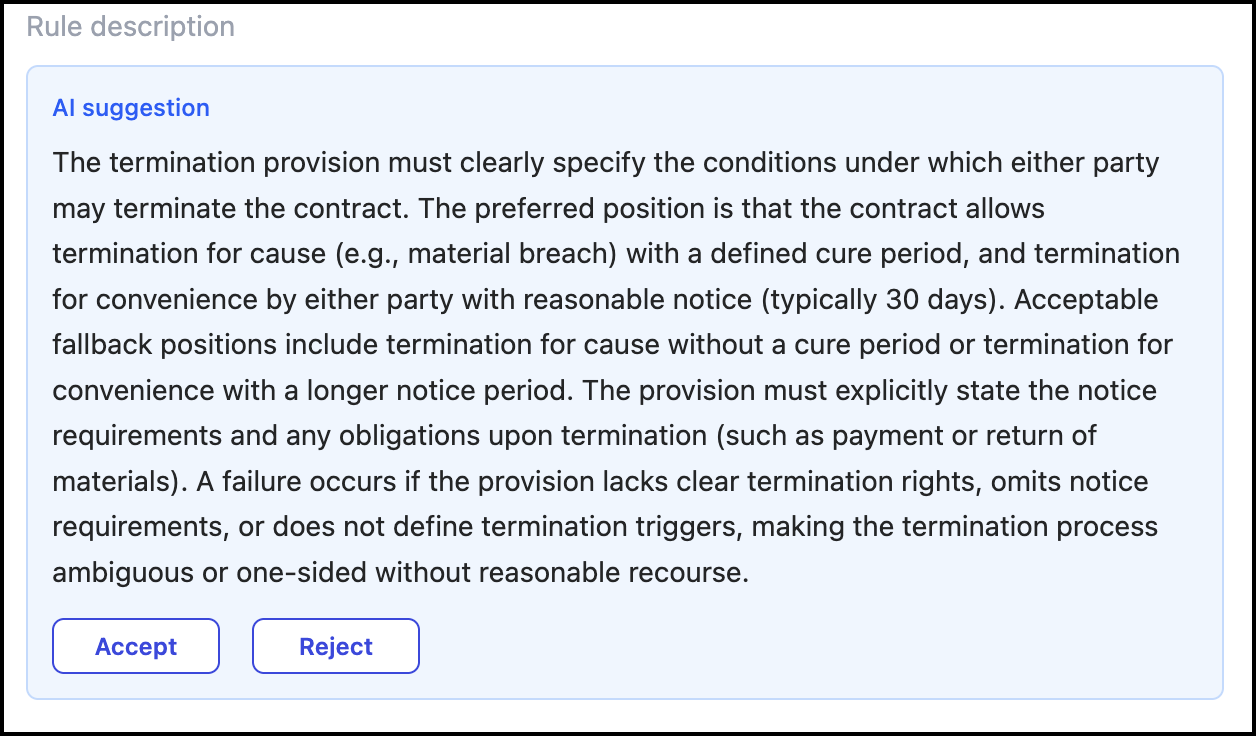
Alternatively, you can provide the description and improve it by using Improve with AI option.
Select Add standard position and enter the position. For example, This is governed by English law.
Select Add fallback position and enter the fallback position.
Select Done. The rule is saved.
You may now proceed to add another rule to the Playbook.
This Playbook is now available to you to apply to a selected document.