When you compare two documents or two versions of the document, you can view the changes in track change mode by selecting Open comparison in the comparison results. The comparison results in a matrix format and the redline analysis of the document open side-by-side as shown in the figure.
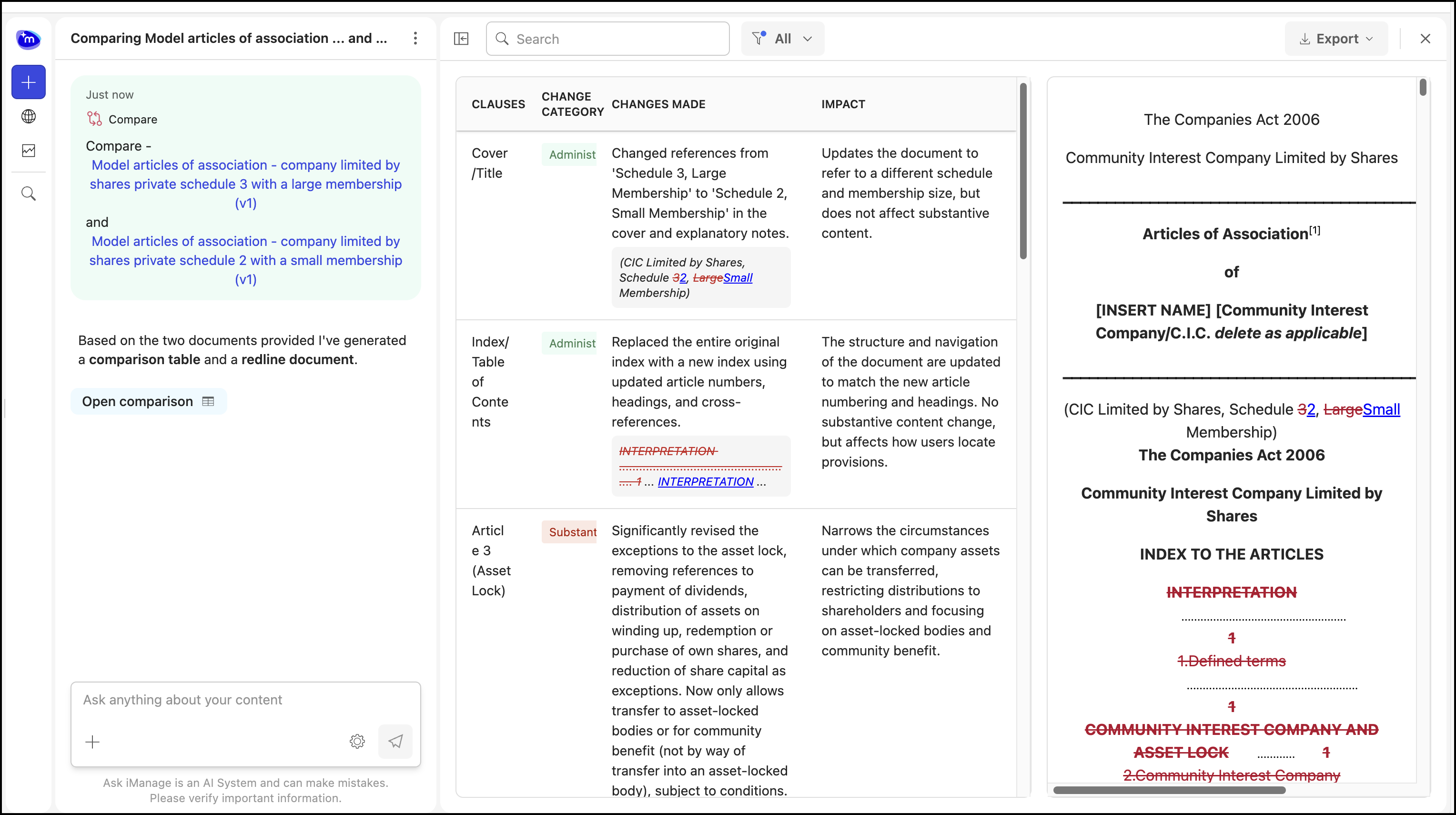
Alternatively, you may also hover over the Changes made column in the Compare Table and select the change made to view the changes in the document.
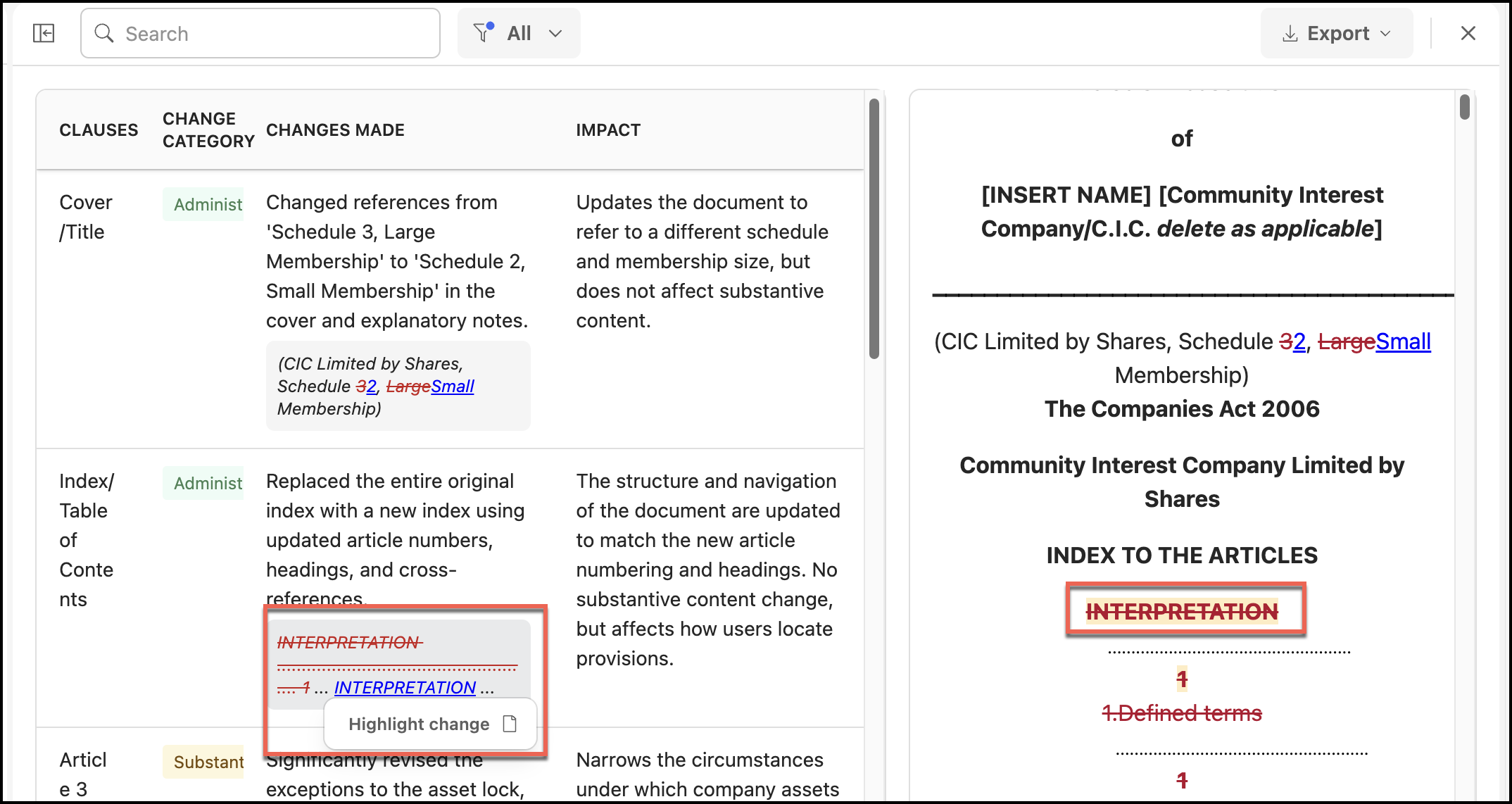
In the comparison results page, you can do the following:
Select
 to show or hide Ask Across pane.
Use the Search option to search for particular results.
Select
 to filter the results based on category or severity.
 Select Show table/ Hide table to show or hide comparison table.
Select Show redline/ Hide redline to show or hide redline document.
Select Save to save the results.
Select Back to results to return to the results.
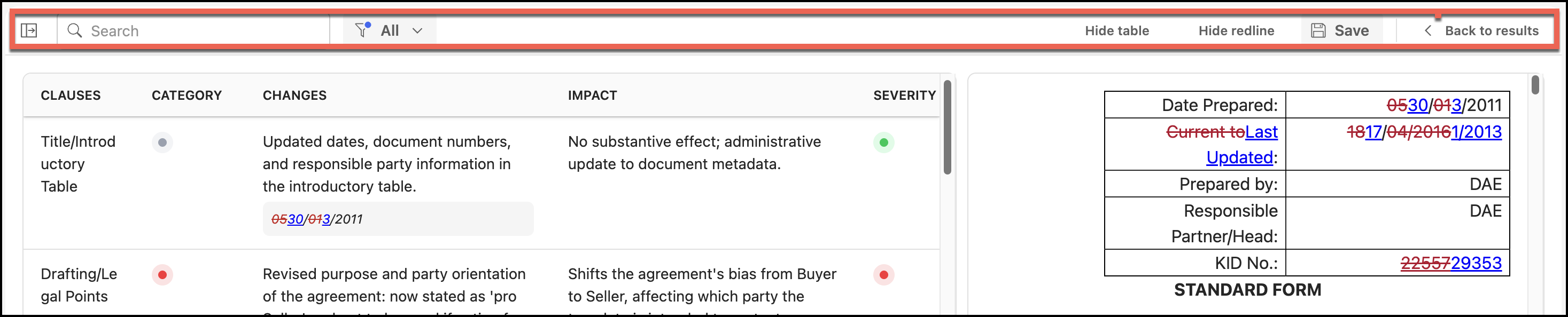
The comparison results displays the following in matrix format.
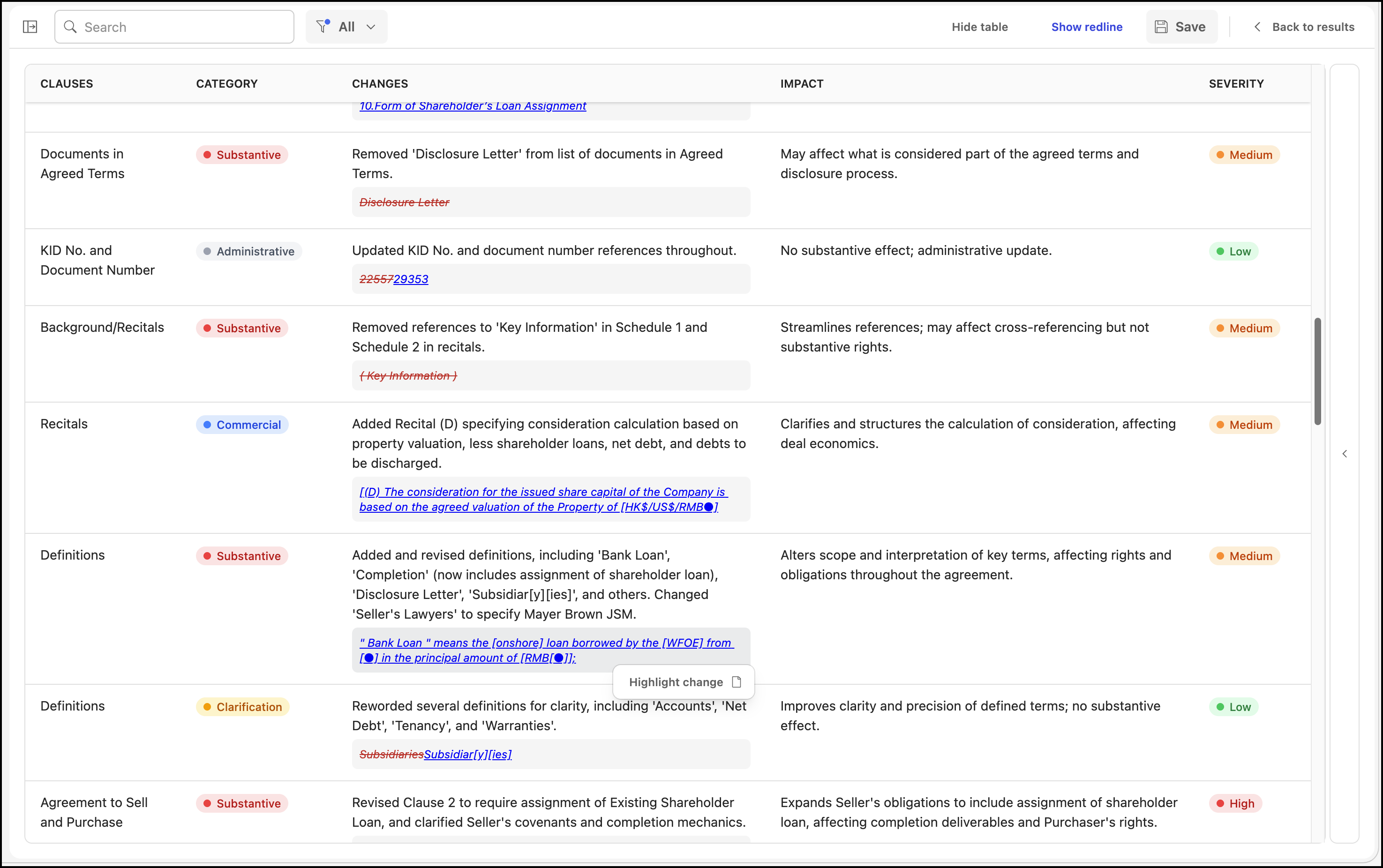
Column name | Description |
|---|---|
Clause | The document section where the change occurred. It helps you quickly identify the change. |
Category | This classification helps you prioritize the review and focus attention on changes that matter. The following categorizes are available:
|
Changes | Provides a clear and factual summary explaining the nature of the change. |
Impact | Describes how the change affects the documents. |
Severity | Defines the impact of the change on the document. The following values are displayed:
|