Sign in to https://cloudimanage.com/mcp/web/ using your iManage credentials.
All the sessions during which you connected to iManage using iManage MCP Server are listed.If your sessions span more than one page, select Prev or Next to move between pages, or select the page number drop-down list and then select or enter a page number to go to the page you want to view.
To change how many sessions are displayed per page, select the Items per page drop-down list and choose a value.
To view the details of a session, select the three dots
 icon for it and then select Details.
The MCP-enabled client that was used for the session is displayed along with the session start time, IP address, and scope of the interaction with iManage.Figure: Session details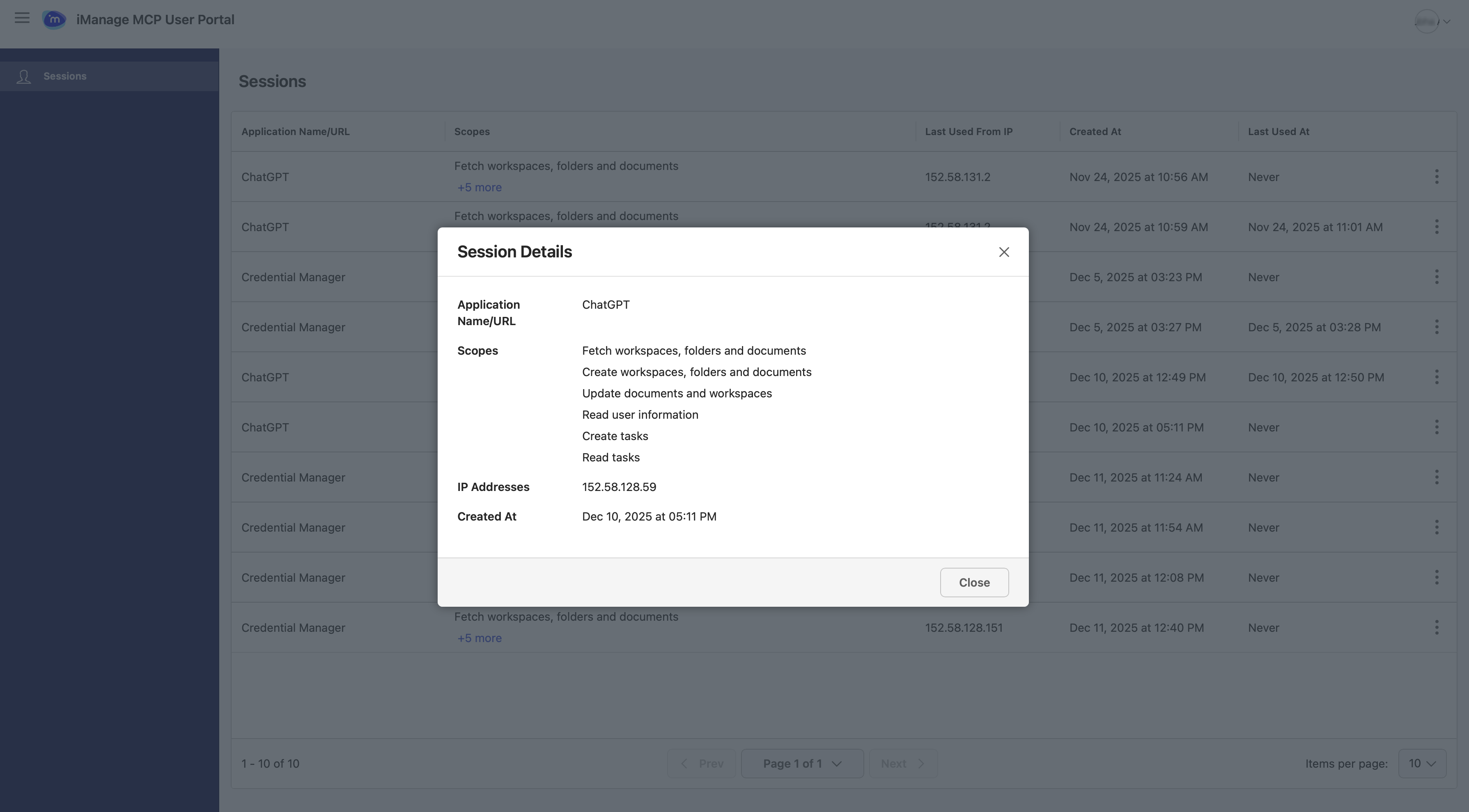
(Optional) If you suspect unauthorized access to your device (for example, in case of theft) or want to withdraw access for some reason, delete the session:
Select the three dots
icon for the session and then select Delete. In the confirmation dialog, select Delete.
The MCP-enabled client will be prevented from accessing iManage MCP Server. A message will be displayed informing the user that the admin has restricted their access.