New features are continuously being added to iManage Control Center. See what enhancements and feature changes are available in each update.
For features introduced in 10.5.x releases, refer to:
For features introduced in older releases, refer to:
10.5.2
Web Client Settings page updates
The Web Client Settings page in iManage Control Center is used to configure iManage Work Web settings and options. In this update, the following changes are made to the General and Features tabs of this page:
The Features tab is renamed Defaults.
The following settings are renamed:
Default Language to Language.
Default tab on login to Login tab.
Title-click operation for files to File open options.
Numerous settings are moved from the Features (now Defaults) tab to the General tab.
The Internet Explorer Warning Message setting is removed.
The following settings are new:
Content view is added to the Defaults tab.
Details view is added to the Defaults tab.
Microsoft 365 file open options is added to the Defaults tab.
Main Content Security Policy Header is added to the General tab.
Dialog Content Security Policy Header is added to the General tab.
Portions of the Defaults and General tabs are shown in the following figures:


Settings tab name change
The Features tab on the Settings page has been renamed Defaults in this update to better reflect the purpose of these settings. All settings for which an admin can configure a default option for new users have been moved under this tab. Users may override these settings in iManage Work Web.
General and Defaults tab settings changes
In this update, several settings have changed tabs, been renamed, or added as part of other enhancements. Also, the Internet Explorer Warning Message setting has been removed because Microsoft retired Internet Explorer on June 15, 2022. Users using Internet Explorer to connect to iManage Work Web will no longer see a banner recommending using a fully supported browser.
The table below summarizes the changes to the Web Client Settings page:
Former setting name and tab | New setting name and tab | Summary of changes | ||
Setting name | Tab | Setting name | Tab | |
Default Language | General | Language | Defaults | Setting renamed and moved |
Customize Logo | General | Customize Logo | General | No change |
Username Format | Features | Username Format | General | Setting moved |
Metadata Format | Features | Metadata Format | General | Setting moved |
Enable additional tab | Features | Enable additional tab | General | Setting moved |
Default tab on login | Features | Login tab | Defaults | Setting renamed |
Use Control Center forms property order | Features | Use Control Center forms property order | General | Setting moved |
Lookup field dropdown limit | Features | Lookup field dropdown limit | General | Setting moved |
Allow users to perform bulk security updates | Features | Allow users to perform bulk security updates | General | Setting moved |
New Folder in iManage File/Location Selection dialog | Features | New Folder in iManage File/Location Selection dialog | General | Setting moved |
Enable Work 10 Desktop for Windows Auto Updates App Banner | Features | Enable Work 10 Desktop for Windows Auto Updates App Banner | General | Setting moved |
Internet Explorer Warning Message | Features |
| Setting removed | |
Enable Search Language Selection | Features | Enable Search Language Selection | General | Setting moved |
Enable web-based email sending | Features | Enable web-based email sending | General | Setting moved |
Enable open in Gmail | Features | Enable open in Gmail | General | Setting moved |
Title-click operation for files | Features | File open options | Defaults | Setting renamed |
Microsoft 365 file open options | Defaults | New setting | ||
Content view | Defaults | New setting | ||
Details view | Defaults | New setting | ||
| Main Content Security Policy Header | General | New setting | |
Dialog Content Security Policy Header | General | New setting | ||
Content Security Policy header
Content Security Policy (CSP) is a computer security standard designed to prevent cross-site scripting (also known as XSS), clickjacking, and other code injection attacks that result from the execution of malicious content within a trusted web page context.
The CSP header is an HTTP response header that modern browsers use to enhance the security of a document or web page. This header lets you restrict the resources, such as JavaScript, CSS, and images, that can be loaded, as well as the URLs from which they can be loaded.
This feature adds a default CSP header for iManage Work Web and lets you define a custom CSP header if you need more tailored control. You can choose to use the default header or create a custom header in iManage Control Center.
This feature offers CSP header control for the following types:
Main Content Security Policy Header: Enhances security by applying CSP to the entire Work Web application, protecting it against common scripting attacks, and preventing the application from being framed by malicious sites.
Dialog Content Security Policy Header: Offers similar enhanced security to the Main CSP Header but doesn’t restrict framing, because dialogs are frequently used by add-ons and extensions.
For each CSP header type, you can use the default CSP header or define a custom CSP header for more tailored control. You can also test the default or custom CSP header rules without enforcing them to ensure that they behave as expected. These capabilities are configured using the following settings on the Web Client Settings page in iManage Control Center.
Default (default): Specifies that the default CSP header is used. When Default is selected, the default CSP header is populated automatically in the corresponding form field and can’t be modified.
Custom: Specifies that a custom CSP header is used. When Custom is selected, the corresponding form field is available for edit and a custom header must be provided.
Report Only: When this option is selected, CSP header rules are evaluated but not enforced. This lets you test CSP header settings without the risk of disrupting existing functionality. This option is selected by default.
NOTE: The default state for the main and dialog CSP headers is to use the default header and to have the report only option selected.

For more information about configuring CSP headers, refer to Content Security Policy implementations in iManage Work Web.
New content view and Details view Web Client Settings
The following settings are added to the Defaults tab:
Content view: Specifies the default starting view type in iManage Work Web for all users. This setting includes selections for:
View Type: Indicates the way the default starting view type is displayed:
Grid (default): Uses grid view to display items in iManage Work Web. The Grid Row Height option is displayed when this option is selected.
List: Uses list view to display items in iManage Work Web.
Grid Row Height: Specifies the density of grid rows.
Comfortable
Compact (default)
Tiny
Details view: Indicates whether the Details panel is visible by default for all iManage Work users.
Yes (default): Specifies that the Details panel is visible by default.
No: Specifies that the Details panel is hidden by default.
NOTES:
The default settings apply to users who have never changed them in iManage Work Web (such as a new user). If a user changes their settings, the user settings take precedence, even if the default settings in Control Center are changed later.
These settings don’t apply to the File Open and File Save As dialogs.
Configure title click and row double-click options for files
This feature lets you set different default behaviors for when an iManage Work Web user clicks the title or double-clicks the row of a Microsoft 365 file or a non-Microsoft 365 file. This separation ensures that users can perform actions relevant to each file type seamlessly within Work Web.
NOTES:
The default behavior for Microsoft 365 files applies to files with Office 365 extensions such as .docx, .ppsx, .pptx, .xlsb, .xslm, and .xlsx.
The default behavior for non-Microsoft 365 files applies to files with older Microsoft Office extensions such as .doc, .ppt, .xls, as well as other file extensions like .pdf, .txt, .zip, .png, .jpeg, and emails.
Work Web users can override each of the Control Center settings and customize them to fit their needs. For more information, refer to New actions for title click, double-click user operations.
New settings
The default behaviors are set in the File open options and Microsoft 365 file open options settings in iManage Control Center. To access these settings, browse to Work Clients > Web Client, and then select the Settings > Defaults tab.

The Control Center settings are described in the following table.
Heading name | Setting name | Options |
File open options This heading includes two settings (Title click and Double click) for defining the default behavior applied to non-Microsoft 365 files and legacy Microsoft Office file extensions. | Title click This setting defines the default behavior that occurs when the title of a non-Microsoft 365 file is selected. |
|
Double click This setting defines the default behavior that occurs when the row of a non-Microsoft 365 file is double-clicked. |
| |
Microsoft 365 file open options This heading includes two settings (Title click and Double click) for defining the default behavior applied to Microsoft 365 files. | Title click This setting defines the default behavior that occurs when the title of a Microsoft 365 file is selected. |
|
Double click This setting defines the default behavior that occurs when the row of a Microsoft 365 file is double-clicked. |
|
NOTE: For File open options, all options other than Preview require iManage Agent to be installed and configured on the user desktop.
File open options setting mapping
The current Title-click operation for files setting applies only when users select the title of documents and emails. This new feature extends that to include the action of double-clicking the row. Additionally, it offers separate settings for Microsoft 365 and non-Microsoft 365 files. The new settings and options are described in the New settings section.
The following table shows how default values for the existing Title-click operation for files setting are mapped to the new File open options and Microsoft 365 file open options settings.
Existing default | New default for Microsoft 365 files | New default for non-Microsoft 365 files |
Preview | Preview | Preview |
Edit/Open | Edit | Open |
Open in Protected View | Open in protected mode | Open in protected mode |
Double click | Edit | Open |
10.5.1
Support additional lookup field limits
The Lookup field dropdown limit setting in iManage Control Center configures the number of suggestions displayed in the drop-down list of iManage Work Web lookup fields. This setting was expanded in this update to include the following additional values:
500
1000
For more information about this iManage Work Web setting, refer to Settings.
10.5.0
Manage Forms within iManage Control Center
The new Forms page in iManage Control Center lets administrators configure the properties displayed in iManage Work 10 client applications. By adding or removing specific properties for workspaces, folders, searches, and documents and emails in iManage Work, users can view and update these properties to make the information in iManage Work more relevant.

Administrators can control which properties appear in iManage Work client applications while users perform the following actions:
Creating new workspaces, folders, or uploading new documents and emails.
Editing existing workspaces, folders, documents and emails.
Searching for workspaces, documents and emails in iManage libraries.
Before, administrators could only change these properties using the legacy Dialog Editor application. Managing these forms directly in iManage Control Center now provides a simpler and more unified experience for administrators.
Managing Forms in iManage Control Center
To manage forms in iManage Control Center:
You must select Enable Forms Management as shown in the following figure. This step converts the legacy forms, including any customizations you made to the legacy forms in Dialog Editor, to a new format that is supported with the iManage Universal REST API.
Figure: Enable Forms Management
You must edit and then save all forms on the Forms page, even if they appear to show all the appropriate fields. This ensures that forms are saved in the new format so that Work 10 client applications can consume them.
After you enable forms management:
The legacy Dialog Editor tool can no longer be used to make customizations to forms for use in iManage Work 10 applications. Additional customizations can only be performed on the Forms page in iManage Control Center.
If you are using iManage Classic Clients (DeskSite or FileSite), you must continue to use Dialog Editor for customizations to forms for use in these Classic Client applications.
For more information about using this new capability, refer to Forms.
This change also allows Work 10 client applications to respect the order of the properties as configured in iManage Control Center. For more information, refer to Use Control Center forms property order.
Use Control Center forms property order
The order in which you configure these properties on the Forms page is now honored in iManage Work Web. By default, any properties added are shown at the bottom of any panels or dialogs which display these properties.
In order to ease the transition for your users, we've introduced a new Use Control Center forms property order setting. This allows you to decide when to when to make this change, giving your organization time to notify users before turning this feature on.
By default, the Use Control Center forms property order setting is turned off. Any properties you’ve added to the Forms page in iManage Control Center will continue to be displayed in their current order in any panels or dialogs in iManage Work Web.
To turn on this setting:
In iManage Control Center, browse to Work Clients > Web Client > Settings > Features.
Set Use Control Center forms property order to Yes.
Select Save.
NOTE: Users may need to clear their local cached settings to view the correct order of properties.

Enforcing Service Provider-initiated Single Sign-On
In previous versions of iManage Control Center, we introduced the ability for administrators to configure and manage their SAML SSO configuration directly from iManage Control Center. To support this capability, iManage uses Service Provider-initiated SAML SSO, where iManage is the service provider.
By moving to Service Provider-initiated SAML SSO, customers can manage their SAML SSO configuration entirely within iManage Control Center and their Identity Provider. As a failsafe, iManage Control Center provided an option for you to revert to legacy Identity Provider-initiated SAML SSO.
In this update, the Identity Provider option previously available has been removed.
If you have already enabled SAML Single Sign-On in iManage Control Center, no action is needed.
If you're enabling and configuring SAML Single Sign-On for the first time, Service Provider-initiated SSO is the default method used, without any option to select from IdP-initiated or Service Provider-intiated.
If you previously used the Identity Provider option, editing your Authentication Settings in iManage Control Center will automatically update your Single Sign-on configuration to use Service Provider-intiated SAML SSO authentication.
Users will continue to be able to authenticate before and after you switch to Service Provider-intiated SAML SSO. However, any future certificate updates must be performed within iManage Control Center.
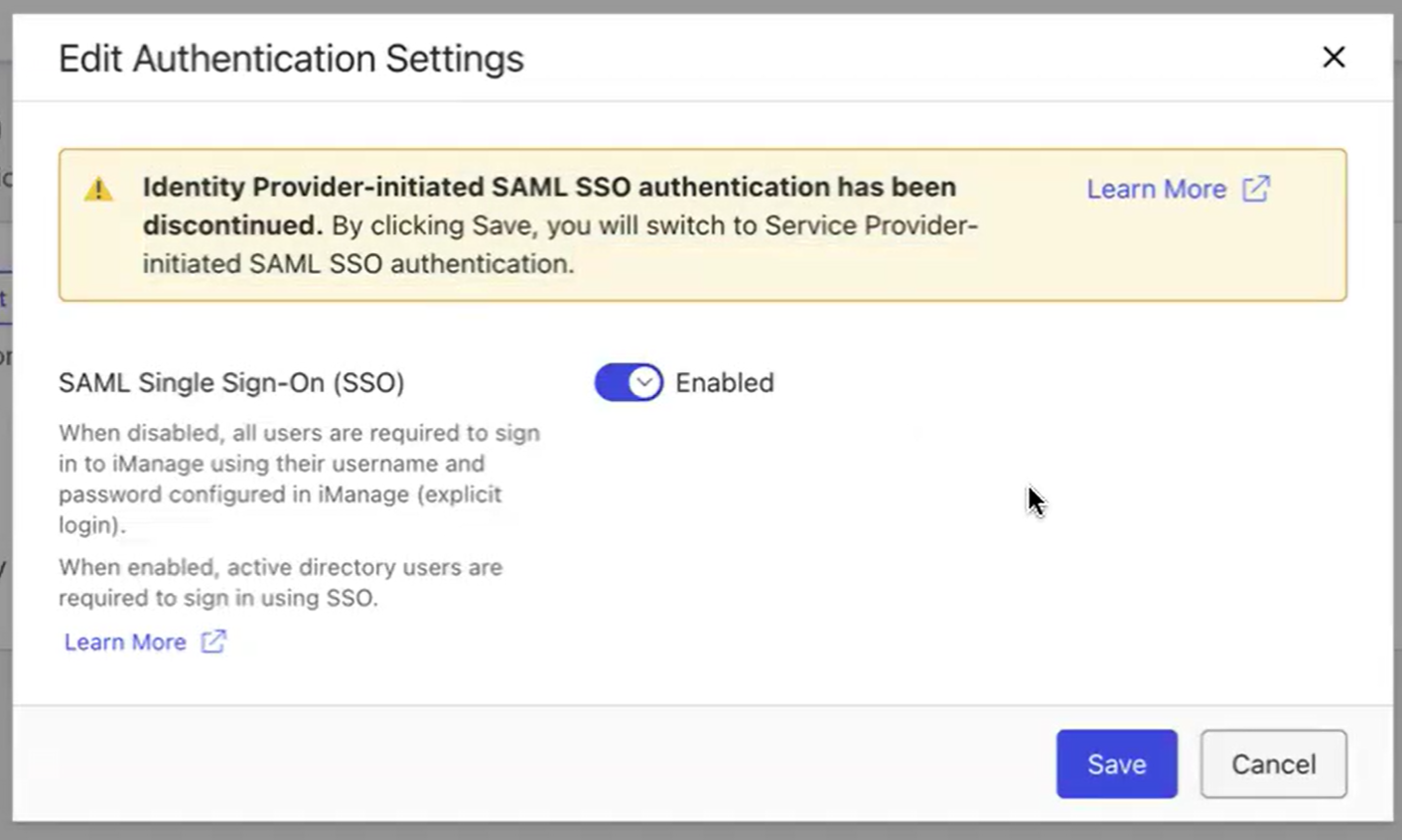
To manage your Single Sign-on configurations, browse to Network & Security > Single Sign-On (SSO). For more information, refer to the Single Sign-on (SSO) page.
NOTES:
All iManage user accounts that should use Single Sign-On must be defined with the OS Type of Active Directory. This enforces SAML SSO authentication for these users, and prevents them from signing in using explicit sign-in. Any users imported using the iManage Directory Synchronization Service are automatically set to Active Directory.
We recommend having at least one user account with the OS Type of Virtual with access to iManage Control Center. This enables you to administer SSO changes in iManage Control Center in the event of a certificate expiry.
Settings section and Global settings page redesign
The menu items in the Settings section of the Control Center navigation pane have been rearranged to enhance user navigation. The updated order, from first to last, is:
Global
Templates
Forms
Applications
Refile
Also refer to the following figure for a graphical representation of this order.

Redesigned Global settings page
The Global settings page has been updated to organize settings by category, give more information, and make it easier to use.
Settings are now arranged in categories to better organize related options.
Labels have been renamed to more clearly reflect their purpose.
The table below illustrates the new categories and a mapping from each new global setting label to its former label.
Table: Global settings page category and setting mapping
Category | New Global setting label | Former Global setting label |
|---|---|---|
Analytics | Enable collection of search analytics by iManage | Enable analytics |
Flexible Folders | Enable Flexible Folders | Flexible Folders |
Set Match Fields to filter template searches by | Match Fields for Filtering Templates | |
Show all available templates to user while searching | Show all templates in template selection menu | |
Add all folders marked as ‘Required’ from the selected template | When adding folders from a template, should all required folders be added as well? | |
Metadata | Allow users to add custom metadata values to new workspaces | Allow to Create Metadata |
Auto-generate custom Alias for custom metadata values | Auto-generate custom Alias | |
Show HIPPA compliance setting for custom metadata values | HIPPA Option | |
User Trash | Enable Trash visibility to all users | User Trash |
Workspace Permissions | Set default email folder for workspaces | Default Email Folder |
Set access level required for creating containers under workspaces | Access rights required for creating folders under workspaces |
Global page improvements
Each Global settings page category includes an Edit button, allowing you to update settings without having to navigate through unrelated options.
Each setting on the Global settings page includes a brief description to help reduce clutter. To view additional information, you can select the View More link associated with a setting. This link acts as a toggle and changes to View Less when additional information is displayed.
The following figures show the reorganization and design improvements made.


Redesigned Global settings dialogs
Before, modifications to global settings were made through the Settings dialog. Now, there's a dedicated dialog for each category on the Global settings page. The following figure shows the Edit Flexible Folders dialog, providing an example of a category dialog. It opens when you select the Edit button next to the Flexible Folders category on the Global settings page.

Tool tips offer additional details and are available for each setting within a category dialog. Select the circular information icon to reveal the corresponding tool tip.
For more information about these settings, refer to the Global page.
Removal of iManage Control Center 1.0
The legacy 1.0 version of the iManage Control Center interface and all underlying code has been removed.