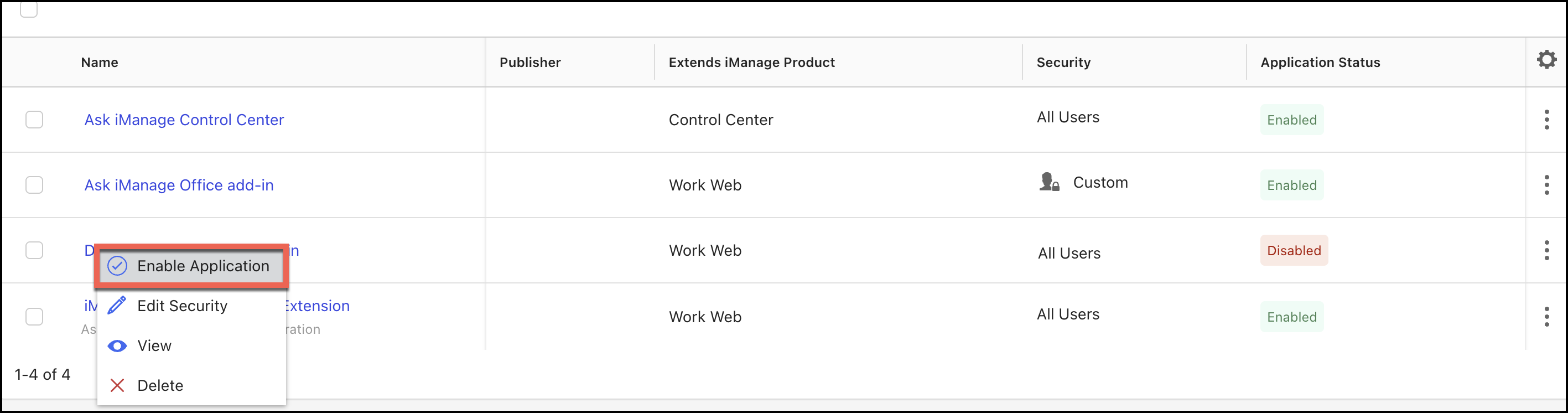
If iManage Ask iManage Web Extension is added to the iManage Control Center, it is enabled by default, implying that users can access the applications.
However, if the application is disabled, do the following to enable it:
On the iManage Control Center home page, select Settings > Applications. The list of added applications is displayed in the content pane.
Search iManage Ask iManage Web Extension using the search field or go to the extension using the Previous and Next buttons.
Select the check box next to the extension and then select Enable Application.
Figure: Enable Ask iManage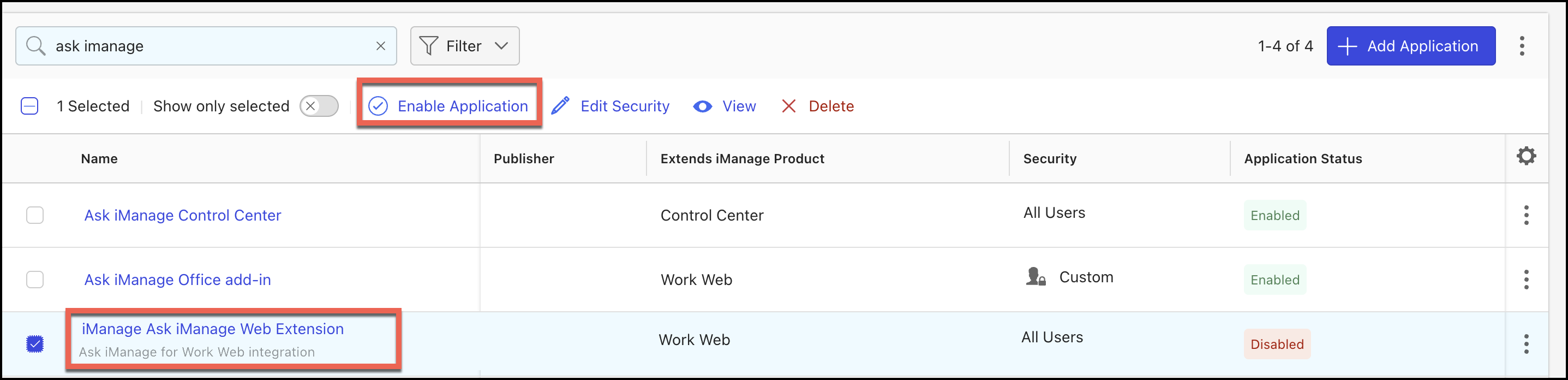
Alternatively, use one of the following methods:
Select the more options
 icon next to the extension, and from the drop-down menu, select Enable Application. Figure: Enable Ask iManage application using more option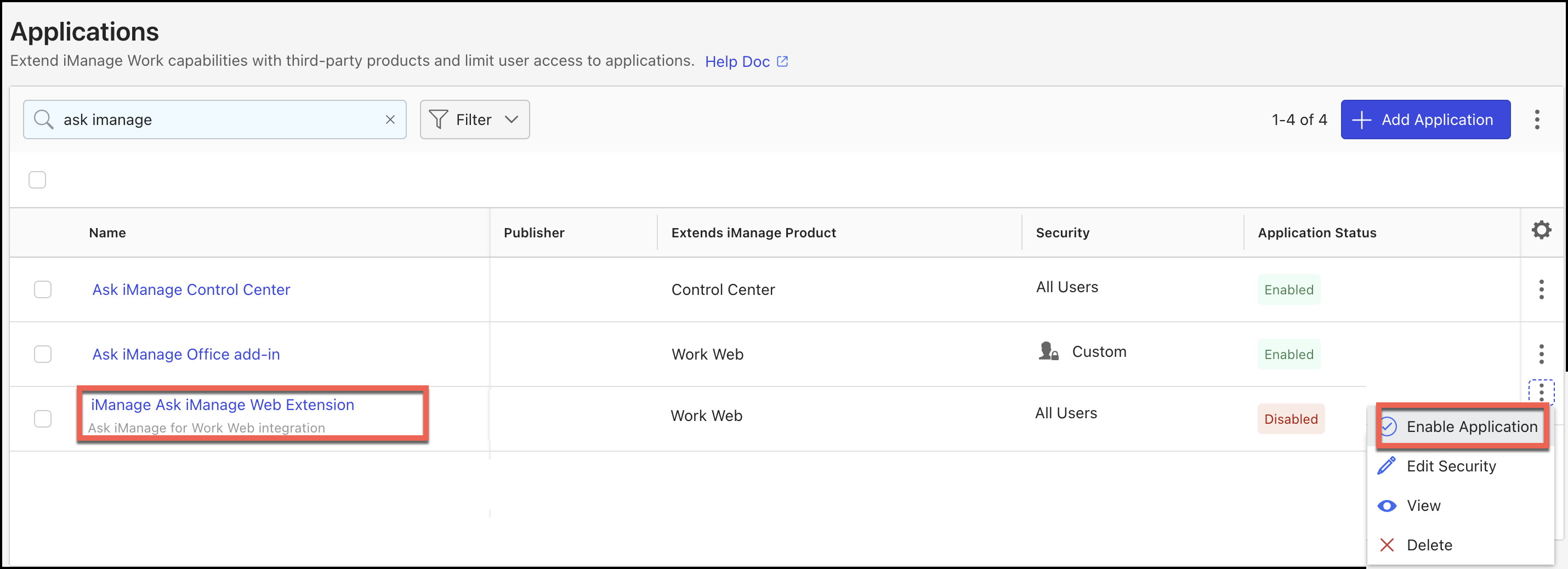
Right-click the extension name and then select Enable Application.
Figure: Right-click extension to enable it