Administrators can configure the iManage File Transfer application in iManage Control Center to only work with specific websites using the Allow list functionality. The Allow list can be configured by doing the following:
Sign in to iManage Control Center as an NRTADMIN.
In the left navigation pane, under Settings, select Applications.
Browse and select the iManage File Transfer Extension application. Alternatively, you can search for the application using the search option. The application details are displayed.
Select Upload Package.
Figure: Select Upload Package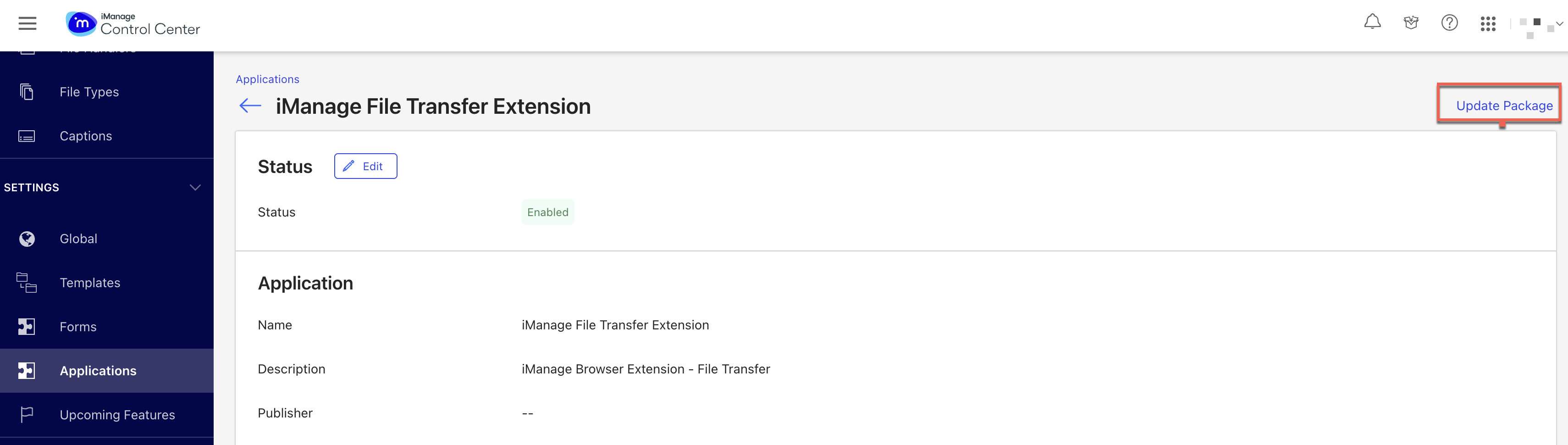
Select Authenticate and Access.
In General Settings, slide Website restrictions
 to right to enable restriction for websites. The Website restrictions are now enabled.
 In the Allowed websites field, type the URL of the sites for which the browser extension should be enabled (for example, drive.google.com). Administrators can add multiple URL, each separated by comma (for example, drive.google.com, filebin.com).
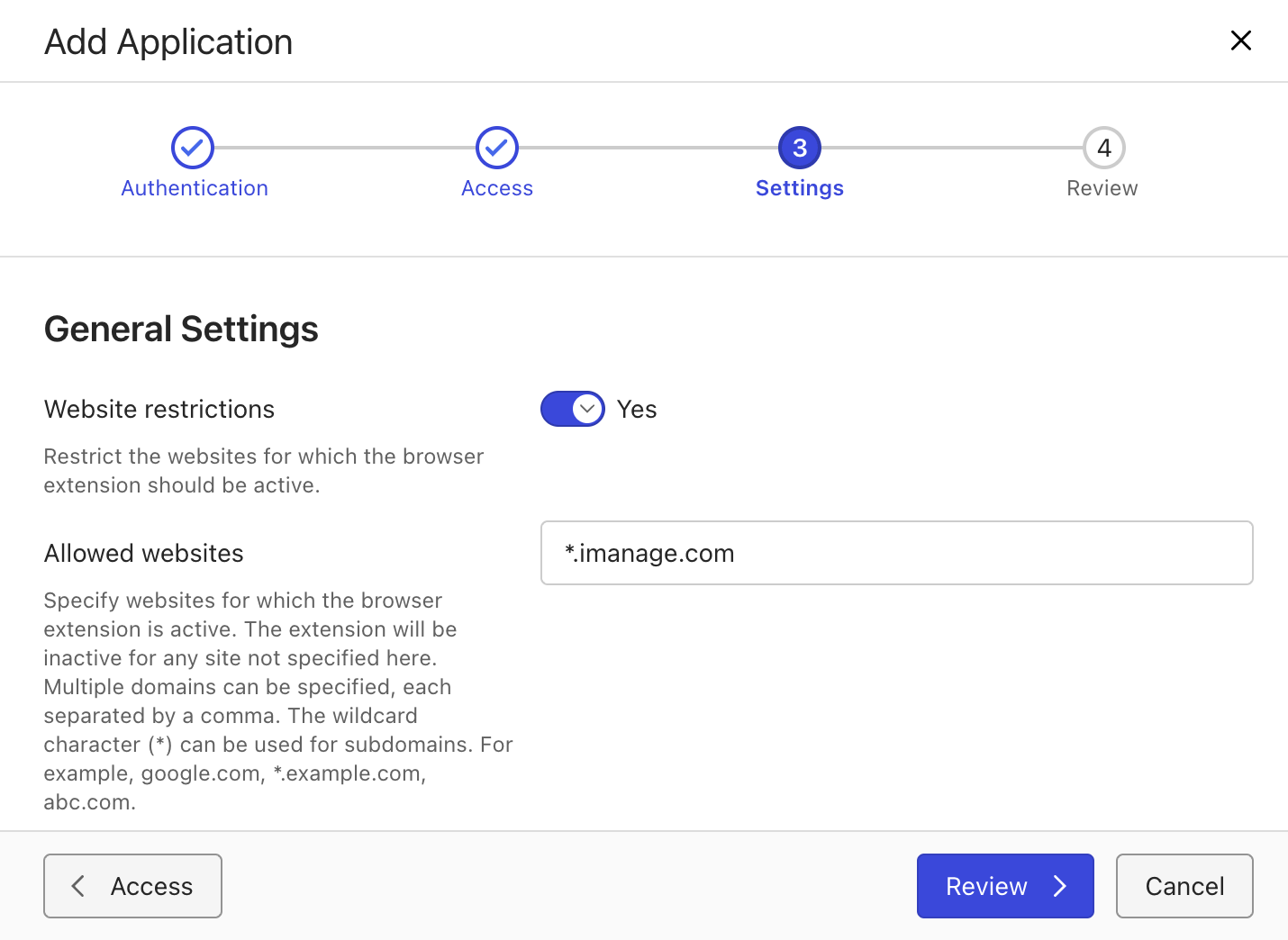
Select Review to review the changes.
Review the changes and select Finish.
Figure: Review changes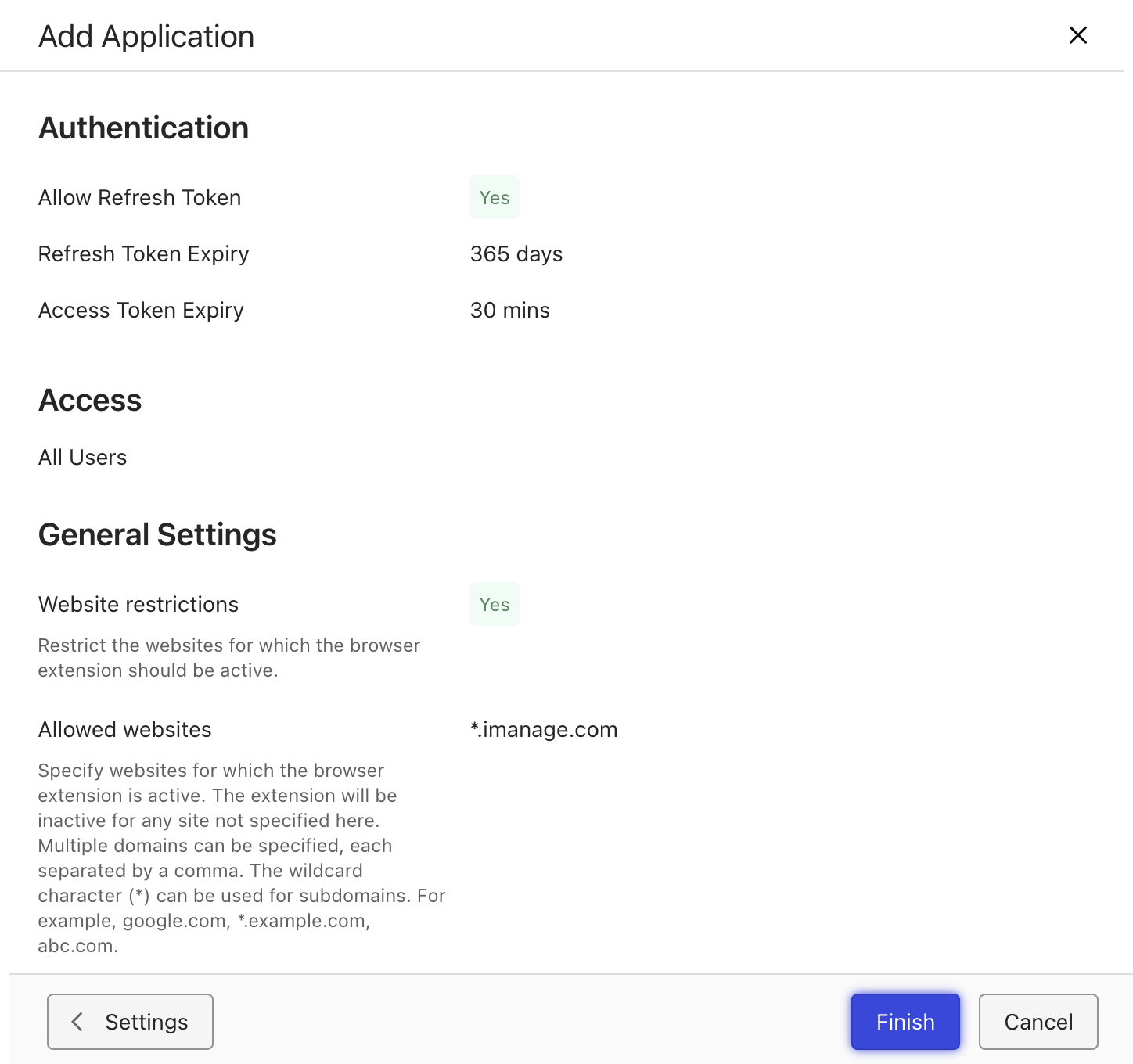
If the application is already enabled and updated package is already available, administrators can enable website restrictions by doing the folllowing:
Browse and select the iManage File Transfer Extension application. Alternatively, you can search for the application using the search option. The application details are displayed.
In General Settings section, select Edit
 . The Edit Settings dialog appears.
 In the Allowed websites field, type the URL of the sites for which the browser extension should be enabled (for example, drive.google.com ). Administrators can add multiple URL, each separated by comma (for example, drive.google.com, filebin.com).
Select Save to save the changes.
NOTES:
If the website restrictions are not enabled, users can upload or download files from any websites.
Administrators don’t need to specify the protocol when typing the URLs of the websites. HTTPS is the default protocol.
Administrators don’t need to specify cloudimanage.com in the Allowed websites field.
The wildcard character (*) can be used for subdomains. For example, *.google.com.