This page explains how to add iManage File Transfer to your browser.
Google Chrome
Browse to the iManage File Transfer - Chrome Web Store link.
Select Add to Chrome
 .
.In the dialog that opens, select Add extension.
Figure: Adding iManage File Transfer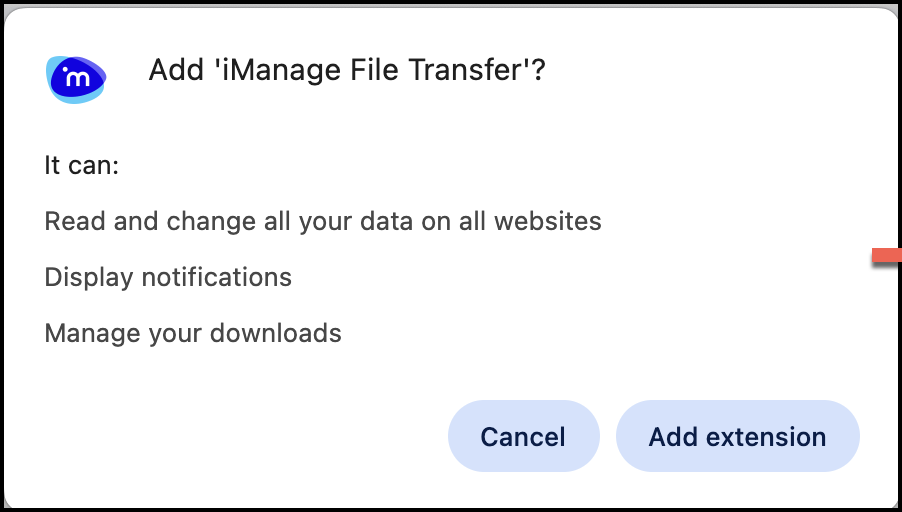
The extension is added to the Google Chrome browser as shown in the following figure.
Figure: iManage File Transfer added to Google Chrome
If the extension isn’t displayed in your browser, you have to pin the extension. For more information, refer to Pinning iManage File Transfer Extension to the toolbar.
Microsoft Edge
Browse to the iManage File Transfer - Microsoft Edge Addons link.
Select Get
 .
.In the dialog that opens, select Add extension.
Figure: Adding iManage File Transfer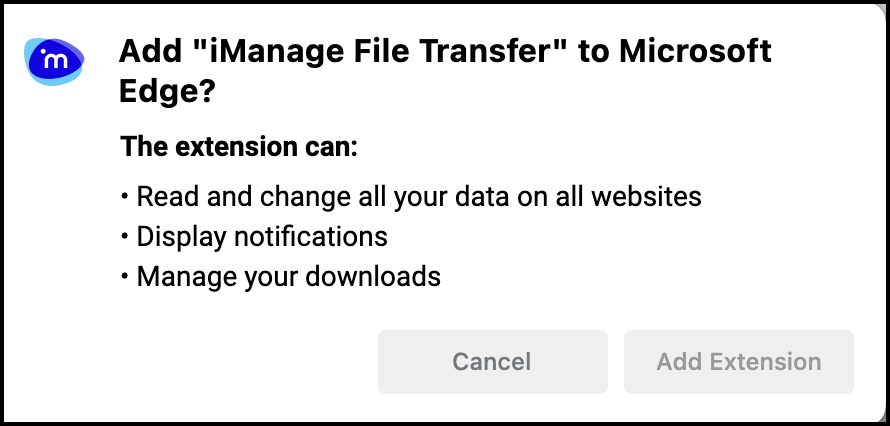
The extension is added to the Microsoft Edge browser as shown in the following figure:
Figure: iManage File Transfer added to Microsoft Edge
If the extension isn’t displayed in your browser, you have to pin the extension. For more information, refer to Pinning iManage File Transfer Extension to the toolbar.