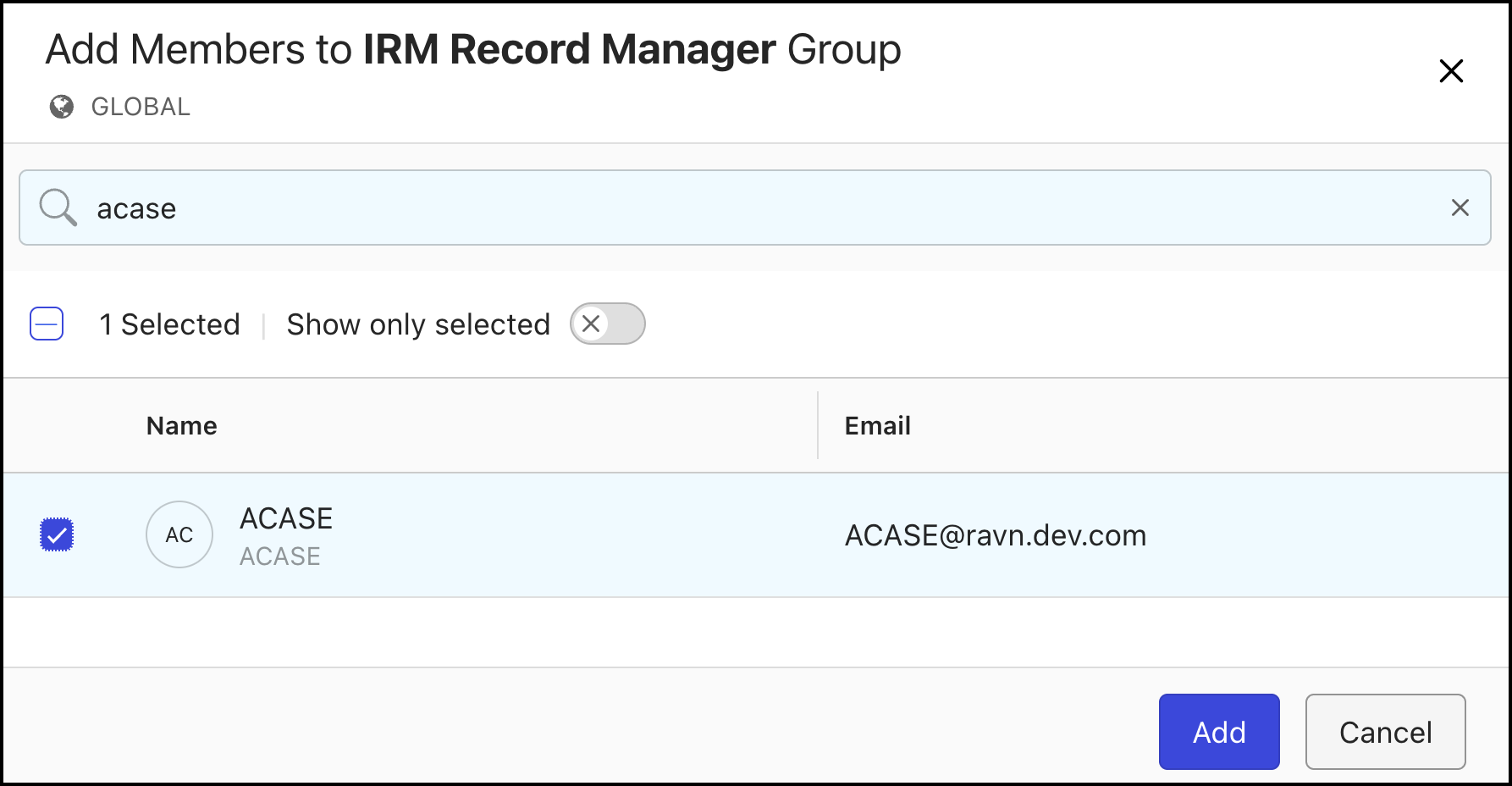
You have to assign your users to the following group defined in iManage Control Center.
IRM_RECORD_MANAGER
To assign users to IRM_RECORD_MANAGER group, do one of the following:
Method 1
Sign in to iManage Control Center.
In the left navigation pane, under Access, select Users.
Figure: Select users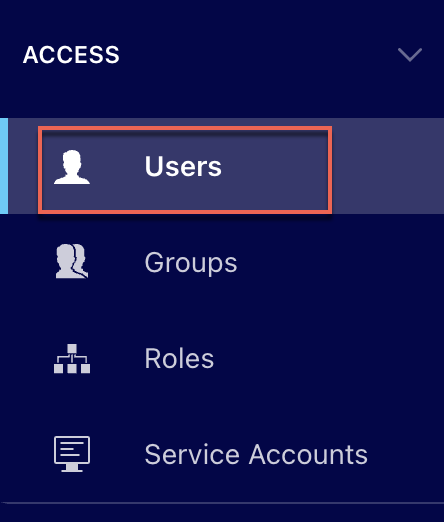
In the list of users that are displayed, do any of the following. Alternatively, you can also search for a user using the search option.
Select a user or users in the ribbon bar and then select Add to Groups.
Figure: Select Add to Groups
Select the
kebab menu next to the user which you want to add to a group and then select Add to Groups.
Figure: Select Add to Groups using kebab menu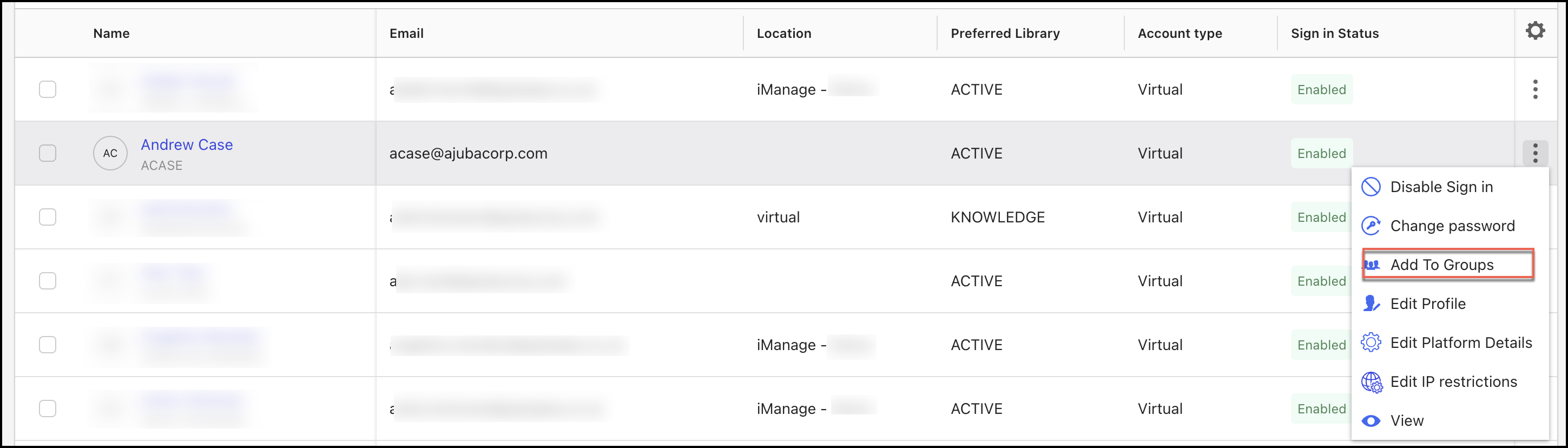
Right-click the user you want to add to a group and then select Add to Groups.
Figure: Select Add to Groups using right-click menu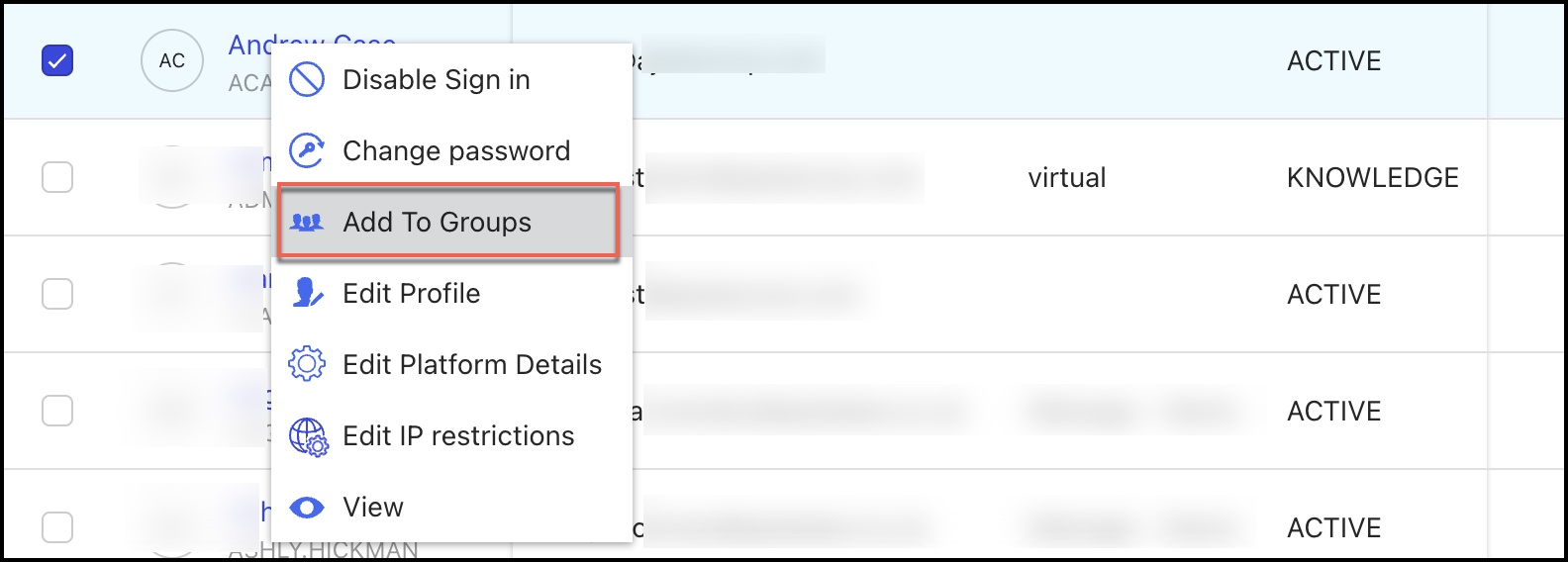
In the Add Users to Groups dialog, select groups from the groups list or look for groups using the search field and select Add.
Figure: Add user to groups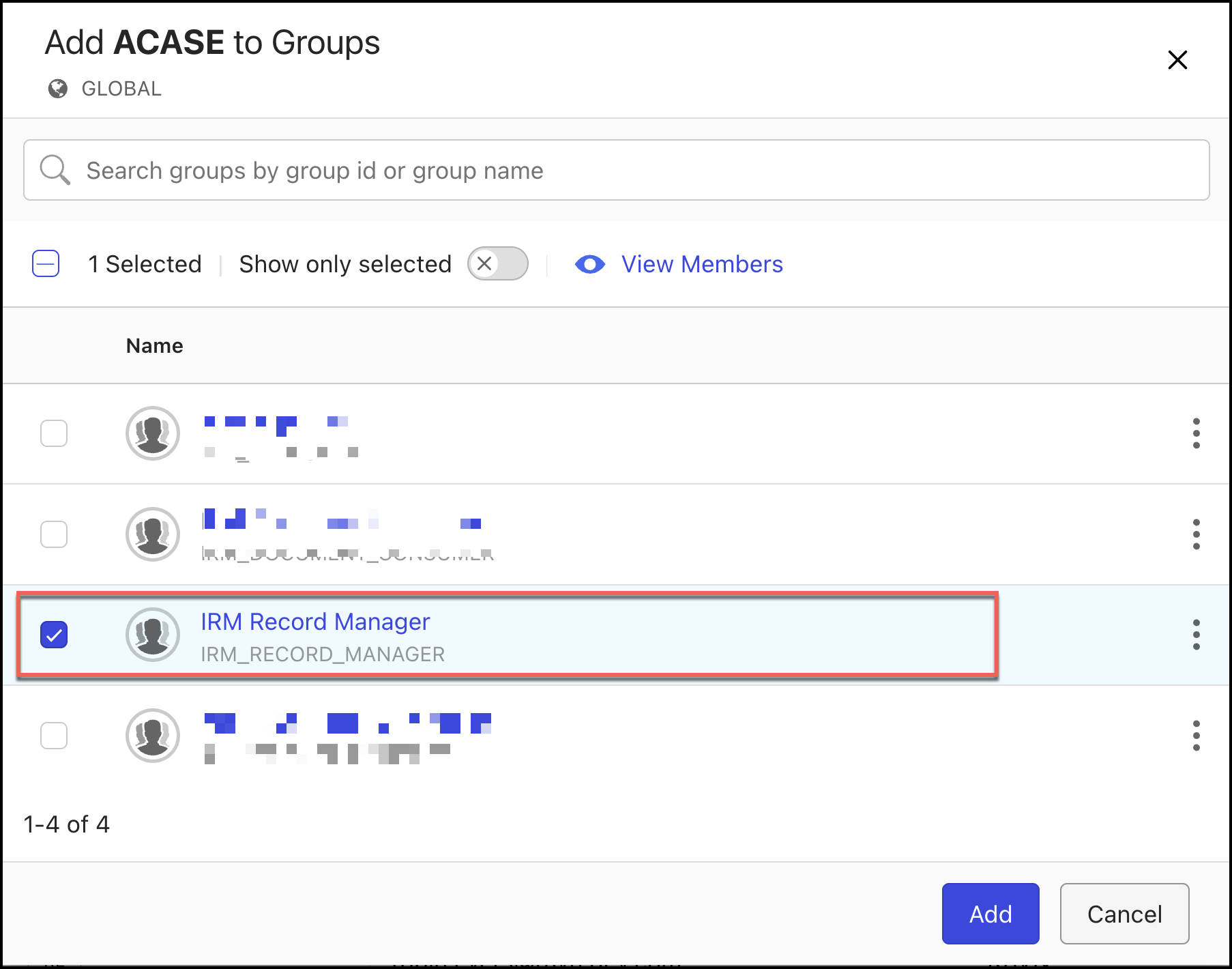
Method 2
Sign in to iManage Control Center.
In the left navigation pane, under Access, select Groups.
Figure: Selecting Groups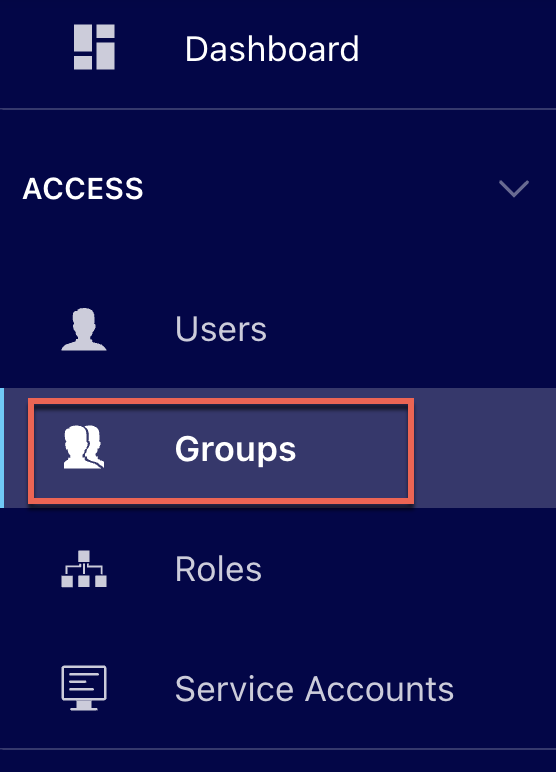
In the Groups page, select Global Management and then select Global IRM Record Manager.
In the IRM Record Manager page, select MEMBERS and then select Add Members.
Search for the user name and select the user name as shown in the following and then select Add.
Figure: Adding users to groups