Editing events
To edit an event:
In the left pane, under Retention, select Events.
Figure: Selecting Event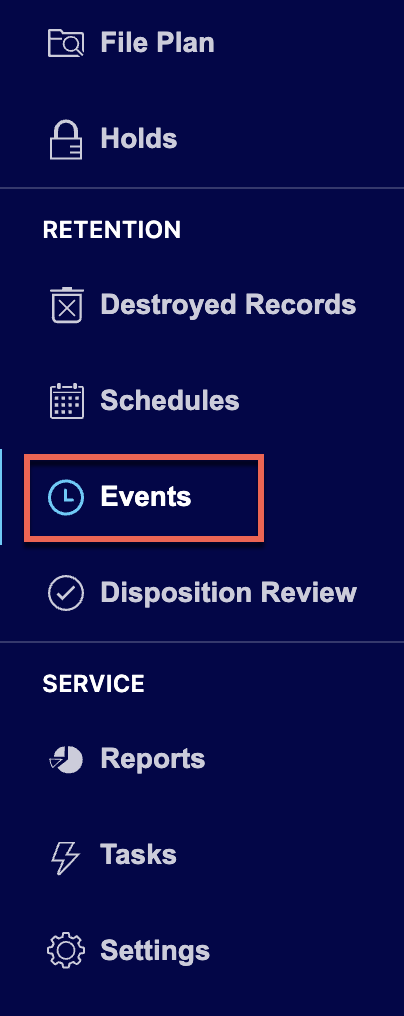
Select the
 kebab menu for the event you want to edit and then select Edit. Figure: Editing an event
In the Edit Event dialog that appears, make the necessary changes to the event.
Figure: Edit a event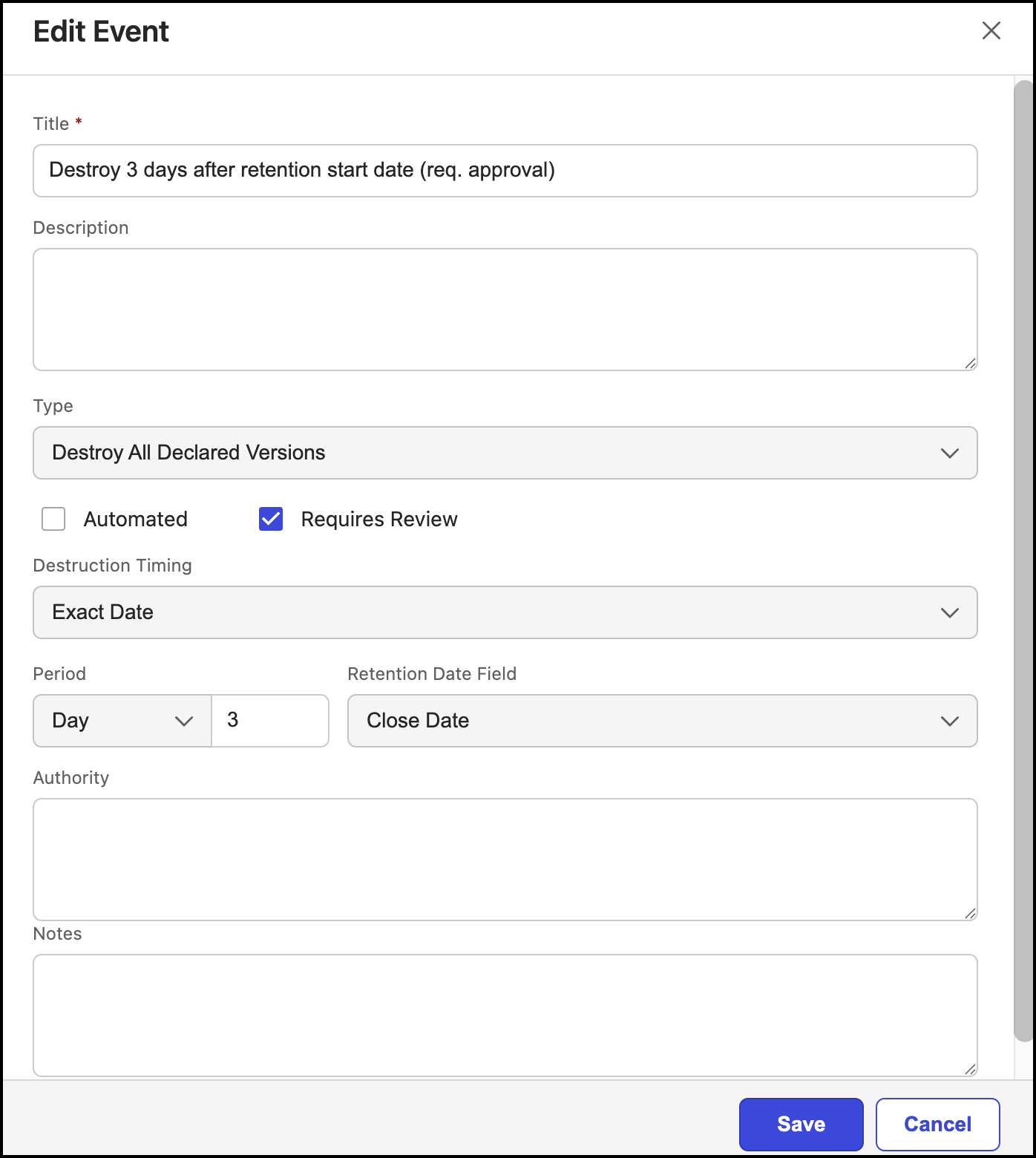
NOTE:
In the Type field, if Declare All Versions or Declare Latest Version is selected, the Requires Review option isn't displayed.
Figure: Requires Review option not available for Declare options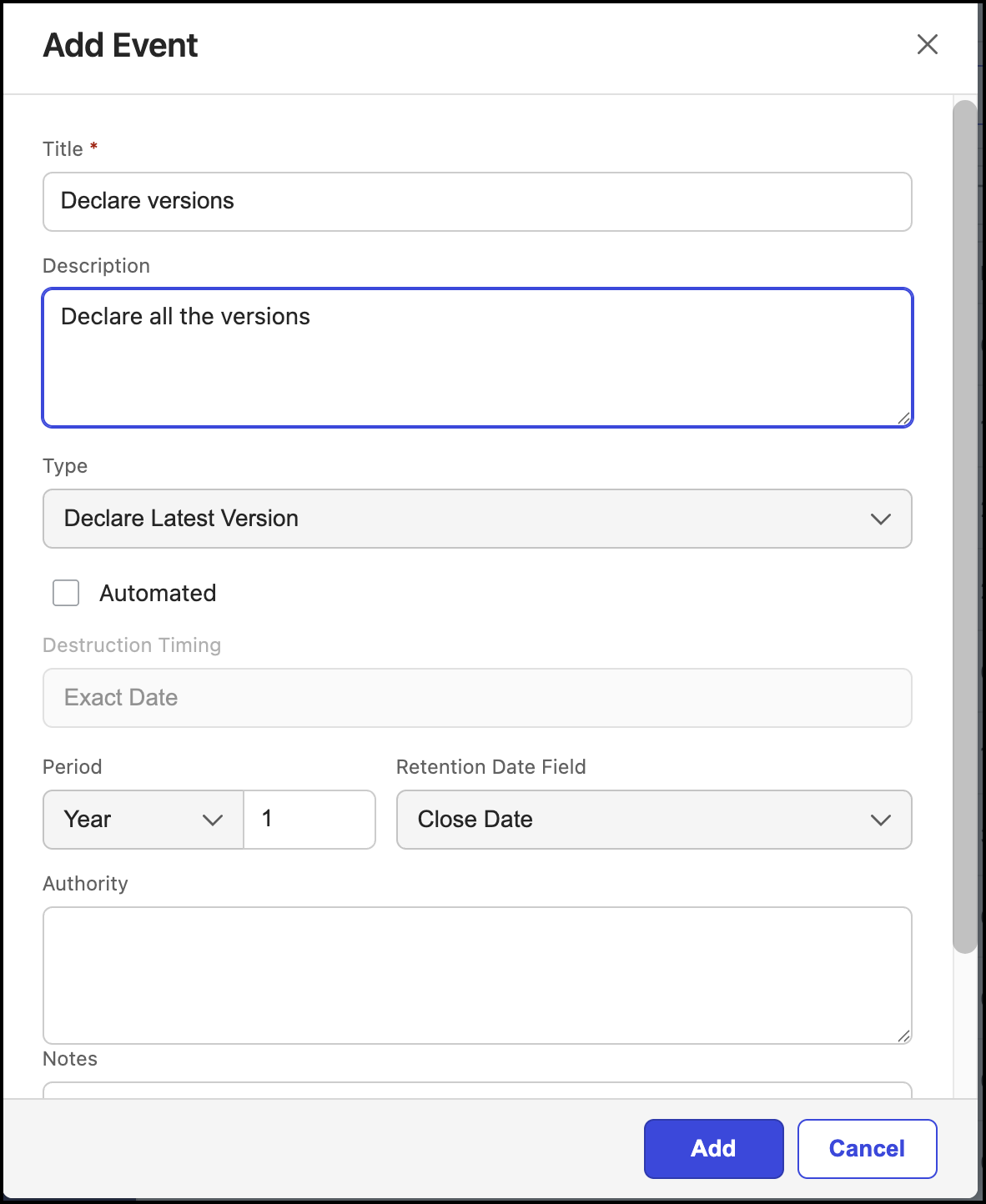
When Records Managers select Automated, the note is now updated to indicate that automation is run once a day, as shown in the following figure.
Figure: Note that is displayed when automated is selected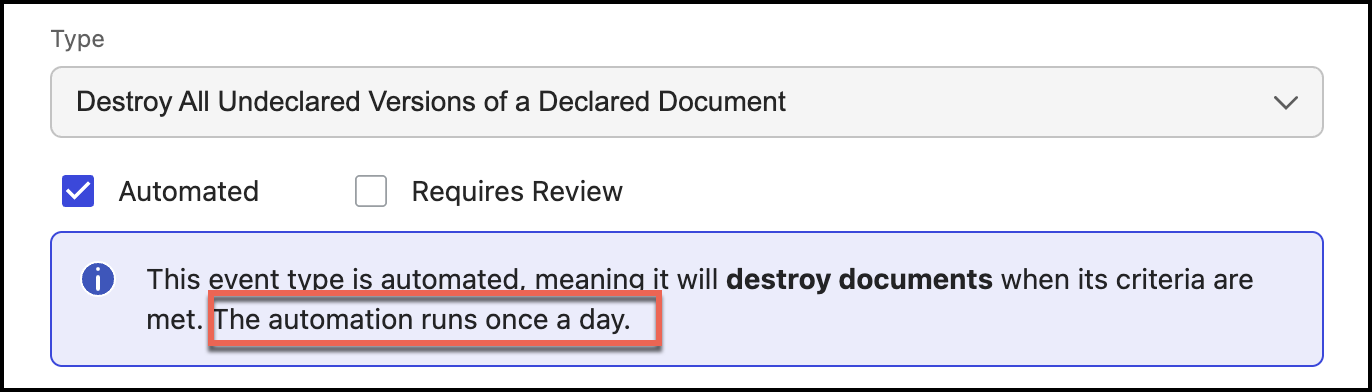
Select Save.
Deleting events
To delete an event:
Under Retention, select Events.
Select the
kebab menu for the event you want to edit and then select Delete. Figure: Delete an event
In the Delete Event dialog that appears, select Confirm to delete the event. The event is deleted.
Figure: Confirm event deletion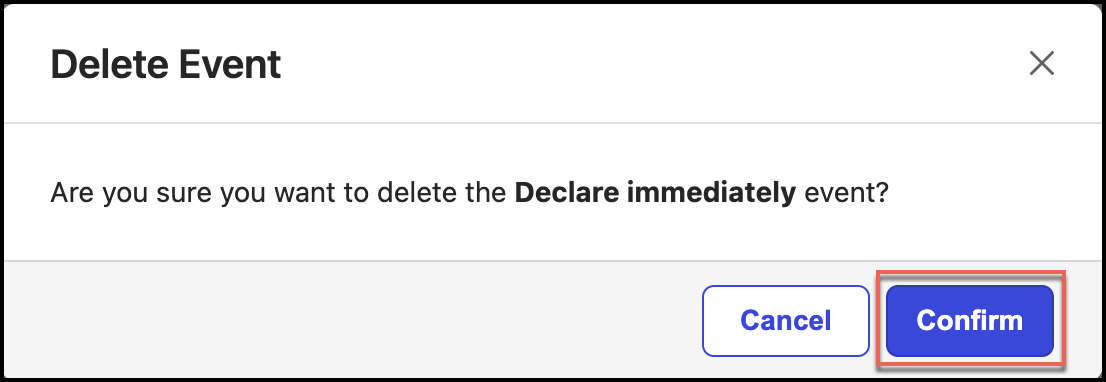
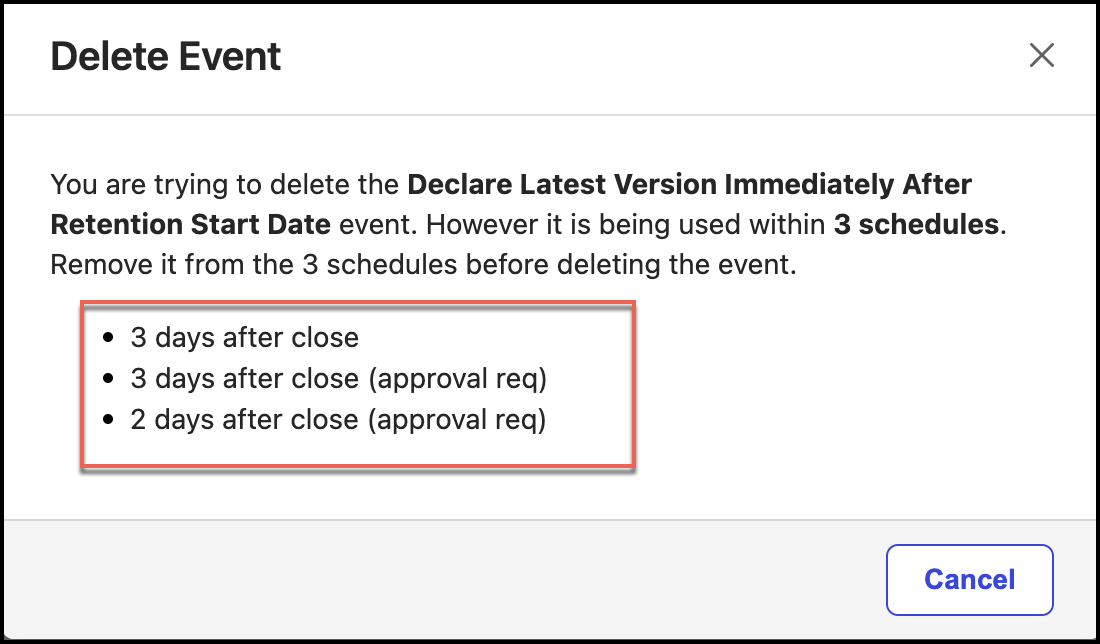
NOTE: If the event is added to a schedule, you can't delete the event and the following figure is displayed. In this case, remove the event from the schedule or schedules before deletion.