Reports collect information from iManage Disposition Manager application. The following is a sample report.
Figure: Sample report

You can generate reports by:
On the list view, select Reports.
Figure: Selecting Reports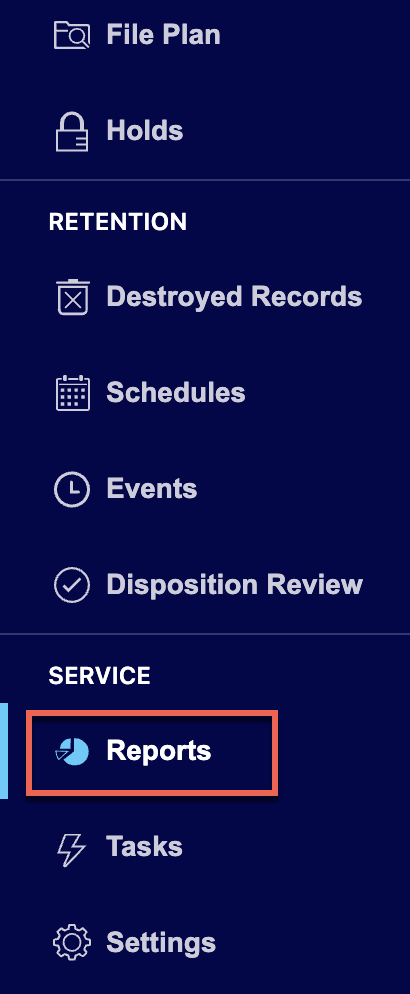
In the Reports page that appears, select New Report.
Figure: Select New Report
In the New Report dialog, enter the report name in the Title field.
Figure: Enter title and description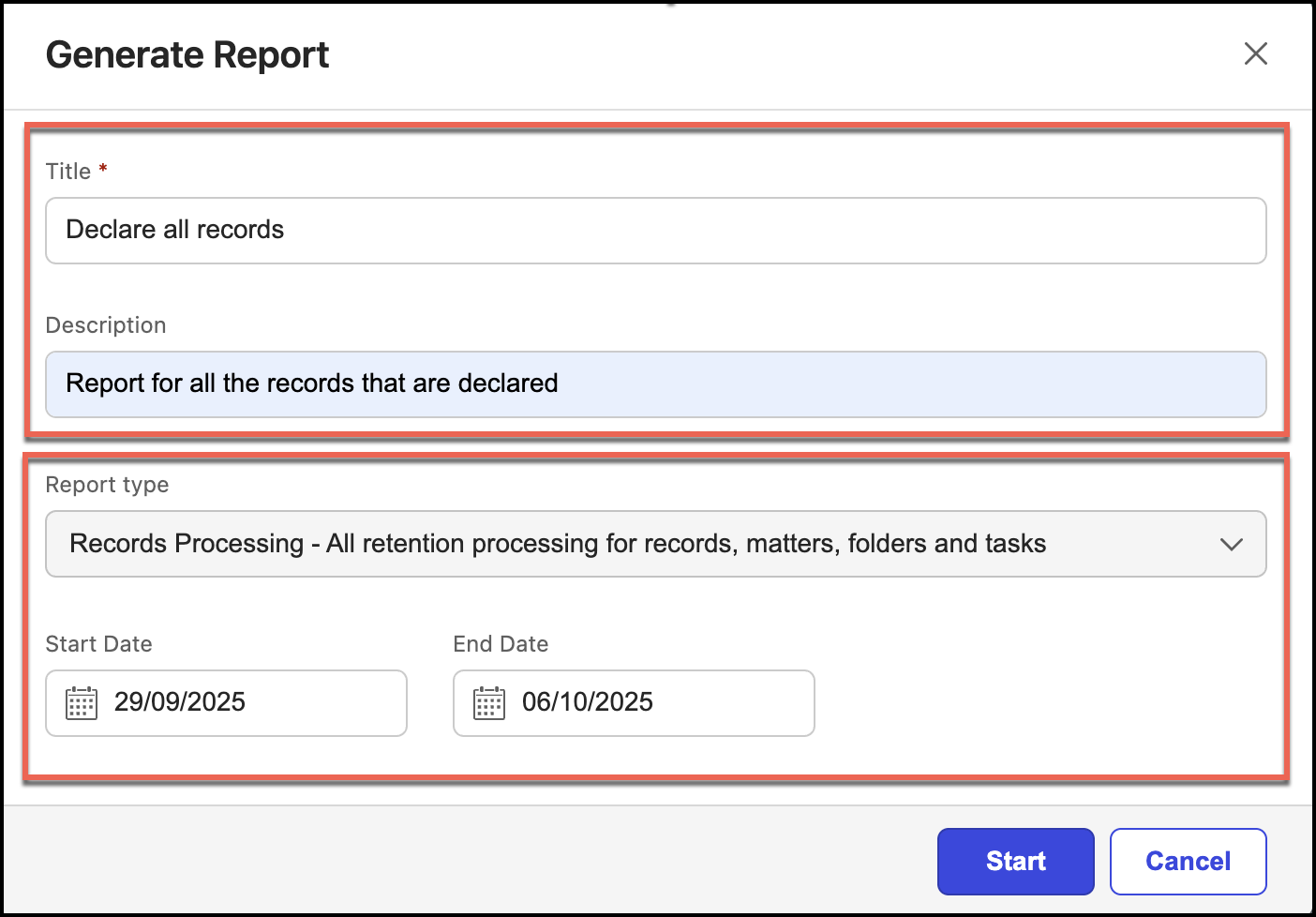
(Optional) Enter a description in the Description field.
Select the report type from Report Type.
Figure: Select report type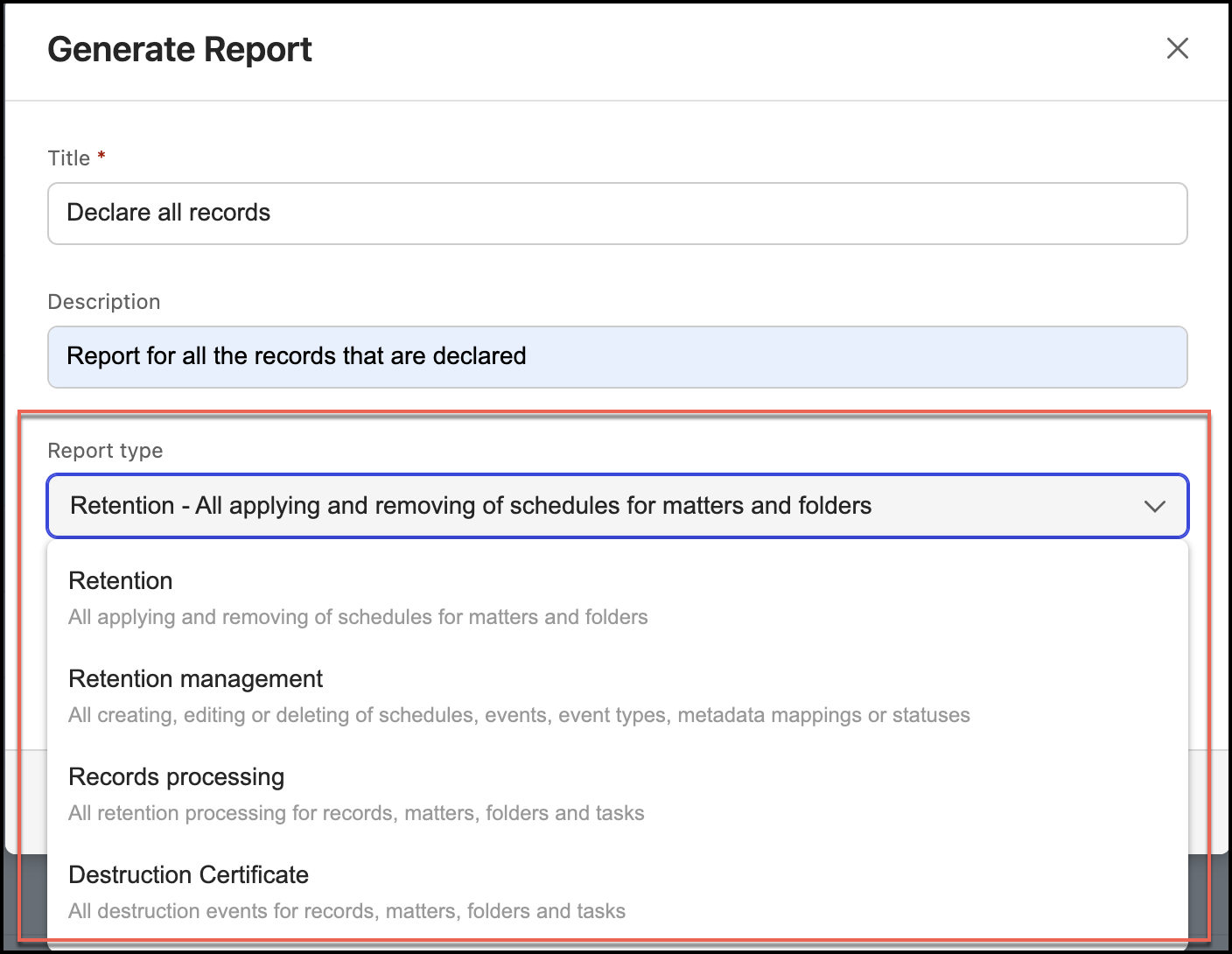
(Optional) Select start and end dates and select Add.
The report is added and the status is Working. When the report is ready, the status is Ready.
Figure: Report status - working

Figure: Report status - ready

Select the report name and the report is downloaded in CSV format to your device.
Figure: Select report name to download report
