Sign in to iManage Control Center.
In the left navigation pane, under Settings, select Applications.
Figure: Select Applications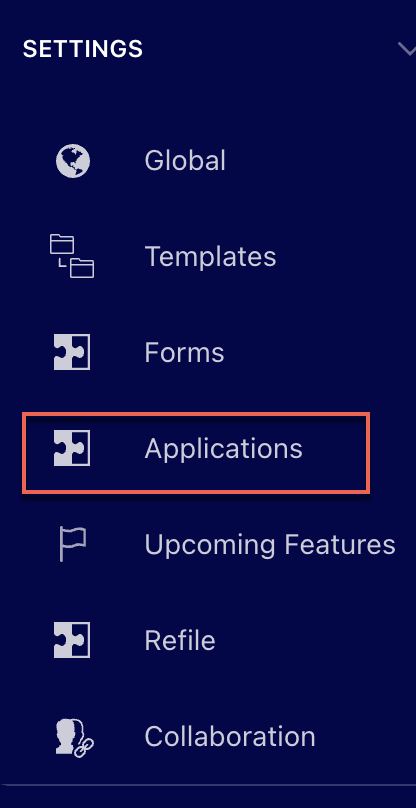
Select Add application.
Figure: Select Add application
Search for iManage - Disposition Manager and then select Authenticate.
Figure: Selecting iManage Disposition Manager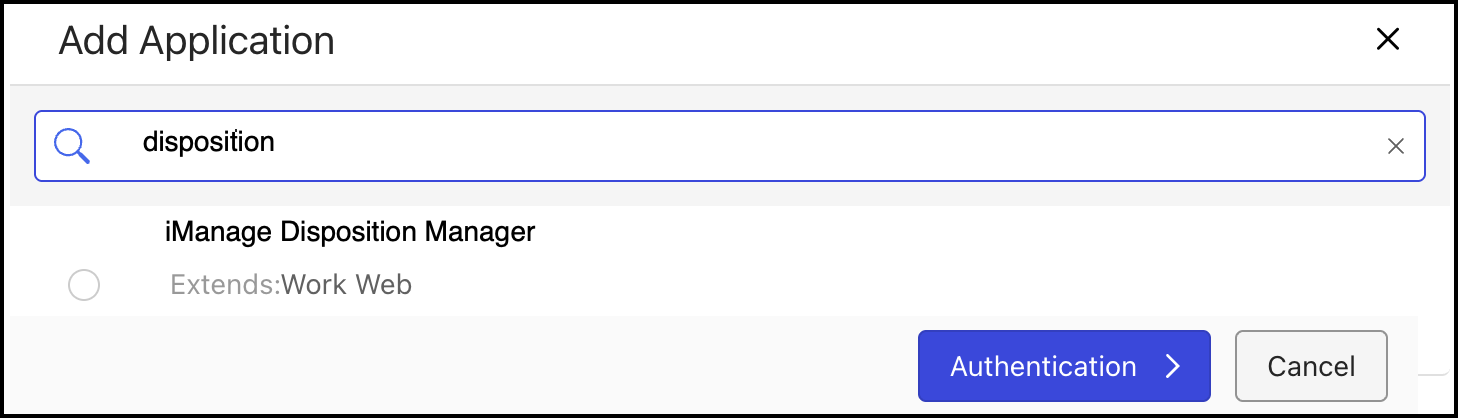
Set the Allow Refresh Token to Yes or No based on your organization’s requirements. Set Refresh Token Expiry and Access Token Expiry values and then select Access.
For more information, refer to Enabling refresh token in iManage Control Center.Figure: Set Refresh Token Expiry and Access Token Expiry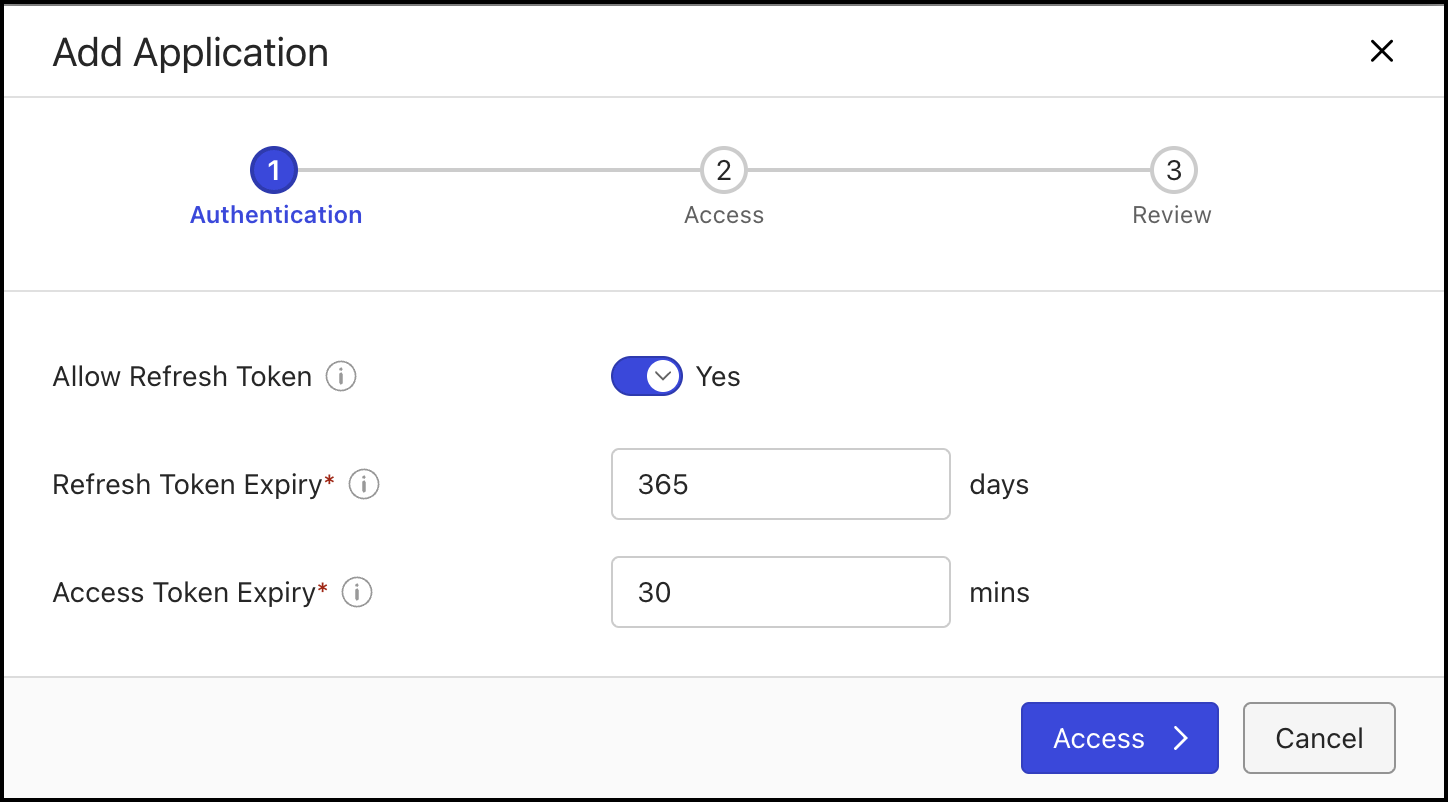
Provide the application to all users by selecting All users or select Custom to provide access to select users and select Review.
Figure: Select users to provide access and then select Review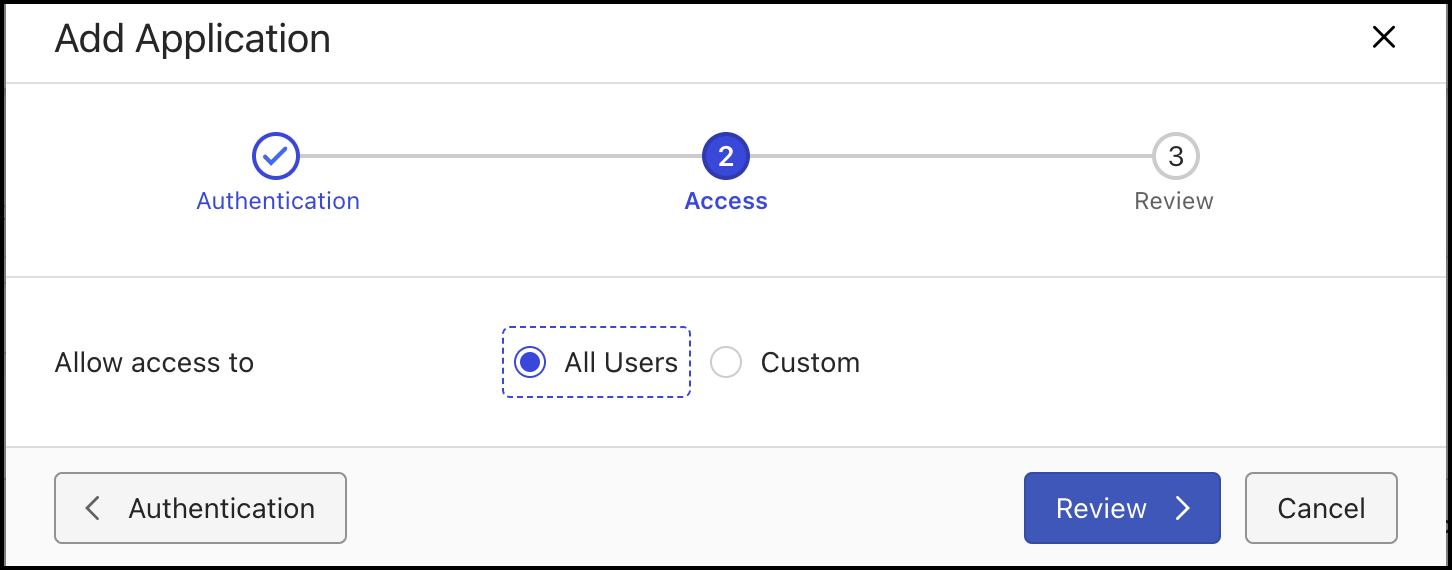
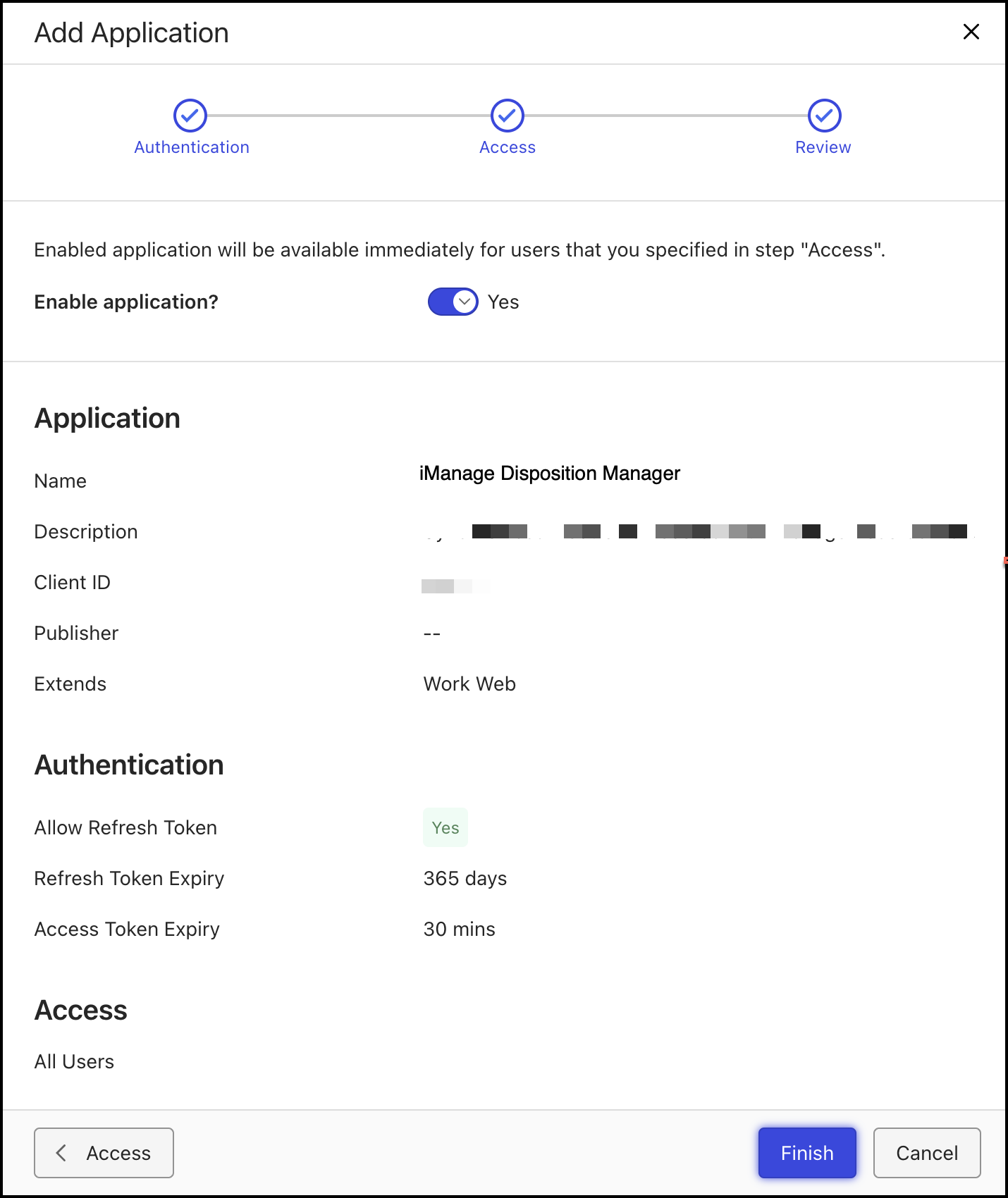
Review the details and select Finish. The application is successfully added and displayed in the Applications list in iManage Control Center.
Figure: Select Finish