You must have access to iManage Insight+, which your iManage Insight+ administrator provides. When trying to sign in to the application, you may be denied access for the following reasons:
You may not yet have access.
You may have been locked out for security reasons.
You may have entered the wrong application URL.
In all these scenarios, reach out to your iManage Insight+ administrator.
Other possible reasons include:
You may have entered an invalid email address or password.
Your access might have been restricted. Some organizations allow signing in only from approved locations as determined by IP addresses.
Signing in to the application for the first time
If you are accessing the iManage Insight+ application for the first time, you may be performing one of the following two actions:
If you have received an email notification from iManage Insight+, select the link in the email to create a new password.
If you receive an email or notification from your iManage Insight+ administrator, it will contain your sign in credentials. You'll be prompted to change the password.
Signing in to the application
In a browser, enter the URL that your administrator has provided. The sign-in page is displayed.
Figure: Application sign-in page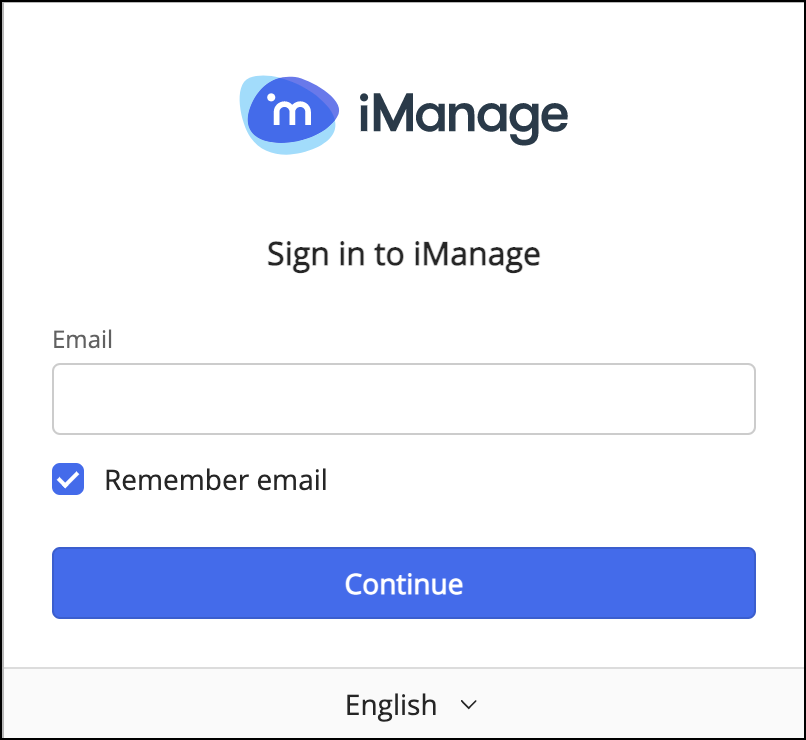
Enter the email address that your administrator has shared. Select the Remember email check box to avoid entering your email address every time you want to sign in to the application.
Figure: Password dialog box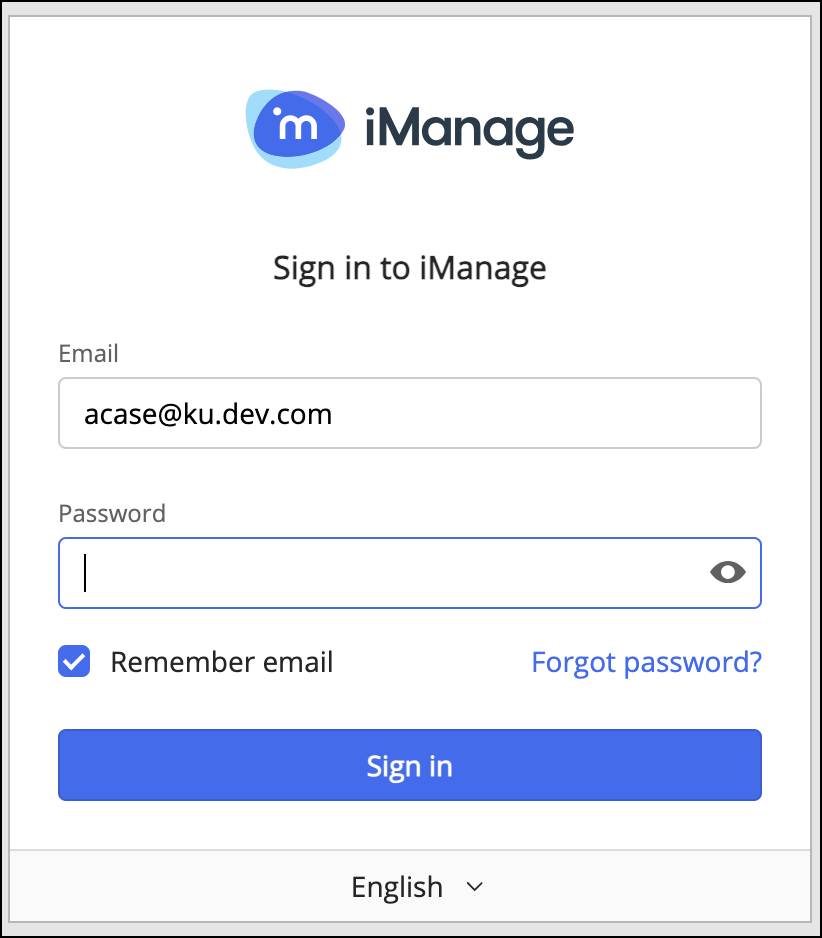
Enter your password, and select Sign In. After successful authentication, either of the following two pages appear:
iManage Insight+ landing page
Landing page is an optional feature and you may or may not see this page when you sign into iManage Insight+ application based on whether it's been configured for your organization or not. This page is configured by your iManage Insight+ administrator.
Figure: iManage Insight+ Landing page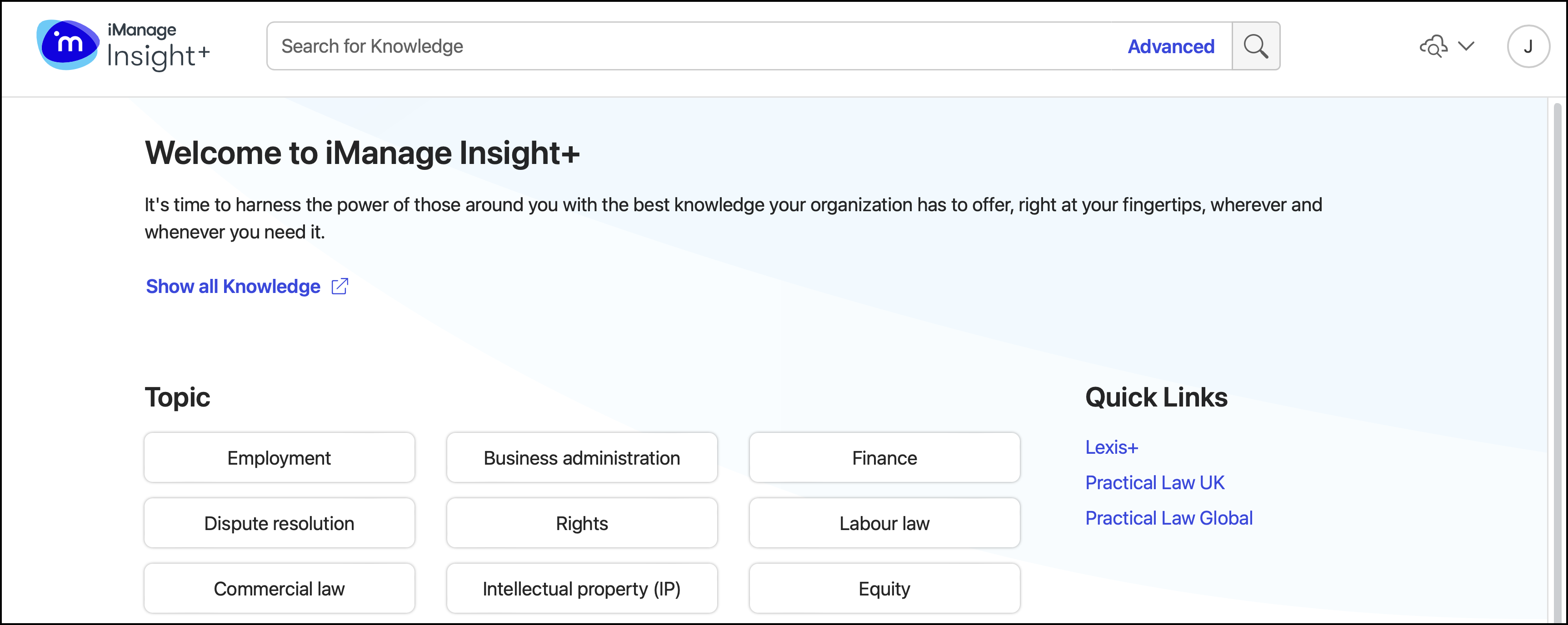
If not, configured, you'll be directly navigated to iManage Insight+ search interface.
iManage Insight+ search interface
Figure: iManage Insight+ search interface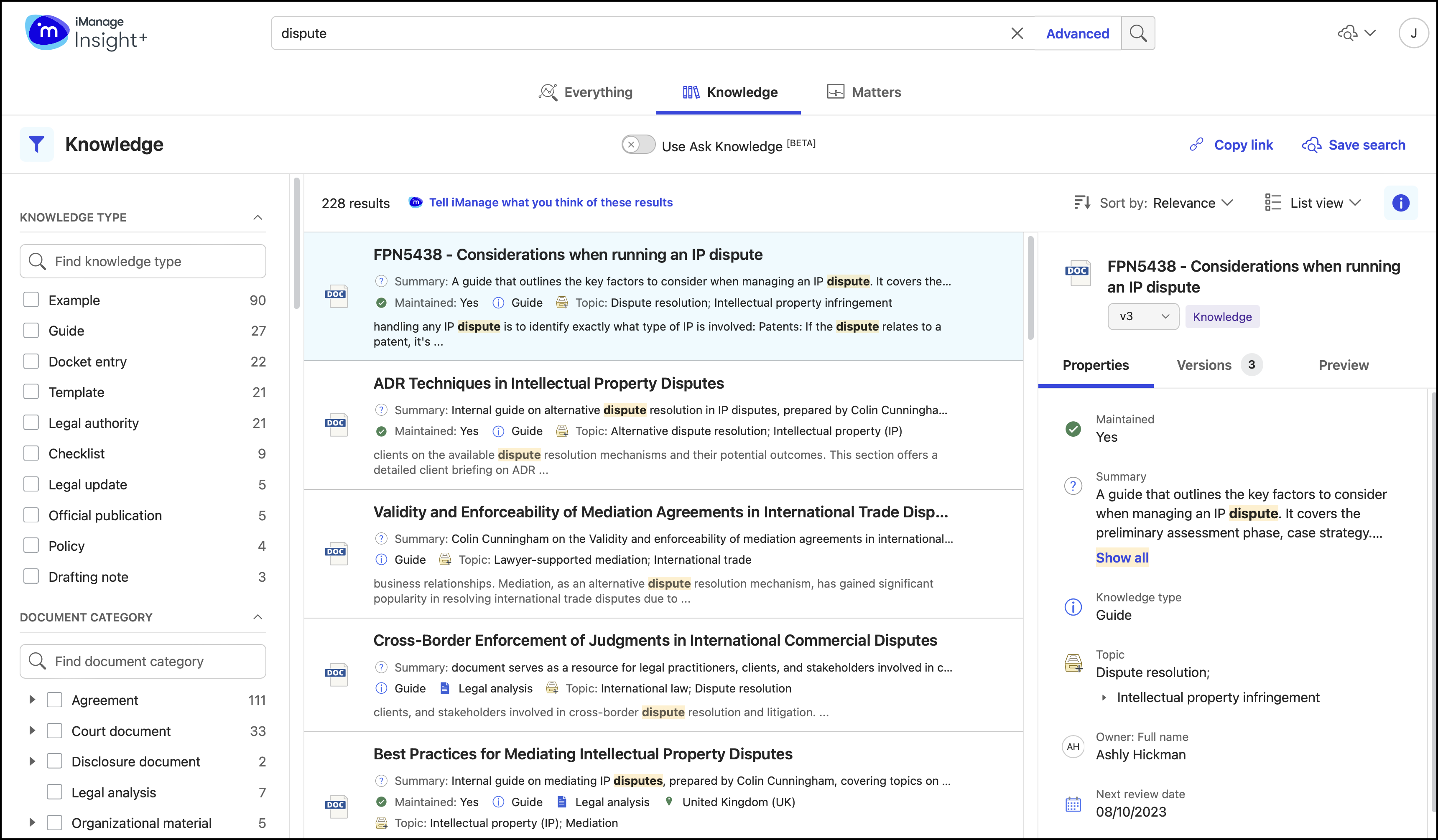
NOTE:
The sign-in dialog box is available in 8 languages: English, German, French, Spanish, French (Canadian), Portuguese (Brazilian), Chinese (simplified), and Japanese. You can select an option from the language drop-down list at the end of the sign-in dialog box.
The iManage Insight+ user interface displayed after successful authentication is in English (UK).
The iManage Insight+ user interface can now be modified to display in different languages. It currently supports English (UK), English (US), and French (Canadian) with support for more display languages in future releases. As part of this enhancement, all the non-customizable text (that is, anything that can’t be changed by an Admin) in the iManage Insight+ user interface is now viewable in any of the supported languages on selecting the language option. For more information about how to change the display language, refer to Modifying the user interface language.
Resetting your application password
If you forget your password or your password has expired, you can reset it using the Forgot password? option in the sign-in dialog box.
In the sign-in dialog box, select Forgot password?
Figure: Forgot password link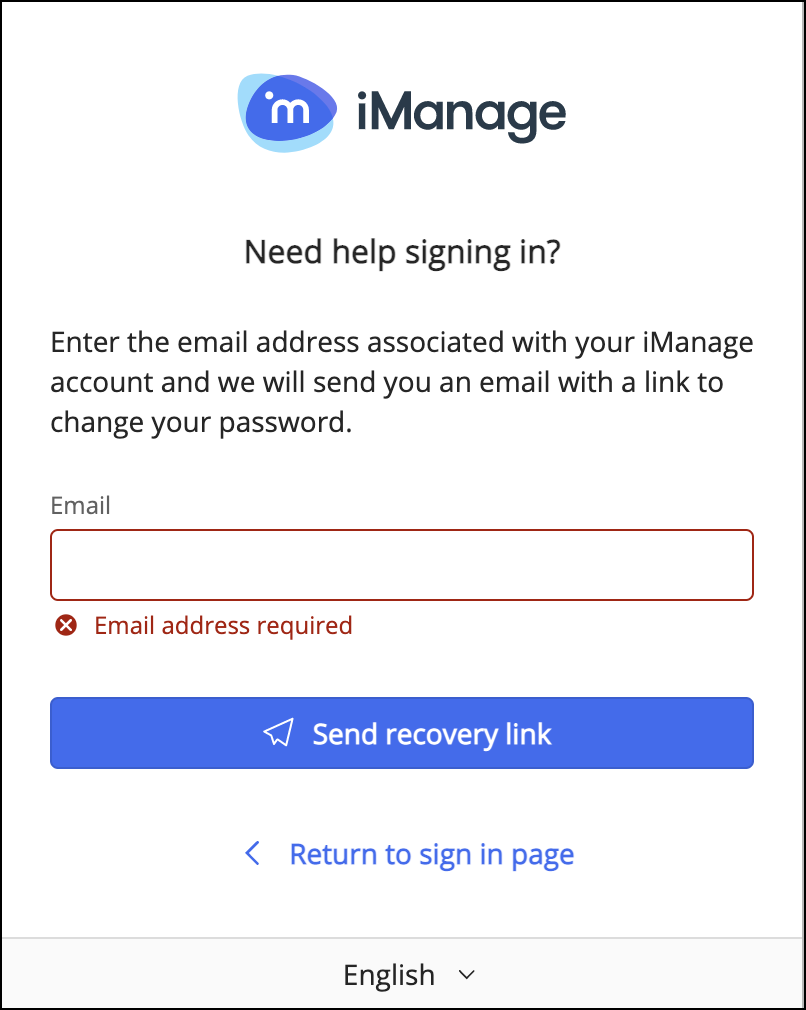
Enter the email address associated with your iManage account.
Select Send recovery link. An email with the recovery link is sent to the email address specified.
You can then proceed with resetting your password by following the instructions provided in the email. Alternatively, ask your administrator to reset the password on your behalf. You'll then be prompted to manually change the password by using a procedure similar to what you followed while signing in for the first time.