With just-in-time provisioning, administrators don't need to manually create a user account in iManage Share when a new employee joins the organization. Just-in-time provisioning automatically creates user accounts the first time they sign in to iManage Share portal using their Single Sign-On (SSO) authentication credentials. This eliminates the need to create user accounts in advance.
To configure just-in-time provisioning, the company administrator must first enable and configure SSO. If SSO isn't enabled, the option to edit just-in-time provisioning is unavailable. After enabling SSO, ensure that you add a new claims rule (attribute mapping) to your existing iManage Share configuration in your Identity Provider as explained in the following section.
Adding a claims rule to create the iManage Share user
NOTE:
The steps mentioned below are for configuring Microsoft AD FS. Similar rule needs to be added if your company is using any other Identity Provider such as Ping Federate or Okta.
Administrators must configure a new rule to pass the user's Universally Unique Identifier (objectGUID) to iManage Share in the relying party information, which is required to create a user account in iManage Share. This objectguid is mapped to the Immutable Universally Unique Identifier of the iManage Share user.
In the Edit Claim Rules screen, select Add Rule.
The Select Rule Template tab is displayed.From the Claim Rule Template drop-down menu, select Send LDAP Attributes as Claims and select Next.
The Configure Claim Rule tab is displayed, as shown in the following figure:Figure: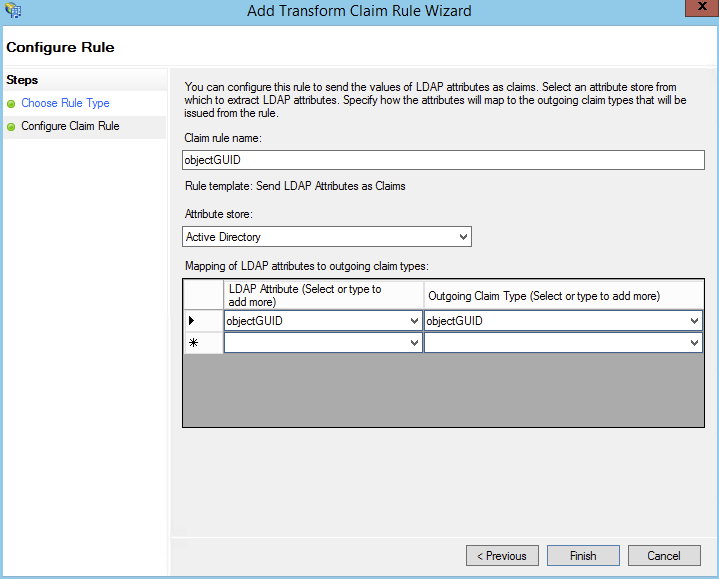
Specify the following information:
In the Claim rule name field, type
objectGUID.From the Attribute store list, select
Active Directory.From the LDAP Attribute list, select
objectGUID(this is the Universally Unique Identifier that doesn't change).In the Outgoing Claim Type list, type
objectGUID.
Select Finish.
NOTE:
If you are using Ping Federate IDP with Active Directory as LDAP Type Data Stores, ensure objectGUID is added as the LDAP binary attribute.
Optional: Adding a rule to modify the iManage Share User
Administrators can configure a predefined rule to pass along the user's first and last names if they want to keep the user's first and last name in iManage Share in sync with their Identity Provider.
In the Edit Claim Rules screen, select Add Rule.
The Select Rule Template tab is displayed.From the Claim Rule Template drop-down menu, select Send LDAP Attributes as Claims and select Next.
The Configure Claim Rule tab is displayed, as shown in the following figure:Figure: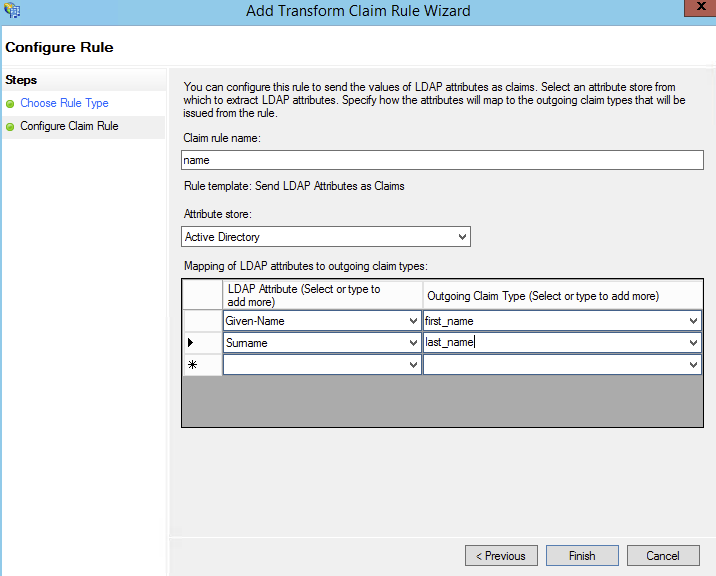
Specify the following information:
In the Claim rule name field, type name.
From the Attribute store list, select
Active Directory.From the LDAP Attribute list, select
Given-Name(this is the user's first name).In the Outgoing Claim Type list, type
first_name.From the LDAP Attribute list, select
Surname(this is the user's last name)In the Outgoing Claim Type list, type last_name.
Select Finish.
Enabling Just-in-time provisioning
Select the
 icon next to your name at the top.
Select Settings.
On the Company Profile tab, select Edit next to Just-In-Time Provisioning
Figure: Just-in-time provisioningEnter one or more email domains separated by a space or comma. For example:
goimanage.com,imanage.com.Select Update.