Hover over the desired folder and select the
 icon. (Optional) Right-click the folder and select Share, or open the folder and select Share at the top.
NOTE:
User(s) with Guest access for the Shared folder cannot view the Share.
The Share screen is displayed with the list of users or user groups it is currently shared with.
To remove any user or user group, select Remove from the drop-down menu.
The icon is displayed next to the name of each member who is selected for removal, as shown in the following figure: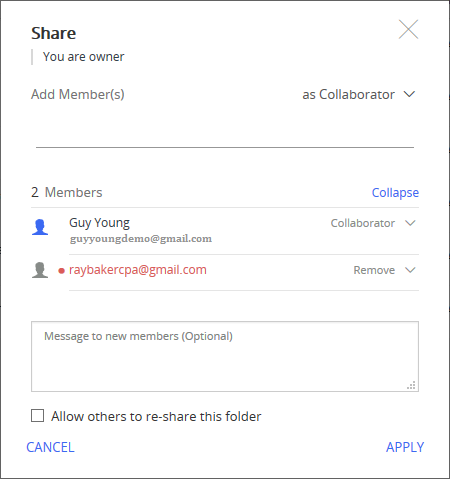
Select Apply to remove the selected user(s) or user group(s).
TIP:
When all the users are removed from the Shared folder, it reverts to a Private folder.
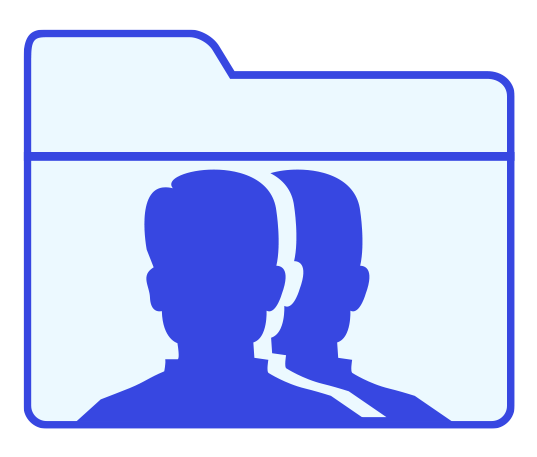 : The folder is Shared with at least one other user.
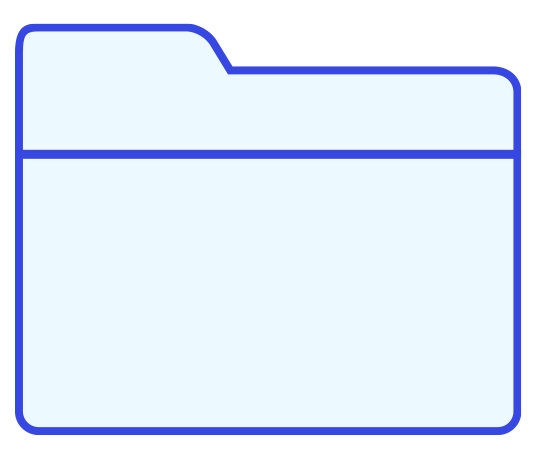 : Is a Private folder and is not shared with anyone.