Public Preview is an early-access stage for features that are not yet generally available (GA). Users in groups that your administrator selects can try these features and give feedback before GA.
How Public Preview works
iManage delivers new features in a Public Preview phase, where your company can learn about, test, and communicate changes to your iManage users. Start with a pilot group, such as power users, early adopters, or your IT team. Expand the group after you collect feedback.
To see and test a Public Preview feature:
Administrator access: Your iManage administrator must turn on the Enable Public Preview for select groups setting in iManage Control Center, and add a group that includes you.
User opt-in: After you’ve been given this access by your administrator, you can see a list of preview features and turn on the ones you’re interested in.
For administrators: Enable Public Preview for select groups
In Control Center, go to Work Clients > iManage Platform > General.
Set Enable Public Preview for select groups to Yes.
Under Groups with Public Preview access, add one or more global groups.
Select Save.
Members of the selected groups see a Public Preview section in their settings the next time they load the iManage platform in their web browser.
Keep these points in mind:
You must add at least one group.
There is no “all users” option. To include everyone, create and then add a group that contains all users.
Setting the option back to No removes access for everyone immediately and turns the features off.
Users outside the selected groups don’t see the Public Preview section.
For users: try preview features
You see the Public Preview section only if your administrator added you to a group with access.
In the iManage platform web client, open Settings
 > Advanced.
Find the Public Preview section. If you don’t see it, ask your administrator whether you are in a group with Public Preview access.
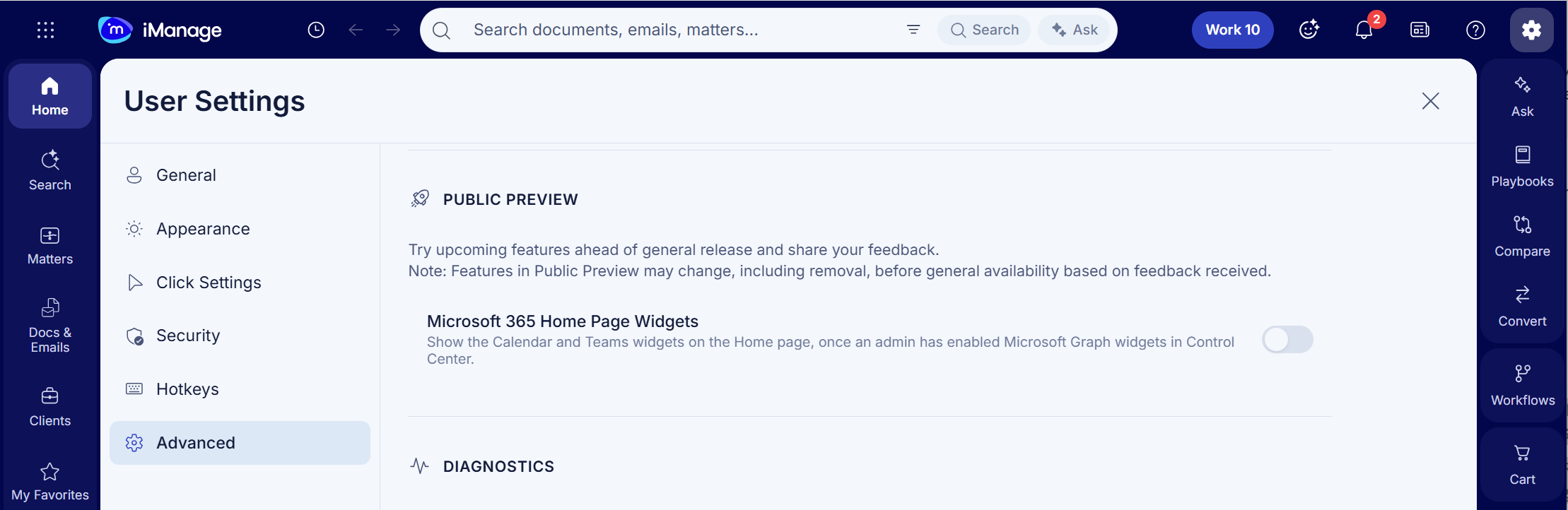
Turn on the features you want to try. Each toggle is off by default, saves immediately, and applies across your sessions.
In the iManage for Outlook add-in, open the task pane and use the Experiments category. It has the same toggles, and your choices are shared across the web client and Outlook.
Things to know
Preview features are early access. They can change, and iManage collects feedback on them before GA.
When a feature reaches GA, it’s removed from the Public Preview list, and the feature is on for everyone who is entitled to it.
Turning off a toggle, or the administrator setting, turns the feature off immediately.