To open the iManage Work task pane, select the email in your Inbox and then select iManage Work on the Microsoft Outlook ribbon or the message toolbar.
Select the email in your Inbox that you want to file, and then select the Email filing tab in the iManage Work task pane.
NOTE: The names and labels of clients, workspaces, and files displayed in your iManage Work task pane may differ from those in this documentation. These labels can be customized for your organization.
Verify that the email shown at the top of the task pane matches the email you have selected.

Find the location among the workspaces visible in the task pane and select the check box, or use the search bar to find a destination workspace.
Select the check box for the email destination file. Repeat this step for all the locations the email should be filed.
The Select filing location list at the top of the task pane displays the status of the filing, the number of locations selected, and the paths within iManage Work where the emails will be filed.Figure: Number and path to each location selected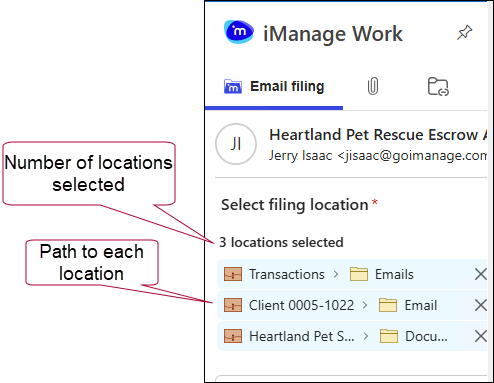
NOTE: If you select a workspace and that workspace doesn’t have a default email folder, a notice displays at the top of the task pane prompting you to select another folder under the workspace.
Near the bottom of the iManage Work task pane, expand the Filing options menu, and select the filing options you want:
Rename and file as: Enter a new name for the file to change the name of the email when it’s filed.
File as private: Select if you want to limit access to the email when filed.
Delete after filing: Select to delete the email from Outlook Inbox when it is filed in iManage Work.
Select File email to complete the process of filing the email to the desired locations in iManage Work.
NOTES:
After you file an email, the
 Category will be applied to that email for the To and Cc recipients in your organization, so they know it's already been filed to iManage Work.
A Bcc recipient in your organization will only see the filed Category on the email if they filed it or if the Sender filed the email in Sent Items.