You can add a document from the preview mode by selecting the Add to My Favorites option available in the toolbar.
Figure: Adding a document to My Favorites in the preview mode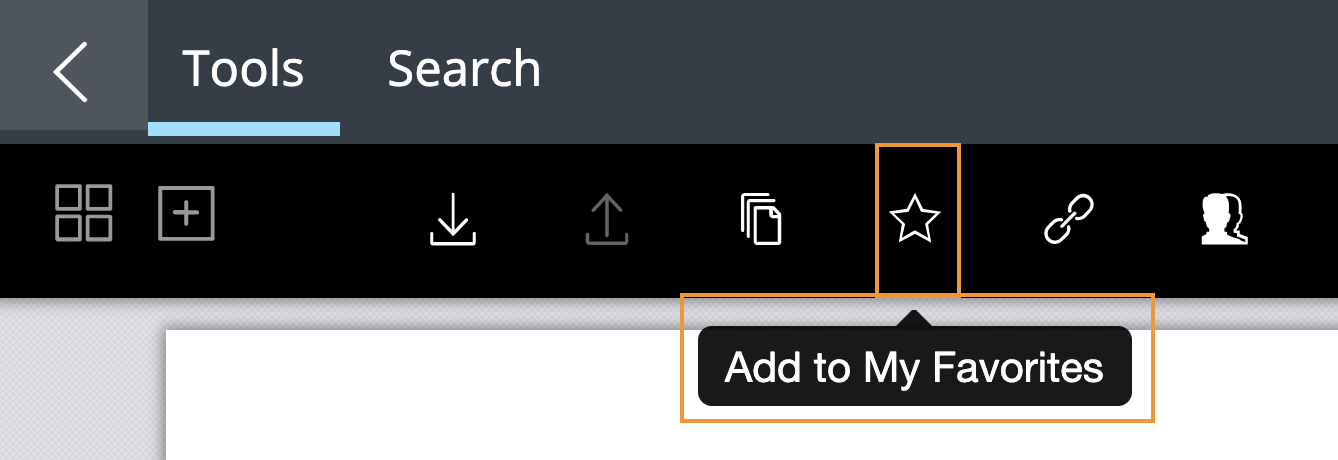
Select the document link that you received through email.
The document open in the preview mode.Select Tools > Add to My Favorites. The Add to My Favorites dialog box appears wherein you can perform any one of the following steps to add the document to My Favorites:
Select Add to add the document directly to My Favorites.
Select the Select a Category check box, choose one of the available categories > Add.
Select the Select a Category check box, create a new category by selecting New Category > :Tick-ok: > Add.
After adding a document to My Favorites, a progress dialog box appears.
Figure: Progress dialog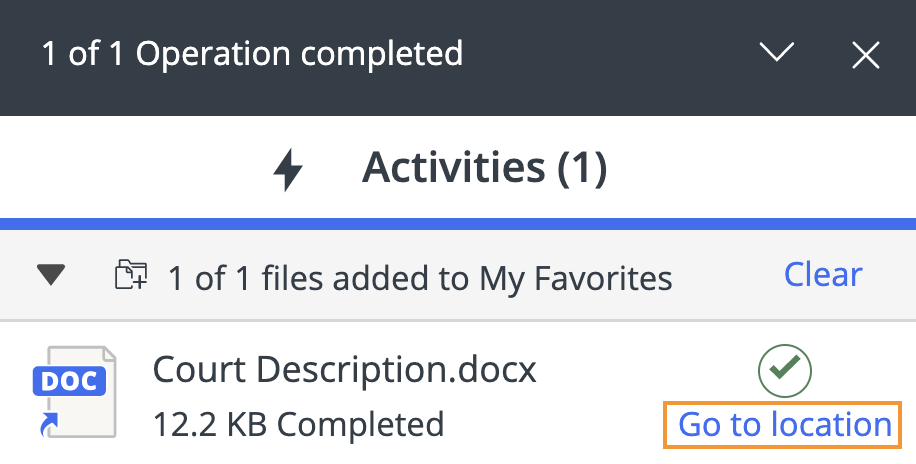
Select Go to Location to quickly browse to My Favorites and view the document.