NOTE:
Custom folders can be created within template-based folders that have no other predefined folders within them or inside another custom folder.
A custom folder or tab can be created at the workspace level, if you select an empty template that has no folders or tabs defined within it. This can be done in a situation where you need to create a custom folder instead of a template-based folder.
Creating Custom Search folders is no longer supported from the New Folder dialog. You can create a custom search folder from the Advanced Search dialog using the Save as Search Folder option. However, you can still create a search folder if it is predefined by your administrator in a template.
To create a custom folder or tab:
Open the location where you wish to create a custom folder or tab.
NOTE: Tabs can only be created at the root level of a workspace.
Select the More Actions menu.
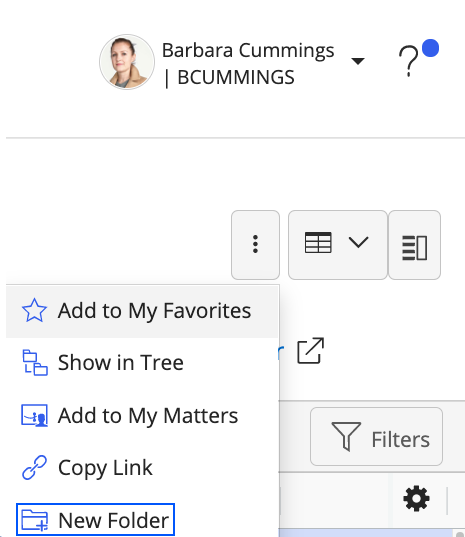
Select New Folder.
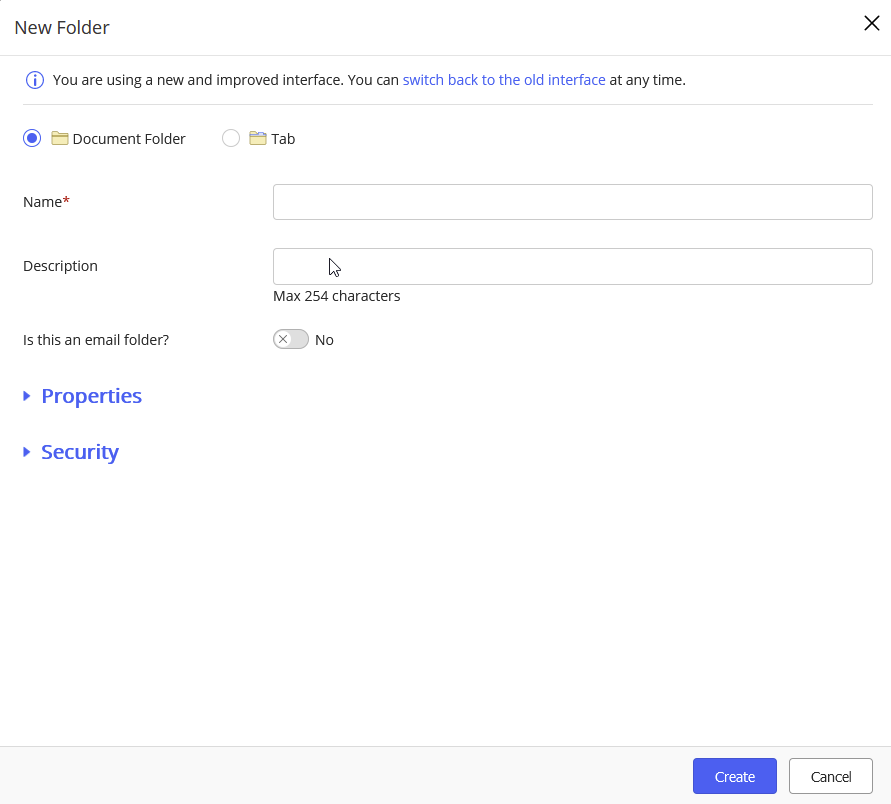
The New Folder dialog appears.
Figure: New Folder dialog
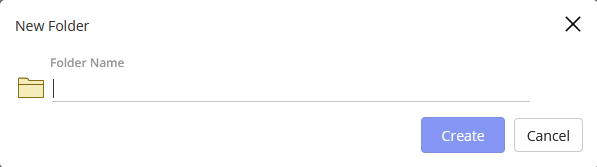
IMPORTANT: If the following dialog is displayed, the Flexible Folders feature has been disabled in your environment. Proceed to Creating custom folders or tabs (Flexible Folders disabled).
You can select either the Document folder or Tab and based on your selection, follow the steps as explained in the table below:
Document folder | Tab |
|---|
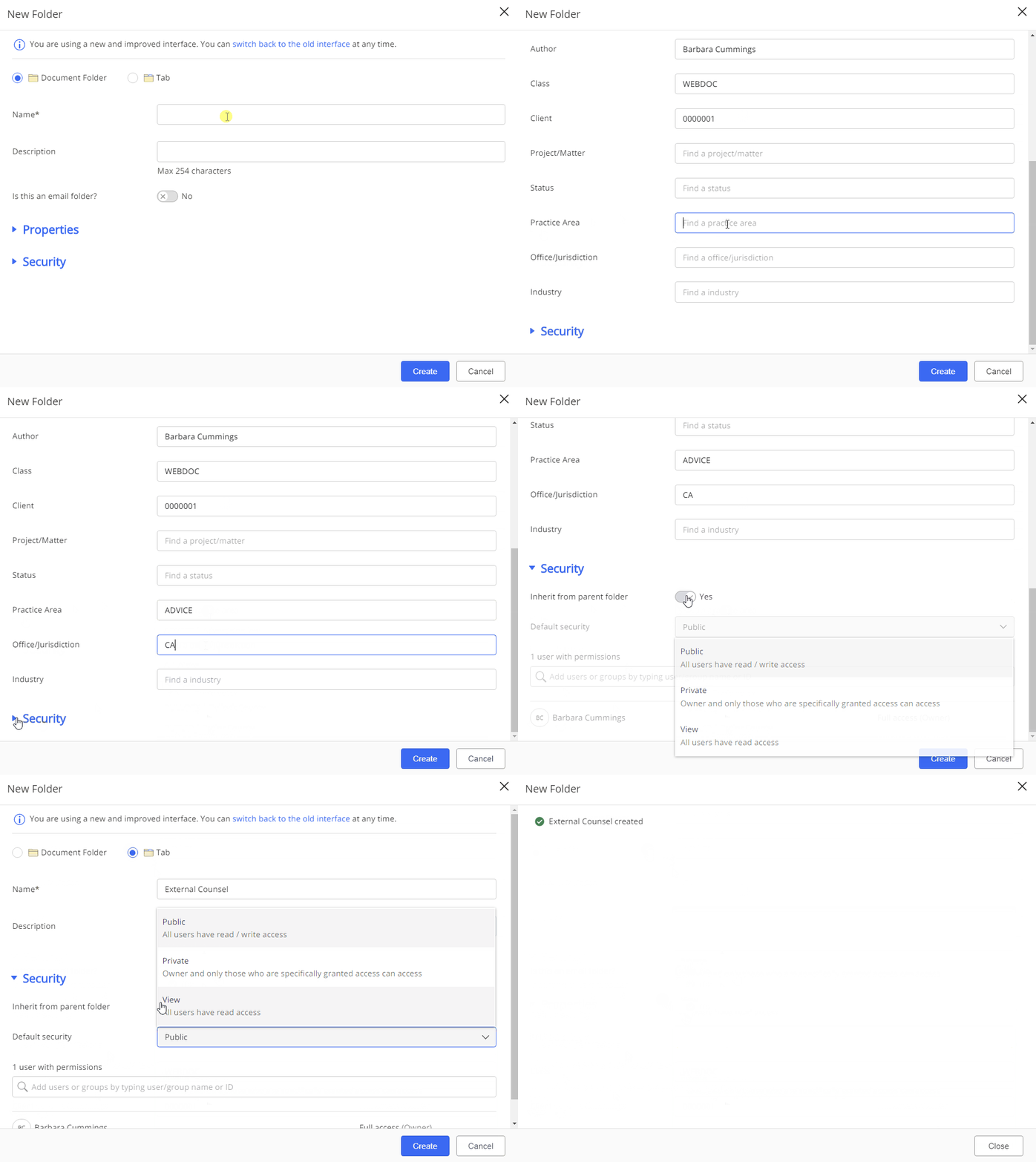
Type a name and description for the document folder.
(Optional) Select the Is this an email folder toggle switch to turn on the option of emailing documents to a unique address and having those documents filed in this folder.
NOTE:
Metadata and security are automatically inherited from the parent folder. (Optional) To change the metadata, you can edit any of the Properties field before creating the folder. You can turn off the Inherit from parent folder toggle switch to set access permissions for users and groups. After disabling the toggle switch, select the Default Security drop-down list and use the search box to to set access permission for users and groups. Disabled users are indicated by the  icon and external users are indicated by the icon and external users are indicated by the  icon. The list of users is listed in alphabetical order if the security is pre-configured. The sort option allows you to list ordering to make it easier in understanding the access levels of other users. icon. The list of users is listed in alphabetical order if the security is pre-configured. The sort option allows you to list ordering to make it easier in understanding the access levels of other users. When finished, select Create.
| Type a name and description for the tab.
NOTE:
Security is automatically inherited from the parent folder. (Optional) You can turn off the Inherit from parent folder toggle switch to grant access to other users. After disabling the toggle switch, select the Default Security drop-down list and use the search box to set access permission for users and groups. When finished, select Create.
|
Figure: Creating custom folder or tab