You can seamlessly perform certain actions by dragging within the center panel in iManage Work, without using additional menus or commands.
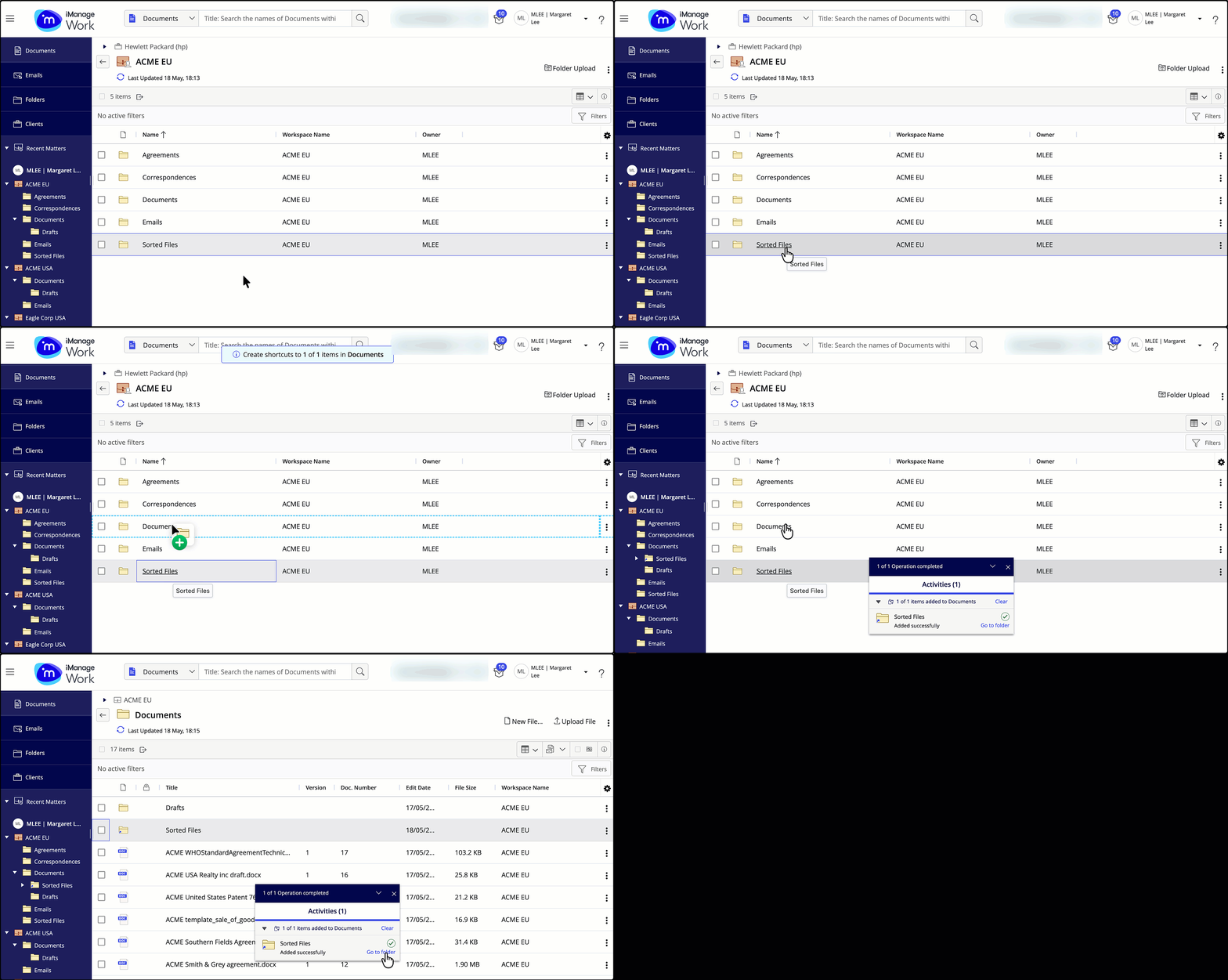
Although this feature is supported for files (documents and emails), folders, workspaces, and categories, the behavior varies as explained below:
Container | Supported drag action |
|---|---|
Folders | Move folders from the search results of a folder search |
Move folders within the same library or database. | |
Move folders under a tab. | |
Move search folders. | |
Create folder shortcuts. | |
Workspaces | Move a workspace shortcut into a category within My Matters or My Favorites. |
Files | Create copies and references for files. |
Move files. | |
Categories | Move one category into another category within My Matters or My Favorites. |
My Favorites | Move file shortcuts, folder shortcuts, and matter shortcuts into categories within My Favorites. |
When dragging items in the center panel, the security of items is affected, as explained below:
If your administrator has enabled Bulk Security update, the Match security to destination dialog opens when moving items, letting you match security to the destination or keep the current security.
If Bulk Security update isn’t enabled, the security of the destination container is applied.
If the Inherit Security From Parent Folder option is selected for the destination folder, moving an item or folder into it inherits the security of the destination folder.
NOTE: Dragging tabs in the center panel isn't supported.