NOTE: This feature is available only in select iManage Work environments.
You can now re-organize your folder structure by moving folders, search folders, and folder shortcuts from either the right-click context menu or the toolbar.
To move folders:
Browse to the folder you wish to move to a different location.
Right-click and then select Move. The Move dialog appears.
Figure: Move in the right-click context menu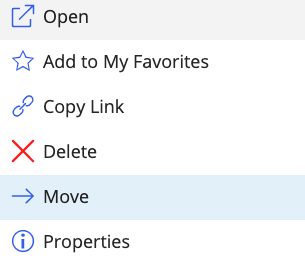
If you select multiple folders, the option is available on the toolbar.
Figure: Move option on the toolbar
Choose the location where you prefer to relocate the folder.
Select Move. A progress dialog appears.
Figure: Progress dialog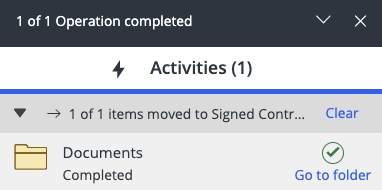
Select Go to folder in the progress dialog to browse to the new location of the folder.
NOTE:
The Move operation fails if you don't have sufficient privileges (full access) to the target folder. When the move operation fails, an indication is shown in the progress panel.
Moving folders isn't allowed to a workspace where folder template rules are enforced.
NRTAdmins who have read-only or read-and-write access can move folders.
Moving folders across databases isn't supported.