New features are continuously being added to iManage Work. See what enhancements and feature changes are available in each update.
September 2026
Enhancement to Collaboration Links
Multiple document sharing
Expired share icon display duration
Link creator/editor auto-add to link
Managing automated guest emails
Default date range in the timeline list view
The default date range for the iManage Work timeline (List view) is now 3 months (3M), showing the last 90 days of activity for a faster, focused view. To see older activity, page through results or adjust the filter manually.
June 2026
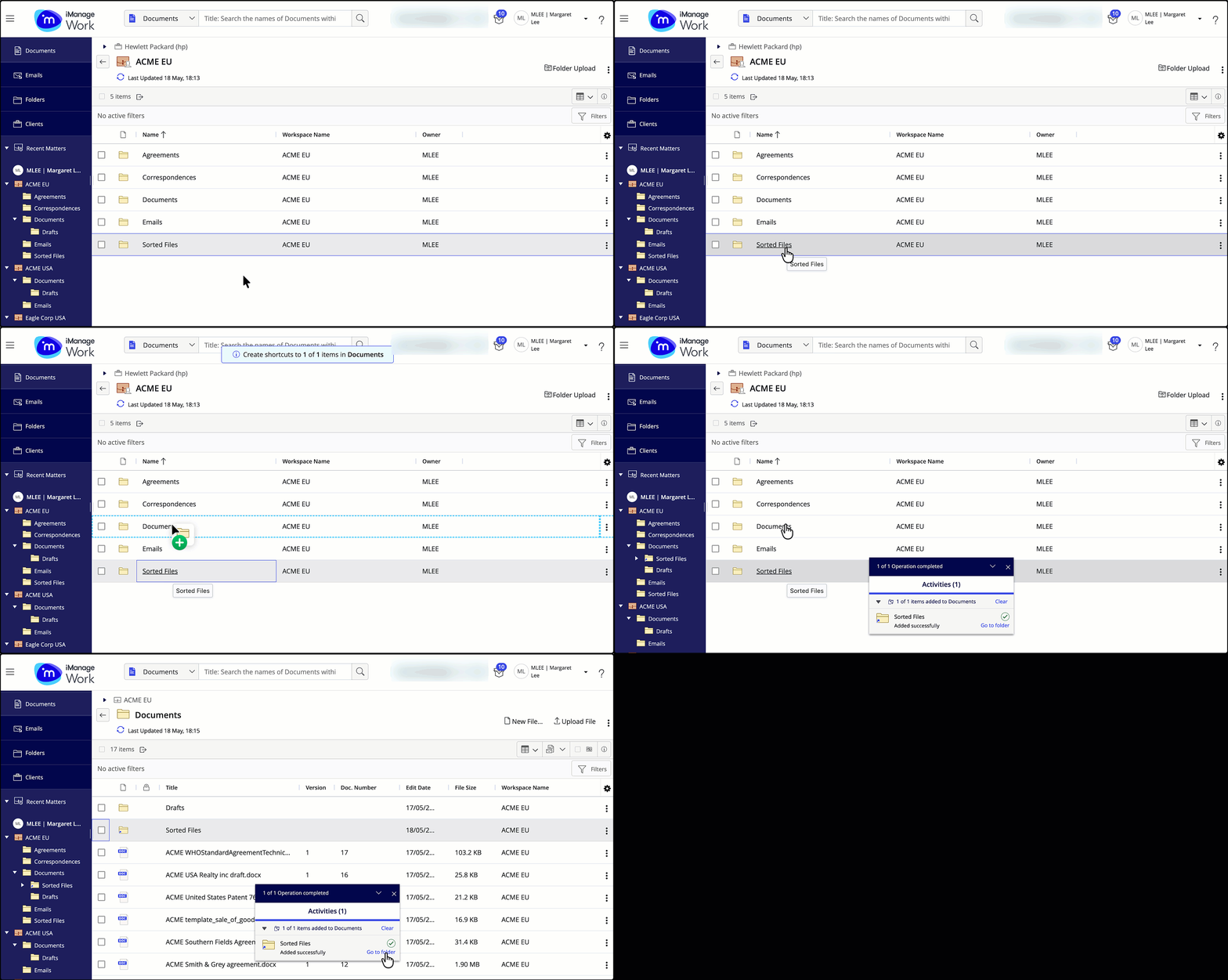
Dragging items within the center panel
iManage Work now supports the drag-and-drop functionality in the center panel for the following operations:
Move
Copy
Create document reference
Create folder shortcut
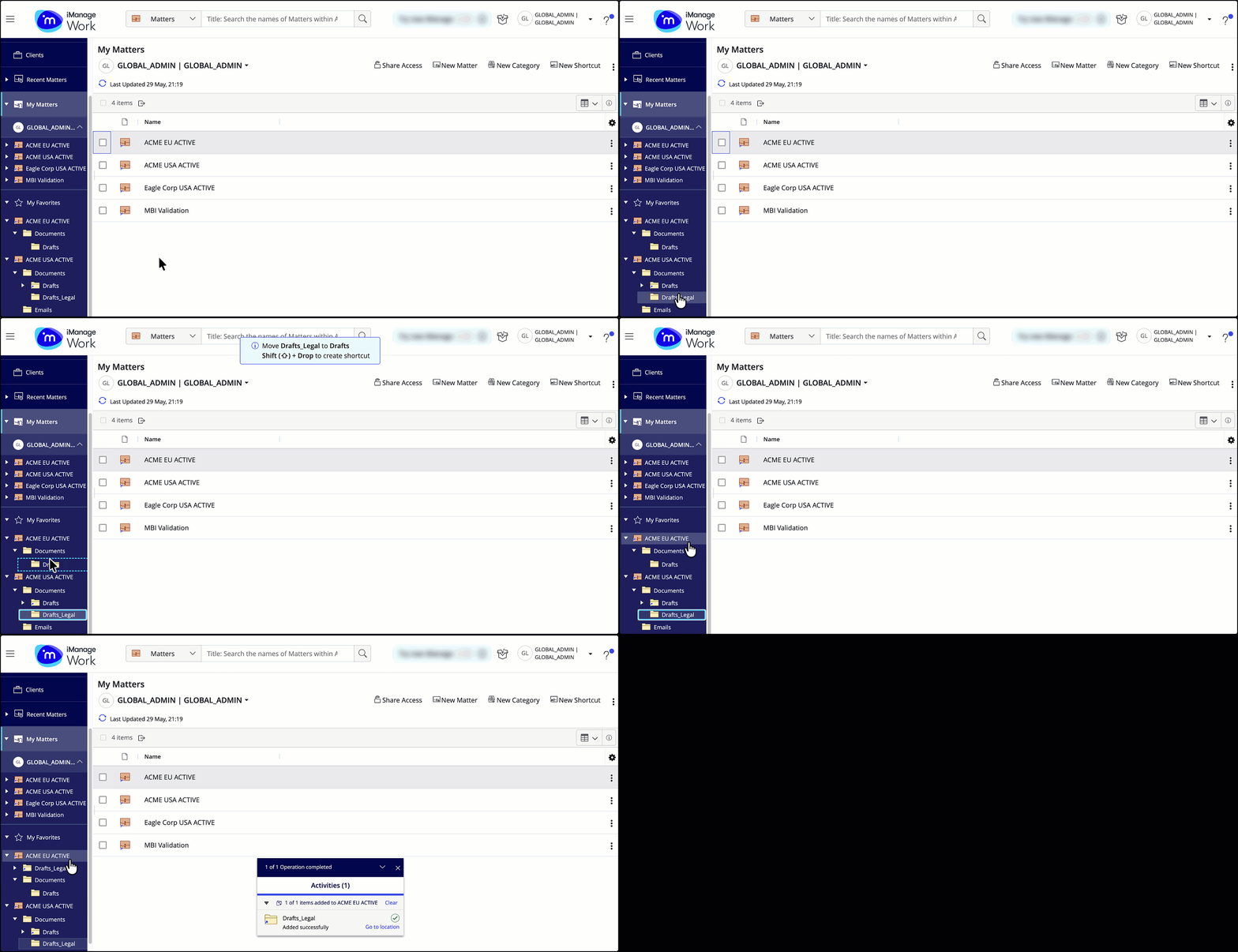
Dragging items within the tree
iManage Work now supports the drag-and-drop functionality in the left navigation tree for the following operations:
My Workspaces
Create workspace shortcuts
Move matter shortcuts or categories within My Matters
Folders
Move folders or folder shortcuts
Create folder shortcuts
My Favorites
Move shortcuts or categories within My Favorites
Create folder shortcuts
Create workspace shortcuts
May 2026
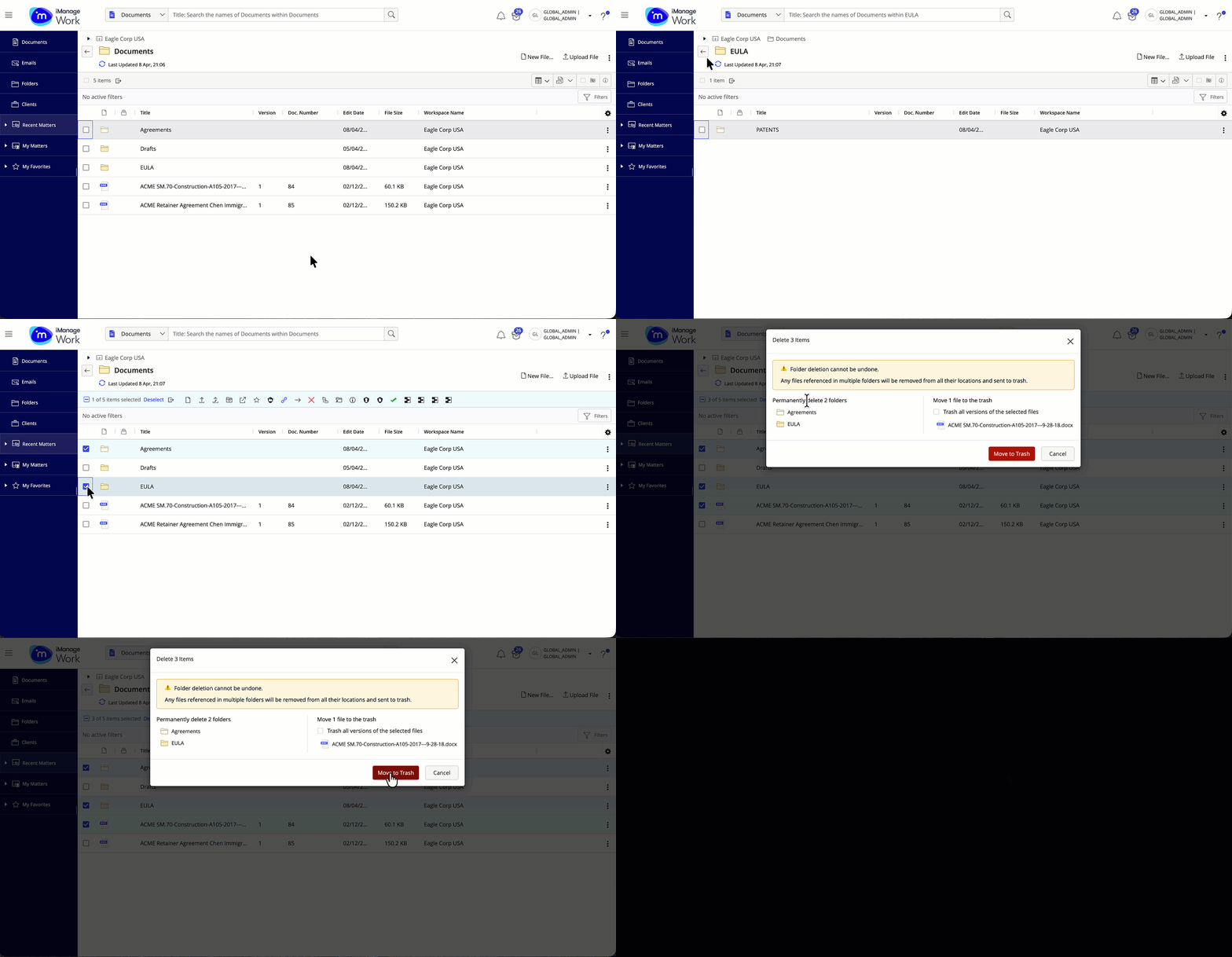
Deleting multiple empty folders in bulk
You can now delete multiple empty folders at one go. Supported deletion scenarios include:
Empty folders
Combination of documents and empty folders
Folders containing only empty subfolders
In all cases, you must have full access to every item included in the deletion.
April 2026
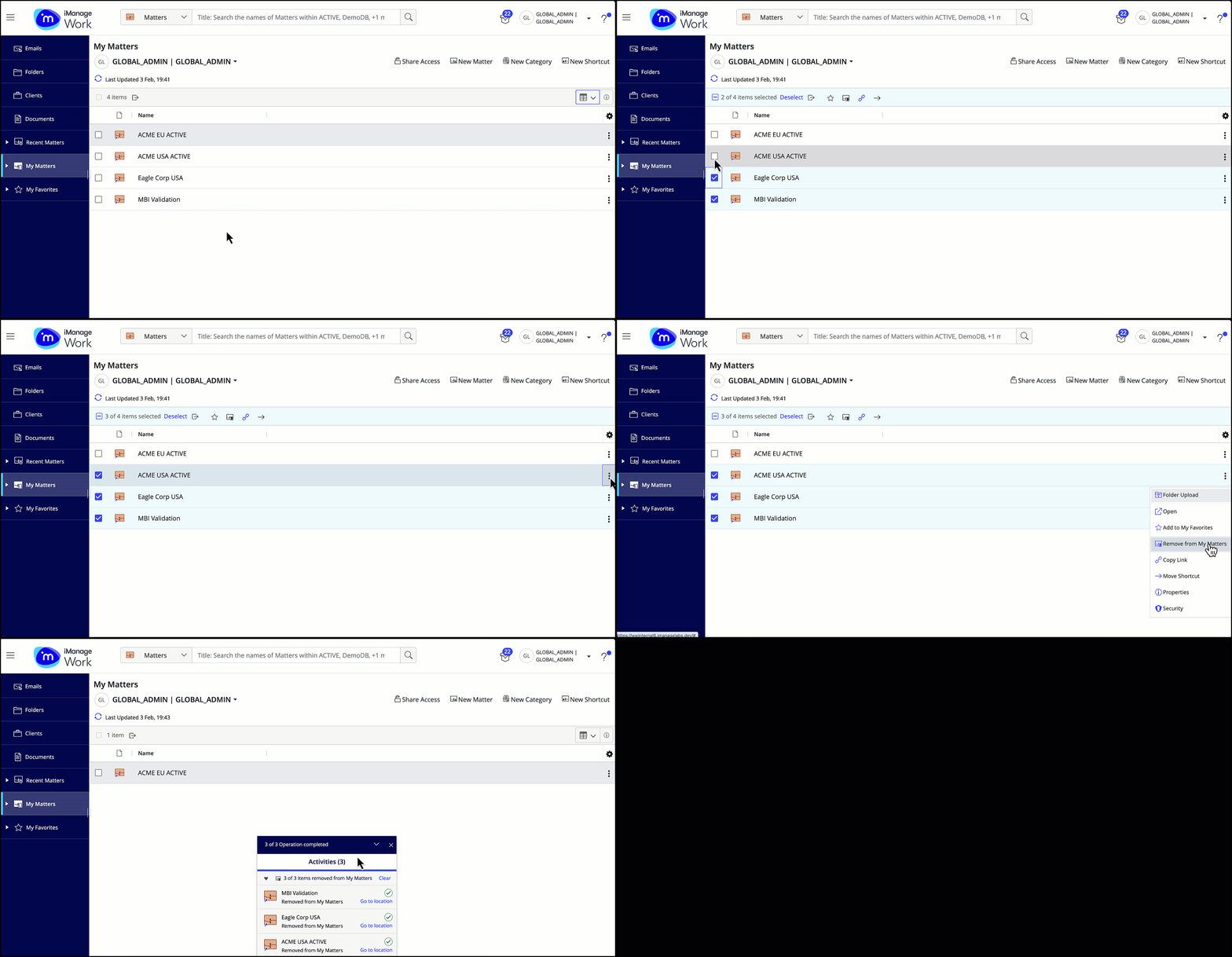
Removing shortcuts for multiple matters
Now, you can remove multiple matter shortcuts from My Matters using the Remove from My Matters option on the toolbar or context menu.
March 2026
Searching for available fields in the Add another field list in the advanced search form
The Add another field drop-down list in the advanced search form now supports searching for available fields that can be added to the search form.
This enhancement is also supported in the iManage File Open and Save As dialogs.

January 2026
Search improvements
This update includes the following improvements:
Back arrow icon: Now use the back arrow
 icon in iManage Work Web or the back button in your browser to return to search results after opening a result. The back arrow icon now functions the same way as the back button in your browser, taking you one step back whenever applicable.
NOTE: The up arrow icon has been removed from all views in iManage Work Web.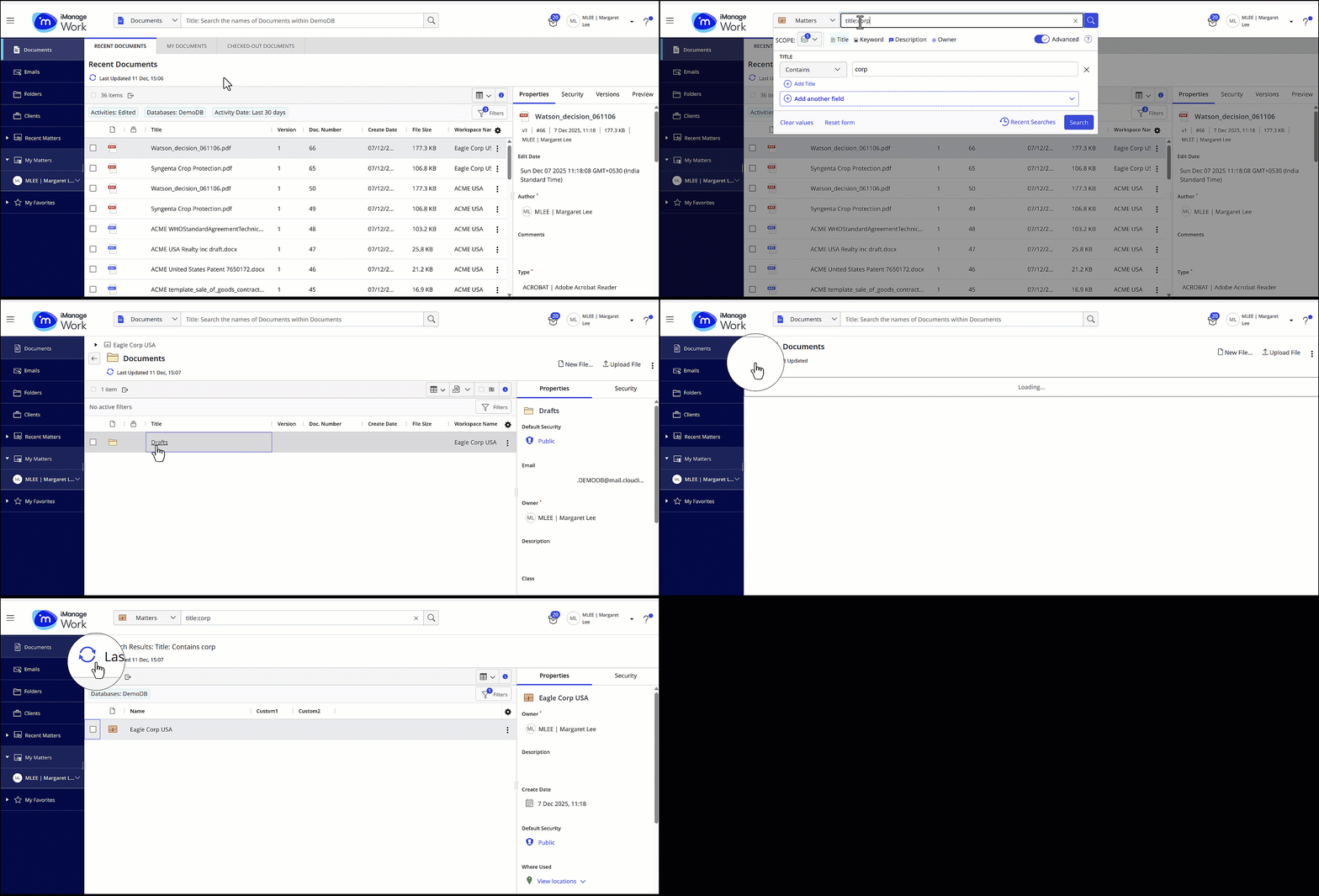
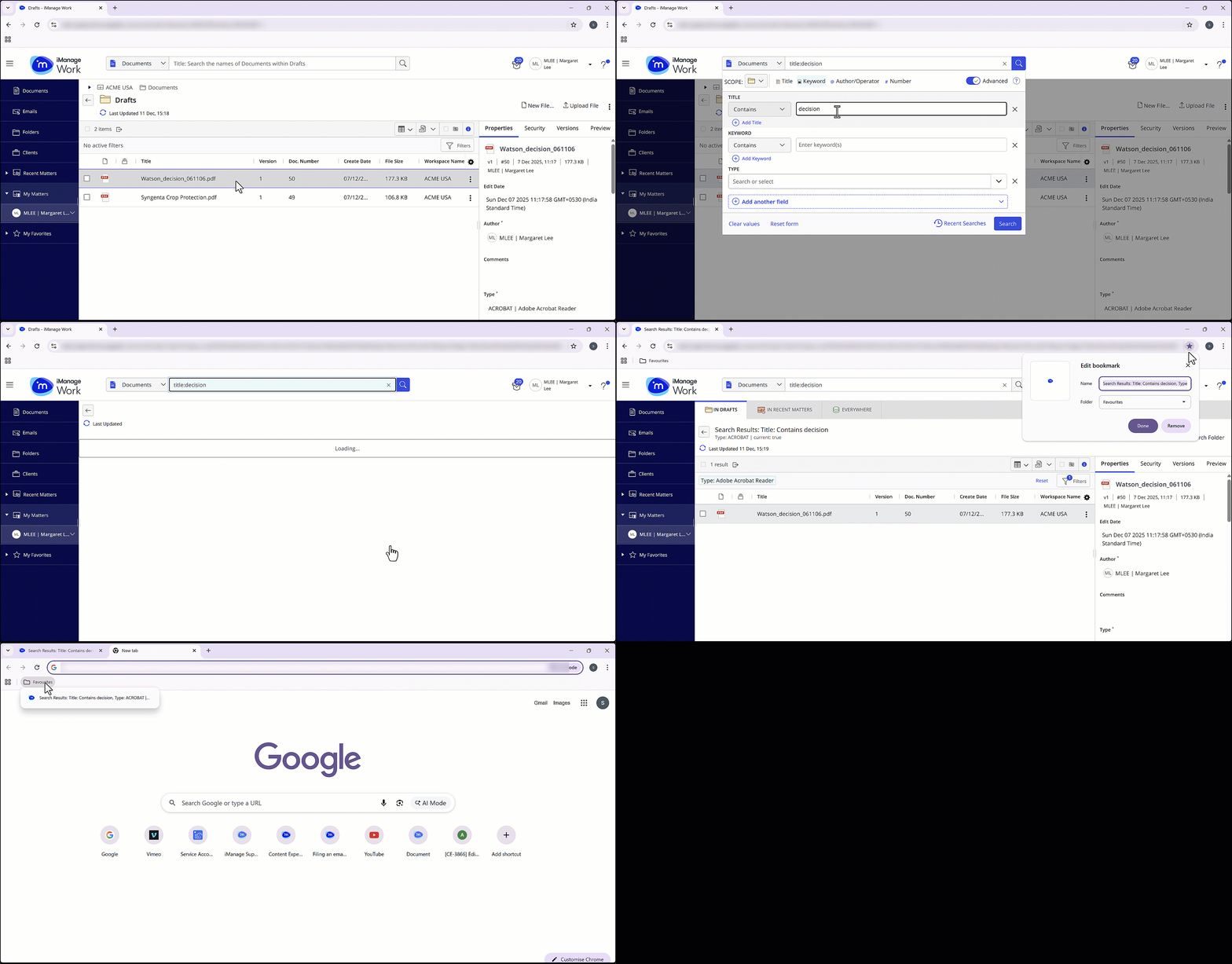
Bookmarking search results: You can now bookmark the search criteria for an advanced search, including any filters applied to the search results, and re-run that same search again.
NOTE: Old bookmarks will continue to work with this improvement. You're encouraged to update your old bookmarks to the new search URLs.
Updates to sorting of items with numbers in their title
The sorting of items by Title in grid and list views is now updated.
When the title of an item contains numbers, numeric values will consider their complete values rather than sorting based on just the initial digits. For example, earlier sorts like 1, 11, 111, 2, 22, 3, 4 ,5, 6, 7, 8, 9 are now sorted as 1, 2, 3, 4, 5, 6, 7, 8, 9, 11, 22, 111.
This change is also applicable when sorting documents by version or number, and when viewing items in the side navigation panel.
November 2025
Copying emails in iManage Work
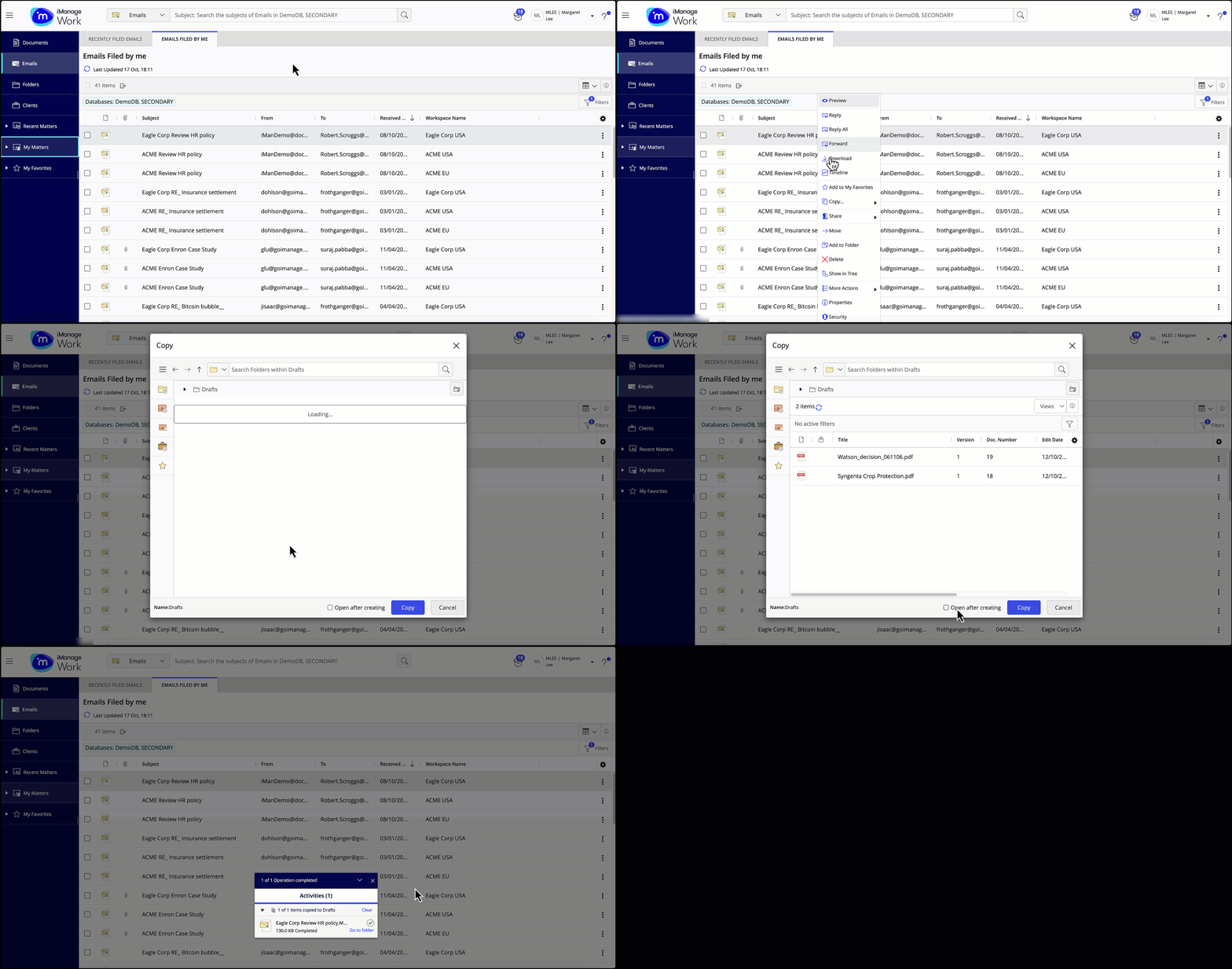
Now, copy emails from one location to another in iManage Work. Use the Copy Item option in the context/kebab menu, or drag an email from the center panel to the preferred location in the side navigation panel to copy it.
Select the Open after creating check box in the file integration dialog to open the email after copying to the new folder.
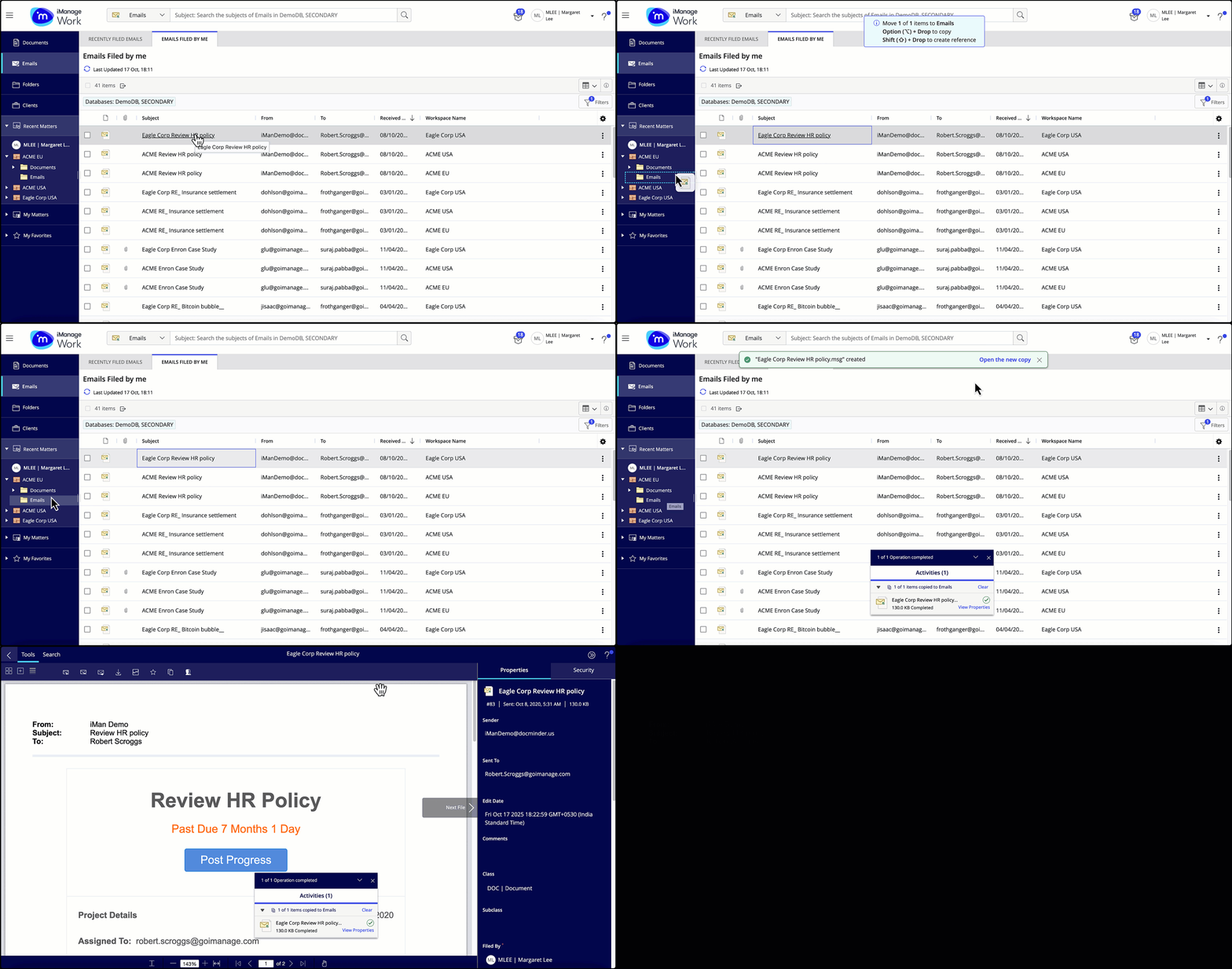
You can also open the copy of an email when you drag it from the center panel to a folder in the side navigation panel, using the Open the new copy link on the banner that's shown after the new copy is created.
Searching for group members within a group
With this update to iManage Work, you can now search for group members using the Find member search, when viewing members of a group under the Security tab.
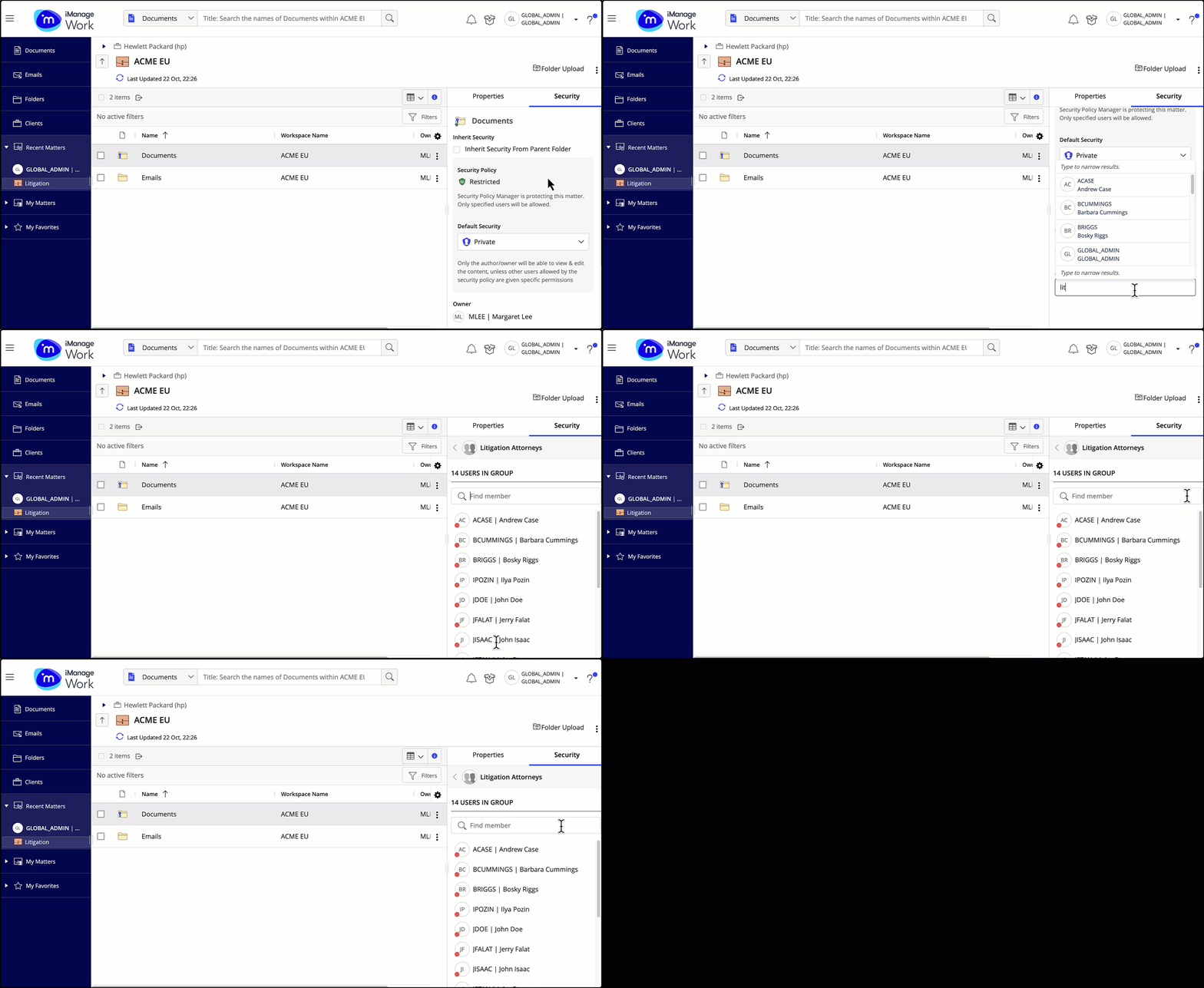
You can search for a member in the group using their alias or full name.
October 2025
Warn users of security differences when saving documents using File Open/Save as dialog
When saving a new document in iManage Work using the File Open/Save as dialog, you’re now notified if there are differences in the security between the document and the selected folder where the document will be saved.
The warning is displayed if the default security, access control list, or Client/Matter are different than the target folder.
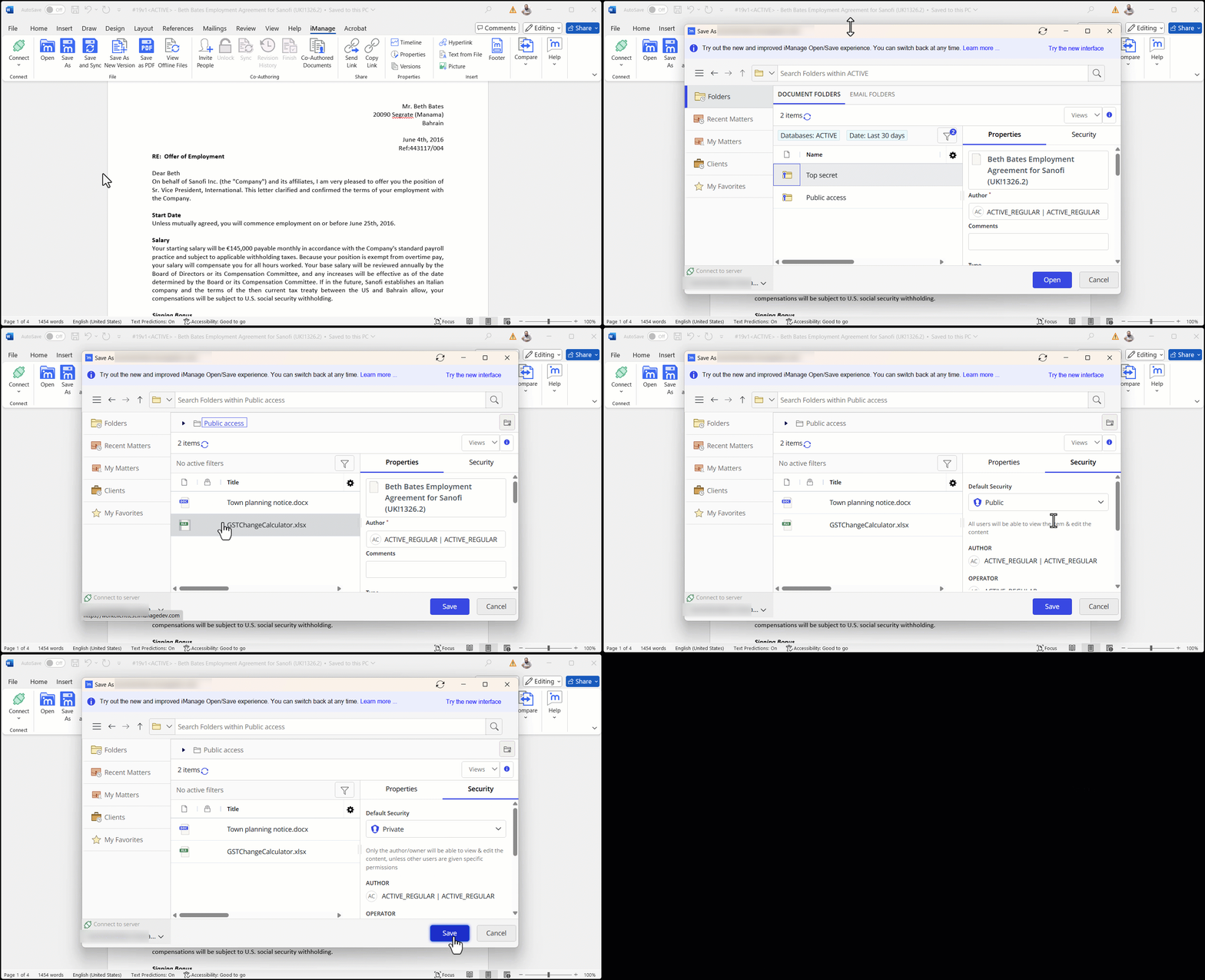
This warning helps you decide if you want to proceed with the changes or cancel the operation and adjust the document’s security accordingly.
NOTE: This warning can be turned off for all users using the Save dialog security alert setting under Web Client Settings in iManage Control Center.
September 2025
Improvements to copy action in iManage Work
Opening a document copy to work on it immediately after creating is simpler now.
Select the Open after creating check box in the file integration dialog when creating a copy, and the new document opens after creation. The open action follows your Title click settings for the File open/ Microsoft 365 file open options as configured under User Settings.
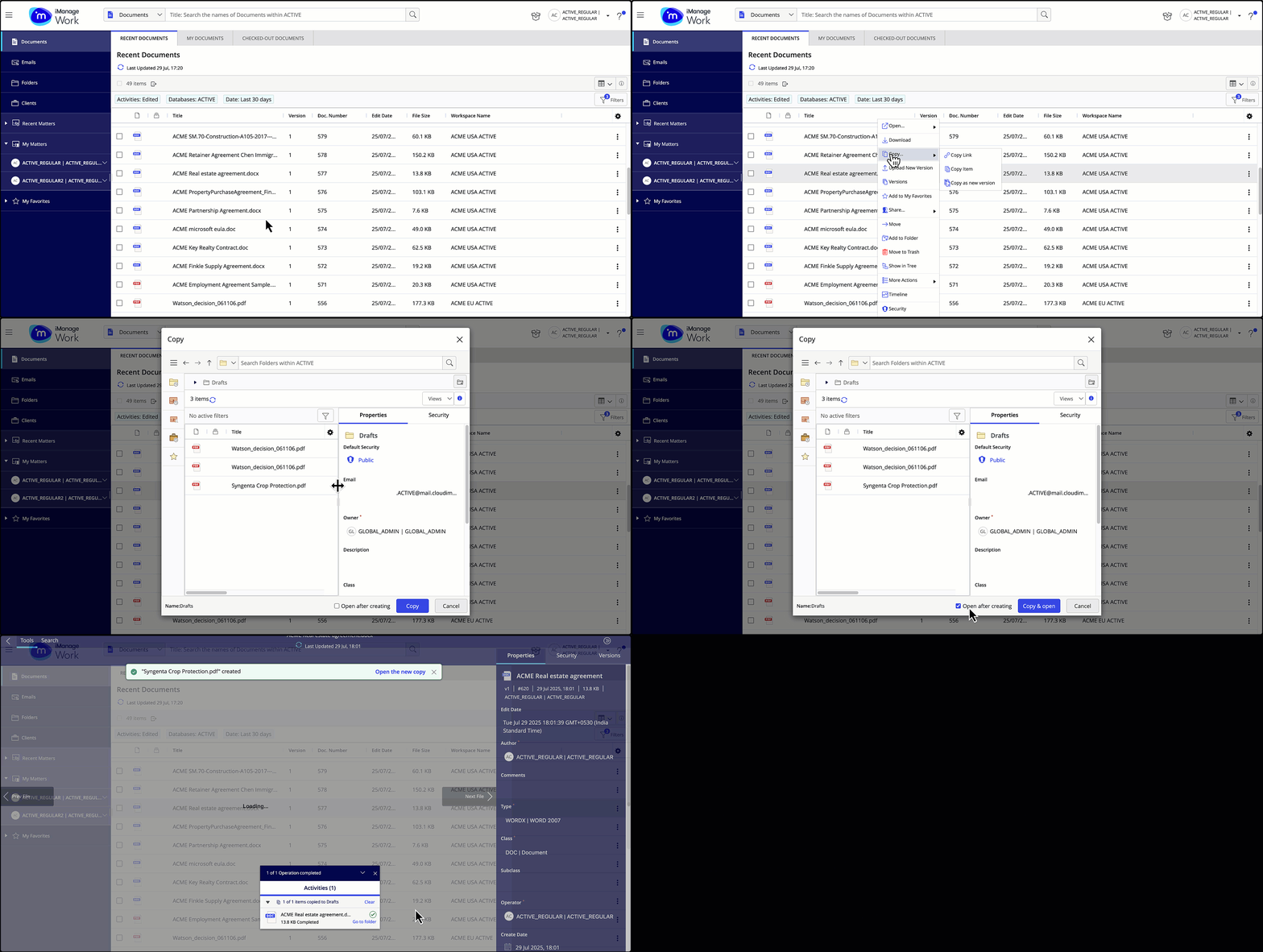
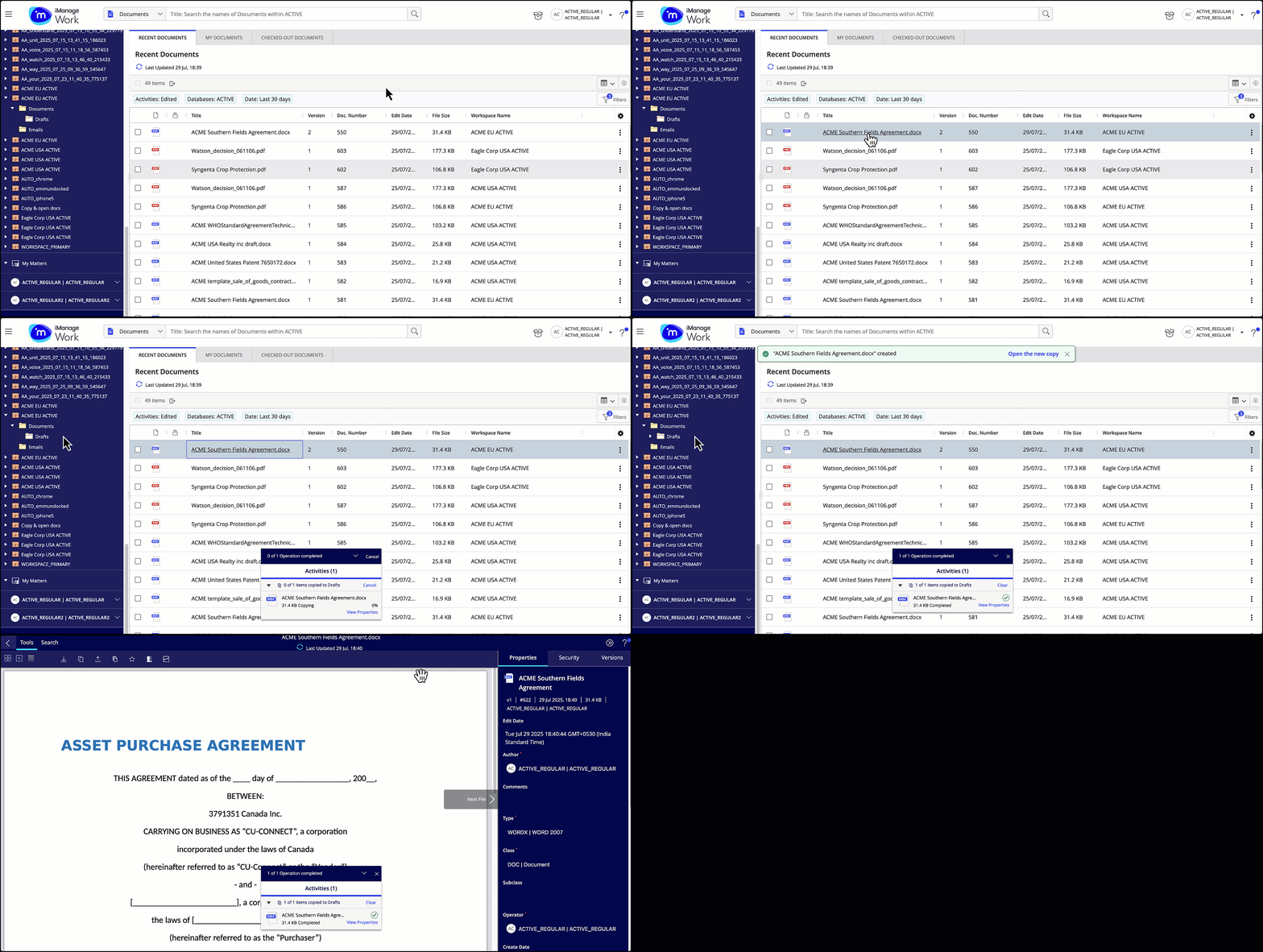
You can also open the copy of a document when you drag a document from the center panel to a folder in the tree, using the Open the new copy link on the banner that's shown after the new copy is created.
August 2025
Enhanced Versions panel
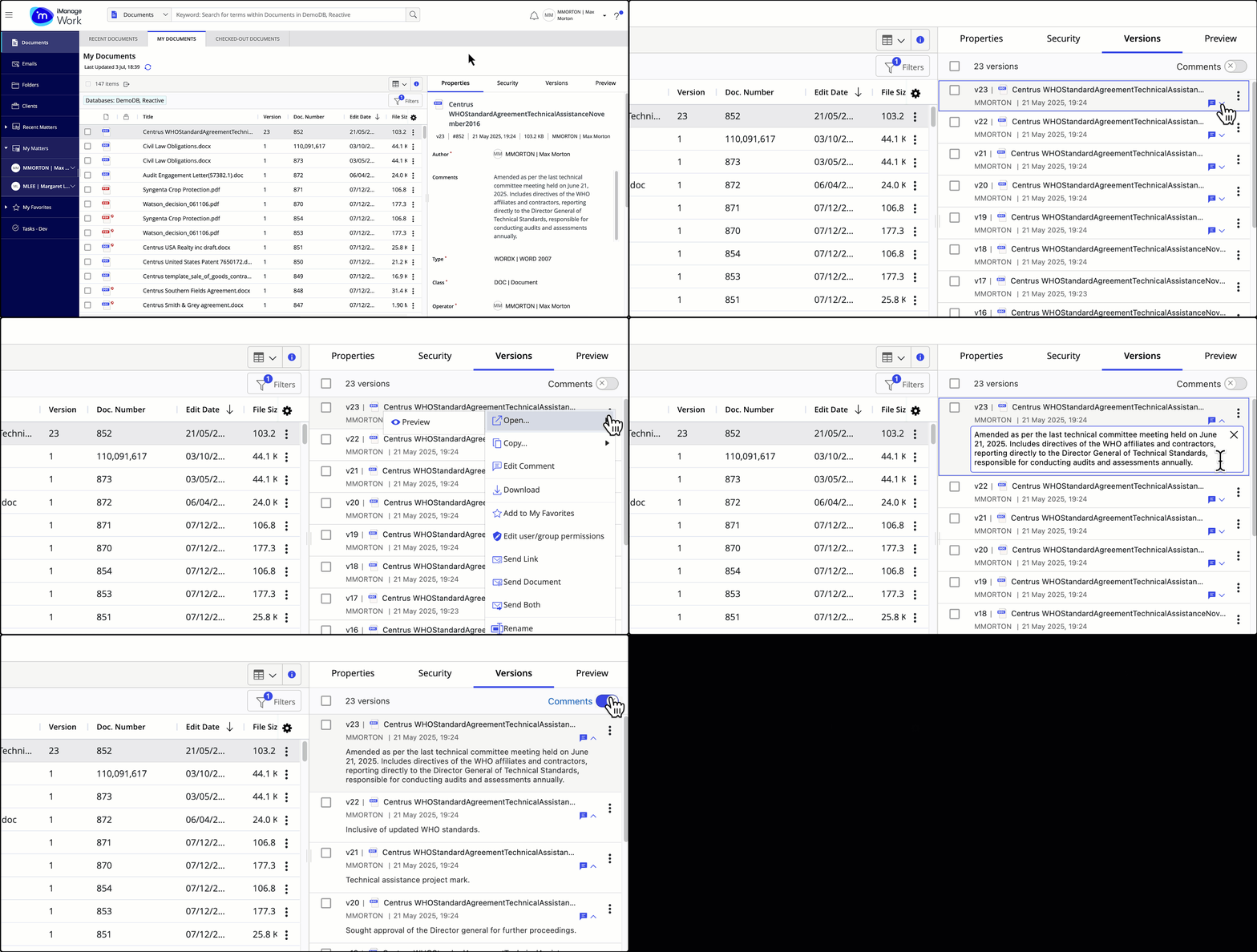
Introducing a range of enhancements to the Versions panel, significantly boosting both user experience and functionality:
Compact view: A redesigned panel to see a longer list of versions.
Enhancements to version comments:
Show or hide individual or all comments to free up space, and see a longer list of versions.
Updated user interface for editing comments in line.
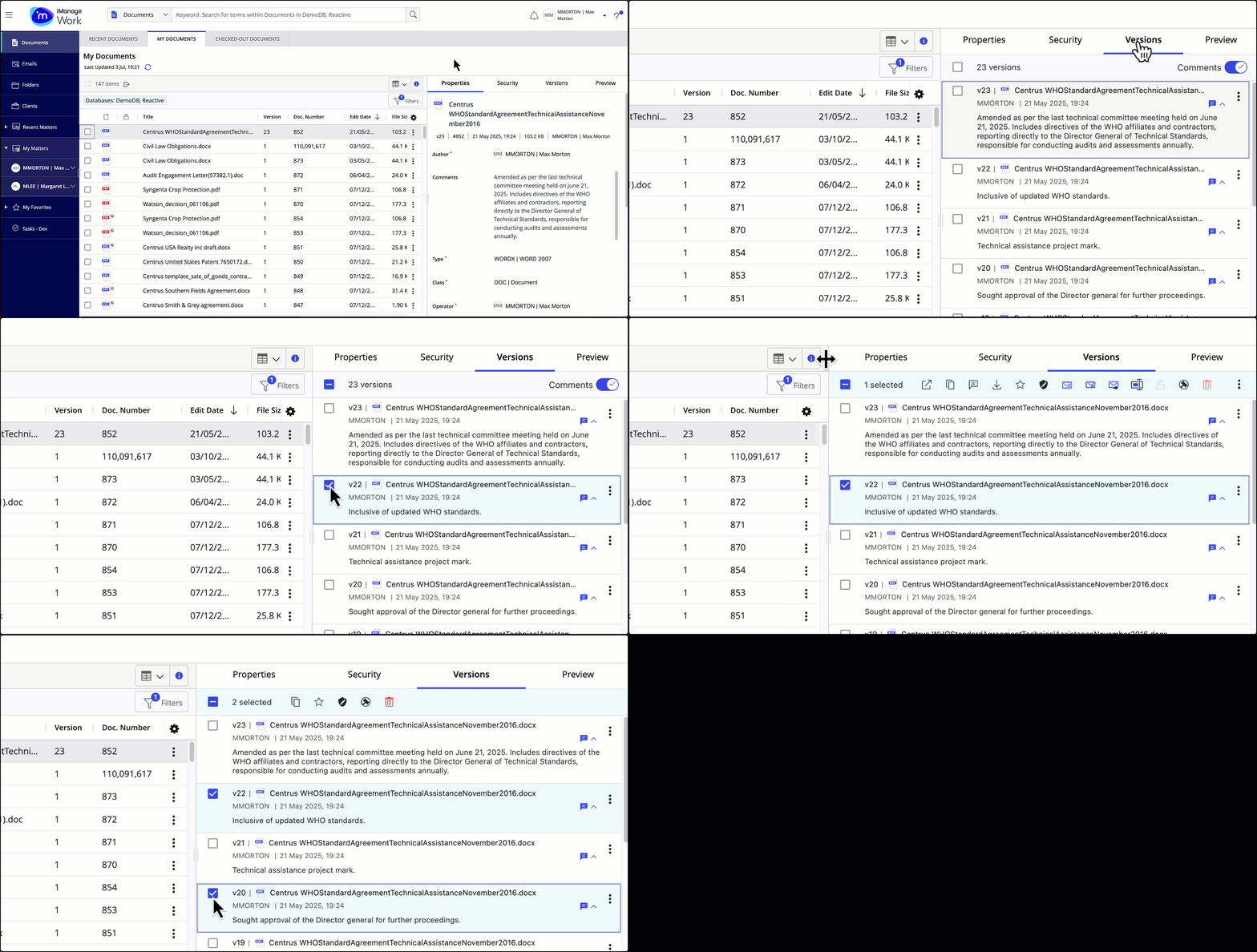
Multiselect document versions: Ability to select multiple versions of a document in the versions panel to perform various actions, including the Edit user/group permissions action to update document security, if enabled and configured by your administrator in iManage Control Center.
Accessibility: Keyboard navigation and screen readers are now fully supported.
Searching for items with numbers as the title
Now, directly search for items (documents or emails) which contain numeric values in its title.
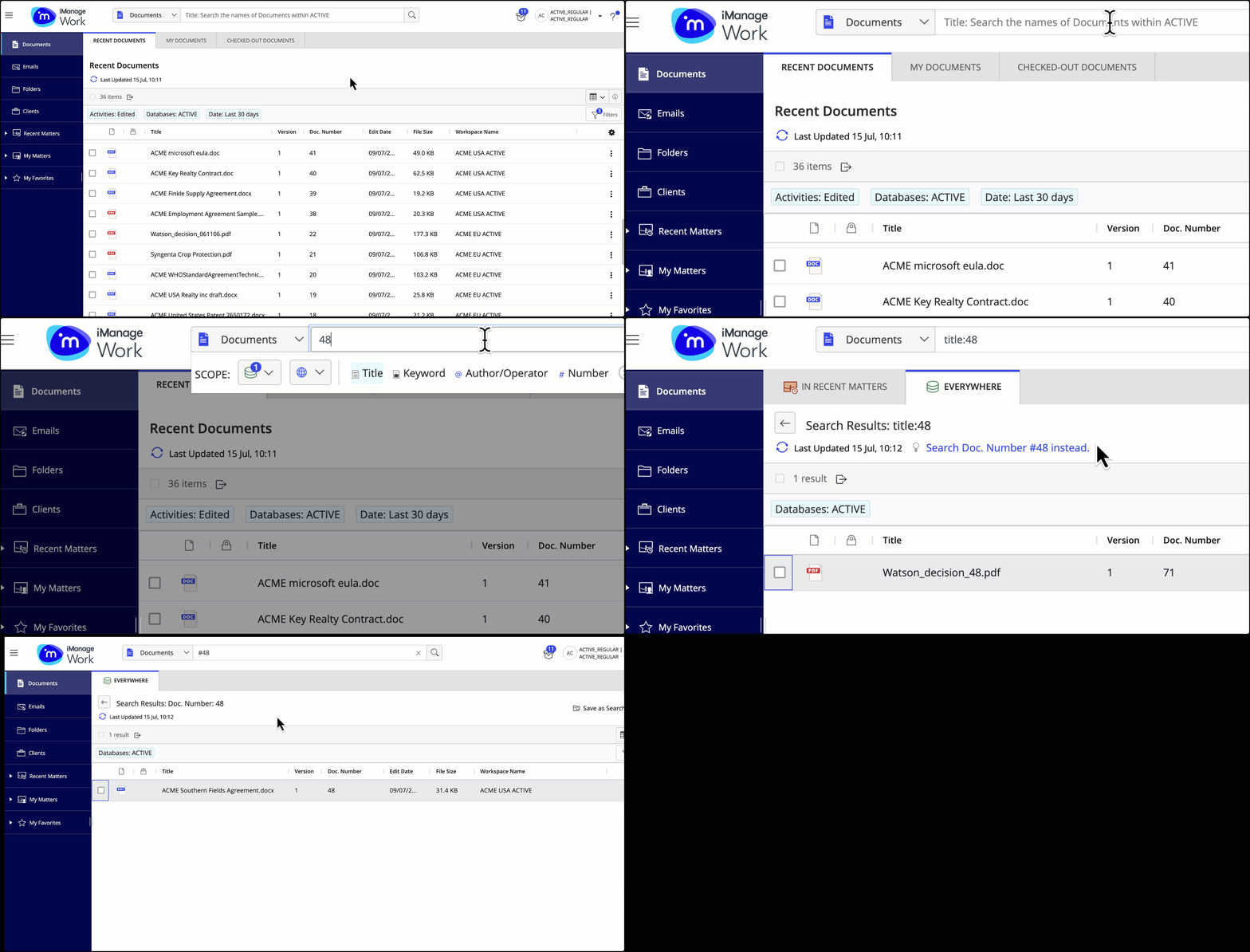
A dedicated link from the search results page is also available if you want to search for a document number, which is the same as the search criteria you’ve entered.
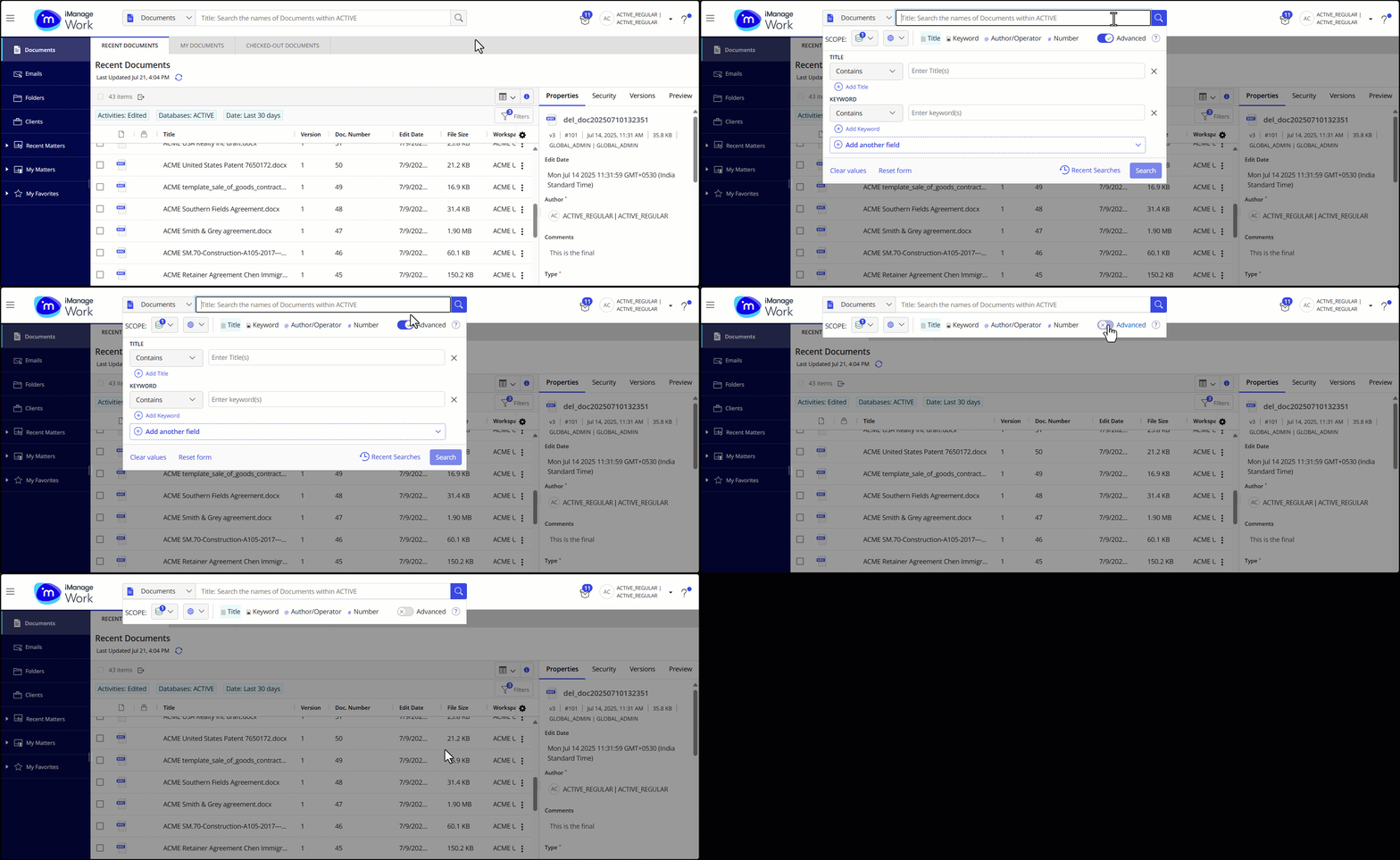
Advanced search, enabled by default in iManage Work
Advanced Search in iManage Work is now enabled by default. If you prefer to conduct a simple search, simply slide the Advanced search toggle to the off position.
July 2025
New personalized file open options
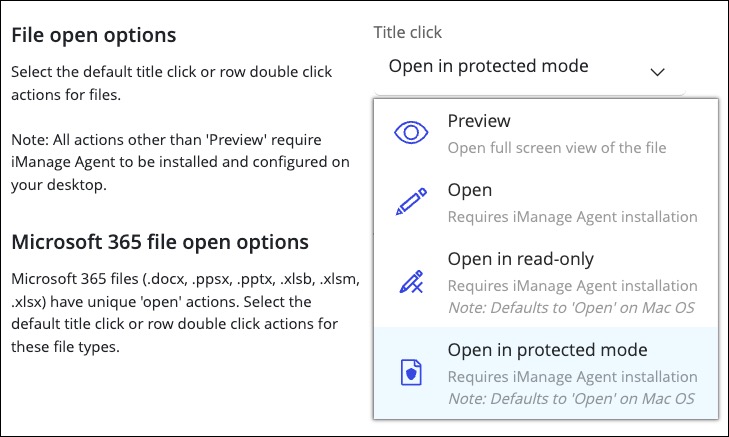
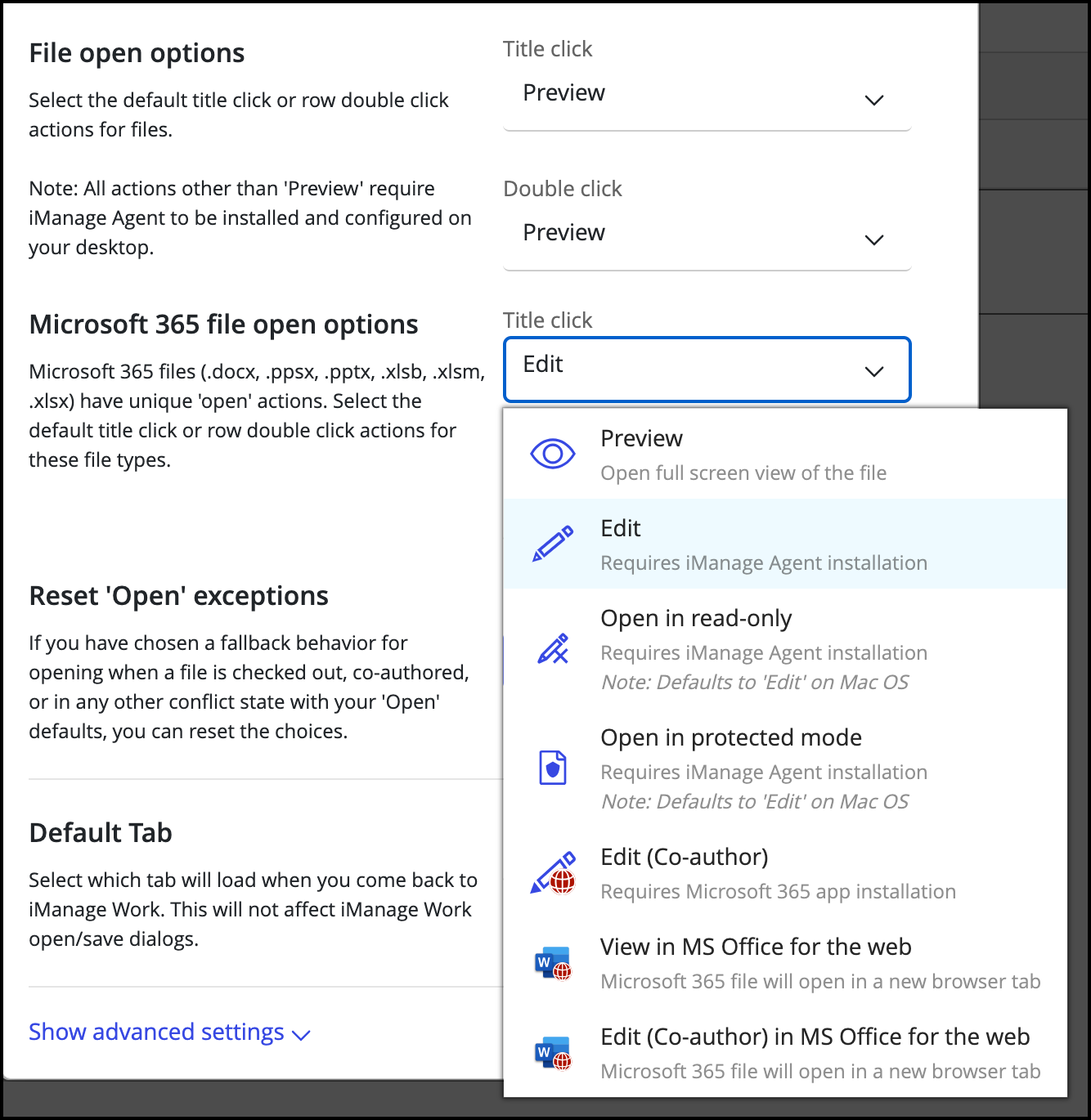
iManage Work admins can now configure separate default actions for title click and row double clicks for Microsoft Office 365 files and all other file types for their users across the organization.
The same configurations are now also available to users under User Settings in iManage Work.
Users can now configure these actions, overriding their organization’s defaults, to personalize the file open behavior experience.
The set of options are:
File open options: Configure how old office file extensions [doc, ppt, xls, and so on], Emails [MIME, eml] and other file extensions [pdf, txt, tiff, png, jpeg, txt, and so on]open when you click on the document title or double-click on the document row.
Microsoft 365 file open options: Configure how a Microsoft Office 365 file extensions (like docx, pptx, xlsx, and so on) opens when you click on the document title or double-click on the document row.
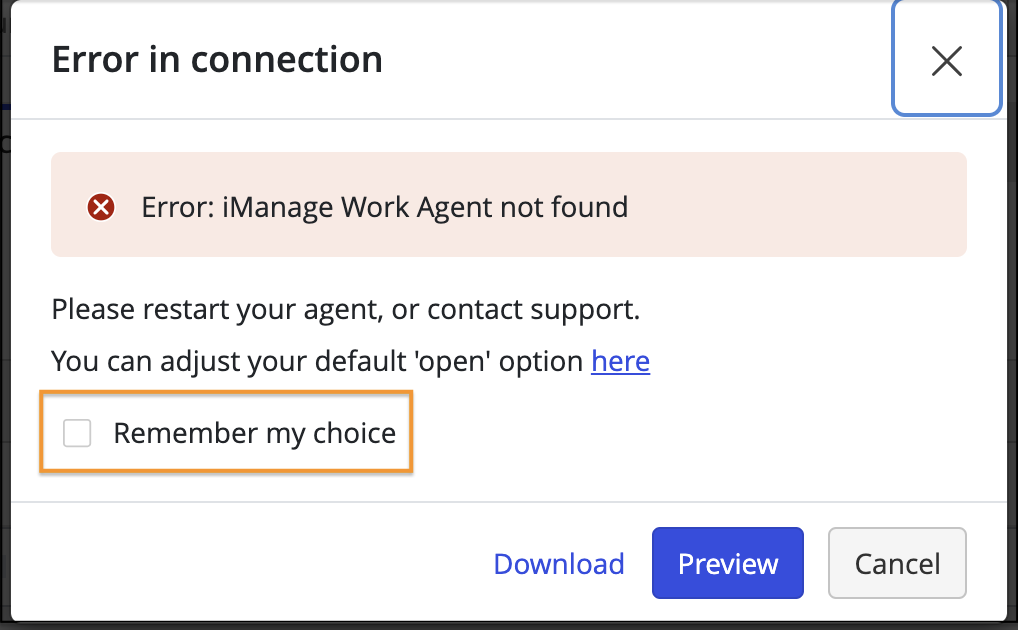
Fallback options for title click, double-click user operations
When any of the configured actions for the File open or Microsoft 365 file open options aren’t available due to one of the specific scenarios below, you’ll be provided with a dialog displaying fallback options for uninterrupted workflows
iManage integration isn't enabled or configured on your desktop.
You don’t have proper access to the document.
Document is locked by another user.
Document is declared as a record
Document is opened in a co-authoring session (when applicable) and so on.
You’ll have the option to remember your fallback option the next time this scenario is presented by selecting Remember my choice. This will be remembered by device and browser combination.
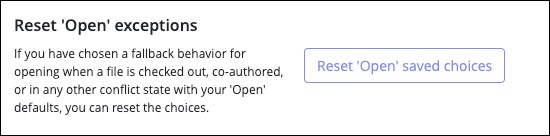
These saved fallbacks can always be reset using the Reset ‘Open’ saved choices button in User settings.
June 2025
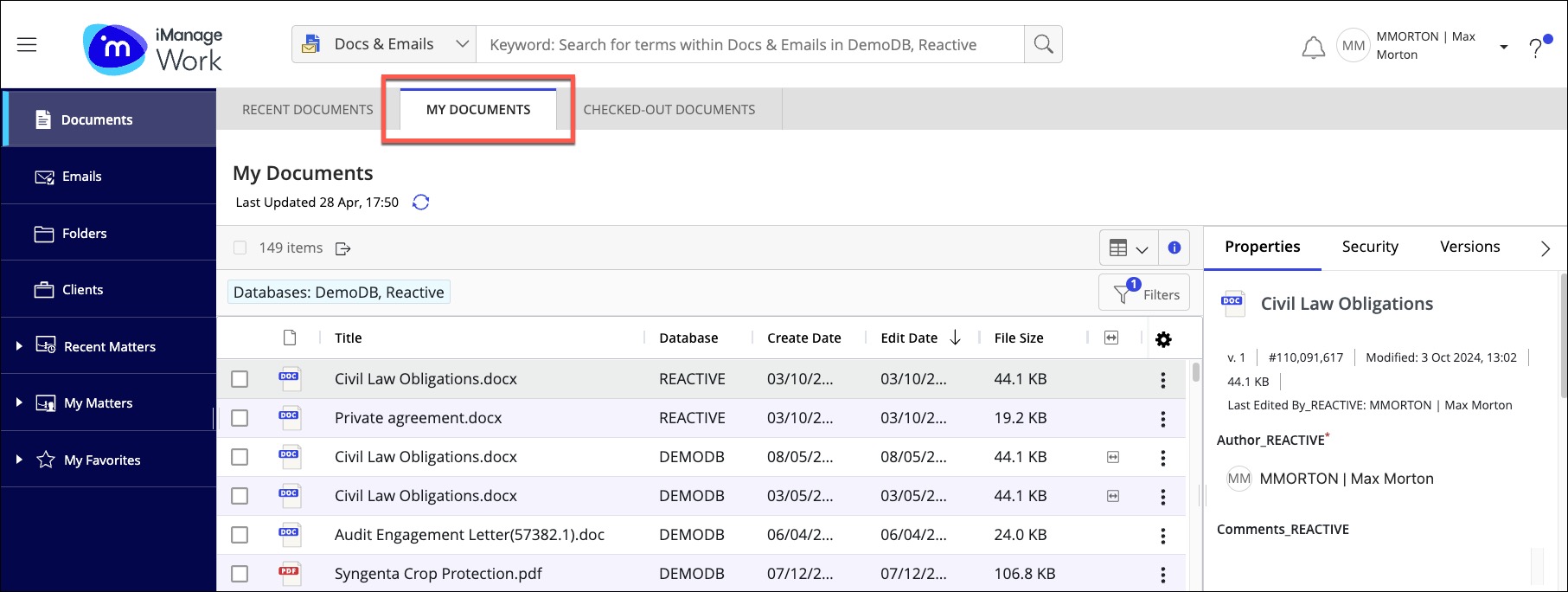
My Documents tab in iManage Work
The new My Documents tab lists all documents for which you’re either the author or operator, including documents that are checked-out, locked, or declared as records. Now see up to 5000 documents that you’ve worked on, extending beyond the 30 day limit in the Recent Documents tab.
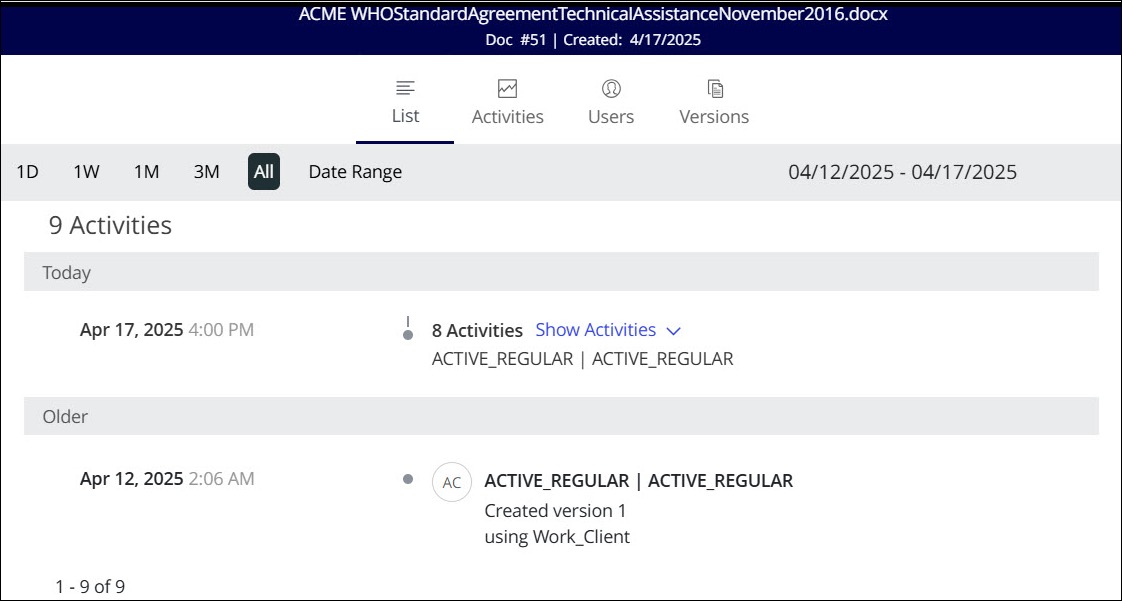
Enhanced document timeline
List tab is now the default in the timeline view.
The More option is now titled as Date Range.
New All option, which displays the history of the document since its creation.
Four or more activities identified within a one-hour period are grouped together.
Three or less activities within the same time period will be displayed independently.
When a new copy of a document is created, then a link to the new document is displayed in the timeline. When clicked, it'll open the new document in preview mode.
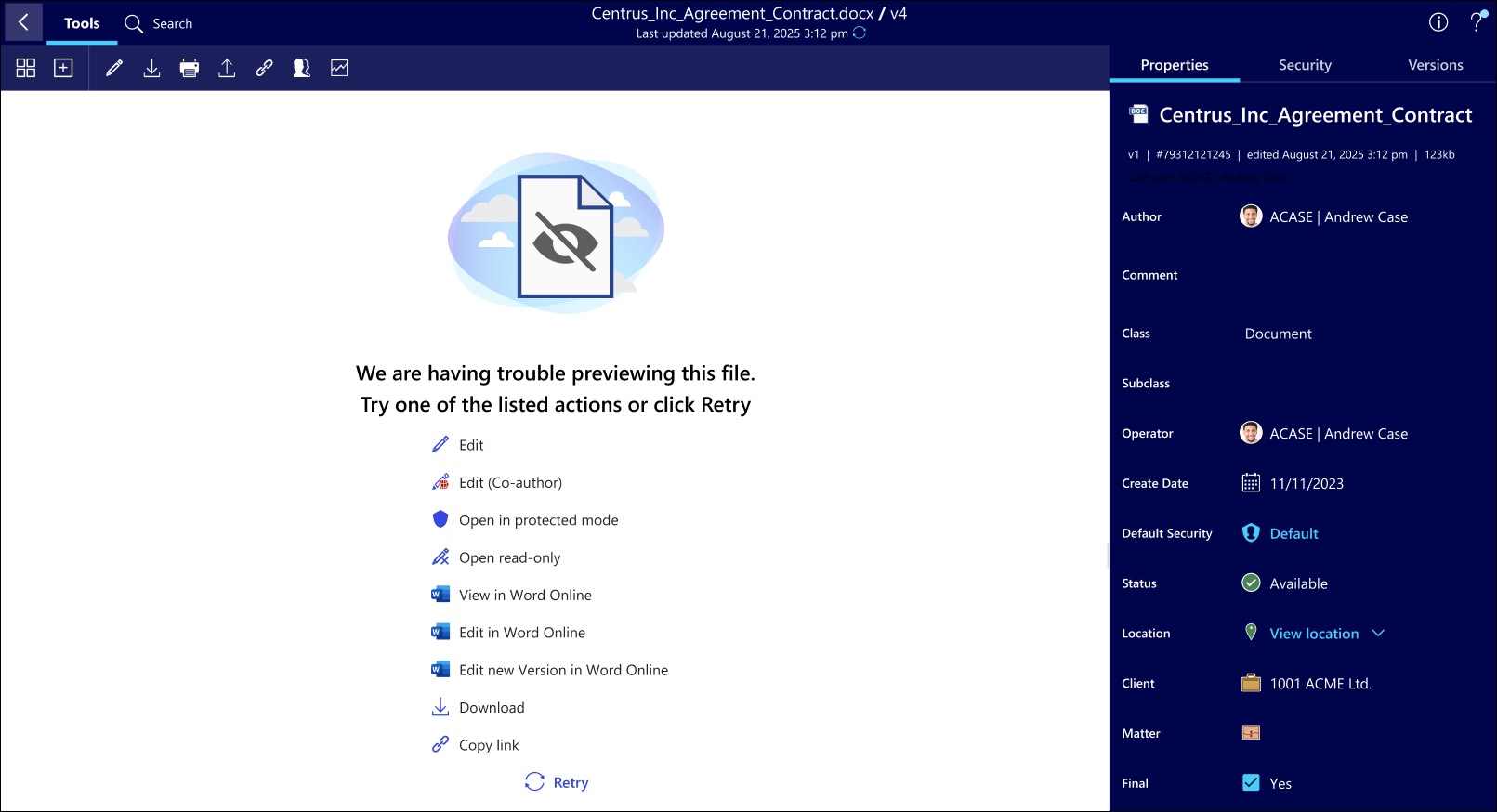
Enhanced preview failure guidance
Enhanced guidance for users to continue their work without interruption when the preview fails.
May 2025
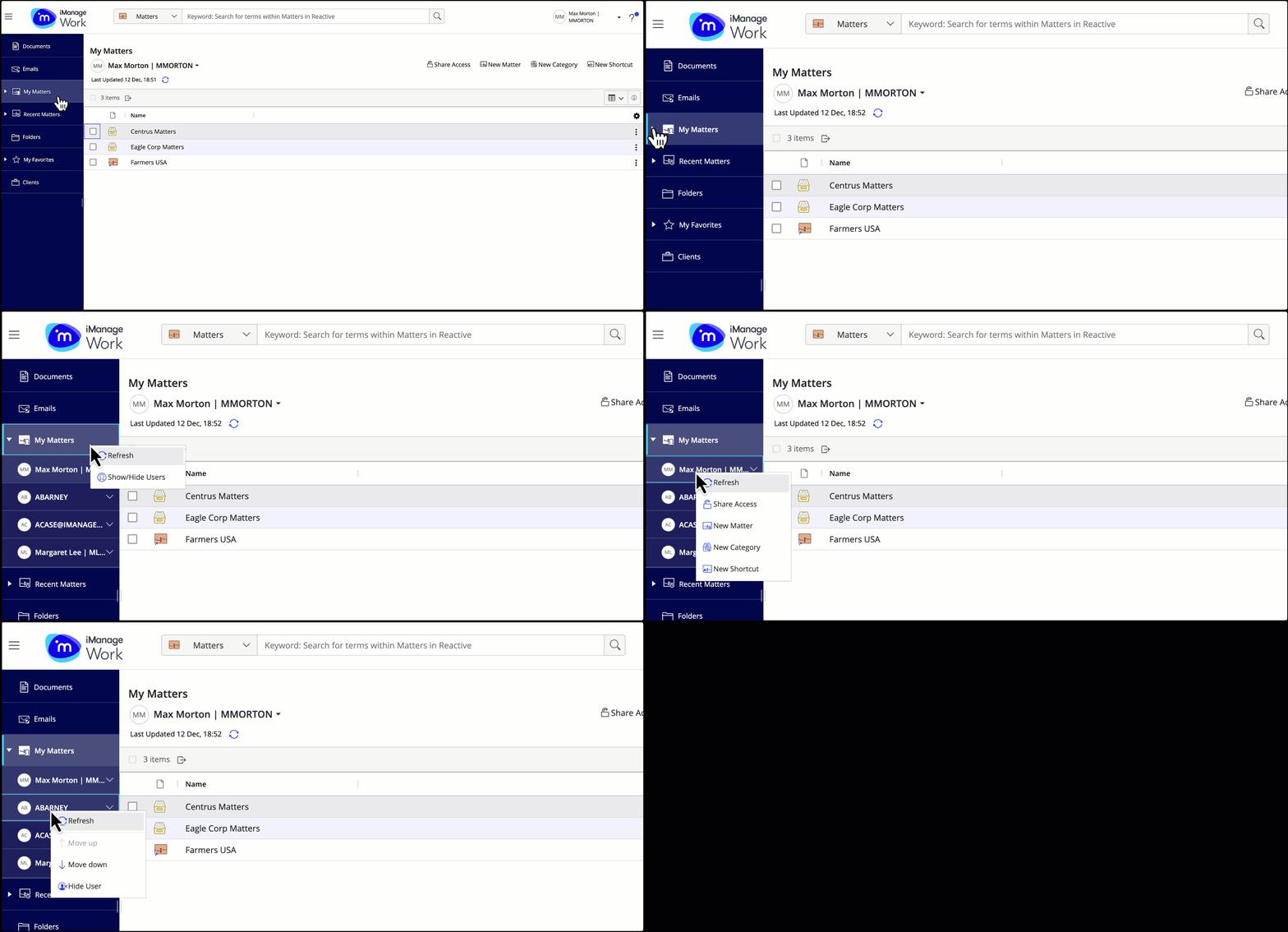
Listing user’s My Matters subscription in the tree
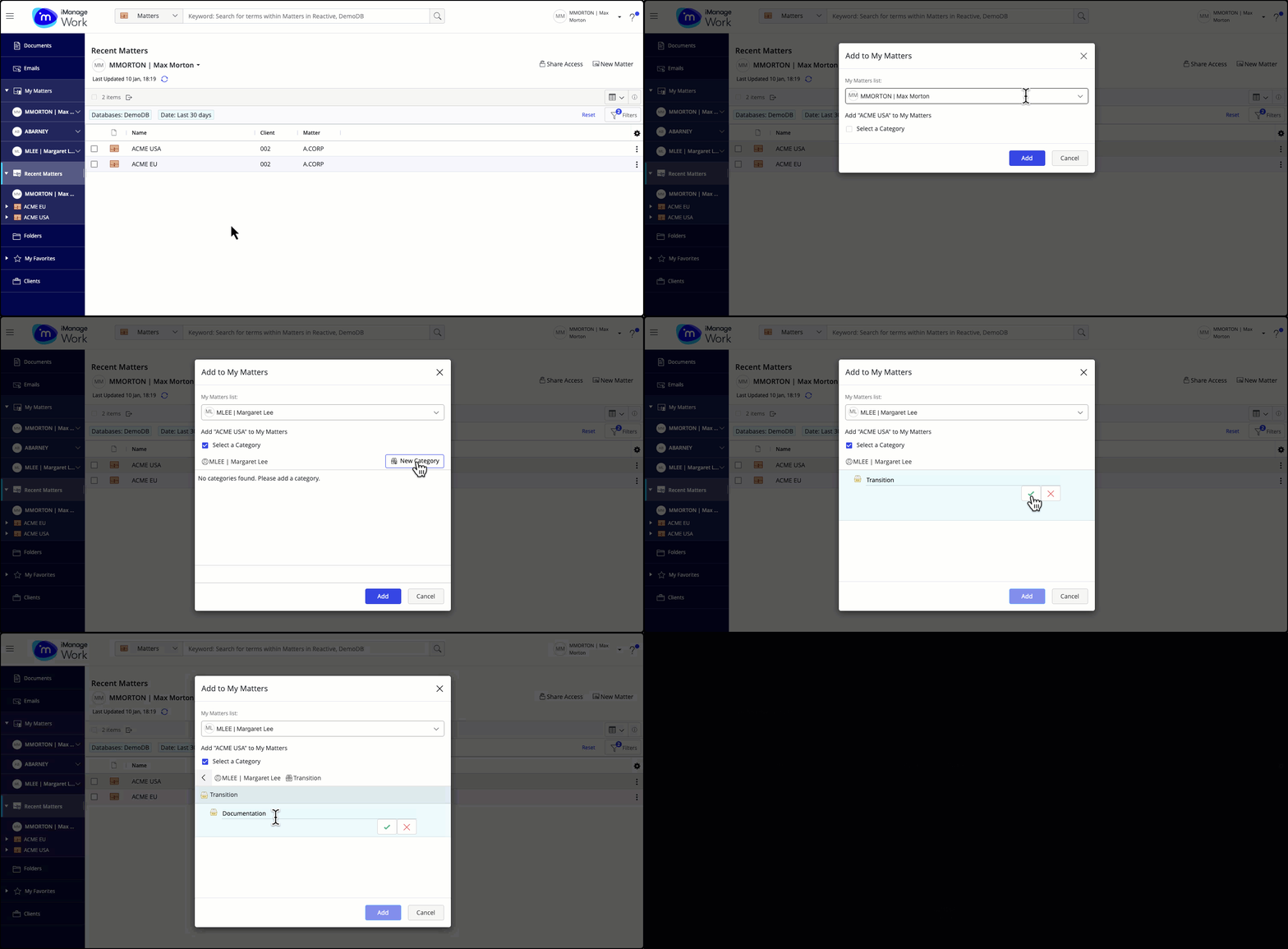
Conveniently access all your matter subscriptions in the tree view in iManage Work Web. Easily show or hide these subscriptions from the tree and rearrange their display order to suit your preferences.
Adding Matter shortcut to a subscribed user’s My Matters
An enhanced Add to My Matters dialog that displays the subscribed users list with the option to add the matter shortcut to your own My Matters or a subscribed user's My Matters.
Declaring or un-declaring multiple items as records
Now select and declare or un-declare multiple items (documents or emails) as records from the multi-select toolbar or the context menu.
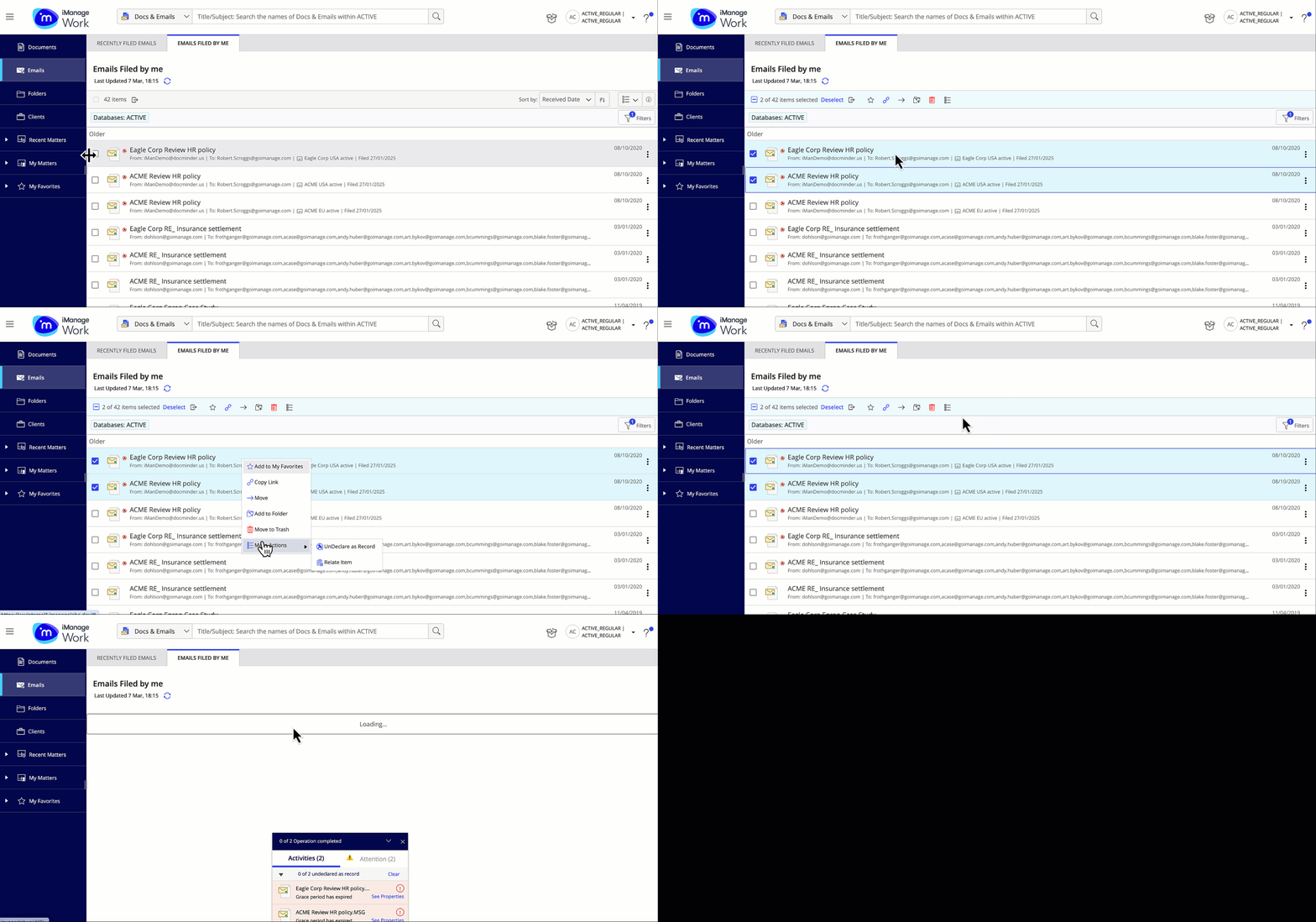
The option to declare or un-declare items as records is supported in the following views:
Document folder
Saved search folder
Document or Email search results
Recent Documents
Recently filed emails
Emails filed by me
March 2025
Updated to the display order of lookup results
There’s now a more intuitive search experience within the lookup fields throughout the iManage Work. More relevant search results are now displayed at the top of the result set.
Results are now ordered based on where your input text is found in the matched result, listing those that start with that input or have it earlier in the string appear first. This way, you can find and apply the right criteria faster.
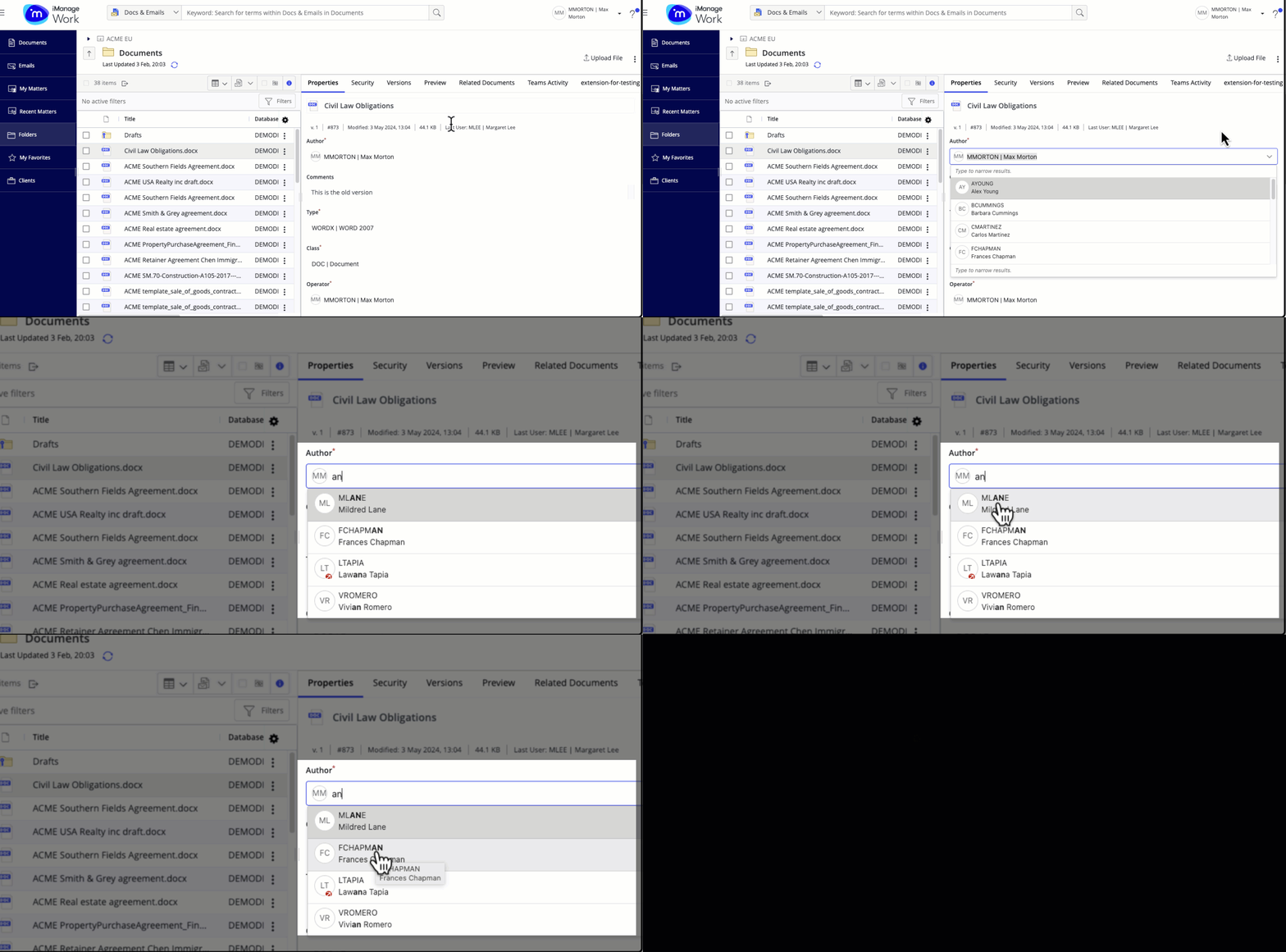
Additionally, to enhance ease of use, the first result in the result set is now auto-selected for you.
Press ENTER to choose the result.
Use the UP or DOWN arrow keys to browse to another result within the lookup field.
Press TAB to navigate away from the lookup field without selecting.
February 2025
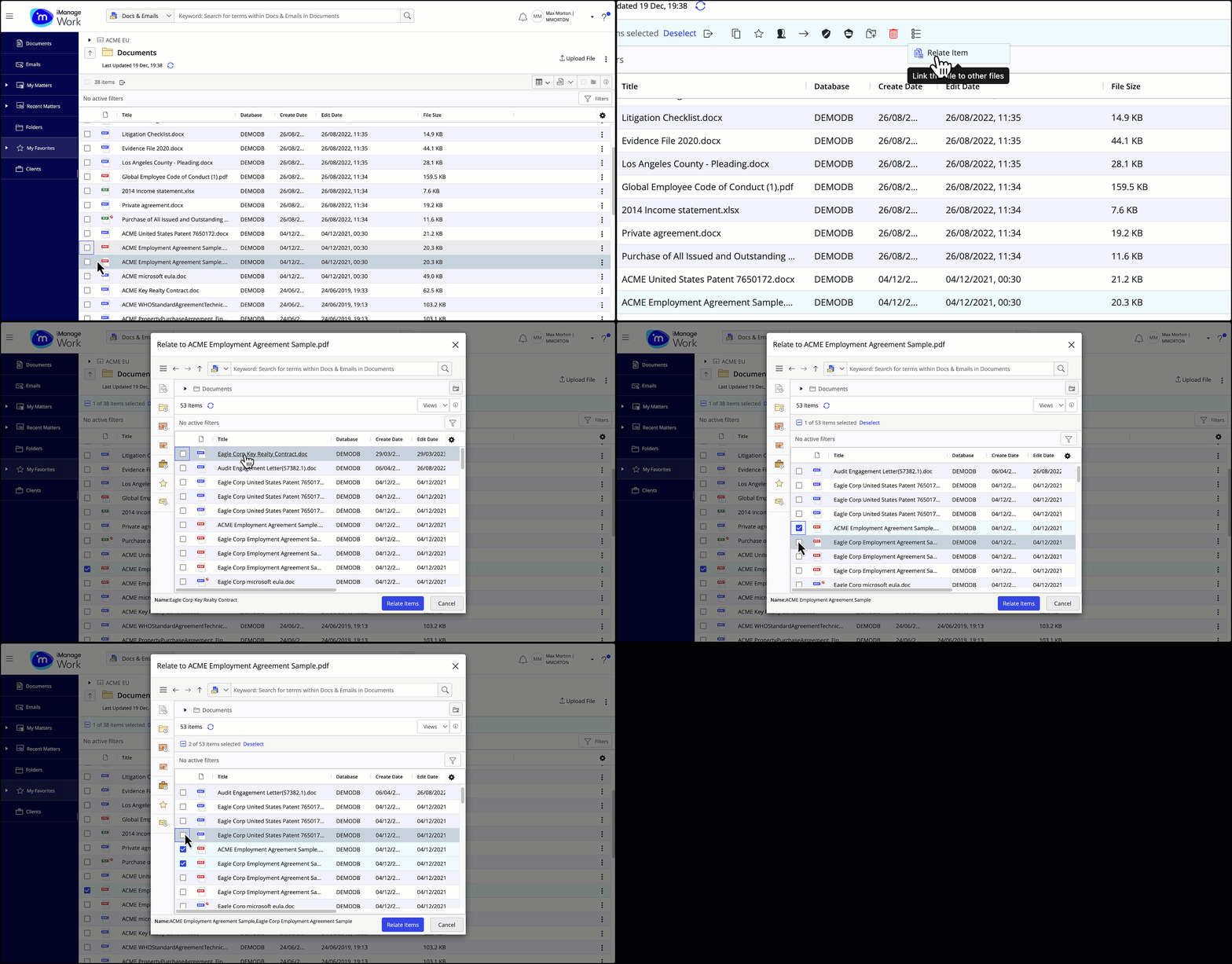
Relating multiple documents
In addition to the existing support to relate one document with another, iManage Work now supports relating:
Multiple documents to one document.
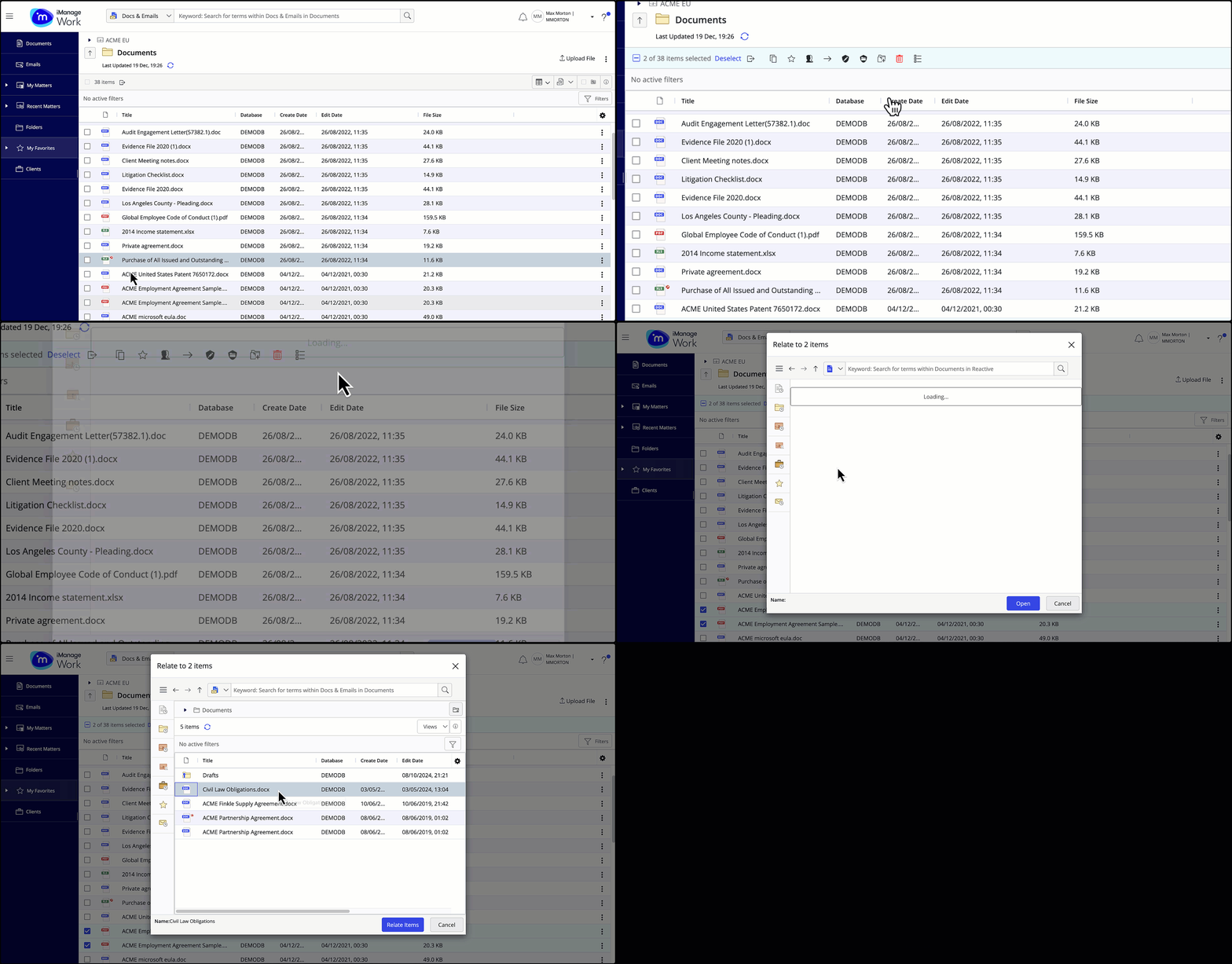
One document to multiple documents.
New bulk security update actions
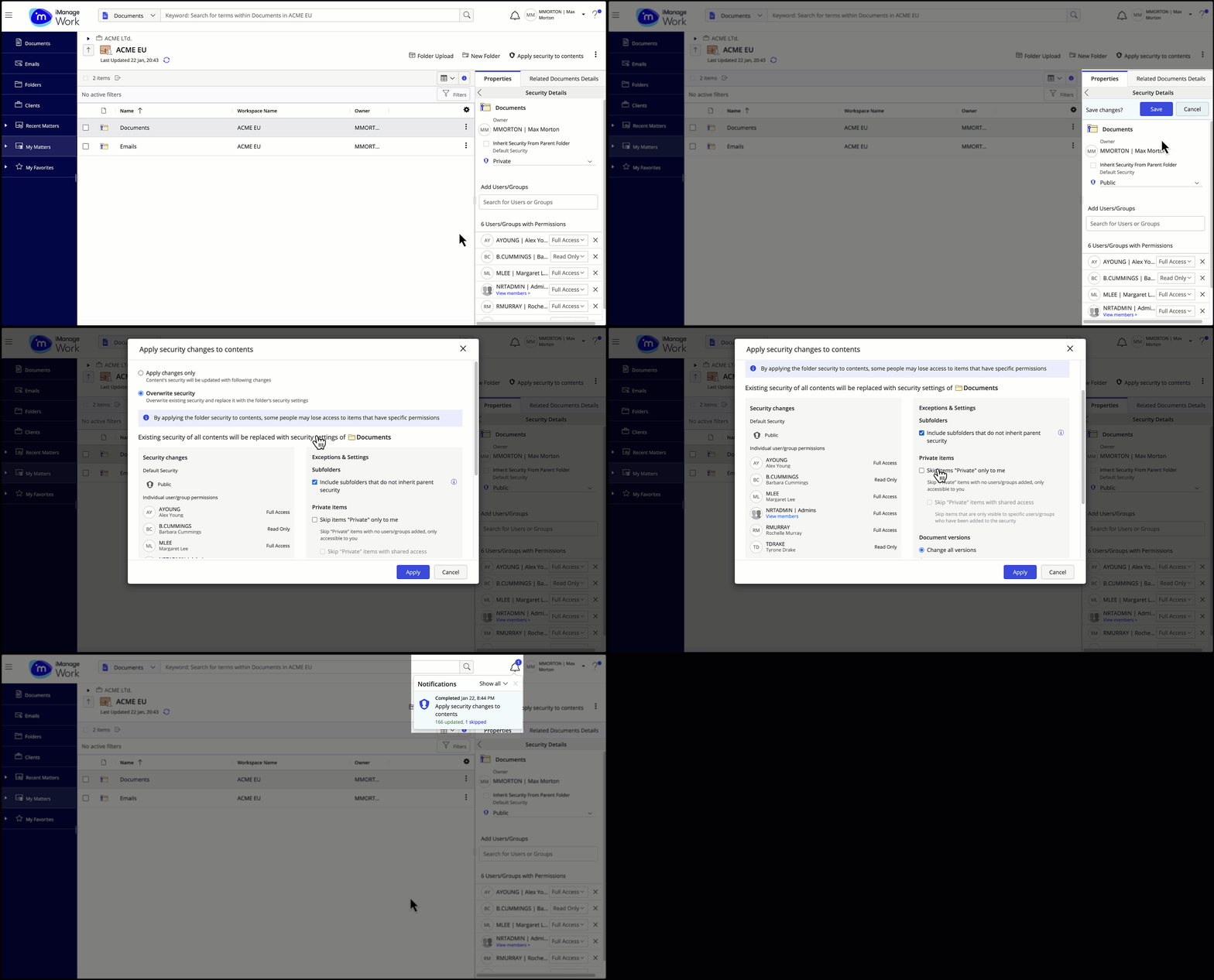
Update folder security and apply changes to its children
Now update the security details of a folder and also apply the changes to the folder’s children (subfolders, documents, and so on). For a folder, you can:
Add or remove a user/group.
Edit user/group access level.
Enable or disable Inherit Security From Parent Folder.
Edit the default security.
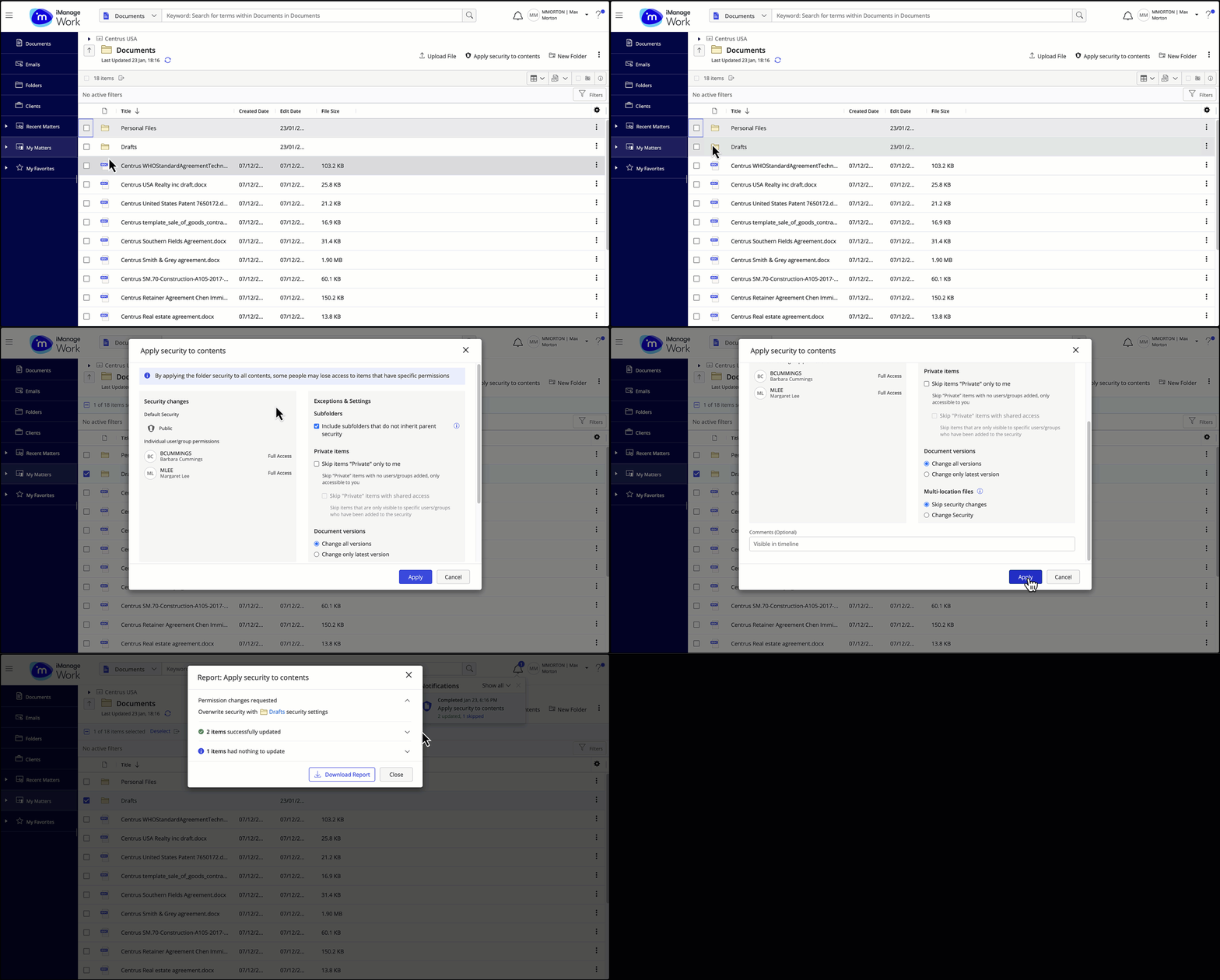
After the new security changes are applied, the status of all Apply security to contents actions can be seen in the Notifications panel accessible through the bell icon.
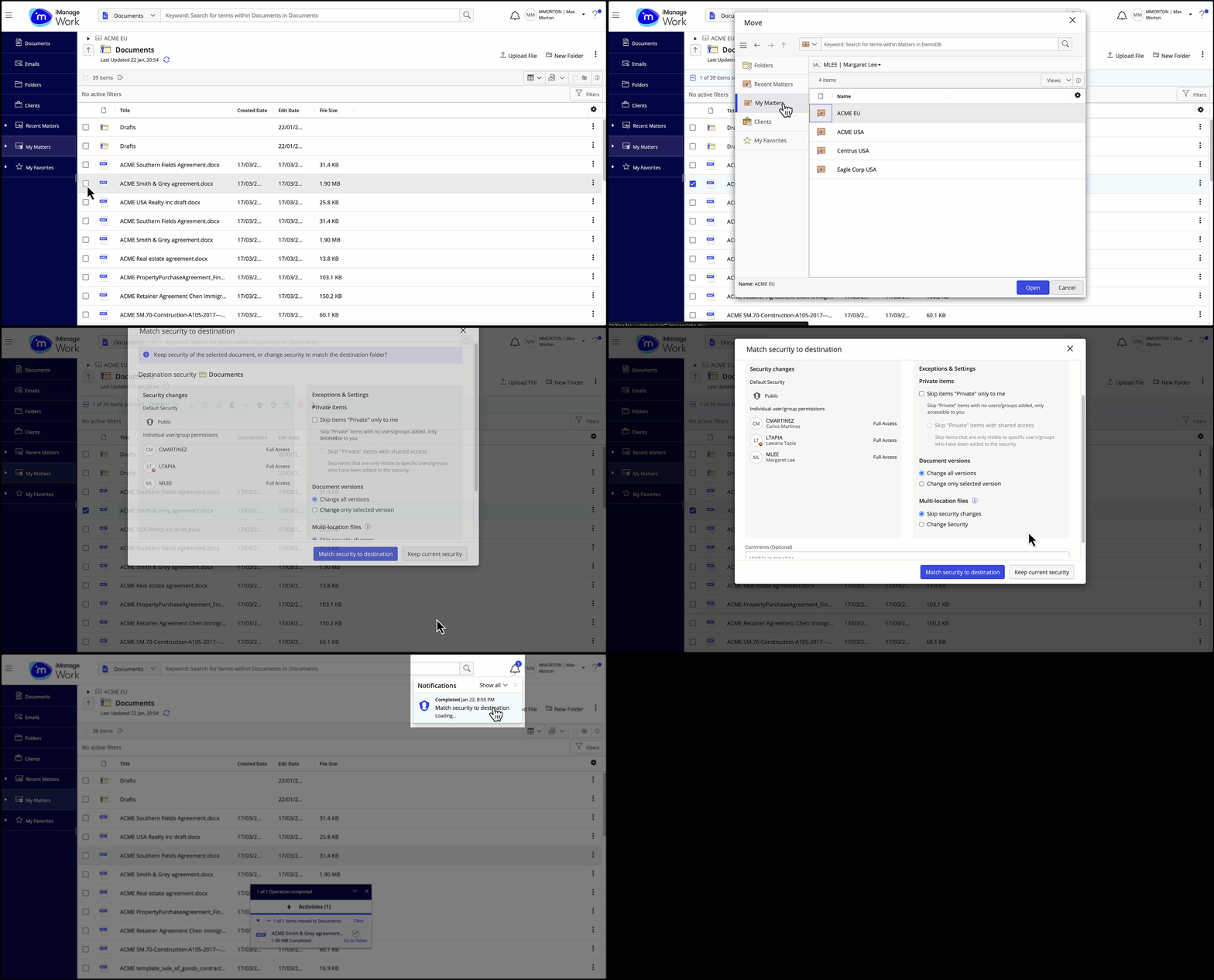
Prompt security update when moving a folder or document
When moving an item (folder or a document) from one parent to the other, iManage Work now prompts you to update the security of the item as per the security of the new parent. The Match security to destination dialog lets you select either Match security to destination or Keep current security for items being moved.
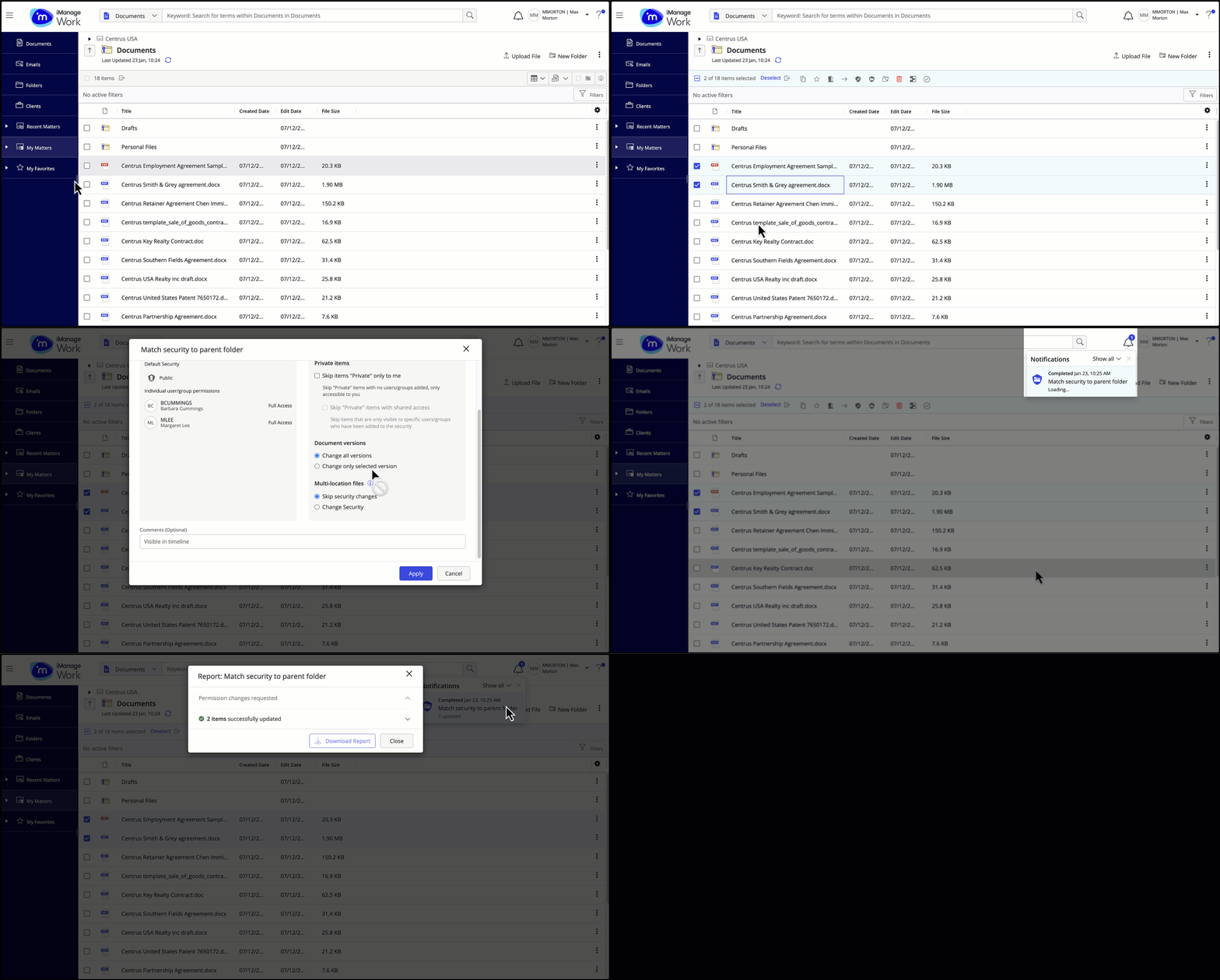
Selecting multiple documents and subfolders in a folder and aligning security to that of the folder
Now select multiple documents and subfolders within a folder and easily update their security to align with that of the folder.
Applying workspace or folder security to its children
Now apply the security details of a workspace or folder to its children (subfolders, documents, and so on). For folders, select single or multiple folders and apply security to their children.
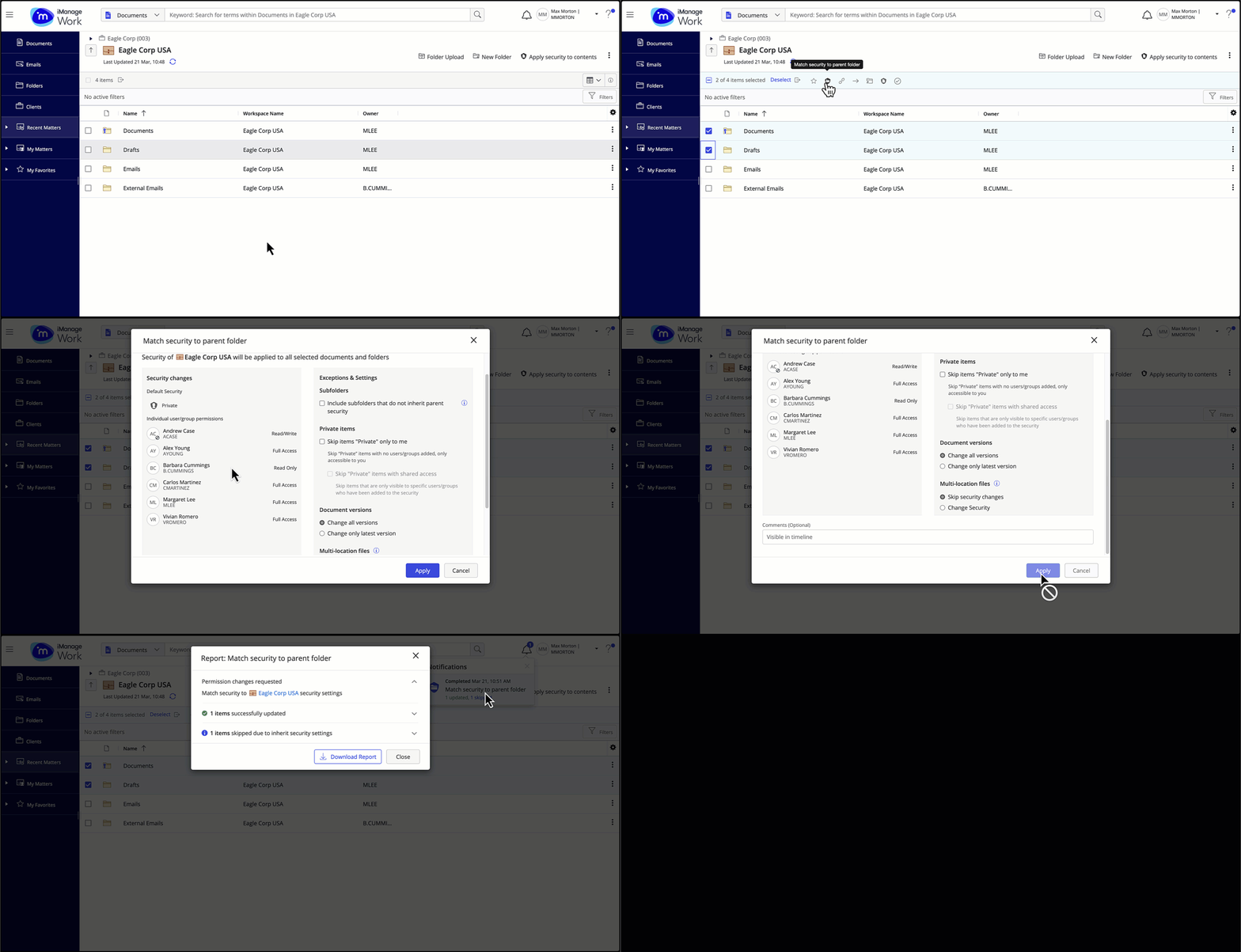
Selecting multiple folders in a workspace or folder and aligning security to that of the parent workspace or folder
Now select multiple folders within a workspace or folder and easily update their security to align to that of the parent workspace or folder.
September 2024
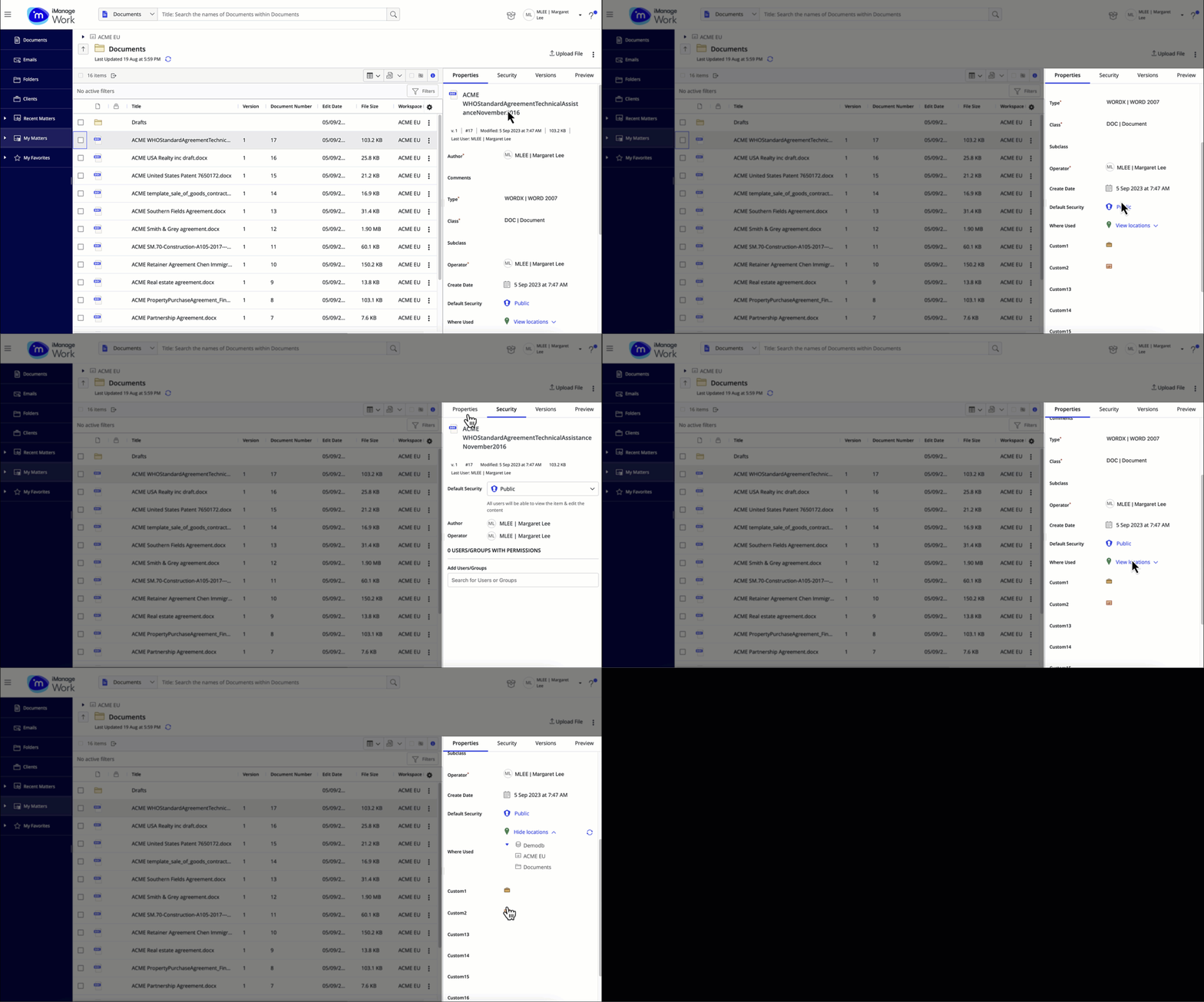
Enhanced properties panel
Show More/Show Less link: Now removed to ensure that all the available properties are always displayed.
Updated styling: Editable fields are highlighted and an Edit icon appears on focus/hover.
Boolean fields: New toggle state (Not set)
Text fields: Selecting outside a text field (or using the Tab key) now saves the changes. The ESC key reverts the changes.
Date fields: Now enter a date using the keyboard, in addition to selecting a date from the calendar picker.
New security panel
This update introduces a dedicated security panel in iManage Work that helps you perform all security-related actions quickly and also easily see permissions as you scroll through files.
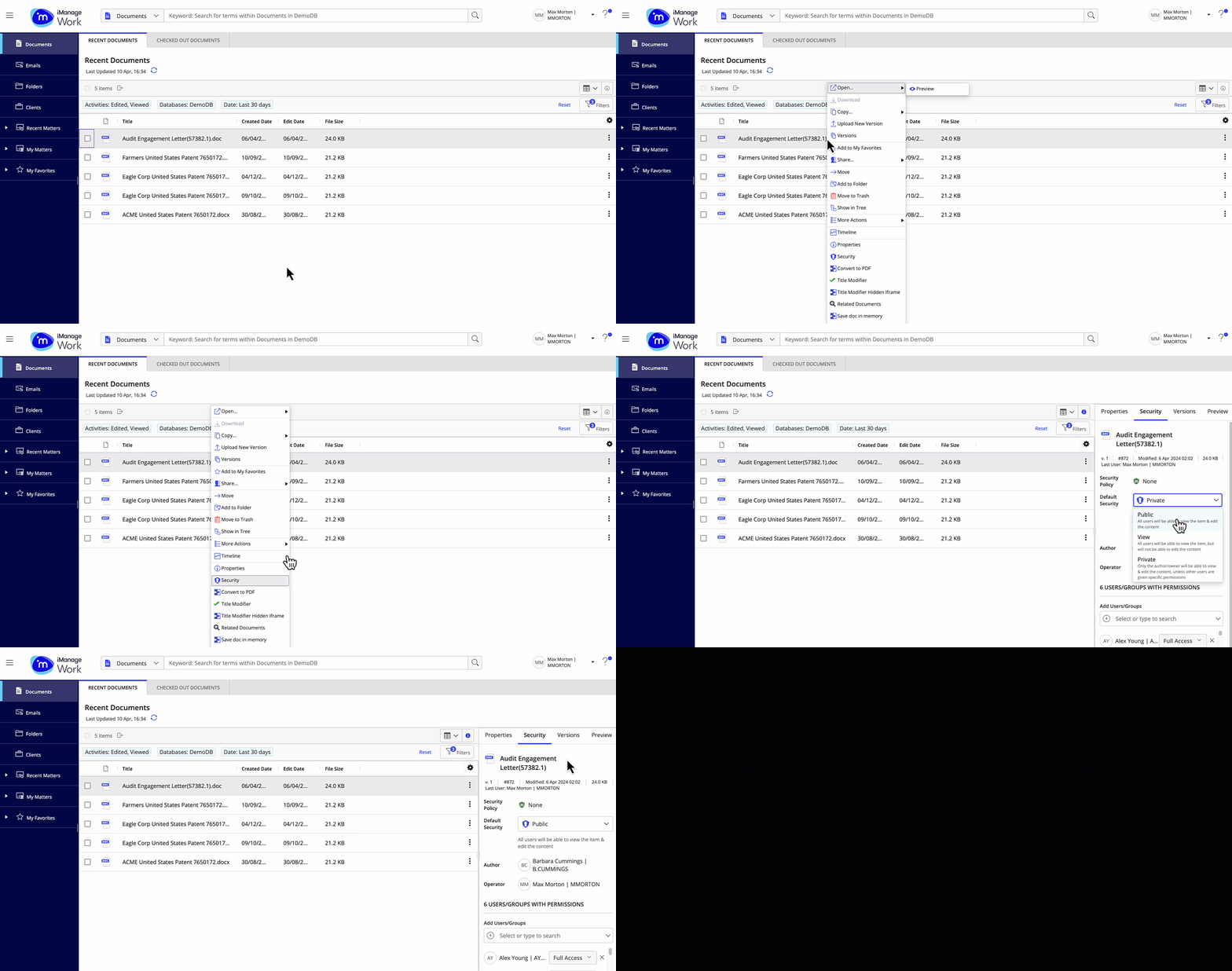
The security panel can also be launched by selecting the Default security from the Properties panel or Security from the right-click context menu/kebab menu.
NOTE: If you don’t see the Security action in your right-click context menu, reach out to your administrator.
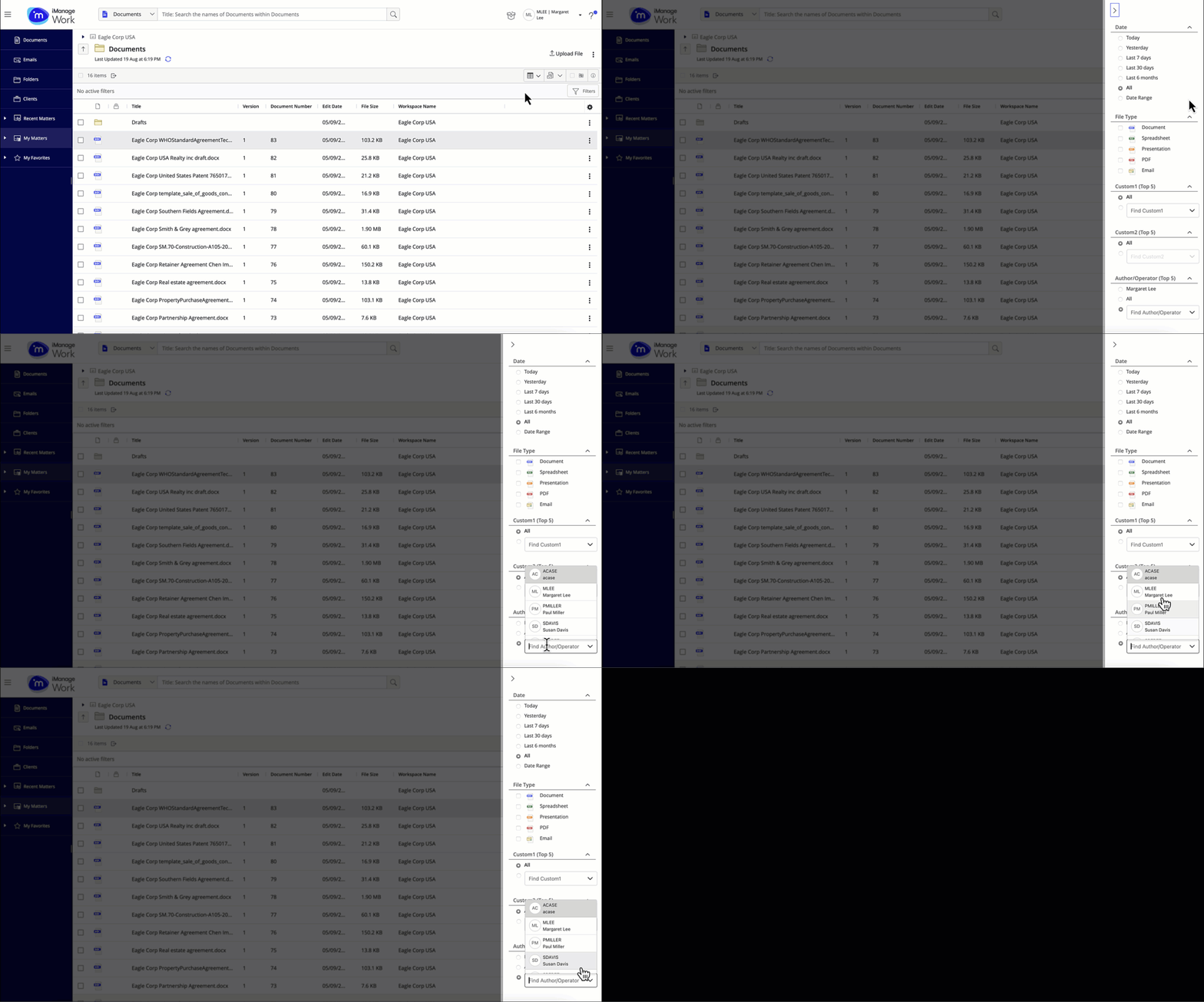
Enhanced filter panel
Enhanced accessibility with keyboard navigation and screen reader are now fully supported.
Radio buttons and checkboxes added in filter categories to clearly indicate if single or multiple filter selection(s) are supported.
File type filters now support multiple selection.
Dates can now be entered in date filters using the keyboard, in addition to selecting from the calendar picker.
Dynamic filtering ensures that when you select some filters, most other filters adjust based on your selections.
Numbers to indicate the applied filters in each category.
March 2024
Searching for items within a search folder
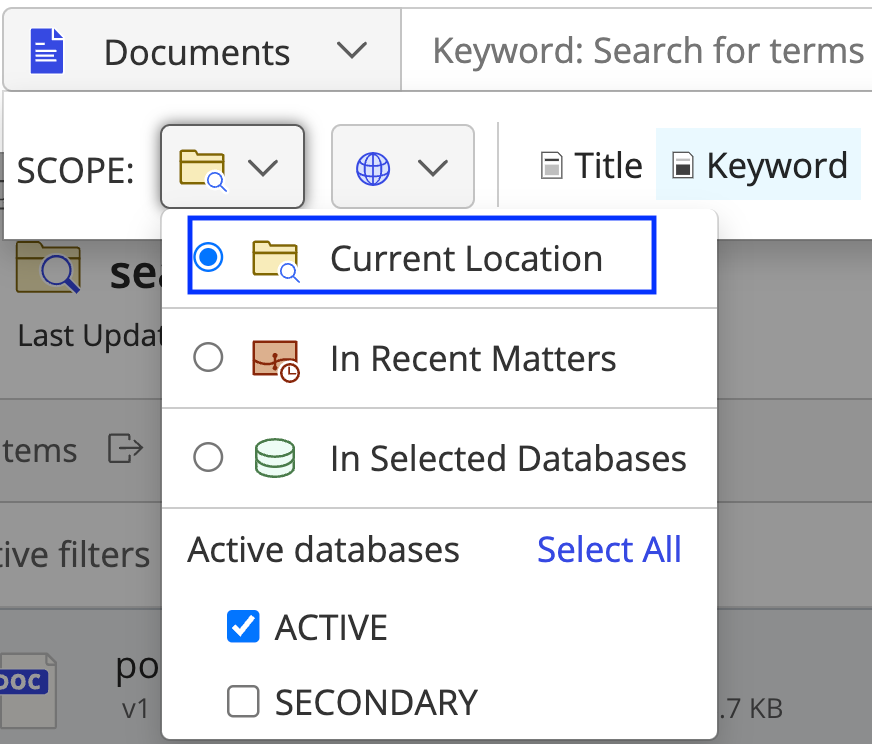
This update to iManage Work introduces the ability to search within a search folder using the Current Location scope in the search scope drop-down, which lets you perform a more focused search for items (documents or emails) within a saved search folder.
Figure: Searching for items within a search folder
NOTE:
The Current Location scope functionality can be used only when the search folder's results are all within the same database as the search folder.
The Current Location scope uses the Simple Search form. Searching for specific criteria from the Advanced Search form isn't supported.
October 2023
Persisting in the tree state after a timeout
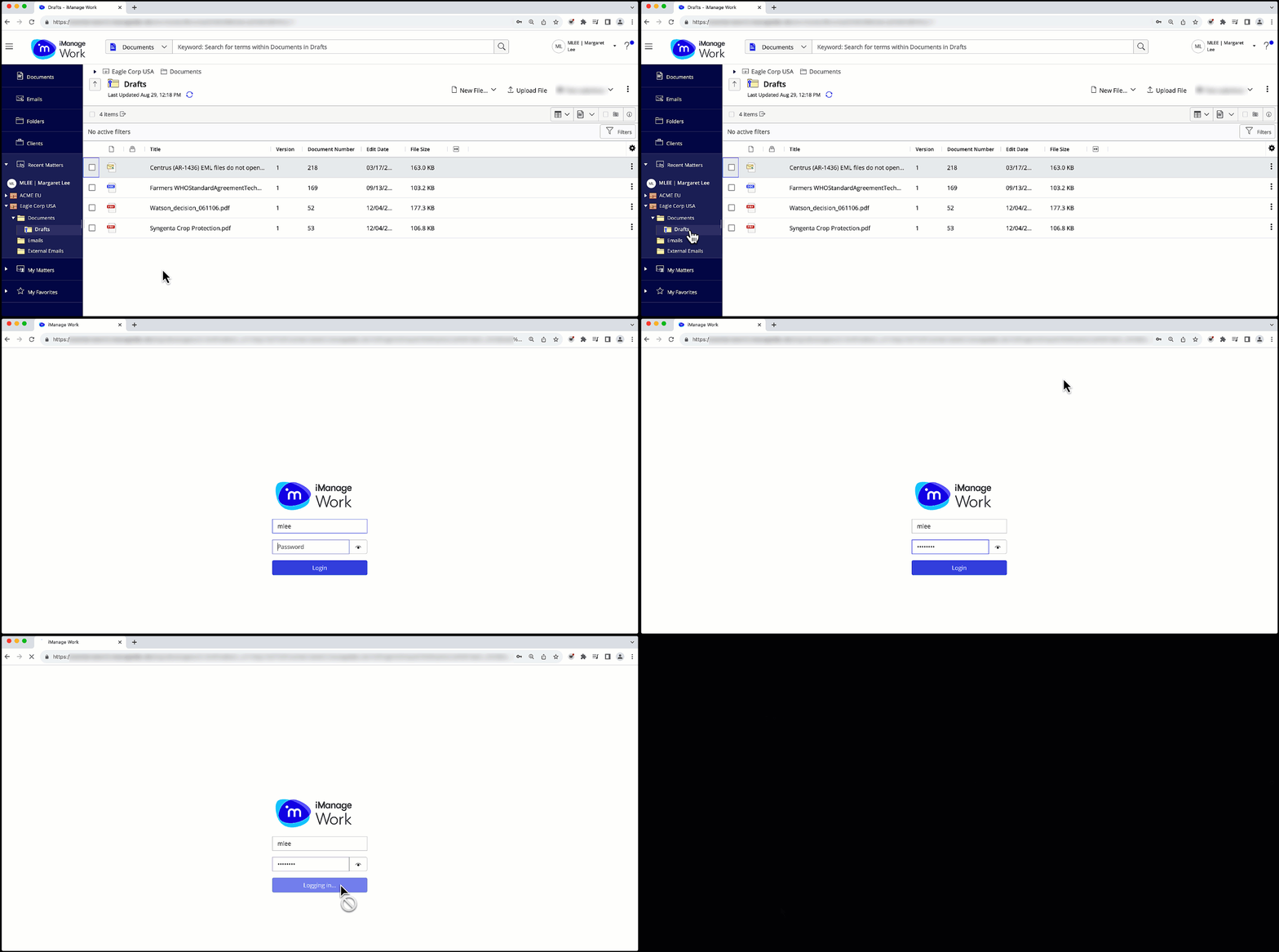
The Tree View state in the user interface now persists when you sign in to iManage Work after a timeout.
When working across multiple workspaces or engagements, you don't have to open the nested folder structure every time the session times out. iManage Work allows you to return to the same location on the tree where you were working before the timeout.
Figure: Maintaining the tree state after a timeout
NOTE:
Even if you've set the default tab in iManage Work using the Web Default Tab settings, you'll be directed back to the same location on the tree where you were working on before your earlier session timed out.
The following behaviors apply to session timeouts and state persistence:
If a folder is renamed when your session times out, then:
iManage Work keeps the Tree View with the older name.
An error message is displayed if you select the folder.
The new folder name is displayed when you right-click the folder (or parent folder) and perform a refresh.
For deleted folders:
An error message is displayed when you select a deleted folder.
Refreshing the parent folder removes any deleted child folders and also collapses all subfolders below the child folder.
The following behaviors apply to Tree View:
Its state persists only on the same client on which you had timed out.
For example, if your session was timed out in the Work Panel for Microsoft Outlook, you can’t continue working from the same place at which you had timed out in the Work Web client.
Similarly, the Tree View state persists when you've opened iManage Work in different tabs within the same browser, but it doesn't persist across different browsers.
Selecting Clear local cached settings from User Settings drop-down list collapses the Tree View to the default view.
Opening multiple files in native apps on Windows
This update to iManage Work introduces the ability to select and open multiple files in their native applications. With iManage Work Desktop for Windows installed on your device, you can select upto 50 files at once. For these files, you can perform the Open and Open read-only actions from the multi-select toolbar or the right-click context menu. These actions are available for files in:
Document folders
Search results
Saved search folders
NOTE:
Open and Open read-only actions aren't configurable in iManage Control Center.
Figure: Opening multiple files using native apps
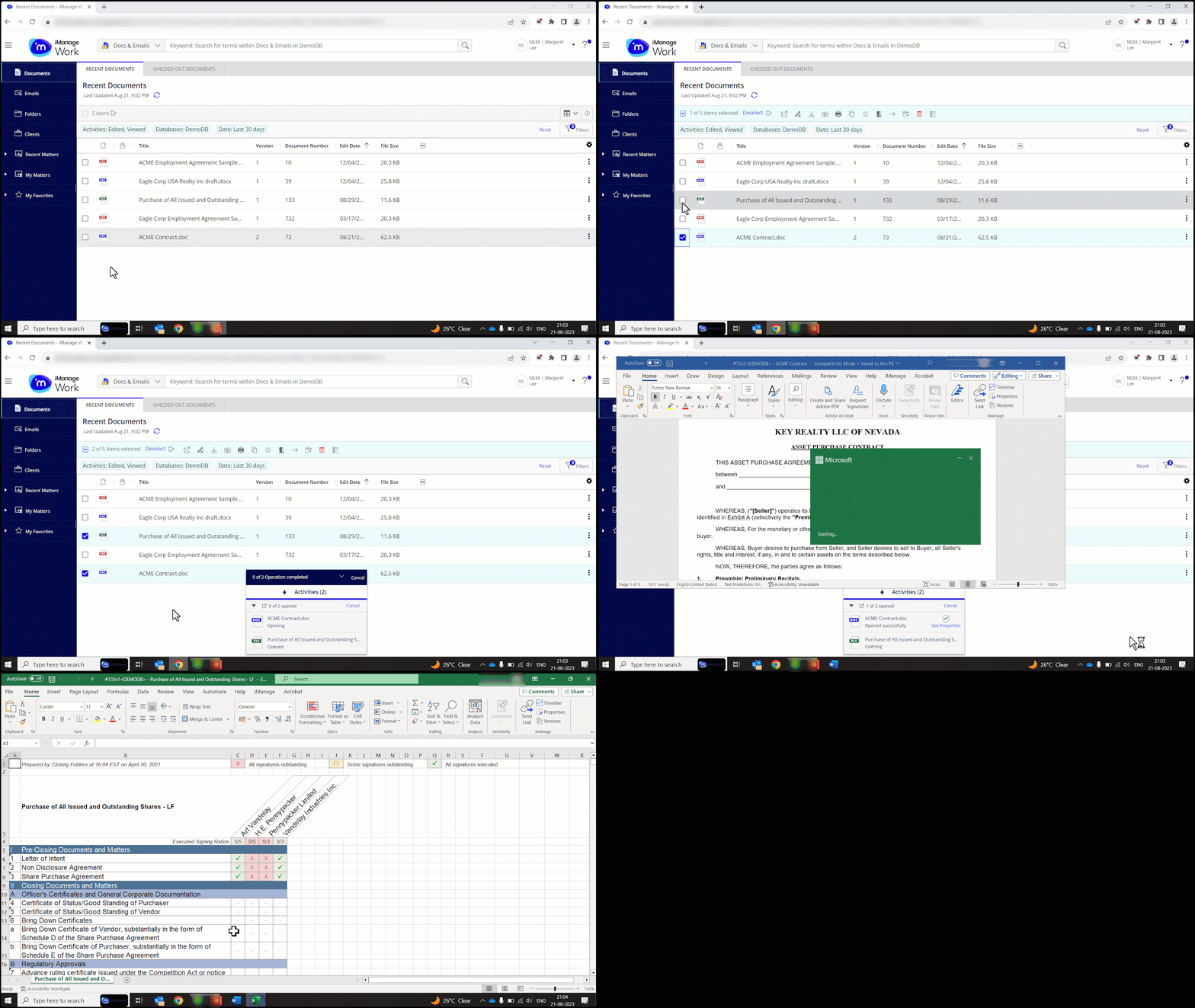
When you select more than 20 files, an alert message is displayed to indicate that opening multiple files might slow down your computer’s performance and you can choose to either proceed or cancel the operation.
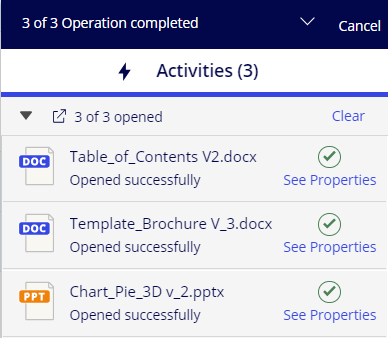
The progress panel displays the status of the files being opened.
Figure: Progress panel
Depending on the type of file selected, the behavior varies as explained in the table below.
Table: Behavior of file type for when opening in native apps
|
| ||
|---|---|---|---|
Open | Open (file checked out by other users) | Open read-only | |
Microsoft Office documents | Open in Edit mode | Open read-only | Open read-only |
Open in Edit mode | Open read-only | Open read-only | |
Non Microsoft Office documents | Open in Edit mode (Native desktop app) | Open read-only (Native desktop app) | Open read-only (Native desktop app) |
Special types Example: .zip, .exe, and, so on | Open read-only (Native desktop app) | Not applicable | Open read-only (Native desktop app) |
Emails (.msg or .eml) NOTE: If Enable open in Gmail is turned on in iManage Control Center, then selecting multiple Gmail emails opens only the first selected email in the Gmail Web client due to browser limitations. | Open in the configured email application | Not applicable | Open in the configured email application |
 File type
  Multi select operation
Ability to save database scope selection in searches
This update to iManage Work introduces the ability to explicitly save your database selection for searches and filters in recent lists from the search Scope drop-down list, when you have access to multiple databases.
NOTE:
Changes saved to the database list from the search scope are synced with the database list in filters and the other way around.
Figure: Save selection option for databases in the search scope
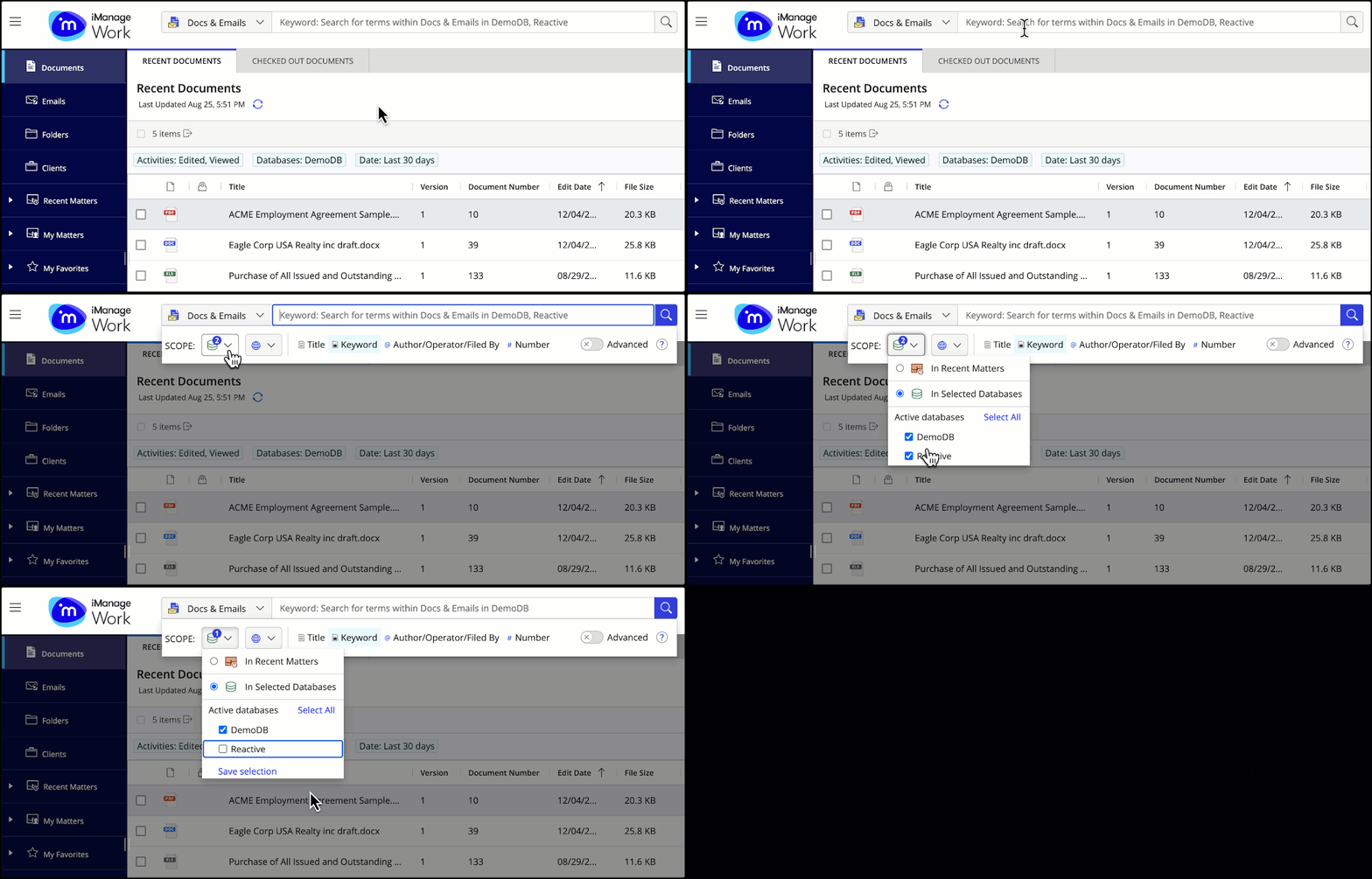
The Save selection option appears only when you've selected or deselected a database from the Scope drop-down list.
The Save selection option disappears after you've saved your selection of preferred databases for the search.
July 2023
Adding commonly used file types to advanced search
When performing an advanced search for documents or emails, you can add a collection of commonly used file types to the Type lookup for the Documents and Docs & Emails search type.
The file type groups only appear when you select inside the input field, and you can continue typing to find the specific item.
The grouped file types include:
Document
Presentation
Spreadsheet
Adobe Acrobat
Emails (only applicable for Docs & Emails search types)
Figure: Adding commonly used file types to advanced search
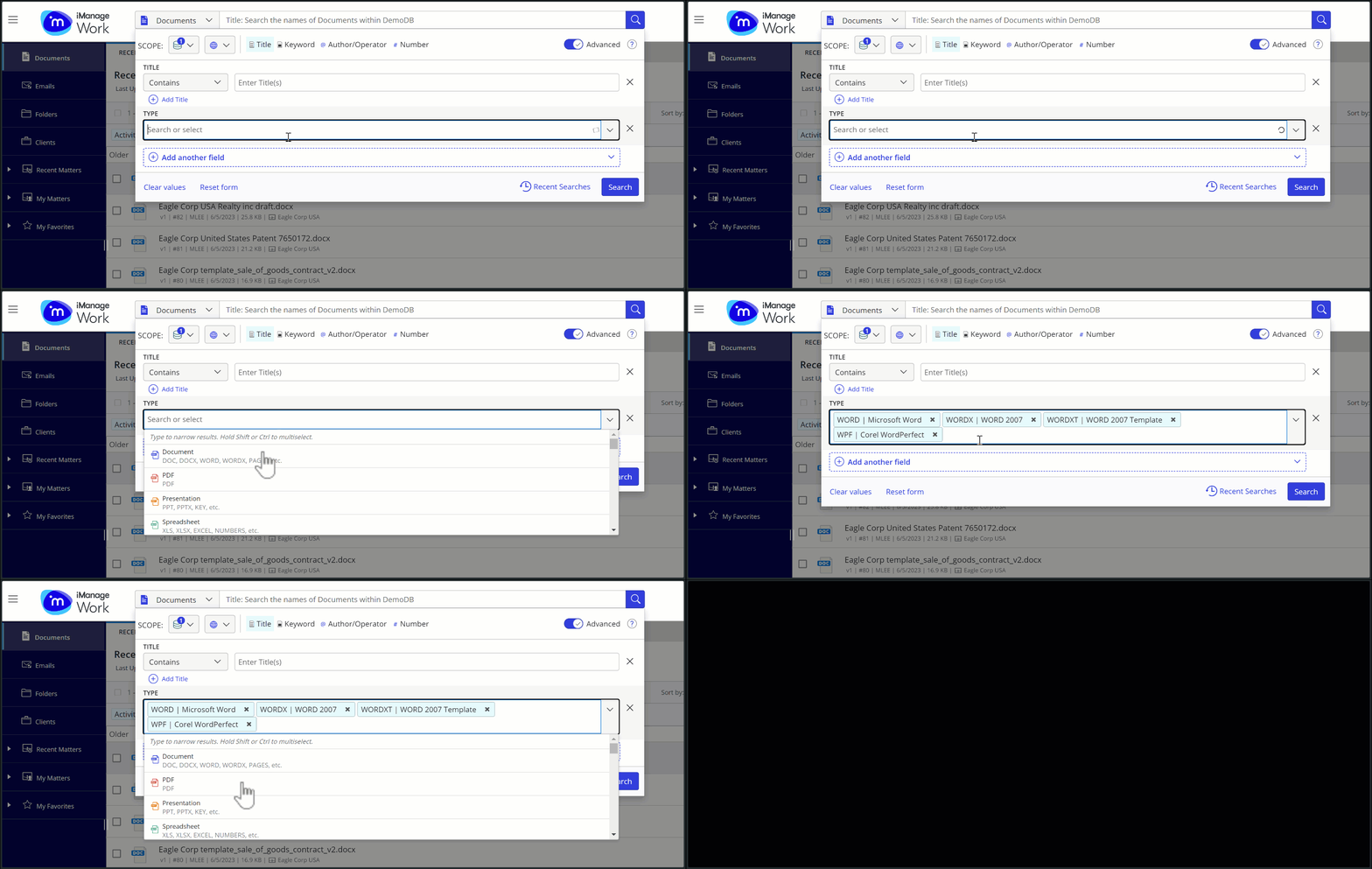
You can also use the Shift or Ctrl (Command for Mac) keys to add multiple file types to the Type lookup using your keyboard.
Once added:
The file types are displayed as individual pills in the Type lookup and can be removed individually.
The added file type cannot be selected again from the list of available lookup types.
Selecting lookup search match type for custom metadata fields
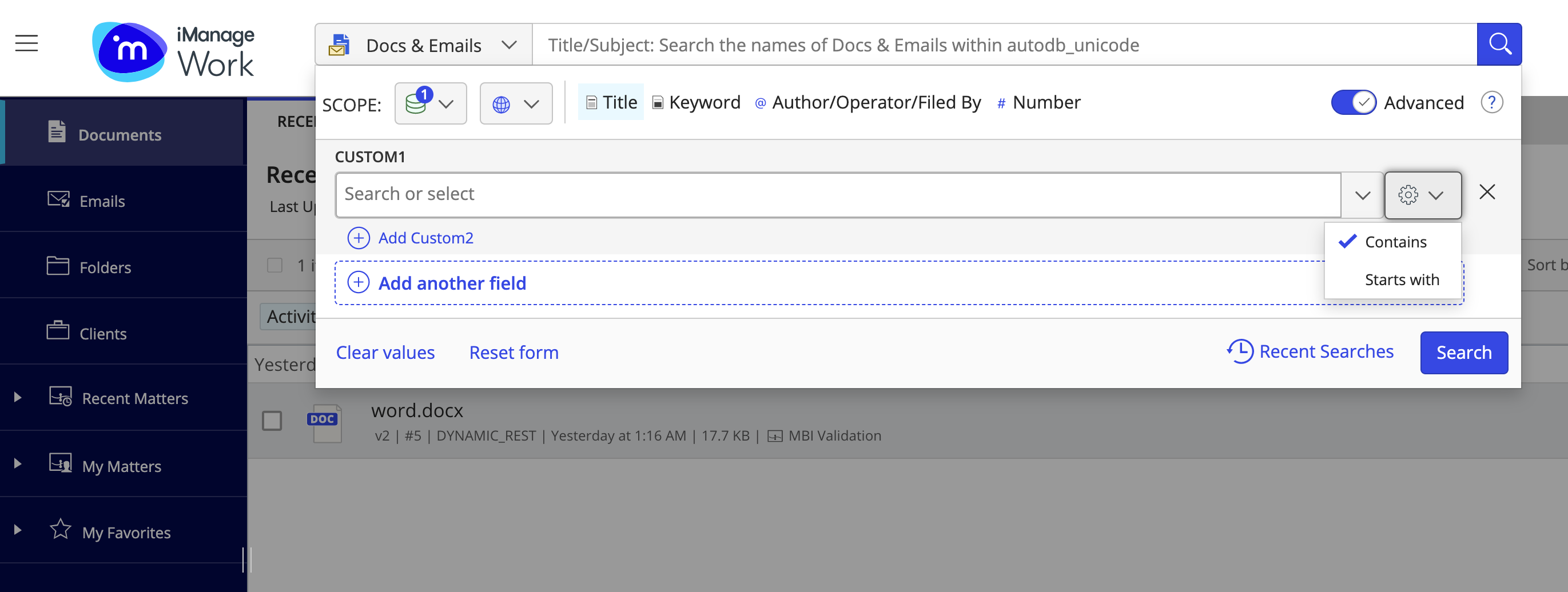
Select the match type for searching values within the custom metadata fields in the advanced search form, using the Starts with or Contains filter, when adding a custom metadata lookup field to a search form for :
Documents
Emails
Docs & Emails
Matters
Contains is the default filter. Match type choices are persisted until the custom metadata field is in the search form.
Figure: Selecting lookup search match type for custom metadata fields
NOTE:
The lookup search match type is available only in the advanced search form and not in the details panel lookups.
Improved accessibility
Enhanced support for keyboard navigation and clearer screen reader labeling in the New matter dialog box using the following keys:
Tab and Shift+Tab to move the focus among the form controls such as input field, drop-down lists, and so on.
Up and Down arrow keys to navigate through the suggestion lists within form controls.
Enter or Space bar to select the items.
Esc to close the dialog box.