When you connect to an iManage Work Server, iManage Drive automatically creates a stub for workspaces under the My Matters and Recent Matters folder in the mapped folder. You need not manually sync all your Recent Matters and My Matters to make them available locally. By default, 100 workspaces are displayed in each of these folders.
NOTE: To use this feature, the enable_recent_my_workspaces_folder option must be added in the admin_settings.yaml file and set to true. Several other options are available to set the number of workspaces displayed by default in each of these folders, set the refresh interval in seconds, ignore syncing of emails, and disable the popping up of the iManage Drive panel. For more information, refer to the Options for My Matters and Recent Matters folders section in iManage Drive for Mac Administration Guide.
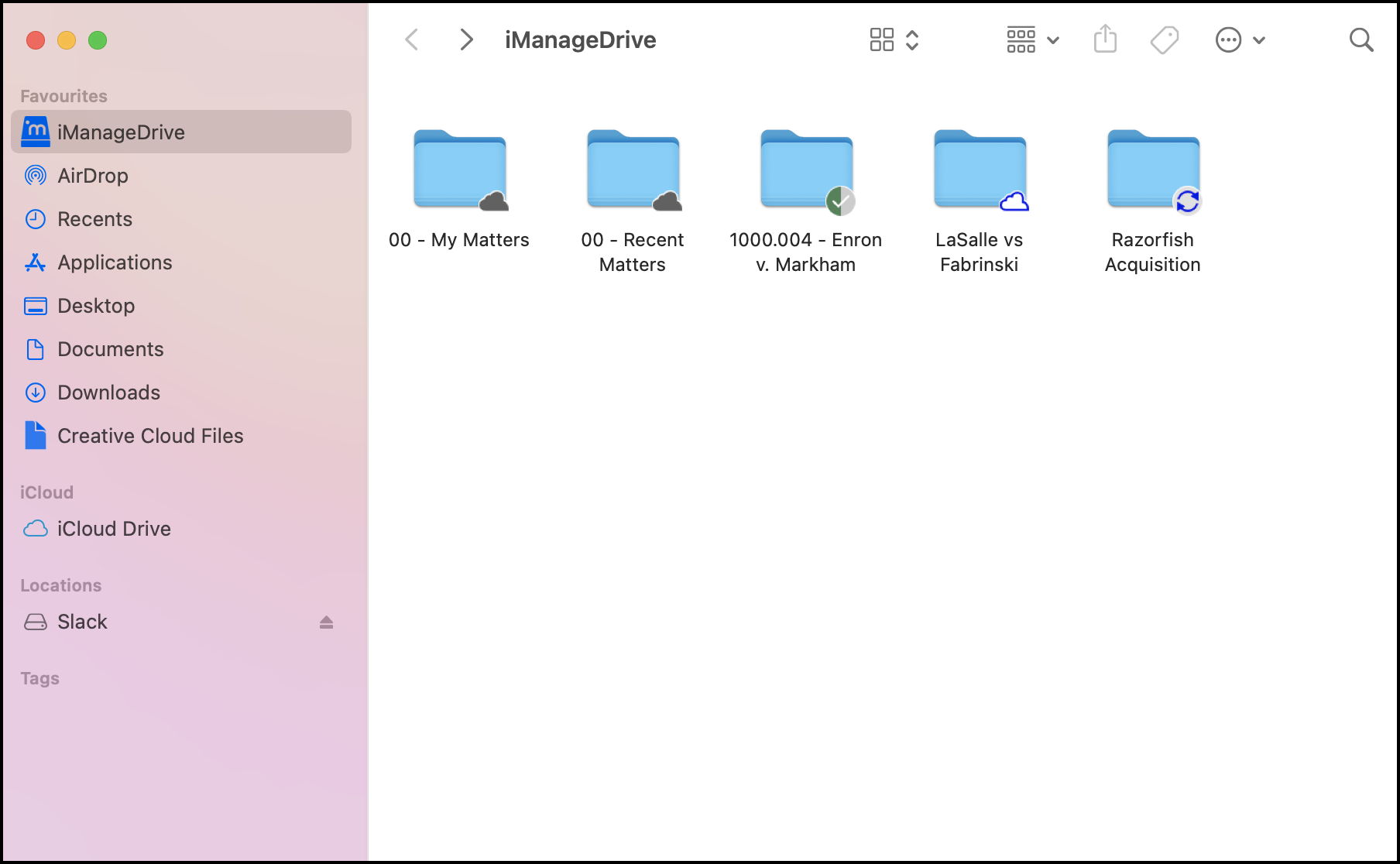
Double-click any workspace with the  icon within the Recent Matters or My Matters folder, and then double-click
  . The sync begins. The iManage Drive panels pops up (unless disabled) to display the stages in the sync process as a sequence of 13 steps. For more information, refer to Syncing and unsyncing workspaces.
NOTE: Depending on whether you've already synced some workspaces using the quick setup wizard, iManage Drive panel, or the Select Matters to Sync dialog, some workspaces may display the  ,
,  , or
, or  icons instead of . These workspaces are all already available and synced to the root folder in your mapped drive.
When syncing is complete, the workspace continues to be displayed in the My Matters or Recent Matters folder but the icon changes to indicating that the metadata is now synced to your mapped drive. Double-click the workspace to view the content in it, which also displays the icon. The workspace is also displayed in the root folder in your mapped drive.
You can download the entire workspace or the required content for offline access. For more information, refer to Making content available for offline use.
Refreshing the content
Whenever you switch to another server, iManage Drive automatically syncs the My Matters and Recent Matters folders to ensure that the list of workspaces from the server that you're currently connected to is displayed. To manually refresh the folders whenever required, right-click them and select Refresh.
If your administrator has set the refresh_recent_my_matters_frequency_in_seconds option, the Recent Matters and My Matters folders will refresh at the interval specified (in seconds). If this option isn't set and you browse within the Recent Matters or My Matters folder that hasn't been refreshed in the past 24 hours, an automatic refresh will occur.