Select the iManage Drive  menulet in the Mac menu bar, select the Access iManage Drive settings
  icon > Preferences, then select the General tab in the iManage Drive Preferences dialog to set preferences.
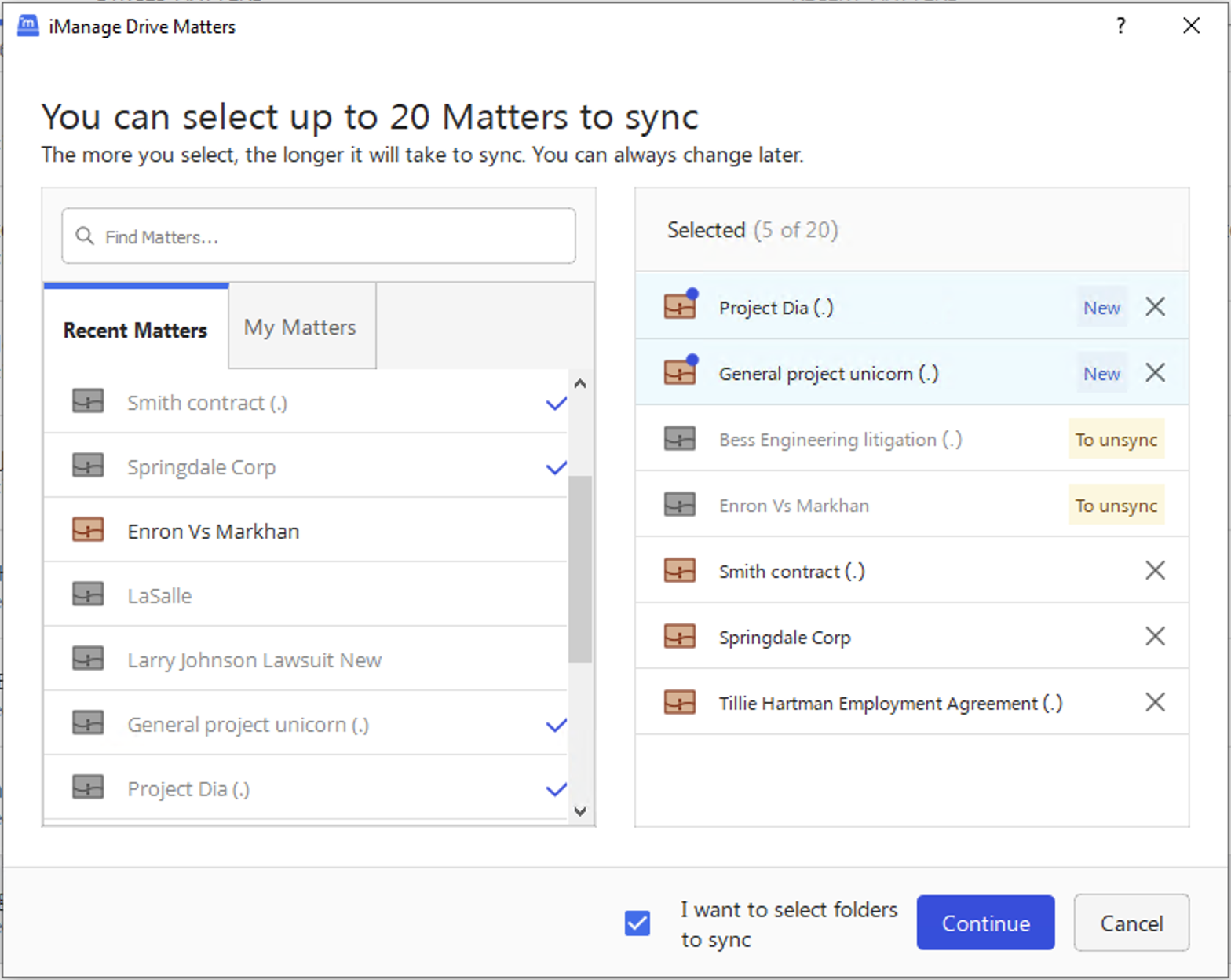
In the Matters section, choose Select Matters to Sync, select the workspaces you want to sync to your device, then select Sync. For more information about selecting matters for syncing, refer to Steps 4 and 5 in Quick setup post-installation.
NOTES:
From iManage Drive for Mac 10.9.0 onward, newly selected matters are highlighted as being new and listed at the top of the Selected list. If you choose to unsync a matter by selecting the X button, it’s now marked by the To unsync label as shown in the above figure.
The Selected Matters list also displays workspaces, which you've already synced to your local drive.
In addition to the Selected Matters to Sync dialog mentioned here, you can sync and unsync workspaces using the iManage Drive panel.
In the Offline section, choose Select Folders.
In the Folder Download Selection dialog, select the folders you want to be available offline in the iManage Work Server that you're currently connected to/ Select Update. The content in the selected containers is downloaded and available for offline access.
In the Language Options section, select the language from the options available from the Language check box. The available languages are:
English
French
German
Spanish
Portugal (Brazil)
Chinese
Japanese
In the Check-in section, from the Check-In Options list, select one of the following options to determine the file check-in behavior when you modify a file on your local drive, save the changes, and close the file:
New Version: Save the changes made to the file in your local drive as a new version of the file in iManage Work. This option isn't recommended, as every time you save changes to the files, the changes are synced and saved to iManage Work as a new version.
Replace Original: Replace the file in iManage Work with the local copy of the file. When you open an iManage file in your local drive and save the changes, the changes are synced to iManage Work in the same file version.
In the Enable/Disable document deletion section, select the Allow document deletion check box to allow document deletion from Windows Explorer.
In the Enable/Disable folder deletion section, select the Allow folder deletion check box to allow folder deletion from Windows Explorer.
Select OK.