Exiting iManage Drive for Mac
Select the iManage Drive  menulet in the Mac menu bar, and select the Access iManage Drive settings
  icon > Exit iManage Drive to close the user interface and exit the application. The menulet in the Mac menu bar isn't displayed any longer.
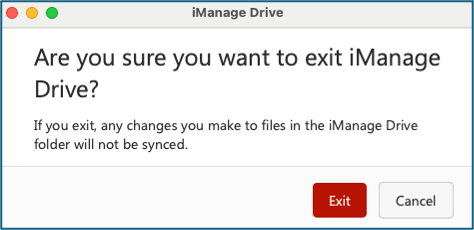
From iManage Drive 10.11.0 onward, when you select Exit iManage Drive, a new prompt is displayed asking if you want to exit the application. You can either select Exit to exit the application or Cancel to cancel the exit action. When you exit iManage Drive for Mac, the application doesn't run in the background.
Restart iManage Drive for Mac
You can restart iManage Drive for Mac using:
Launchpad: Select Launchpad and in the Search field, enter Drive. The search results display iManage Drive as you enter the first few letters. Select the application.
Finder: Select Finder and from the sidebar, select Applications. Scroll to the iManage folder, expand it to view the contents, and double-click iManageDrive.
The "Starting iManage Drive.." message is displayed and the iManage Drive for Mac menulet is shown in the Mac menu bar again.