The application prompts you when the files you work with in your iManage Drive local directory don't get synced to iManage Work due to permission or other issues. For example, if you try to add a file to a folder in iManage Drive but have only Read-Only access rights to the folder in iManage Work. The sync issues dialog ensures that such changes aren't lost as you can do either of the following:
Select files from the list displayed and copy them to another location.
Take no action on some or all files listed.
Right-click one or more files and select the desired action from the menu that’s displayed.
Perform the following tasks using the sync issues dialog:
Copy all files to: Displays a dialog that helps you browse to another iManage Drive folder or a location on your device and save the files, and opens the folder with the copied files highlighted. A confirmation message is displayed when the files are saved to the selected location. The files are moved to the resolved items list. By default, all the files are selected. However, you can select the files you want to copy.
Select one or more files, right-click the selection, and select an option from the content menu:
Copy document: Displays a dialog that lets you save the file to another iManage Drive folder or a location on your device. The file is moved to the resolved items list.
Restore document: Places the file back in the same location where the sync issue occurred initially. Use this option only if you're sure that the cause of the initial sync issue is removed—for example, you now have sufficient access rights to add files to the folder.
(Optional) To search for a file in the list displayed, enter a few letters of the file name, and press Enter.
(Optional) To display the files that you took action on earlier or marked as requiring no action, select Include resolved items. Locate the files you need and then perform the actions mentioned in Step 1 or 2.
Select one of the following options that’s displayed:
Close: Displayed when all sync issues in the list are resolved and therefore moved to the resolved items list—closes the sync issues dialog.
Remind me in 60 minutes: Displayed when one or more items are included in the sync issues list as they're yet to be resolved.
Select Dismiss all files to close the Show sync issues dialog and to remove the files selected from their current location. The following image is displayed.
Figure: Dismissing all synced issues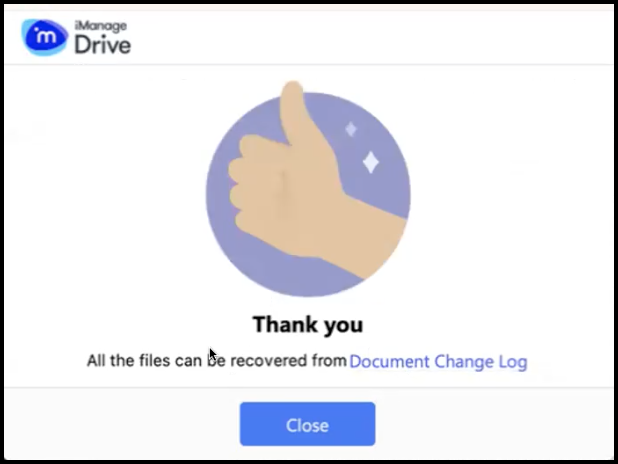
Select Document Change Log to open the Document Change Log dialog or select Close to close this sync issues dialog.
Alternatively, if you do want to dismiss all files, select the Note: If you select do dismiss - you can retrieve these from the document change log at a later time - upto 7 days option to access the Document Change Log option in the manage file sync issues dialog to access the Document Change Log dialog.
Select the
 option to close the managing sync issue dialog. This dialog is displayed again when iManage Drive syncs the next time. You can access the dialog again by selecting Access iManage Drive settings
  > Show sync issues.
NOTE: The administrator can change the default duration (60 minutes) for displaying the sync issues dialog again to prompt you in case they don't resolve the sync issues.
For more information, refer to the Options for sync issues and Configuring user settings sections in iManage Drive Administration Guide.