By default, only the metadata for all the folders and files in the synced workspaces (indicated in iManage Drive by the  icon) is available in the mapped folder on your Mac. For more information, refer to Accessing iManage files using your mapped folder.
To work with the files while you travel and have no access to the internet, you can download the files to your mapped folder when you're online. If you no longer need to modify the files and the files are synced to iManage Work, you can free up disk space by removing them from your mapped folder using the Access Online Only right-click menu option.
The following context menu options are available when you right-click a workspace, folder, or file in iManage Drive:
NOTES:
For the My Matters and Recent Matters folders in your mapped drive, only the Refresh right-click option is available. For more information, refer to Accessing your My Matters and Recent Matters.
The context menu actions language is dependent on the system’s language, not based on the language set for iManage Drive for Mac.
Preview in iManage Work (for files)/Open in iManage Work (for workspaces and folders): Select this option to open a workspace, folder, or file in iManage Work. If prompted, enter your iManage Work sign-in credentials.
Download (always keep on this device): For files with the cloud
 icon, select this option to download them to your mapped folder and make them available offline. Alternatively, double-click the files to open them for viewing and download them to your mapped folder. A file in your mapped folder is checked out from iManage Work when you edit it and save the changes.
NOTE: The Download (always keep on this device) option when you right-click workspaces and folders, lets you make content available in bulk for offline access. For more information, refer to Making content available for offline use.
Access Online Only: To free disk space and if you don't need to access a file offline, select this option to make the downloaded file available only when you're online. The green checkmark
 icon changes to the cloud icon.
Upload new version: Use this option to select any file from your local folder or desktop and when iManage Drive syncs, a new version is created and uploaded to iManage Work and the latest file is available in the mapped folder. The new file can have the same format as the current version or be in another format. An audit entry is displayed in the Timeline stating that a new version was created using iManage Drive. This option is:
Unavailable for files declared as records or for checked-out files.
Not supported for emails.
Copy link: Select this option to copy the link to iManage Work content that you can share with users in your organization through emails or any communication channel. When the recipients select the iManage link, the content opens in iManage Work.
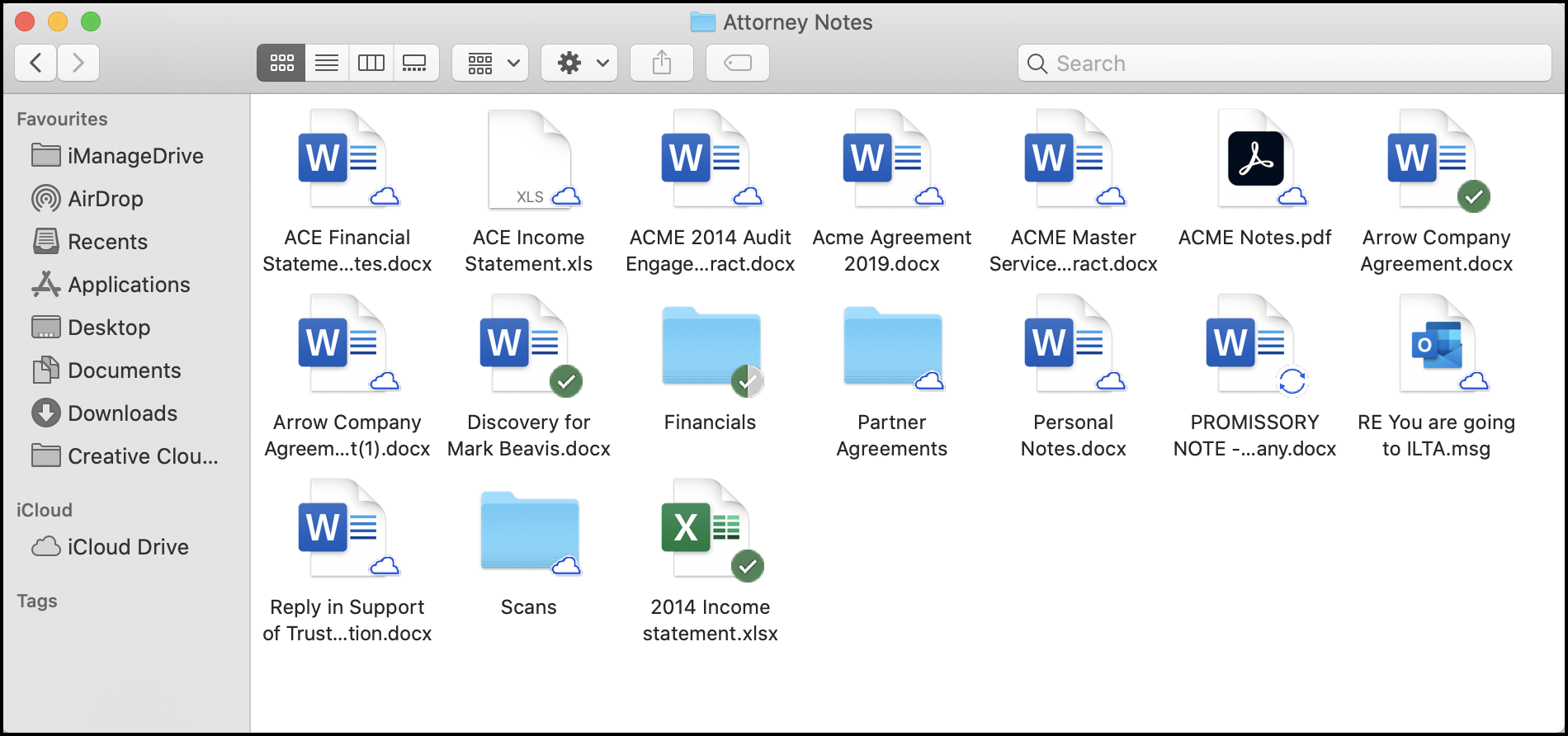
The following figure displays files with the cloud icon and green checkmark icon. The files that display the cloud icon can be accessed in iManage Work and are available only when you're online. The files with the green checkmark icon are downloaded to your mapped folder and you can work with them even when you're offline.