You can now back up all the files your users have worked on recently in iManage Drive for Mac by doing the following:
Select Access iManage Drive settings and then select File Backup. Alternatively, run the iManageDriveConsole file_backup command if the iManage Drive UI panel isn't available—for example, Applications/iManage/iManageDrive.app./Contents/MacOS/iManageDrive file_backup. The following prompt is displayed:
Figur: File backup prompt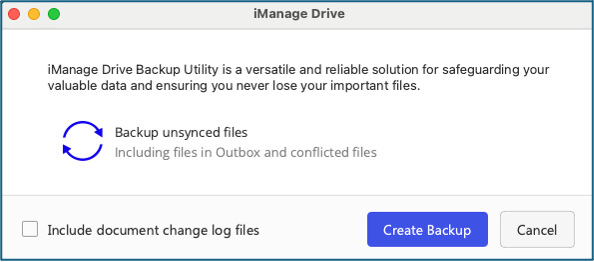
(Optional) To include every version of the file available in Document Change Log, select the Include document change log files check box.
Select Create Backup. A progress bar is displayed
Also, you can do the following:
Select the Pause button to pause the file backup creation process.
Select More details to view the details of the file being backed up and also the total number of files remaining. Select Fewer details to hide the details.
The backup is generated as a zipped file that’s available at the following location: */Library/Application Support/iManage/GoDrive/diagnostics/file_backup. The backup file is displayed as soon as it’s generated. The backup folder may contain the following subfolders:
document_history: Contains previous versions of files that were in iManage Drive.
current_document_history: Current versions of all the files available in Document Change Log in iManage Drive retained for 30 days.
sync_issue_files: Files that are in the Document Change Log and have a sync issue.
sync_conflicts: Files that currently have a conflict.
outbox_files: Files in the outbox.
local_files: Any files not in the outbox.
unsynced_files: Files that are in the Document Change Log and not synced.
NOTE:
This option is accessible only to administrators.