After you have run the iManage Drive installer, select the iManage Drive
 menulet in your Mac menu bar. The menulet appears white to indicate that no iManage account is available currently.
The wizard to set up the application opens.
NOTE: If you don’t want your users to view the installation wizard, set the show_installation_wizard_if_no_account admin setting to false in the admin_setting.yaml file. The default value for this setting is true.
Select Set up iManage Drive.
Figure: Quick setup wizard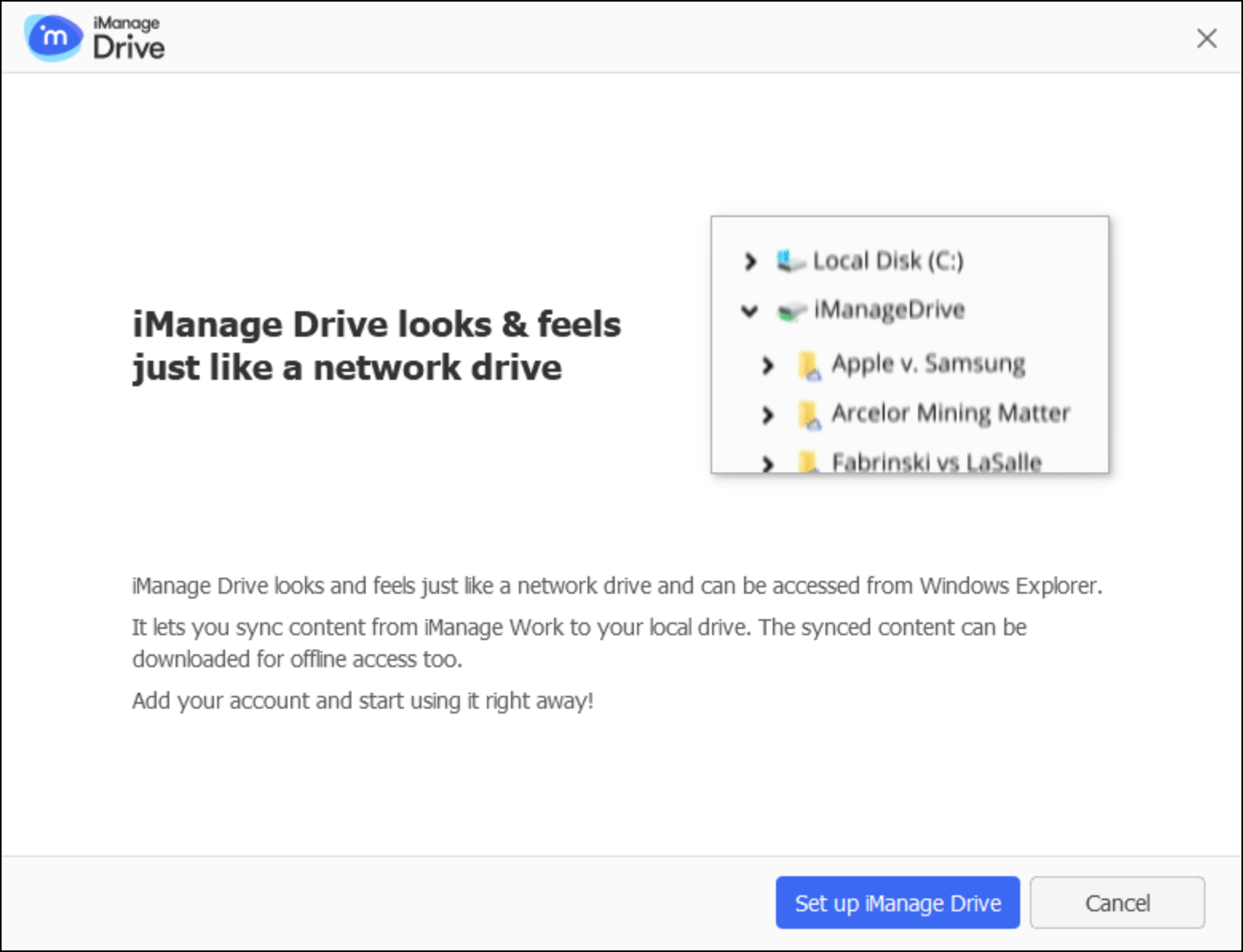
From iManage 10.12.0 onward,
When users select Enable, the following dialog is displayed. Select Allow to allow iManage Drive to access files from the new location.
Figure: Provide access to iManage Drive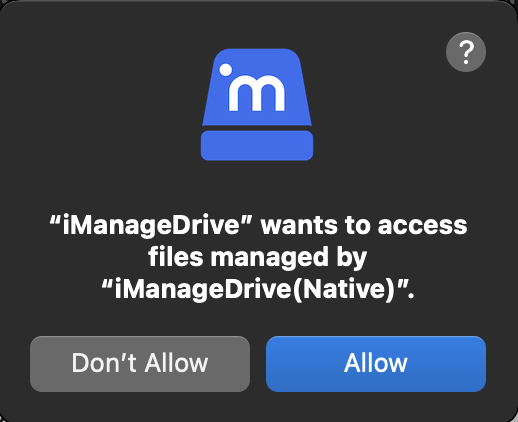
When the file provider is enabled, the user may see the following dialog. Select Open Mac Privacy Settings to open the Full Disk Access pane.
Figure: Select Open Mac Privacy Settings
You can alternatively browse to System Preferences > Security & Privacy > Privacy tab, select Full Disk Access in the left pane. Enable the iManage Drive toggle in the right pane to provide full disk access to iManage Drive.
Figure: Provide full-disk access to iManage Drive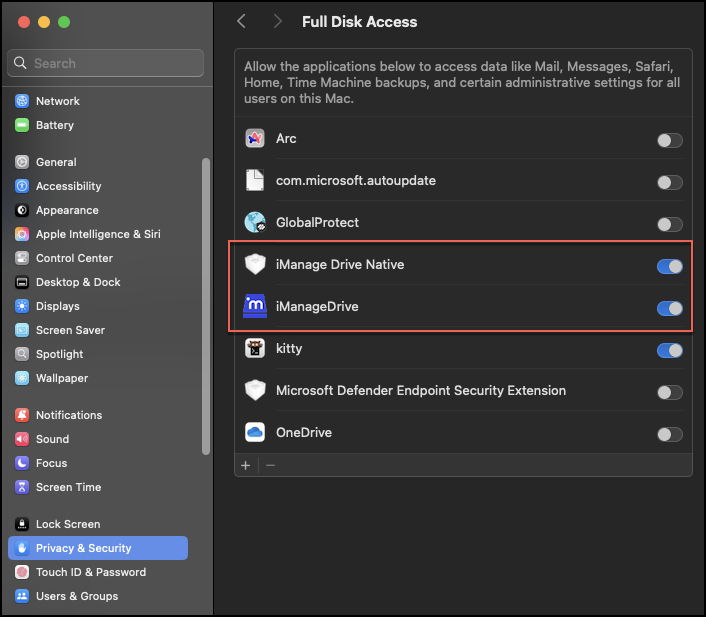
In the Enter iManage Work URL field, enter the URL to iManage Work and select Continue.
NOTE: If your administrator has pre-configured the setup, the Choose iManage Work URL field appears with one or more iManage Work URLs pre-populated for this field. For more information, refer to the extra_hosts option in Configuring user settings.
If prompted, enter the user ID and password to sign in to iManage Work. The Select Matters to Sync screen is displayed. The Recent Matters tab is selected by default and displays the workspaces that you recently accessed in iManage Work.
Hover the mouse pointer over a workspace and choose +Select. The workspace is moved to the Selected Matters pane and appears grayed out in the workspaces list.
(Optional) Select other workspaces for syncing from My Matters tab or search for them using the Find Matters search box.
(Optional) To remove a workspace from the Selected Matters pane, select
 .
.
NOTE: iManage Drive limits the number of workspaces that users can sync to 50. The recommended number of documents that can be synced is up to 100,000 documents.
The I want to select which folders to sync option is enabled by default. Select Continue and select the folders to sync. For more information, refer to the Selecting the folders to sync section in iManage Drive for Mac User Guide.
(Optional) Clear the I want to select which folders to sync option if you don't wish to select the folders for syncing.After you have selected all workspaces/folders that you want to sync to your Mac, select Sync. A message is displayed in the wizard asking you to wait while the content from the selected workspaces is synced to the mapped folder on your Mac and the iManage Drive menulet in the Mac menu bar starts turning blue
 to indicate the progress of the sync activity. Additionally, notifications appear in the upper-right corner of the screen when sync starts and ends for each workspace.
The wizard notifies you when all workspaces are synced. Select Open iManage Drive to open the mapped folder on your Mac where the workspaces are synced or select the iManage Drive
 menulet in the Mac menu bar to change preferences or modify application settings (refer to the Modifying account settings and preferences section in iManage Drive for Mac User Guide).