We've improved our iManage Drive native driver for Mac to support the Mac File Provider interface. When using the iManage Drive File Provider drive, workspaces sync much faster compared to earlier versions of iManage Drive native for Mac.
To use the enhanced File Provider, upgrade to iManage Drive for Mac 10.12.0 and change the enable_file_provider_mac admin setting to true in the admin_settings.yaml file. The default value for this setting is false.
If you're using iManage Drive for Mac 10.12.1, then File Provider is enabled by default, that is theenable_file_provider_mac admin setting is set to true in the admin_settings.yaml file.
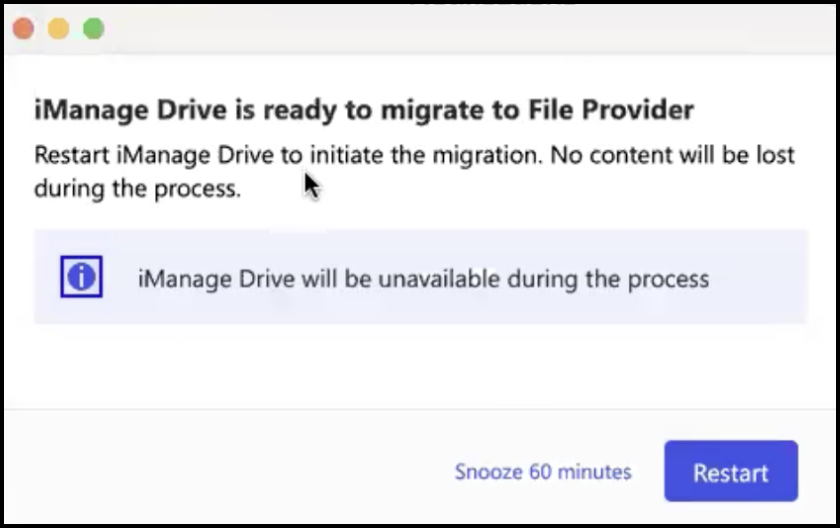
After users restart iManage Drive for Mac, the migration to the latest File Provider starts. This may take some time and the following dialog is displayed. Users have to select Restart to start the migration process.
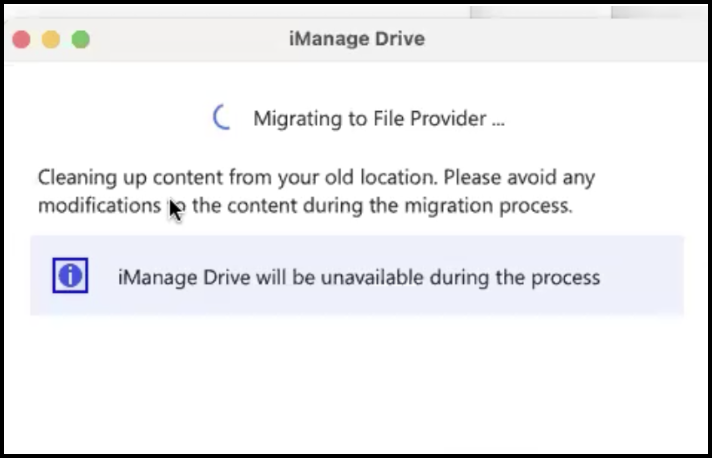
The migration process starts and the following dialog informs that iManage Drive for Mac is migrating to the new File Provider.
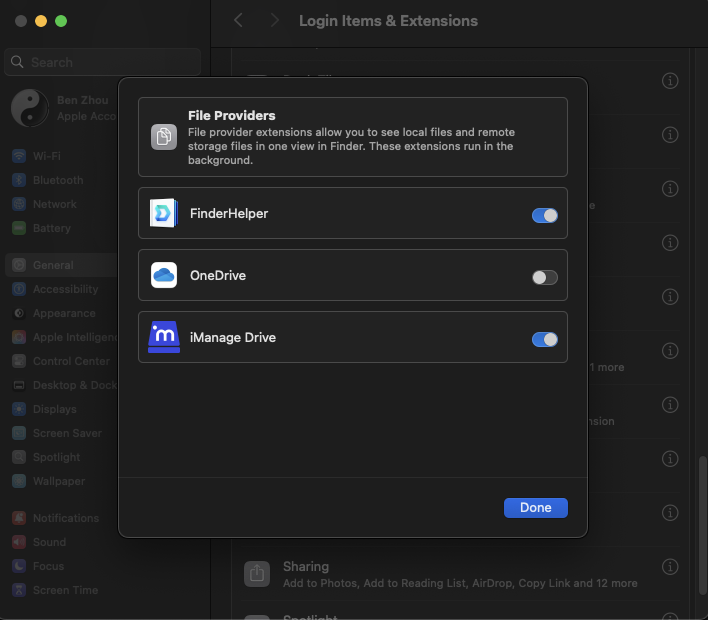
Additionally, on your Mac, browse to System Settings > General > Login Items & Extensions > File Providers. Enable iManage Drive and select Done.
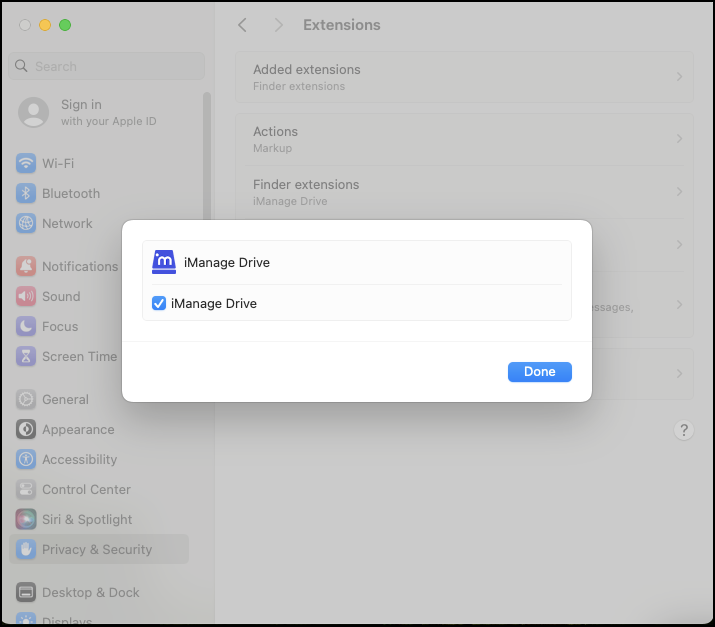
If you're using Sonoma or an earlier version of macOS, browse to System Settings > Privacy & Security > Extensions > Finder extensions. Select iManage Drive and select Done.
Accessing content in a new location
After the migration process is complete, users can access the iManage Drive for Mac content at /Users/{user}/Library/CloudStorage/iManageDrive-iManageDrive.
When users browse through this location to open the folder for the first time, the following message might be displayed at the top of the Finder. Select Enable to open the folder for the first time.

In addition, users will find a shortcut to iManageDrive-iManageDrive folder under Locations on the left sidebar in Finder.
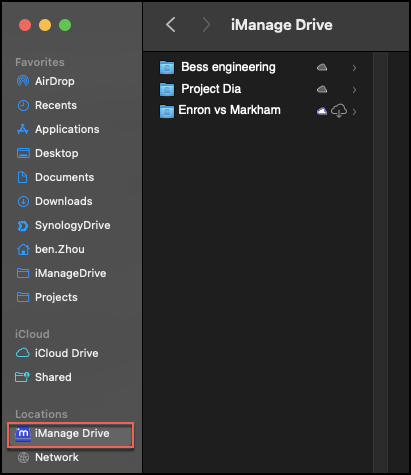
It's possible the iManage Drive shortcut isn't visible in the left sidebar in Finder. In this case, users can browse to Finder > Settings > Sidebar and select Cloud Storage. When this option is selected, the iManage Drive shortcut should be visible in the left sidebar in Finder.
Faster sync time for workspaces
File Provider supports a concept called enumeration. This means that when a user browses to a folder for the first time, File Provider loads the contents in that folder. This process can take some time. After the files are loaded, if users visit the folder again, then the files are already available and they need not be loaded again.
This concept helps workspaces to be synced much faster because iManage Drive for Mac doesn’t have to create the synced items on the local file system as the files are loaded only when the user accesses a folder for the first time.
Using the Delete from iManage Drive option to delete files
To delete files from the local drive folder, users now have to use the new right-click menu option called Delete from iManage Drive. They can no longer use the Move to Trash option to delete files. This provides more control for the delete action—for example, not allowing users who don’t have delete permission to delete files.

Changes to Allow and Deny lists
The behavior of hydration_deny_list and hydration_allow_list will be different for File Provider when using Mobile Device Management (MDM) software. There can be two scenarios:
iManage Drive for Mac with File Provider is installed using MDM software: Both
hydration_deny_listandhydration_allow_listwill behave the same as before.iManage Drive for Mac with File Provider isn't installed using MDM software: Only
hydration_deny_listis supported andhydration_deny_listis case-sensitive.
Changes to how iManage Drive for Mac is installed
When installing iManage Drive for Mac with File Provider, there are additional installation steps to be performed when installing iManage Drive for Mac such as:
iManage Drive for Mac application requires full disk access.
When accessing the File Provider location for the first time, a prompt is displayed to enable it in Finder and provide iManage Drive for Mac access to the new location.
For more information, refer to Step 7: Quick setup post-installation.