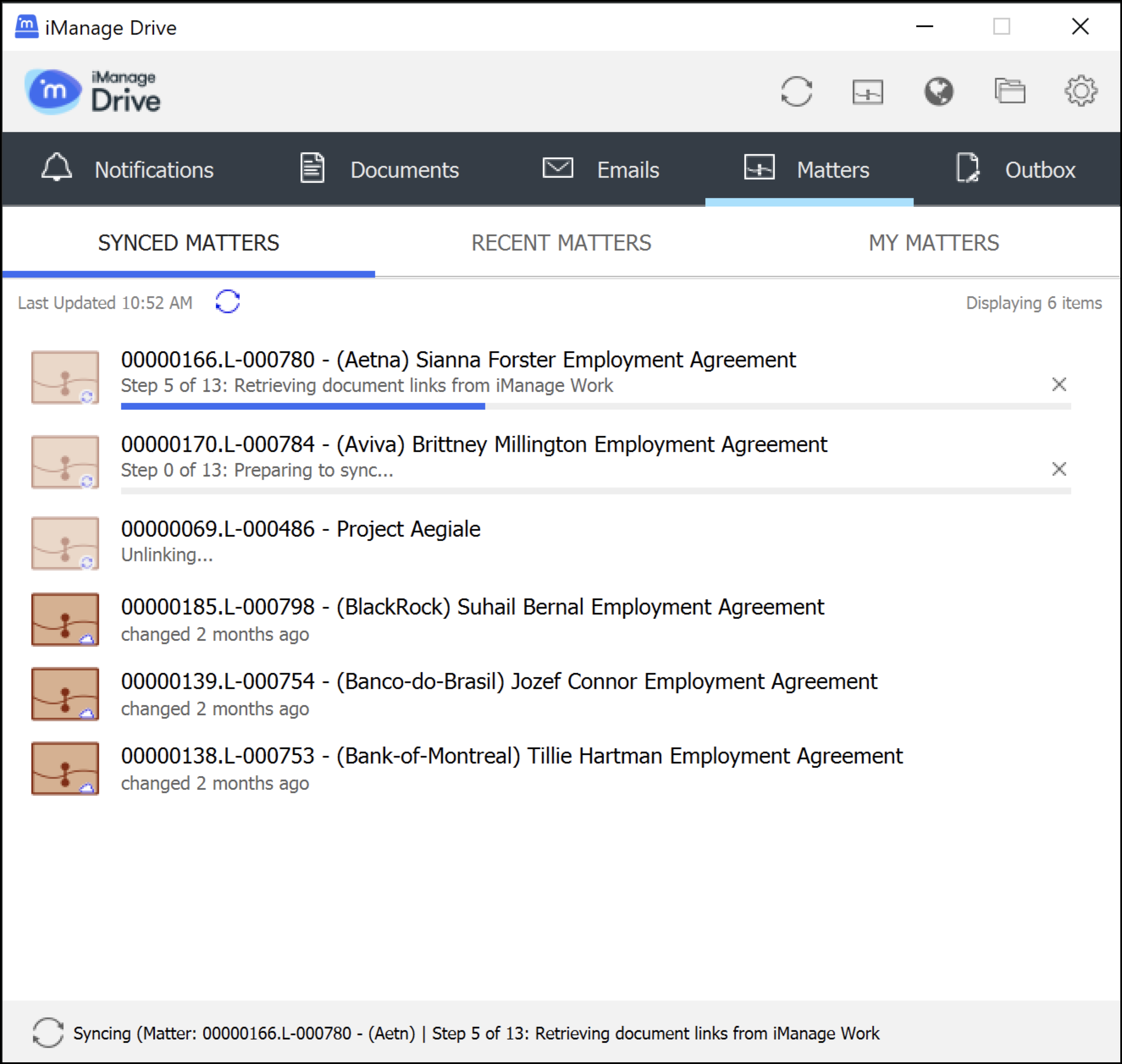
Besides the Select Matters to Sync dialog box, you can now sync and unsync workspaces by using the Matters tab in the iManage Drive panel. On the Synced Matters, Recent Matters, or My Matters tab, select  for a matter, and then select Sync to Local Drive or Unsync. The following activities occur:
Syncing begins and updates about the stages in the sync process are displayed in a sequence of 13 steps. This ensures that you get constant updates about the sync progress, especially for matters with a large number of folders and documents that may take some time to get synced.
While one workspace is being synced, the others are queued and the sync for the next workspace begins when the first sync job ends. Unsyncing of workspaces happens after all sync jobs are complete.
If you unsync a workspace and one or more files are open, iManage Drive will continue to try and unsync until successful; the unsyncing occurs only when you close all these files. iManage Drive 10.9.0 and later check if any of the open files are modified and if they are modified, adds them to Document Change Log to avoid possible data loss. Right-click and select Restore to ensure that the changes, which you saved after choosing to unsync the workspace, are synced to your mapped drive and subsequently to iManage Work.
NOTE:
Every time you sync files, sync workspaces, or modify the folders to be synced using the Select Matters to Sync dialog box, the iManage Drive panel opens with the Synced Matters tab displaying the progress of the activity. You can enable or disable these pop-up notifications by using Preferences > Notifications and selecting or clearing the Matter notifications and Panel popup notifications check boxes.
Unsyncing workspaces from iManage Drive panel
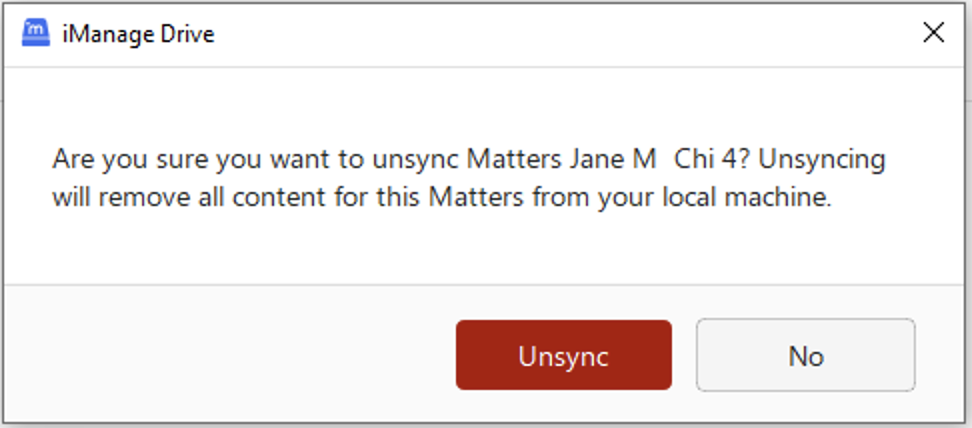
You can also unsync workspaces from the iManage Drive panel. On the Matters tab, select  next to the matter you want to unsync and then select Unsync. A confirmation dialog box similar to the following figure is displayed. Select Unsync to unsync the matter from iManage Drive or No to cancel the unsync.
Unsyncing workspaces with documents available in Outbox
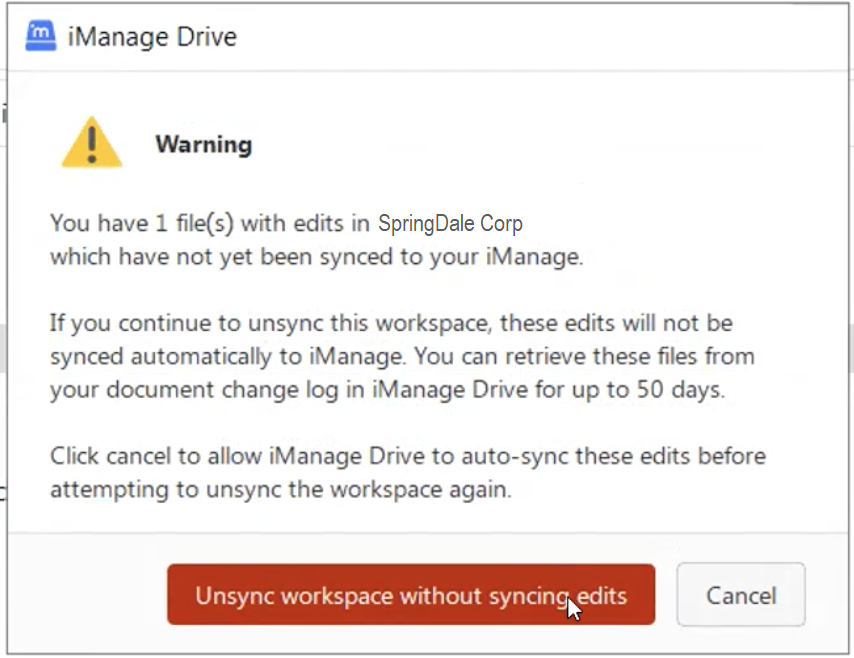
From iManage Drive 10.9.0 onwards, if files are available in iManage Drive Outbox and you try to unsync the matter that contains them, the following confirmation dialog box is displayed.
Unsyncing workspaces when a file is in use
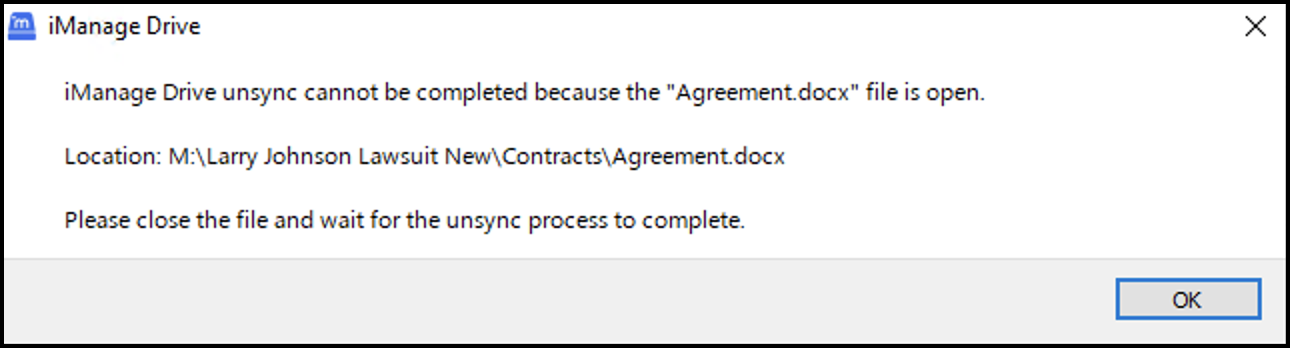
From iManage Drive 10.9.0 onwards, when you try to unsync a folder in which one or more files are open, then the following message is displayed.
Unsync workspaces automatically
From 10.12.0 onward, iManage Drive can automatically unsync workspaces if they aren't accessed locally within the iManage Drive for a defined period.
NOTE: The inactive time of a file or workspace is only tracked by the iManage Drive. If you access the workspace outside iManage Drive, it isn't considered to determine if the workspace can be unsynced.
To enable iManage Drive to automatically unsync workspaces, administrators have to set the auto_unsync_workspaces_enabled admin setting to true in admin_settings.yaml file. They also should specify a time value in auto_unsync_workspaces_min_inactive_time admin setting. The valid values of auto_unsync_workspaces_min_inactive_time admin setting are d (day), h (hour), m (minute), or s (second). The default value is 30d.
For example, if auto_unsync_workspaces_enabled is set to true and auto_unsync_workspaces_min_inactive_time is set to 30d, then iManage Drive either automatically unsyncs all the workspaces automatically or displays a prompt to you asking you to confirm the unsync, if the prompt_on_auto_unsync_inactive_workspaces admin setting value is enabled. When prompted, you can either confirm or cancel the action.
Administrators can use the prompt_on_auto_unsync_inactive_workspaces admin setting to determine if iManage Drive can automatically unsync workspaces or display a prompt to the users asking them to either confirm or cancel the unsync action. When the admin setting is set to false, iManage Drive automatically unsyncs workspaces that are inactive for the period defined in the auto_unsync_workspaces_min_inactive_time admin setting and notifications are displayed in the Notification tab in iManage Drive panel. When set to true, a prompt is displayed prompting you if they want to confirm the unsync. You can then either unsync the workspaces or cancel the unsync action.
You can also browse to Preferences > Sync and select one of the following values from Auto-Unsync behavior drop-down:
NOTE: Admin settings will override the settings configured in the Preferences option.
Prompt before auto-unsync
Notify after unsync
Administrators can also specify the frequency for how often iManage Drive should check for inactive workspaces using the auto_unysnc_workspaces_frequency admin setting. The valid values are d (day), h (hour), m (minute), or s (second). Default value is 1d.
For example, if the auto_unysnc_workspaces_frequency is set to 1d, then iManage Drive checks for inactive workspaces once in 24 hours.
To know more about these admin settings, contact your administrator.