To view the list of files you changed or added to your mapped folder, select the Access iManage Drive settings  icon > Show Document Change Log. The changed documents are retained for 30 days.
You can use the following options that are available when you right-click a file listed in this log:
Copy files from your mapped drive to another directory using Copy. By default, documents can be copied within 7 days since they were last modified. If you try to copy documents that are older, the following message is displayed to inform you that the file is older than the allowed copied time and you need to contact your administrator.
Figure: Message displayed when trying to copy an old document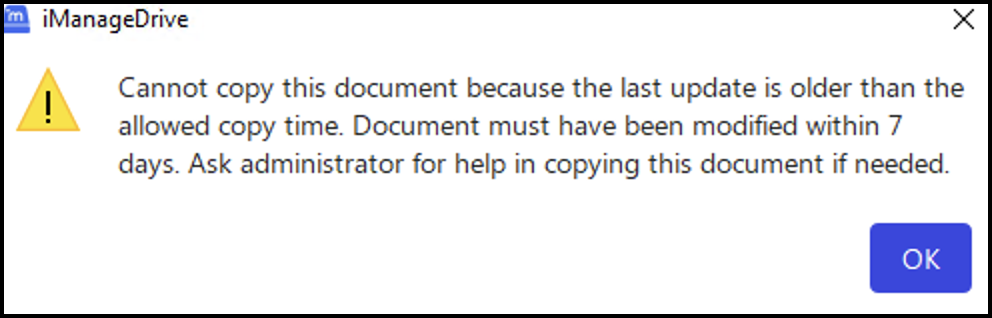
NOTE: Your administrator can change the default number of days for which documents are retained and the number of days for which the copy action is allowed. For more information, refer to the days_to_allow_document_changelog_copy and days_to_keep_document_changelog_entries options in the Configuring user settings section in iManage Drive Administration Guide.
Recover locally modified files that were lost because they got deleted and couldn't be synced to iManage Work while you were offline or had paused syncing, using Copy.
View the file details using Show Properties.
Remove files that you're certain you need no more from the list using Delete.
By default, All items are listed, but you can select any of the following options from the drop-down list:
Updated: Files you modified and saved changes to whether they're synced to iManage Work or not.
Moved: Files you moved from one folder to another folder.
Renamed: Files you have renamed.
Replaced: Files you modified again, for which the previous updates weren't synced to iManage Work. For example, you're offline or have paused syncing in iManage Drive and saved changes to a file. Though the updated file isn't synced, you can open it and make further changes.
Deleted: Files that you modified and deleted before iManage Drive could sync them. Only documents that are modified and then deleted locally are available in Document Change Log. To restore documents that were deleted without modification, use the Trash feature in iManage Work.
Sync failed: Files you modified and saved changes to, but the changes couldn't be synced to iManage Work. For example, if a file synced to the mapped drive is removed from iManage Work or you no longer have access to it in iManage Work. Right-click the required file and select Copy. A copy of the file is then restored to the selected location.
You can also select any of the following check boxes to:
Show local changes: View all the files that were modified locally, that is, in M: drive. When this option is unselected, it shows only the files that were synced to iManage Work.
Show latest document change: View all the files that were modified recently. When this option is unselected, it shows all the modified audits for each document.
Show synced files: View all the files that are synced to iManage Work. If you've deselected this check box and also the other check boxes, then all the files that are displayed aren't synced to iManage Work. You can then select to either copy, restore, or delete the file using the right-click options.
To search for a specific file by its name, enter at least two characters from the file name in the Filter by name search box and press Enter. To view only the latest version of all updated files, select the Show latest document change check box.
A message is displayed in the upper-right corner of the dialog asking to refresh the view when new updates are available. Select  to view the latest list of modified files.
The Document Change log displays the following actions in the Action column based on the activities performed on the document:
Document delete: The document is deleted and if it's available in multiple folders, it's deleted from all these folders.
Document reference delete: The deleted file was available in multiple folders in iManage Work. The delete action deletes the document only from the folder where it's being deleted in Windows Explorer.
Document update: The document is updated in iManage Work and if it’s available in multiple folders, it’s updated in all these folders.
Document reference update: The updated file was available in multiple folders in iManage Work. The update action updates the document only from the folder where it's being updated in Windows Explorer.
Document replace: The file is replaced in iManage Work and if it’s available in multiple folders, it’s replaced in all these folders.
Document reference replace: The deleted file was available in multiple folders in iManage Work. The delete action deletes the document only from the folder where it's being deleted in Windows Explorer.
Document rename: The file is replaced in iManage Work
Document move: The file is moved in iManage Work.
Local delete: A file is deleted from Windows Explorer even before it was synced to iManage Work.
Local update: A file is updated in Windows Explorer and the changes may or may not be synced to iManage Work.
Local replace: A file is replaced in Windows Explorer and the changes may or may not be synced to iManage Work.
Local rename: A file is renamed in Windows Explorer and the changes may or may not be synced to iManage Work.
Local move: A file is moved in Windows Explorer and the changes may or may not be synced to iManage Work.
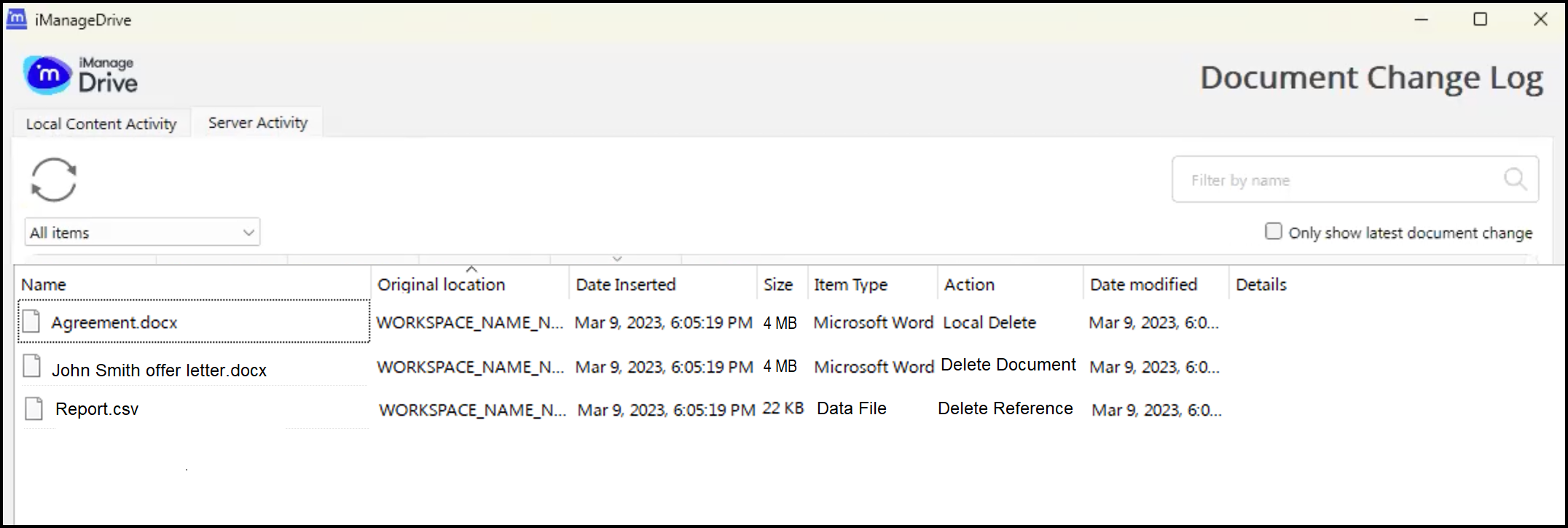
When you delete documents saved to iManage Work, document references, or documents saved in Windows Explorer, Document Change Log captures the kind of deletion that occurred and displays it, as shown in the following figure.
The Document Change Log now shows three types of deletions:
Local Delete: A file was deleted from Windows Explorer even before it was synced to iManage Work.
Delete Reference: The deleted file was available in multiple folders in iManage Work. The delete action deletes the document only from the folder where it's being deleted in Windows Explorer.
Delete document: The document is deleted and if it's available in multiple folders, it's deleted from all these folders.
You can recover files that were deleted and never synced to the server from the recycle bin of your Microsoft Windows device.
From 10.12.1 onward, we've enhanced our Document Change Log to display the Local Content Activity and Server Activity separately as shown in the following figure. The Local Content Activity displays all the actions performed locally and changes that aren't yet synced to the server. The Server Activity displays all the changes that are already synced to the server.