Method 1
The latest sample admin_settings.yaml file is available at docs.imanage.com. To download the file, right-click the following link admin_settings_sample.yaml and select Save link as or the equivalent option based on the browser you are using. Ensure that the:
File is named admin_settings
Extension is .yaml
File is placed at C:/ProgramData/iManage/Drive.
NOTE:
You can only download the file from docs.imanage.com. If you are using the PDF version of the guide, we recommend that you use Method 2 to download the admin_settings.yaml file or visit docs.imanage.com.
Method 2
You can manually add the admin_settings.yaml file by doing the following:
Copy the contents into a new file.
Save the file as admin_settings.yaml
Make sure the file extension is .yaml.
Place the file at C:/ProgramData/iManage/Drive..
NOTE:
In the admin_settings.yaml file, ensure that a value you provide includes a single quote (') when using the following special characters: {, }, [, ], ,, &, :, *, #, ?, |. -, <. >, =, !, %, \., @. Single quotes lets you add any character in a string and doesn't parse escape code—for example, when using strings like *.tmp, wrap the the string with single quotes as follows: '*.tmp'
To customize the configuration settings available in the sample admin_settings file, refer to Configuring user settings.
When you create or modify the admin_settings.yaml file, iManage Drive automatically restarts when it isn't in use.
Additionally, if the admin_settings.yaml file isn't correctly formatted or in a proper format, then a prompt similar to the following figure is displayed to inform you of this and iManage Drive automatically shuts down.
Figure: Prompt indicating an invalid parameter or setting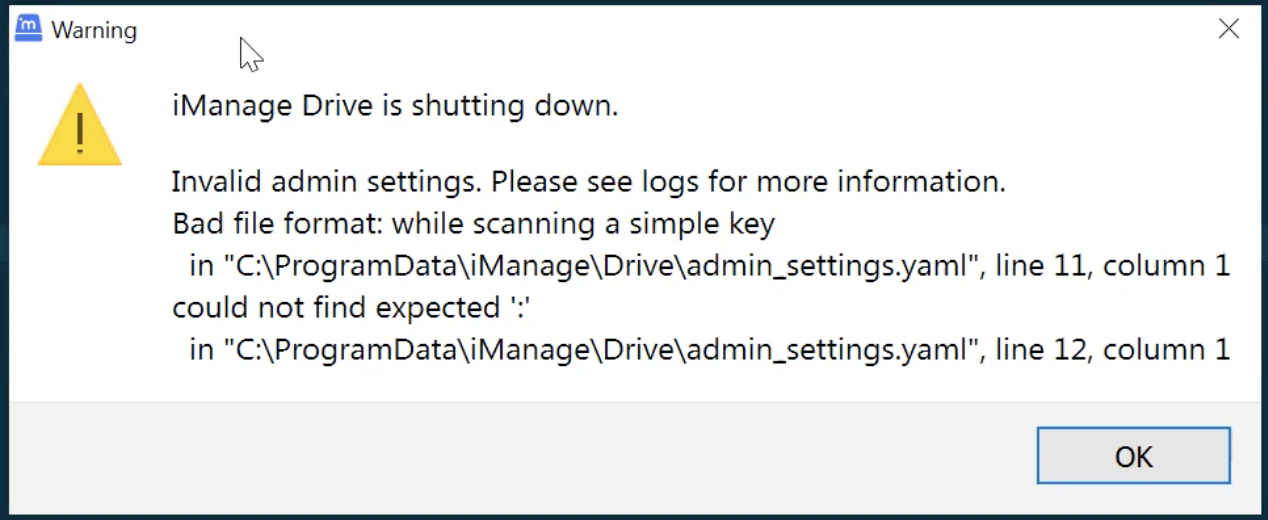
The following is the sample configuration file.
## --------------------------------------------------------------------------------------# This file contains sample iManage Drive admin settings# # iManage Drive version: iManage Drive 10.12.1.48# --------------------------------------------------------------------------------------## Enables renaming a work server url from the account settings dialog.# Example: # account_settings_rename_url: false# account_settings_rename_url: false # Specify list of additional file patterns that should not be synced to the iManage Work Server# Example: # additional_ignore_file_patterns:# - '*.ext1'# - '*.ext2'# additional_ignore_file_patterns: null # Specify list of additional folder patterns that should not be synced to the iManage Work Server# Example: # additional_ignore_folder_patterns:# - 'folder_1'# - 'folder_2'# additional_ignore_folder_patterns: null # Specify list of admin settings that cannot be changed in the drive preferences. The value of these settings is not specified here and must be specified separately.# If `admin_setting_controlled_values` is not specified, then it defaults to all of the possible values being admin setting controlled.# If `none` is specified then none of the values will be admin setting controlled.# If `all` is specified then all of the values will be admin setting controlled.# # Values that can be controlled:# `checkin_mode_new_version`# `delete_documents`# `delete_folders`# `hdpi_enabled`# `local_rest_service_token`# `get_main_dialog_size`# `main_dialog_size_without_icons`# `notify_new_workspace_synced`# `notify_new_workspace_synced_popup`# `notify_on_files_changed`# `notify_on_emails_changed`# `notify_workspace_removed`# `notify_workspace_removed_popup`# `notify_of_long_paths`# `prompt_for_authentication_dialog`# `proxy_server_mode`# `proxy_server_url`# `style_layout`# `ui_layout`# `webdav_port`# `zoom_layout`# `prompt_on_auto_unsync_inactive_workspaces`# Possible:# deleted_folders# notify_workspace_removed_popup# notify_of_long_paths# prompt_on_auto_unsync_inactive_workspaces# notify_new_workspace_synced# notify_new_workspace_synced_popup# all# proxy_server_url# notify_on_emails_changed# notify_workspace_removed# notify_on_files_changed# local_rest_service_token# none# delete_documents# proxy_server_mode# Example: # admin_setting_controlled_values:# - checkin_mode_new_version# - delete_folders# - delete_documents# - proxy_server_mode# - proxy_server_url# admin_setting_controlled_values:# - 'all'# admin_setting_controlled_values:# - 'none'# admin_setting_controlled_values: [] # Specify if administrators should have access to the iManage Drive user's root directory.# Example: # allow_administrator_access_to_user_root_dir: false# allow_administrator_access_to_user_root_dir: false # Enable emails to be downloaded when using container download feature.# Example: # allow_bulk_email_download: false# allow_bulk_email_download: false # Allow the copying of folders within iManage Drive to a destination outside of iManage Drive# Example: # allow_folder_copy_outside_drive: false# allow_folder_copy_outside_drive: false # Set this to `true` to allow leading dot in file and folders names.# Example: # allow_leading_dot_in_file_and_folder_names: false# allow_leading_dot_in_file_and_folder_names: false # Allow the copying of workspaces within the Drive to a destination outside the Drive# Example: # allow_workspace_copy_outside_drive: true# allow_workspace_copy_outside_drive: false # This setting determines whether or not inactive files will be set to online only.# Example: # auto_offload_files_enabled: true# auto_offload_files_enabled: false # This setting denotes the amount of time that must pass before we check for inactive files.# Example: # auto_offload_files_frequency: 20h# auto_offload_files_frequency: 1d # This setting denotes the amount of time that must pass before we determine that a file is 'inactive'.# Example: # auto_offload_files_min_inactive_time: 20h# auto_offload_files_min_inactive_time: 30d # This setting determines whether or not the auto-unsync inactive workspaces feature is enabled.# Example: # auto_unsync_workspaces_enabled: true# auto_unsync_workspaces_enabled: false # This setting denotes the amount of time that must pass before we check for inactive workspace.# Example: # auto_unsync_workspaces_frequency: 20h# auto_unsync_workspaces_frequency: 1d # This setting denotes the amount of time that must pass before we determine that a workspace is 'inactive'.# Example: # auto_unsync_workspaces_min_inactive_time: 20h# auto_unsync_workspaces_min_inactive_time: 30d # Limit number of files for bulk import source folder. Setting to `0` will disable file limitation for bulk import.# Example: # bulk_import_file_limit: 20000# bulk_import_file_limit: 20000 # Limit number of folders for bulk import source folder. Setting to `0` will disable folder limitation for bulk import.# Example: # bulk_import_folder_limit: 1000# bulk_import_folder_limit: 1000 # When performing a bulk import, if the number of files are less than this number, we will do a regular local copy to drive.# If the number of files exceeds this limit, the iManage Drive will sync directly to the server.# Example: # bulk_import_max_file_count_for_local_copy: 0# bulk_import_max_file_count_for_local_copy: 0 # Enable bulk import sync to server.# Example: # bulk_import_sync_to_server: true# bulk_import_sync_to_server: true # Limit total size of folders for bulk import. Setting to `0` will disable size limitation for bulk import. # Example: # bulk_import_total_size_limit: '5b'# bulk_import_total_size_limit: 0 # Enable/Disable bulk import folder validation.# Example: # bulk_import_validation_enabled: True# bulk_import_validation_enabled: true # Consider the destinations workspace file count when performing a bulk import.# For example, with `bulk_import_workspace_file_limit` set to `100000`, if you were to attempt to import a folder with files in it to a workspace which already had 100000 files, the import would fail.# Setting to `0` will disable this limitation.# Example: # bulk_import_workspace_file_limit: 100000# bulk_import_workspace_file_limit: 100000 # Consider the destinations workspace folder count when performing a bulk import.# For example, with `bulk_import_workspace_folder_limit` set to `10000`, if you were to attempt to import a folder to a workspace which already had 10000 folders, the import would fail.# Setting to 0 will disable this limitation.# Example: # bulk_import_workspace_folder_limit: 10000# bulk_import_workspace_folder_limit: 10000 # Consider the destinations workspace size when performing a bulk import.# For example, with `bulk_import_workspace_total_size_limit` set to `4g`, if you were to attempt to import a folder with files in it to a workspace which had a size of 4 gigabytes or greater, the import would fail.# Setting to `0` will disable this limitation for bulk import.# Example: # bulk_import_workspace_total_size_limit: '5b'# bulk_import_workspace_total_size_limit: 0 # Specify whether the default checkin mode is new version.# Example: # checkin_mode_new_version: true# checkin_mode_new_version: true # Specify the checkout mode.# If `on_open`, then the document will be checked out eventually when it is opened.# If `on_save`, then the document will be checked out when it is saved.# Possible:# on_save# on_open# Example: # checkout_mode: on_save# checkout_mode: on_save # Specify the number of days to allow document to copied from the document changelog. Set this value to `0` to disable the ability to copy documents from the changelog.# Example: # days_to_allow_document_changelog_copy: 3# days_to_allow_document_changelog_copy: 7 # Specify the number of days to keep local unsynced document changes in document change log# Example: # days_to_keep_document_changelog_entries: 7# days_to_keep_document_changelog_entries: 90 # Specify the number of days to keep local synced document changes in document change log# Example: # days_to_keep_synced_document_changelog_entries: 7# days_to_keep_synced_document_changelog_entries: 7 # If `true`, then if a document is deleted and there are multiple references to a document in different folders, the document and all of its references will be deleted.# If `false`, then if a document is deleted and there are multiple references to a document, just the individual reference will be deleted from the folder where the delete took place, and not the document# Example: # delete_all_document_references: false# delete_all_document_references: false # Specify the default setting of whether or not to allow document deletion# Example: # delete_documents: true# delete_documents: true # Specify the default setting of whether or not to allow folder deletion# Example: # delete_folders: true# delete_folders: false # To increase performance the number of items displayed is limited to this setting's number. Increasing it may negatively impact performance, while decreasing will positively impact performance.# Example: # dialog_display_limit: 50000# dialog_display_limit: 10000 # Set to `true` to disable a notification showing if there are admin settings that are invalid.# Example: # disable_admin_settings_warnings_notification: true# disable_admin_settings_warnings_notification: false # If `true`, when download containers, iManage Drive will not show an estimated time.# Example: # disable_file_download_time_estimate: true# disable_file_download_time_estimate: false # If no server hash is available when verifying an upload, iManage Drive will download the file to compare local and server hash values# Example: # download_file_to_verify_if_no_hash: true# download_file_to_verify_if_no_hash: true # Specify a different iManage Drive root working directory. The directory value must be on a locally attached device.# Defaults to: 'C:\Users' on Windows# Defaults to: '/Users' on Mac.# Example: # drive_user_root_dir: 'C:\iManageDriveRootDir'# drive_user_root_dir: null # Override default value for enabling container downloads.# Example: # enable_container_download: false# enable_container_download: null # Set this to `true` in order to use the File Provider for iManage Drive.# Example: # enable_file_provider_mac: true# enable_file_provider_mac: true # Specify that iManage Drive should register with a local port forwarding service. If set to `true`, then iManage Drive would register a dynamic port with the port forwarding service.# Example: # enable_local_rest_service_port_forwarding: False# enable_local_rest_service_port_forwarding: false # Enable local rest api port ownership verification. This will verify that the request came from a process owned by the same username.# Example: # enable_local_rest_service_port_ownership_verification: true# enable_local_rest_service_port_ownership_verification: true # Enable the use of the ssl context adapter to load certificates from Mac keychain# Example: # enable_mac_ssl_context_adapter: false# enable_mac_ssl_context_adapter: true # Enable observational sync# Example: # enable_observational_sync: true# enable_observational_sync: false # Enables the proxy auto-configuration. The proxy_pac_url should also be set# Example: # enable_pac_proxy: false# enable_pac_proxy: false # Set this option to `false` if you don't want to allow files to be hydrated for preview.# Example: # enable_preview: true# enable_preview: true # Set to `true` to enable recent and my workspaces folder to be available on your local file system# Example: # enable_recent_my_workspaces_folder: true# enable_recent_my_workspaces_folder: false # Allow process owned by root user to call local rest api.# Example: # enable_root_access_to_local_rest_service_port: true# enable_root_access_to_local_rest_service_port: true # Set this option to `false` if you do not want the iManage Drive panel to pop up when syncing or unsyncing a workspace, regardless of the Preferences > Notifications settings.# Example: # enable_sync_progress_dialog: true# enable_sync_progress_dialog: true # This setting should be set to `true` on Windows 2016 server to ensure the modified date is set correctly# Example: # enable_windows_set_ctime_mtime_file_link: false# enable_windows_set_ctime_mtime_file_link: false # Once enabled, a user-friendly iManage Drive sidebar shortcut will be added similar to OneDrive.# Example: # enable_windows_sidebar: true# enable_windows_sidebar: true # Once enabled, the drive letter will be added to the iManage Drive sidebar.# Example: # enable_windows_sidebar_with_drive_letter: true# enable_windows_sidebar_with_drive_letter: true # Enable the use of the windows ssl context adapter to load certificates from Windows machine# Example: # enable_windows_ssl_context_adapter: false# enable_windows_ssl_context_adapter: true # When there is a work server url rename, before connecting to the new server, iManage Drive will validate the data on the server against the data on the local drive.# Example: # enabled_rename_url_validation: true# enabled_rename_url_validation: true # This setting should be a list of the file types that a user might want to have hydrated for extended periods of time (i.e. hydration_expiration_time values will be set for files of these types).# Example: # extended_hydration_file_types_list:# - '.mp4'# - '.mp3'# extended_hydration_file_types_list: [] # Frequency to garbage collect unused encrypted files stored locally. The time format is in minutes.# Example: # frequency_to_reclaim_unused_encrypted_files: 1440# frequency_to_reclaim_unused_encrypted_files: 1440 # Setting to determine whether the windows security identifier should be hidden.# Example: # hide_security_identifier: true# hide_security_identifier: true # Enable to highlight when focusing on a icon, button, or widget# Example: # highlight_enabled: true# highlight_enabled: false# highlight_enabled: true # Configure a list of processes that may read iManage Drive documents. Names should be case sensitive.# # From iManage Drive for Mac 10.12 onwards, if the `enable_file_provider_mac` is set to `true`:# - If iManage Drive for Mac is deployed through a MDM(Mobile Device Management) solution:# Both `hydration_allow_list` and `hydration_deny_list` will be supported.# - If iManage Drive for Mac is not deployed through a MDM solution:# Only `hydration_allow_list` will be supported, and `hydration_deny_list` will be ignored.# Example: # hydration_allow_list:# - 'winword.exe'# - 'cat.exe'# hydration_allow_list: [] # Enable the option to specify a list of allowed processes for reading iManage Drive Documents# Example: # hydration_allow_list_enabled: true# hydration_allow_list_enabled: false # Configure a list of processes that may never read/open iManage Drive documents. Names should be case sensitive.# # From iManage Drive for Mac 10.12 onwards, if the `enable_file_provider_mac` is set to `true`:# - If iManage Drive for Mac is deployed through a MDM(Mobile Device Management) solution:# Both `hydration_allow_list` and `hydration_deny_list` will be supported.# - If iManage Drive for Mac is not deployed through a MDM solution:# Only `hydration_allow_list` will be supported, and `hydration_deny_list` will be ignored.# Example: # hydration_deny_list:# - 'winword.exe'# - 'cat.exe'# hydration_deny_list: [] # Configure a list of virus scanners that may passively read placeholder files without hydrating. If give_hydrater_allow_deny_list is set to false this list will be ignored. Names should be case sensitive.# # From iManage Drive for Mac 10.12 onwards, if the `enable_file_provider_mac` is set to `true`:# - If iManage Drive for Mac is deployed through a MDM(Mobile Device Management) solution:# Both `hydration_deny_virus_scanner_list` will be supported.# - If iManage Drive for Mac is not deployed through a MDM solution:# `hydration_deny_virus_scanner_list` will not be supported.# Example: # hydration_deny_virus_scanner_list:# - 'wdavdaemon.exe'# - 'wdavdaemon2.exe'# hydration_deny_virus_scanner_list: null # If `true`, ignore all emails when syncing workspaces# Example: # ignore_emails: false# ignore_emails: false # Allows you to configure the iManage Drive app data root directory from admin settings instead of environment variable. The current logged in username will be appended to the end of the path.# Example: # imanage_drive_app_data_dir_root: 'D:\iManageDrive'# imanage_drive_app_data_dir_root: null # List of languages that user can choose from in the preferences dialog.# Possible:# zh# en# ja# de# fr# fr_ca# pt# es# Example: # language_options:# - 'en'# - 'fr'# - 'es'# - 'de'# - 'pt'# - 'ja'# - 'zh'# language_options: ['en', 'fr', 'es', 'de', 'pt', 'ja', 'zh', 'fr_ca'] # Specify the local_rest_service_port for the iManage Drive API. When set to `0`, a dynamic port will be chosen. Defaults to 8010.# Example: # local_rest_service_port: 8010# local_rest_service_port: null # Specify a custom api token that will be used to authenticate to iManage Drive Rest APIs, otherwise one will be generated.# Example: # local_rest_service_token: 'token'# local_rest_service_token: null # The type of encryption to use when encrypting log messages.# If `realtime`, then the log messages will be encrypted before writing to the log file (least performant).# If `tag`, then the log messages will be tagged with a special tag and when generating a support snapshot, the log messages will be encrypted.# If `False`, then no log encryption will be performed.# Possible:# tag# False# realtime# Example: # log_encryption_type: 'tag'# log_encryption_type: tag # Specify the number of backup copies of log files# Example: # log_file_backup_count: 9# log_file_backup_count: 9 # Specify the maximum size of the log files before it is rolled over to a new file.# Example: # log_file_max_size: 5b# log_file_max_size: 10m # If `true` then when iManage Drive is installed, iManage Drive overlay icons on Windows will not affect other applications overlay icons. # If `auto`, iManage Drive will auto-detect if we need to raise/lower the priority of icons.# Possible:# true# false# auto# Example: # lower_priority_of_overlay_icons: 'true'# lower_priority_of_overlay_icons: false # Specify if the drive user root directory should be set to private to avoid other users from being able to see this directory.# Example: # make_drive_user_root_dir_private: false# make_drive_user_root_dir_private: false # This setting denotes the max allowed file size for a file that can be uploaded using the 'upload new version' feature.# Example: # max_allowed_upload_new_version_file_size: '1g'# max_allowed_upload_new_version_file_size: 1g # Max individual file size allowed for upload to the server. Setting to `0` will disable this limitation.# Example: # max_file_size: '4b'# max_file_size: 4g # Specify the maximum number of items to show in my workspaces folder on the local filesystem# Example: # max_items_to_show_in_my_workspaces: 100# max_items_to_show_in_my_workspaces: 100 # Specify the maximum number of items to show in recent workspaces folder on the local filesystem# Example: # max_items_to_show_in_recent_workspaces: 100# max_items_to_show_in_recent_workspaces: 100 # Limit the number of folders per workspace. If a workspace contains more folders than the set limit, the workspace will not be synced. Setting to `0` will disable this limitation.# Example: # maximum_folders_per_workspace: 10000# maximum_folders_per_workspace: 10000 # Change the maximum number of workspaces that can be synced. The recommended maximum and default is 20.# Example: # maximum_matters_limit: 20# maximum_matters_limit: 20 # Specify the maximum length of a workspace name. The workspace name will be truncated to this length if the workspace name is longer.# Example: # maximum_workspace_name_length: 50# maximum_workspace_name_length: 150 # Configure the number of megabytes of disk space remaining before iManage Drive prevents downloading of additional content. Defaults to 2GB.# Example: # min_free_space_for_download_mb: 2048# min_free_space_for_download_mb: 2048 # Specify the drive letter to map to the %homepath%/iManageDrive directory. If the drive letter is in use, the mapping isn't created. To disable drive letter mapping, set the value to `false`.# # **NOTE**: To ensure that the OLE feature works as expected in iManage Drive, you must ensure that all users map the application to the same drive letter.# Example: # native_drive_letter: S# native_drive_letter: M # Specifythe length of time in seconds before a notification expires in the Drive Notifications Tab# Example: # notification_expire_time: 10000# notification_expire_time: 2628000 # Specify whether users should be notified when a new workspace is synced.# Example: # notify_new_workspace_synced: true# notify_new_workspace_synced: true # Specify whether users should see iManage Drive panel pop up and show sync progress when workspace is synced.# Example: # notify_new_workspace_synced_popup: true# notify_new_workspace_synced_popup: true # Specify whether users should be notified of items that has long paths.# Example: # notify_of_long_paths: true# notify_of_long_paths: true # Specify whether users should be notified when an email changes.# Example: # notify_on_emails_changed: true# notify_on_emails_changed: true # Specify whether users should be notified when a file changes.# Example: # notify_on_files_changed: true# notify_on_files_changed: true # Specify whether users should be notified when a workspace is unsynced.# Example: # notify_workspace_removed: true# notify_workspace_removed: true # Specify whether users should see drive panel pop up and show progress when workspace is unsynced.# Example: # notify_workspace_removed_popup: true# notify_workspace_removed_popup: true # Only read and respect certificates in the Trusted Root Certificate Authorities. # Example: # only_read_trusted_root_certificate_authorities: true# only_read_trusted_root_certificate_authorities: true # Specify the freuency in seconds that the iManage Drive checks for SPM policy changes on the server.# Example: # policy_check_sync_frequency: 3600# policy_check_sync_frequency: 3600 # Minutes between reminding user that there are items to confirm sync to the server that must be addressed.# Example: # prompt_for_sync_confirmation_reminder: 5# prompt_for_sync_confirmation_reminder: 5 # Minutes between reminding user that there are sync issues that must be addressed.# Example: # prompt_for_sync_issues_reminder: 60# prompt_for_sync_issues_reminder: 60 # If `true`, whenever a workspace is unsynced automatically due to inactivity, a prompt will be shown to the user asking if they want to unsync the workspace. If `false`, no prompt will be shown.# Example: # prompt_on_auto_unsync_inactive_workspaces: false# prompt_on_auto_unsync_inactive_workspaces: null # The url of a proxy auto configuration file. `enable_pac_proxy` must also be set to `true` to enable this.# Example: # proxy_pac_url: 'http://url'# proxy_pac_url: null # If `0`, no proxy will be used# If `1`, iManage Drive will auto-detect the system proxy# If `2`, use the manual proxy set by user or by administrator# Possible:# 0# 1# 2# Example: # proxy_server_mode: 1# proxy_server_mode: 1 # The proxy url for the drive to use when making web/api requests. proxy_type can be [http, socks4, socks5]# Example: # proxy_server_url: 'http://localhost:8010'# proxy_server_url: null # Specify the number of seconds to wait before automatically refreshing the recent and my workspaces folders on the local filesystem. Defaults to never.# Example: # refresh_recent_my_matters_frequency_in_seconds: 86400# refresh_recent_my_matters_frequency_in_seconds: null # Specify the duration to wait before refreshing remote admin settings from the server. Set to `0` to disable.# Example: # refresh_remote_admin_settings_frequency: '1d'# refresh_remote_admin_settings_frequency: 1d # Specify the duration to wait before refreshing web extension settings from the server. Set to `0` to disable.# Example: # refresh_web_extension_settings_frequency: 1d# refresh_web_extension_settings_frequency: 1d # When set, iManage Drive will update the `from_work_server_url` to the `to_work_server_url`.# This will update the account associated with the `from_work_server_url` to the accoutn associated with the `to_work_server_url`.# This should only be configured if there was a migration from the `from_work_server_url` to the `to_work_server_url`.# The migration **MUST** be complete before configuring this admin setting and **MUST** host the same library names and workspace ID's as the original work server.# Example: # rename_work_server_urls:# - from_work_server_url: 'https://server1'# to_work_server_url: 'https://server2'# - from_work_server_url: 'https://server3'# to_work_server_url: 'https://server4'# rename_work_server_urls: [] # If `0`, disable# If `1`, then restart explorer when opening explorer from iManage Drive panel if version changed# If `2`, then restart explorer at startup if version changed# Possible:# 0# 1# 2# Example: # restart_explorer_if_context_dll_changed: 2# restart_explorer_if_context_dll_changed: 2 # Controls the maximum number of results to show when searching. The maximum value that can be specified is 500, anything above 500 will be capped at 500.# Example: # search_show_max_results: 30# search_show_max_results: 30 # Specify the segment api url# Example: # segment_host_url: 'https://services.cloudimanage.com'# segment_host_url: https://services.cloudimanage.com # Used to set the hotkey to open up iManage Drive's Account Settings. Set to 'disabled' to turn off the hotkey. Example hotkeys: (ctrl+alt+p ctrl+shift+s, alt+w)# Example: # shortcut_account_settings: ctrl+alt+a# shortcut_account_settings: disabled # Used to set the hotkey to open up iManage Drive in explorer. Set to 'disabled' to turn off the hotkey. Example hotkeys: (ctrl+alt+p ctrl+shift+s, alt+w)# Example: # shortcut_explorer: ctrl+alt+e# shortcut_explorer: disabled # Used to set the hotkey to open up the help page. Set to 'disabled' to turn off the hotkey. Example hotkeys: (ctrl+alt+p ctrl+shift+s, alt+w)# Example: # shortcut_help: ctrl+alt+?# shortcut_help: disabled # Used to open matter selector panel. Set to 'disabled' to turn off the hotkey. Example hotkeys: (ctrl+alt+m ctrl+shift+s, alt+w)# Example: # shortcut_matter_selector: ctrl+alt+m# shortcut_matter_selector: ctrl+alt+m # Used to set the hotkey to open up your account in iManage Web. Set to 'disabled' to turn off the hotkey. Example hotkeys: (ctrl+alt+p ctrl+shift+s, alt+w)# Example: # shortcut_open_in_web: ctrl+alt+w# shortcut_open_in_web: disabled # Used to open iManage Drive panel. Set to 'disabled' to turn off the hotkey. Example hotkeys: (ctrl+alt+p ctrl+shift+s, alt+w)# Example: # shortcut_panel: ctrl+alt+p# shortcut_panel: ctrl+alt+p # Used to set the hotkey to either resume or pause syncing depending on its current state. Set to 'disabled' to turn off the hotkey. Example hotkeys: (ctrl+alt+p ctrl+shift+s, alt+w)# Example: # shortcut_play_or_pause: ctrl+alt+o# shortcut_play_or_pause: disabled # Used to set the hotkey to open up the preferences dialog. Set to 'disabled' to turn off the hotkey. Example hotkeys: (ctrl+alt+p ctrl+shift+s, alt+w)# Example: # shortcut_preferences: 'ctrl+alt+p'# shortcut_preferences: disabled # Used to set the hotkey to open up search in the iManage Drive Panel. Set to 'disabled' to turn off the hotkey. Example hotkeys: (ctrl+alt+p ctrl+shift+s, alt+w)# Example: # shortcut_search: ctrl+alt+f# shortcut_search: disabled # Used to set the hotkey to sync iManage Drive manually. Set to 'disabled' to turn off the hotkey. Example hotkeys: (ctrl+alt+p ctrl+shift+s, alt+w)# Example: # shortcut_sync: ctrl+alt+s# shortcut_sync: disabled # If `true`, enables shortcuts for iManage Drive.# If `false`, disables all shortcuts.# Example: # shortcuts_enabled: true# shortcuts_enabled: false # Once enabled, the windows cloud filter sidebar would always be shown even if the drive letter is enabled.# Example: # show_cloud_filter_sidebar_even_if_drive_letter_enabled: true# show_cloud_filter_sidebar_even_if_drive_letter_enabled: true # Show or hide drive icon in Windows task bar.# If `0`, icon will be hidden# If `1` icon will be shown# Any other value, iManage Drive will keep its current configuration.# If there is none, Manage Drive will look for a previous configuration from a past install.# Example: # show_drive_icon_in_task_bar: 1# show_drive_icon_in_task_bar: 1 # Once enabled, the drive letter sidebar would always be shown even if the cloud filter driver is enabled.# Example: # show_drive_letter_sidebar_even_if_cloud_filter_enabled: false# show_drive_letter_sidebar_even_if_cloud_filter_enabled: false # If `true`, an installation wizard will be shown when using iManage Drive for the first time.# Example: # show_installation_wizard_if_no_account: true# show_installation_wizard_if_no_account: true # Enables the **Show long paths** button in the sync issues dialog.# If `false`, will disable the menu item# If `true` will display the menu item if long paths is disabled on the operating system# If `force` will display the button regardless of long paths being enabled/disabled on the operating system.# Possible:# force# true# false# Example: # show_long_paths_button: 'force'# show_long_paths_button: true # Specify the default setting of the automated sync frequency in minutes, minimum value is `30`. Disable automated syncing by setting value to `0`. The user can change the default value in preferences.# Example: # sync_frequency: 30# sync_frequency: 30 # Drive will alert users when it has not synced files in the Outbox after a defined period of time.# Example: # time_before_alerting_sync_issues: '1d'# time_before_alerting_sync_issues: 1d # Specify the duration to wait before prompting for authentication again after a user clicks the 'Not now' button.# Example: # time_to_wait_before_prompting_for_authentication: 1h# time_to_wait_before_prompting_for_authentication: 1h # Once this count of changes is hit, the user will need to confirm changes that need to be synced to the server.# Example: # trigger_confirmation_change_count: 10# trigger_confirmation_change_count: 10 # Once this count of deletes is hit, the user will need to confirm document deletes that need to be synced to the server. Value will always be less than or equal to `trigger_confirmation_delete_count`# Example: # trigger_confirmation_delete_count: 10# trigger_confirmation_delete_count: 10 # This setting should be a list of the file extensions that a user does not want to allow when attempting to use the upload new version feature.# Example: # upload_new_version_denied_file_types_list:# - '.mp4'# - '.xlsx'# upload_new_version_denied_file_types_list: [] # Different user roles will have different options available in UI# Possible:# user# admin# Example: # user_role: 'user'# user_role: user # Specify the port for the iManage Drive Web Extension APIs. If set, this value must match the port configured when installing the web extension.# Example: # web_extension_https_port: 8020# web_extension_https_port: 8020 # Configure the token to be used with the web extension.# If not specified, the default token when installing the web extension will be used.# If specified, when installing the web extension make sure the token matches this specified value.# The token can be disabled by specifying `ignore`.# # Specifying a token would be the most secure option and specifying `ignore` would be the least secure.# Example: # web_extension_token: '1b561970-5ae1-464a-a878-278639fe359f'# web_extension_token: null # Enable the use of the cloud filter functionality.# Possible:# cloud_filter# drive_native# auto# Example: # windows_native_driver: 'cloud_filter'# windows_native_driver: drive_native # List of all urls user should be able to connect to.# Example: # work_server_urls:# - 'https://host1.xyz.com'# - 'https://host2.xyz.com'# work_server_urls: []