When you install iManage Drive, the iManage Drive icons get placed at the top, by default at the following location: HKEY_LOCAL_MACHINE\SOFTWARE\Microsoft\Windows\CurrentVersion\Explorer\ShellIconOverlayIdentifiers
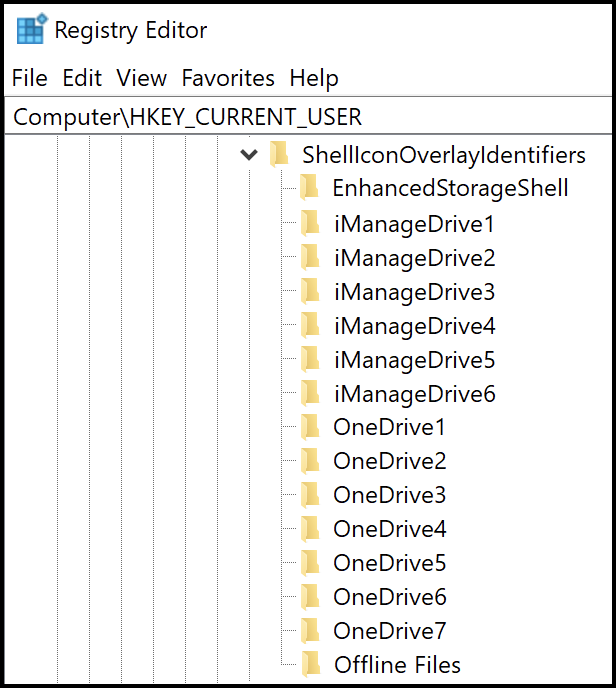
However, if you don’t want iManage Drive icons to interfere with other sync application icons like the OneDrive icons icons, you can lower the priority of the iManage Drive icons by doing the following:
When you're installing iManage Drive:, check for the lower_priority_of_overlay_icons admin setting in admin_settings.yaml file. If it is set to:
true: The priority of iManage Drive icons is set to low automatically when iManage Drive is installed.
false: The priority of iManage Drive icons is set to high automatically when iManage Drive is installed. This is the default value.
auto: Set native_drive_letter to false and windows_native_driver to cloud_filter to lower the priority of iManage Drive icons.
When you’ve already installed iManage Drive, then:
Open command prompt in admin mode.
Run the following command: “C:\Program Files\iManage\Drive\iManageDriveConsole.exe” update_overlay_icon_priority lower
Open Regedit and then browse to HKEY_LOCAL_MACHINE\SOFTWARE\Microsoft\Windows\CurrentVersion\Explorer\ShellIconOverlayIdentifiers.
Select View > Refresh to refresh the registry settings. You can see that iManage Drive icons are placed at the bottom.
NOTE: To raise the iManage Drive icons priority, run the following command: “C:\Program Files\iManage\Drive\iManageDriveConsole.exe” update_overlay_icon_priority raise