NOTES:
The add-in requires the following applications:
Microsoft Outlook for Mac (Microsoft 365 subscription) version 16.100.2 or later
Exchange Server - Exchange Online
It can't be deployed on an on-premise or hybrid Microsoft Exchange Server.
As an administrator, you can configure the iManage Work (macOS) add-in for Microsoft Outlook using your Microsoft Office admin account so that it is available to a few selected users or all users in your organization.
Sign in to your Microsoft 365 admin center using your credentials.
Select Home.
From the left navigation bar, select Settings > Integrated apps.
Figure: Integrated apps option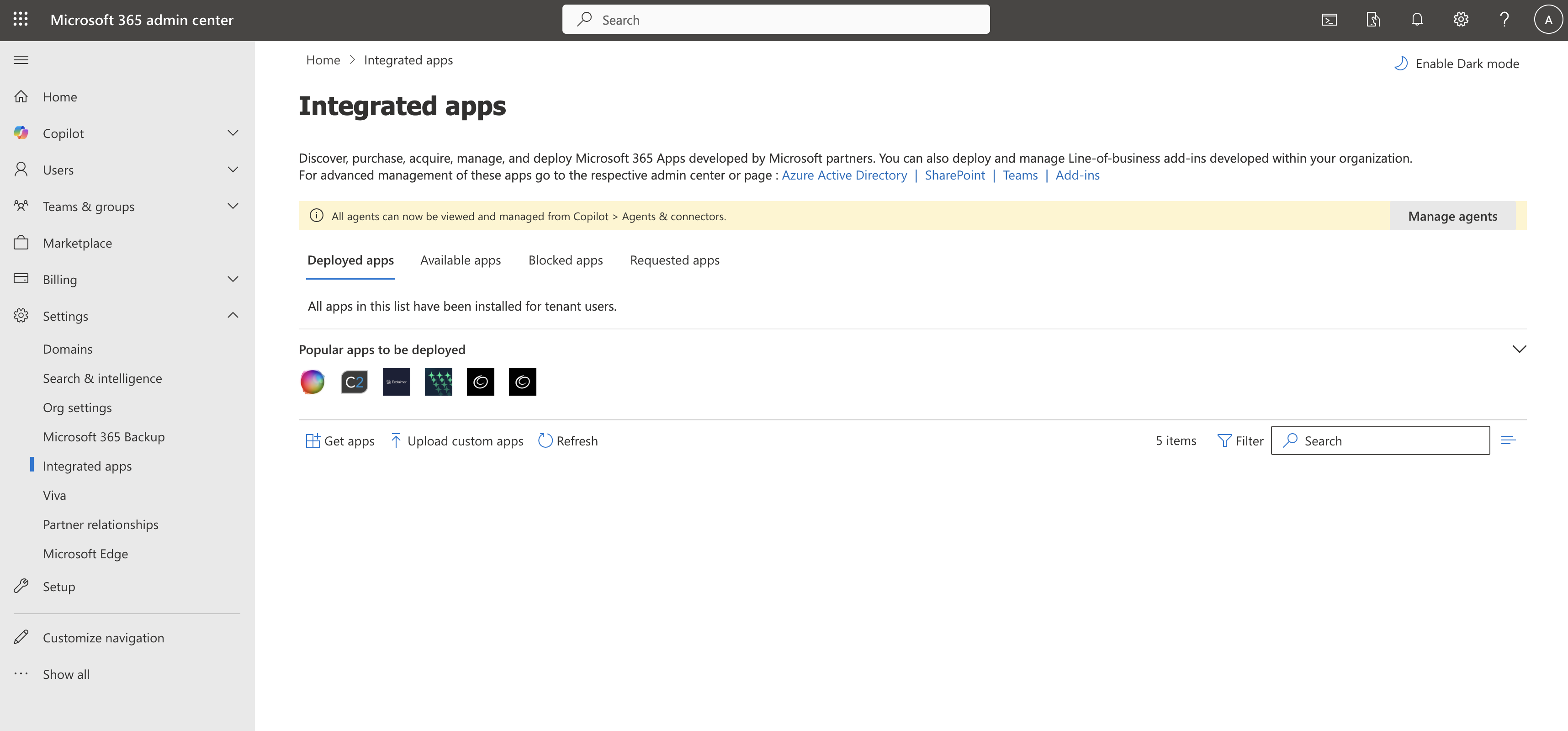
On the toolbar, select Upload custom apps.
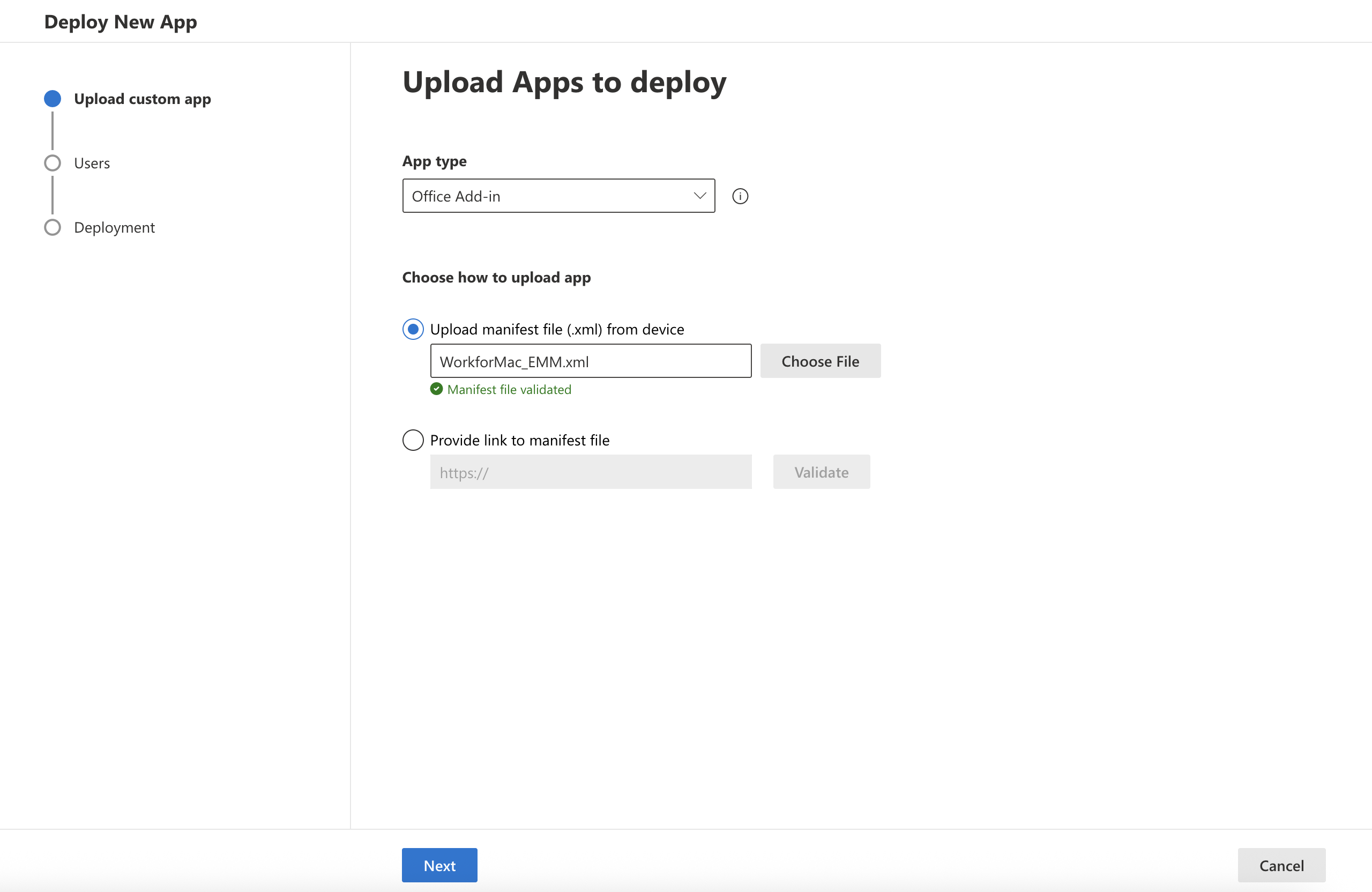
In the Deploy New App wizard:
From the App type drop-down list, select Office Add-in.
Select Upload manifest file (.xml) from device.
Select Choose File, upload the WorkforMac_EMM.xml file, and then select Next.
NOTES:
The manifest file is bundled into the iManage Work Desktop for Mac package and if you install it on your Mac, the file is available in the ~/Library/Application Support/iManage/Add-in Configuration folder.
If upgrading from 10.4.0 or later, ensure that you get the latest manifest file from iManage Work Desktop for Mac.pkg and upload it again using Microsoft 365 admin center.
Depending on who you want to deploy the add-in for, select one of the following options and select Next:
Just me
Entire organization
Figure: Option to deploy for the entire organization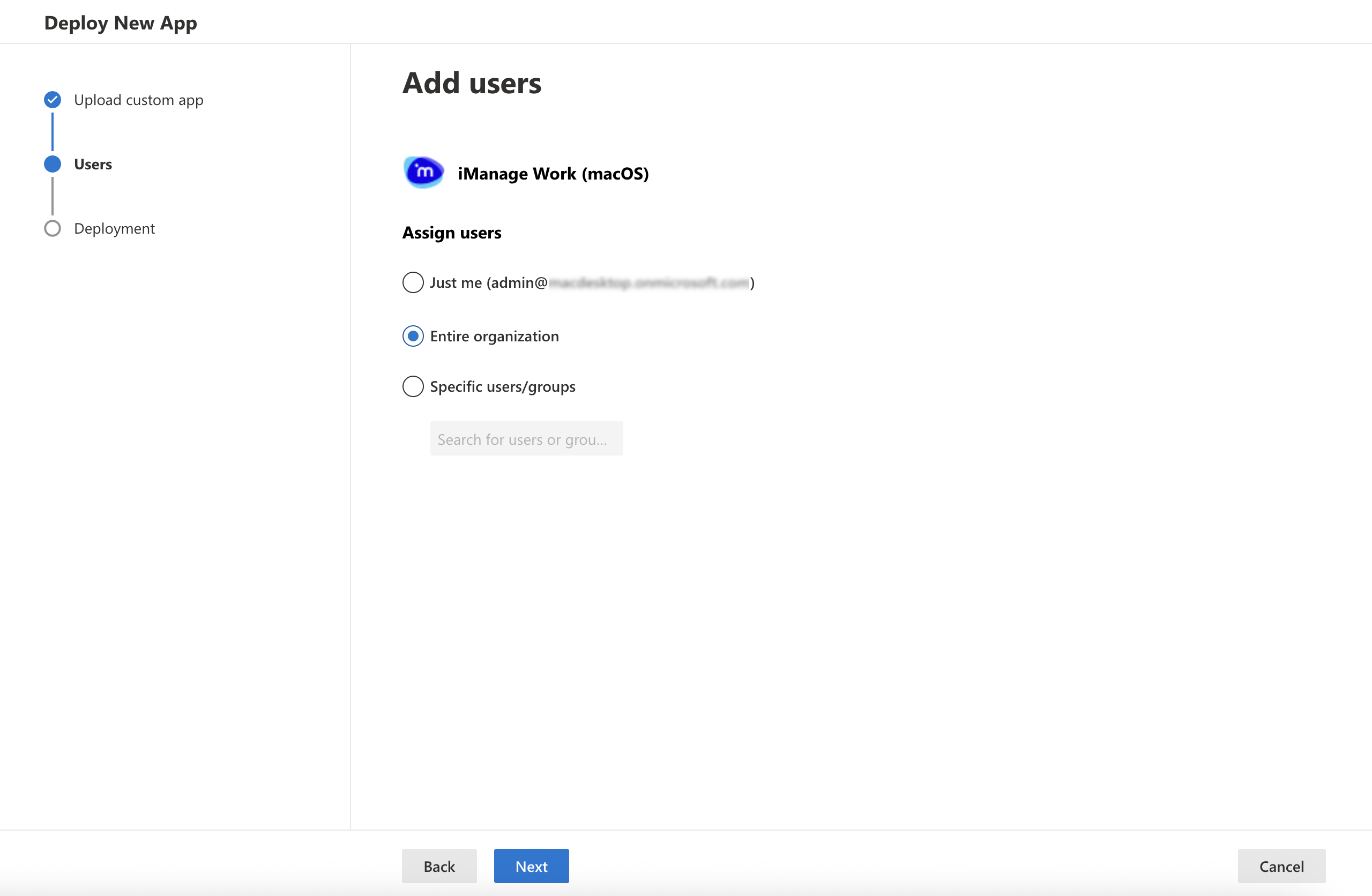
Specific users/groups
Select Accept permissions and sign in using your Microsoft 365 admin account.
Figure: Accept permissions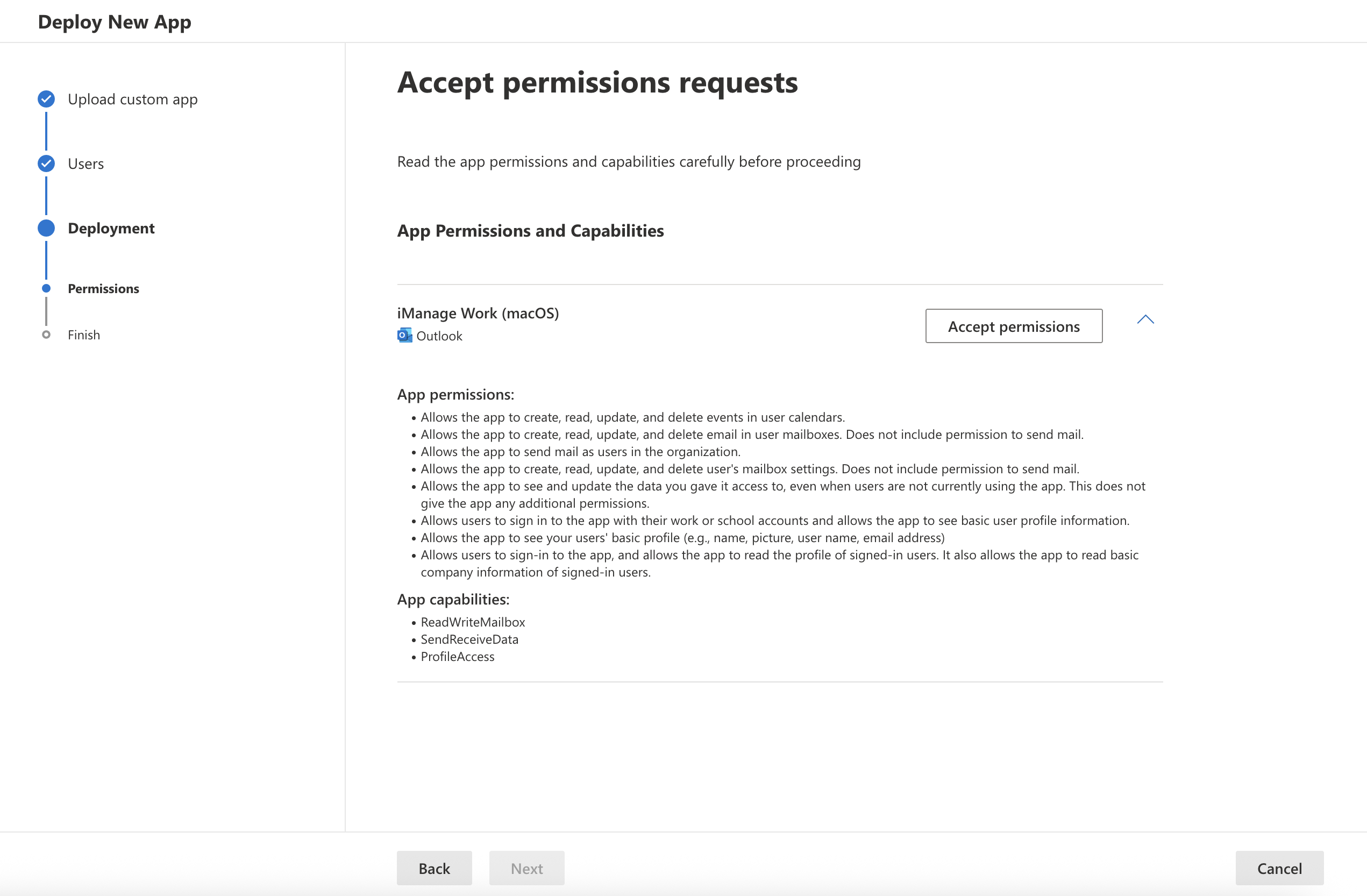
In the Microsoft permissions dialog to give permissions for accessing your mailbox, select Accept.
Figure: Permissions to access mailbox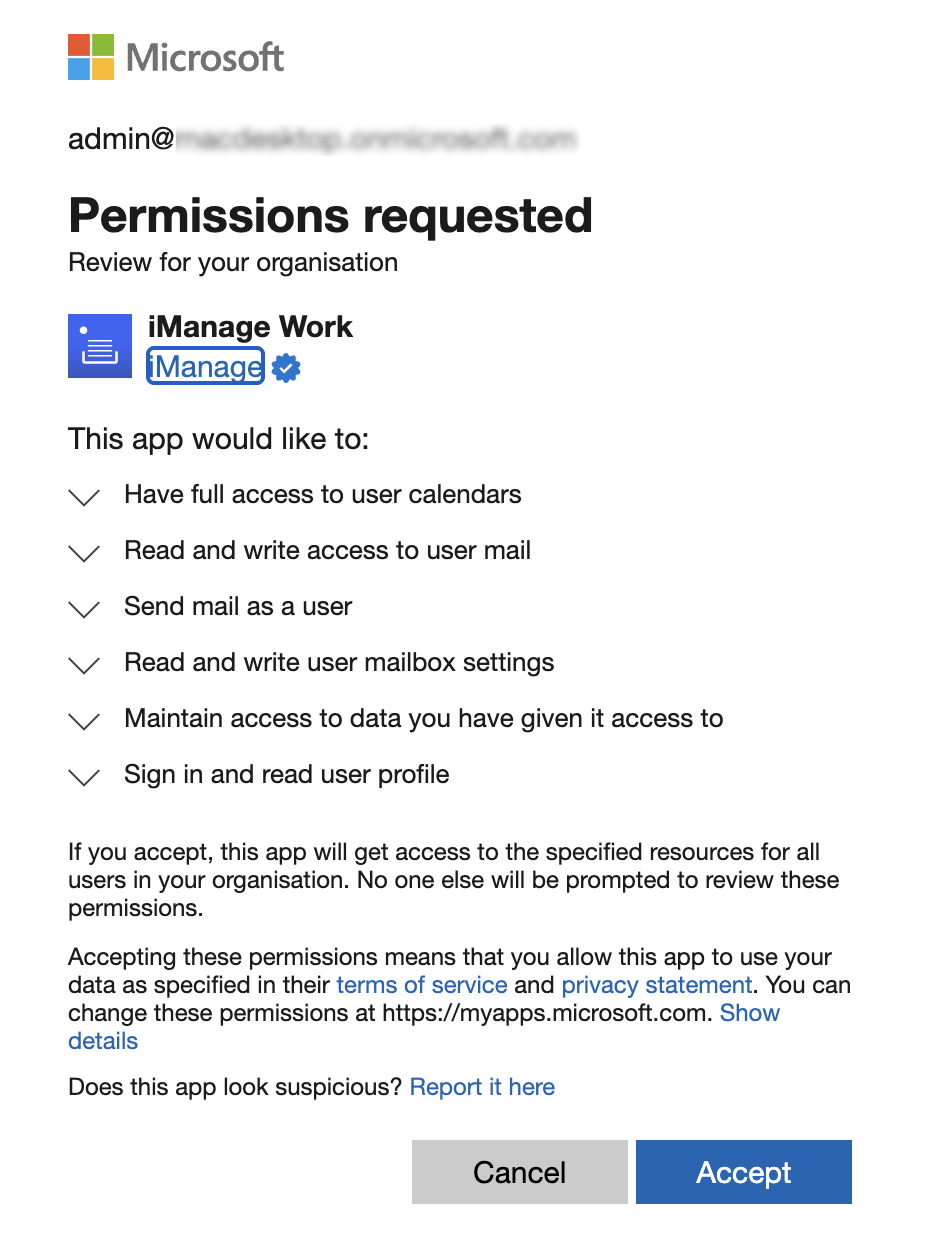
Select Next.
Figure: Permissions granted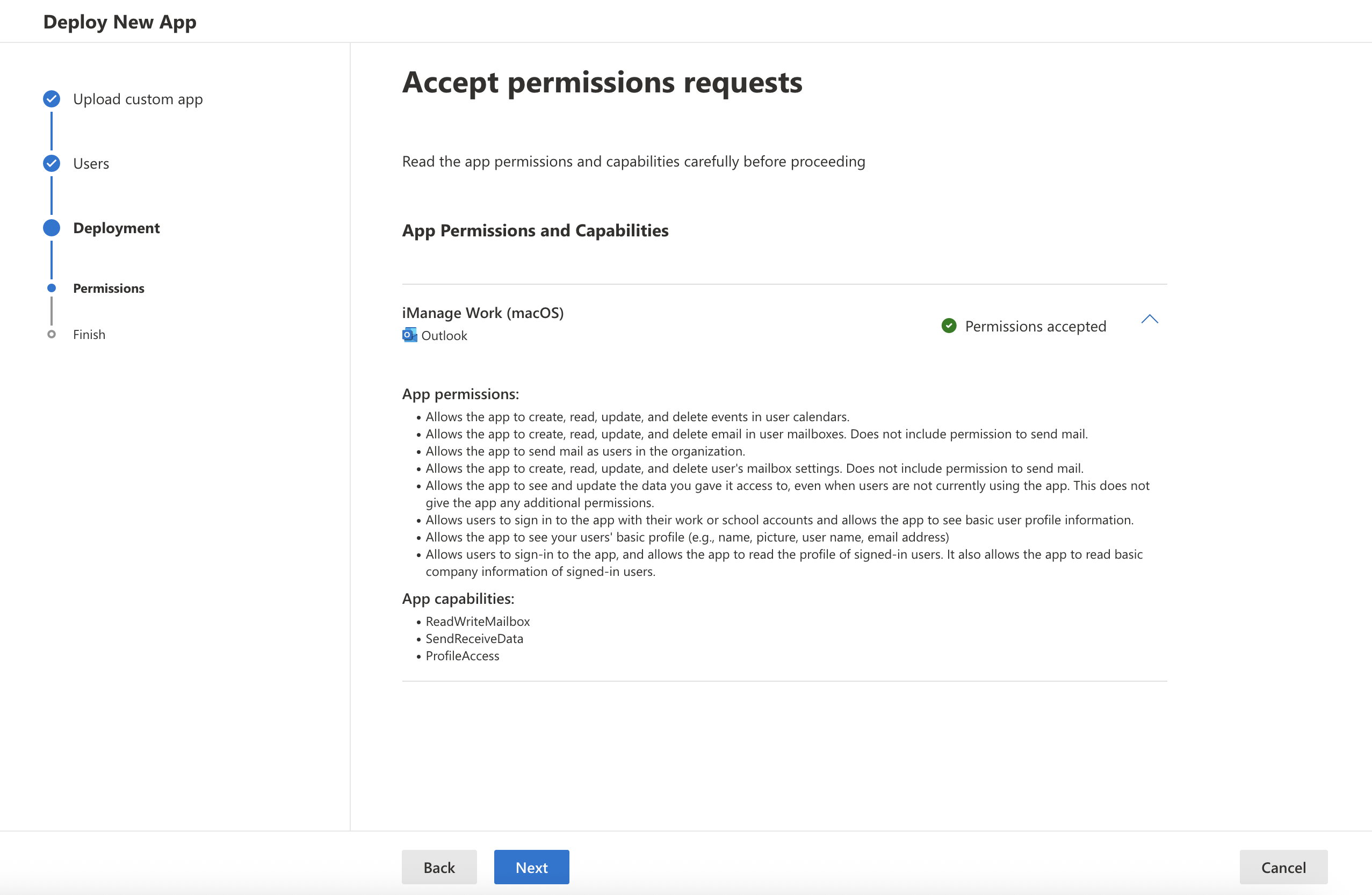
On the Review and finish deployment screen, select Finish Deployment.
Figure: Finish deployment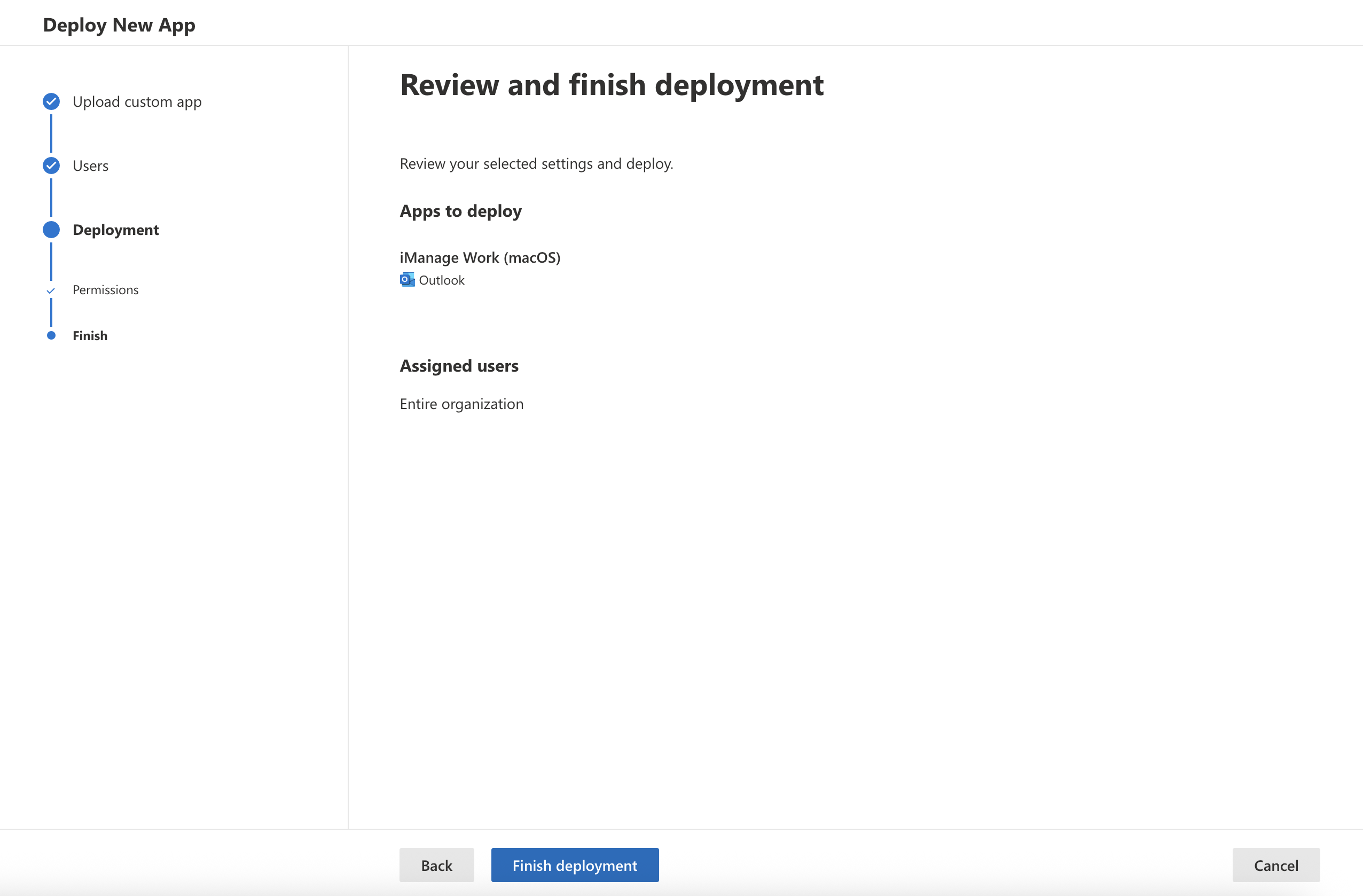
When the Deployment in progress screen changes to Deployment completed, select Done.
Due to expected Microsoft Outlook behavior, it may take up to 72 hours after deployment for the add-in to be displayed in users' Microsoft Outlook toolbar. Users must wait for this duration and then restart Microsoft Outlook to view and start using the panel.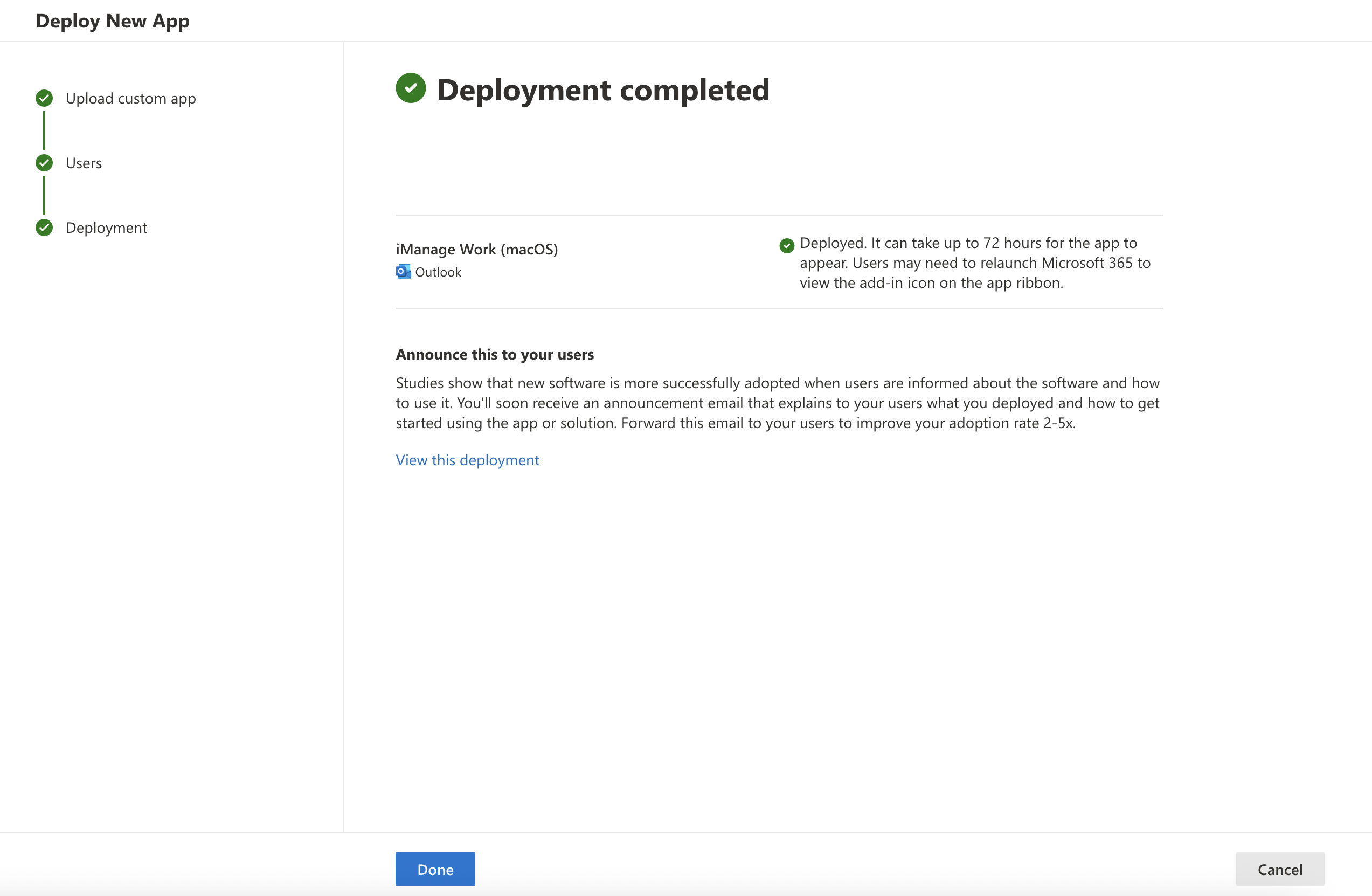
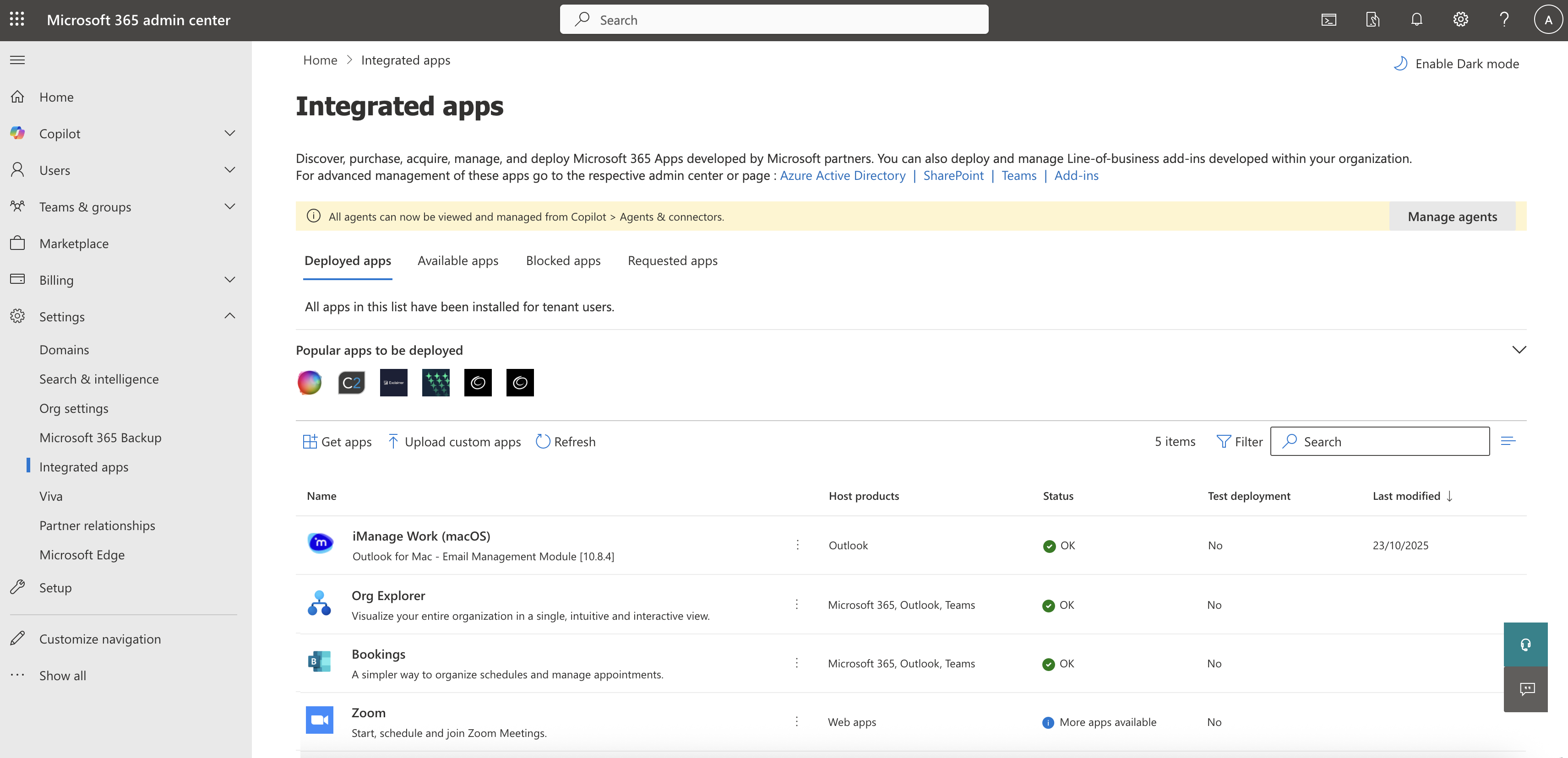
The iManage Work (macOS) add-in is listed under Integrated Apps.Figure: Add-in deployed