From version 10.6.0 onwards. cloud logging for select errors is enabled in iManage Work Desktop for Windows. The following tracing information is sent to Azure Application Insights hosted by iManage. This information is used to identify the problem areas or source of the problem.
Health check errors
iManage Work web checkpoint traces (info level and above)
iManage Work web health checking notifications
Microsoft WebView2 browser console errors
Microsoft WebView2 browser process and navigation errors
User actions on error banner
IMPORTANT: No user information is shared with Azure Application Insights hosted by iManage.
Logs are shared with Application Insights only for production environments. If it's a non-production iManage Work environment, no log information is sent to Azure Application Insights. You can use the iwTestServerDomains setting in the imWorkOptions.xml file to identify non-production iManage Work environments to share data to Application Insights. For more information about this configuration, see imWorkOptions.xml section.
Sharing log information to Application Insights is enabled by default. You can disable the feature by editing the LogConfig.xml file. Even with this feature disabled, logs continue to be stored locally.
To disable sharing of logs to Application Insights:
Navigate to the iManage Work root install path and locate the LogConfig.xml file.
Open the LogConfig.xml file in edit mode and locate and comment the following lines of code.
<appender name="LogCloudAppender"type="Microsoft.ApplicationInsights.Log4NetAppender.ApplicationInsightsAppender, Microsoft.ApplicationInsights.Log4NetAppender"><layout type="log4net.Layout.PatternLayout"><conversionPattern value="%message%newline"/></layout><InstrumentationKey value=""/><!--dev_key <InstrumentationKey value=""/>--></appender><logger name="CloudWorklog"><level value="INFO"/><appender-ref ref="LogCloudAppender"/></logger>Copy the modified LogConfig.xml file to the following location "%localappdata%\iManage\Work\Configs" to avoid losing your changes when iManage Work Desktop for Windows is updated or re-installed. The changes are applied to your machine.
To apply the changes to all users in your organization, upload the modified file to iManage Control Center. The updated file is downloaded to "%appdata%\iManage\Work\Configs" when your user connects to iManage Work.
NOTES:
iManage Work Desktop for Windows searches the LogConfig.xml file in the following locations, and uses the file based on the following precedence. For example, if the file exists in both %localappdata% and %appdata%, copy from %localappdata% is used.
%localappdata%\iManage\Work\Configs
%appdata%\iManage\Work\Configs
Root install folder
When you modify the LogConfig.xml file while an instance of iManage Work Desktop for Windows is running, the application does not apply the changes. You have to restart the application for the changes to take effect.
If iManage Work Desktop for Windows is reading the LogConfig.xml file available in %localappdata%\iManage\Work\Configs and you want iManage Work Desktop for Windows to read the file available at %appdata%\iManage\Work\Configs, delete the copy of the LogConfig.xml file available in %localappdata%\iManage\Work\Configs.
Capture Cloud Role Id from the Work Agent
The log information shared with Azure Application Insights has a unique identifier in GUID format for each Work Desktop for Windows installation.
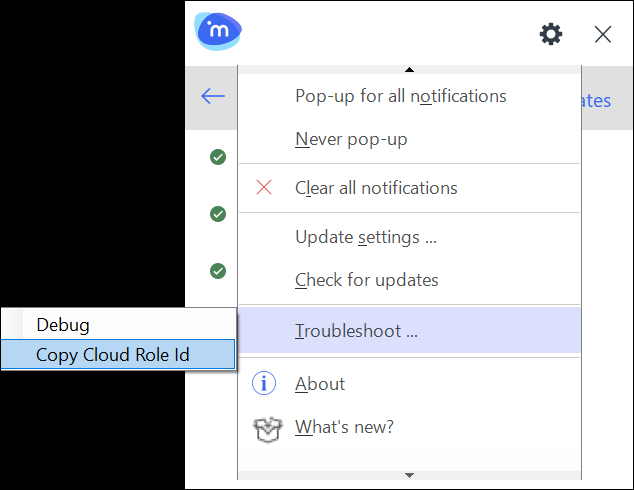
You can capture the Cloud Role Id from the Work Agent’s settings menu to the clipboard. Select Troubleshoot menu, then select Copy Cloud Role ID.
You may be asked to provide this Cloud Role ID when corresponding with iManage Support.