View iManage Work logs
iManage Work Agent and Work Desktop for Windows generates log files that are located in %localappdata%\iManage\Work\Logs\
The following table describes the log files you can review to troubleshoot issues.
For... | Refer to | At... |
|---|---|---|
Issues related to installation and uninstallation errors | workdesktop.log |
|
Issues related to Auto Updates notifications | iwAgent.<version>.iManage.Work.log | %LocalAppData%\iManage\Work\Logs |
iwlnrl.<version>.iManage.Work.log | %LocalAppData%\iManage\Work\Logs | |
Issues related to:
| iwAgentBackground.<version>.iManage.Work.log | %LocalAppData%\iManage\Work\Logs |
Issues related to:
| iwWCS.<version>.iManage.Work.log | %LocalAppData%\iManage\Work\Logs |
Issues related to:
| OUTLOOK.<version>.iManage.Work.log | %LocalAppData%\iManage\Work\Logs |
Issues related to the executables in the process registry folder | iManageStayExec.<version>.iManage.Work.log | %localappdata%\iManage\AgentServices\Logs |
Issues about products not getting upgraded to the desired version | iManageUpdateManager.<version>.iManage.Work.log | %ProgramData%\iManage\AgentServices\Logs |
Issues with Auto Updates | iManageUpdateScript.<version>.iManageUpdater.log iManageUpdaterRest.<version>.iManage.Work.<date>.log iManageFinalizer.<version>.iManage.Work.<date>.log iManageUpdateManagerService.<version>.iManage.Work.<date>.log iManageUpdaterToast.<version>.iManage.Work.admin.<date>.log iwa.<version>.iManage.Work.<date>.log | %ProgramData%\iManage\AgentServices\Logs |
Configure Logging
All configurations for logging in iManage Work Desktop for Windows are specified in the LogConfig.xml file, which is located at the root install path for iManage Work Desktop for Windows.
By default, iManage Work Desktop for Windows retains the last ten log files per application, up to 10 MB in size each. Microsoft Outlook, Word, Excel, PowerPoint, Project, Visio, and Adobe Acrobat are the applications supported.
Change the logging level
Informational level logging (INFO) is enabled by default.
To change the log level, edit LogConfig.xml as an administrator, and modify the level value property to any of the options listed below.
<logger name="WorkSiteLog"> <level value="INFO" /> <appender-ref ref="LogFileAppender" /> </logger>
ALL: Maximum verbosityDEBUG: Debugging information is reportedINFO: Information level events and above are reported (Default value)WARN: Warnings and errors are reportedERROR: Errors are reportedFATAL: Only serious failure events are reportedOFF: No logging
Changes made to the logging level are effective immediately in running applications and do not require an application restart.
NOTE: The components in the iManage Agent Services install package, such as iManage Update Manager Service read the copy of LogConfig.xml located in %ProgramData%\iManage\AgentServices\configs. To configure the log level for iManage UpdateManagerService and iManageStayExec, copy the edited version of the LogConfig.xml file to %ProgramData%\iManage\AgentServices\configs.
Enable debug logging through the Work Agent
You can also enable debug logging directly through the Work Agent’s settings menu.
Select Troubleshoot then select Debug to access this functionality. Once the Debug option is selected, this activates debug mode within 5 seconds for the following logs:
iwAgent
iwSingleton
iwWCS
iwAgentBackground
iwlBackground
iwSingleton
iwlnrl
all WSMAPIEx logs
Microsoft Office apps logs
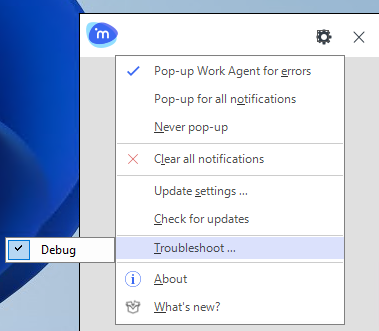
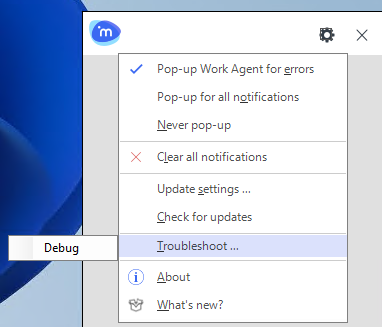
NOTE: For performance reasons, we don’t recommend leaving Debug logging on indefinitely. Selecting Debug doesn’t actually change the level value defined in LogConfig.xml, but it dynamically enables the log level. Deselecting Debug dynamically reverts back to the level value defined in LogConfig.xml before selecting Debug in the Work Agent.
If changes were made to the level value defined in LogConfig.xml while Debug was selected and then you deselect Debug, you need to either restart the application or save changes to LogConfig.xml for those changes to take effect. Until then, the level value defined in LogConfig.xml before selecting Debug in the Work Agent will be used.
Log file location
The local storage location for log files is specified in the following section of LogConfig.xml:
<file type="log4net.Util.PatternString"> <conversionPattern value="${LOCALAPPDATA}\iManage\Work\Logs\%property{ExeName}.iManage.Work.log-"/> </file>
$ {LOCALAPPDATA}\iManage\Work\Logs\ specifies the local path where log files are stored.
NOTE: You should always store log files at a local storage location for performance reasons. Log files shouldn't be located on a shared network drive.
%property{ExeName} must be retained as part of the log file name, to ensure that logging is segregated across application processes.
Maximum log file size
The following setting specifies the maximum size for a log file: <maximumFileSize value="10MB" />
iManage Work Desktop for Windows uses the common logging library Log4net for logging support. Log4net supports an extensive set of advanced configuration capabilities. For more information about Apache documentation for Log4Net go to https://logging.apache.org/log4net/release/manual/configuration.html.
Maximum days to retain log files
The following setting specifies the maximum number of days for which logs are retained before deleting: <maxSizeRollBackups value="30" />. To change the number of days for which log files are retained, specify a number greater than 0 (zero). To disable deletion of log files, specify a negative number.
The application automatically deletes the files at the specified log file location that are older than the number of days specified in the setting.
NOTES:
A single application can now create up to 30 log files of 10 MB each. Also, the deletion logic is optimized to ensure that scanning for old log files isn't done more than once a day.
This feature isn't available if you customize the LogConfig.xml file extensively, change rollingStyle, or don't use RollingFileAppender. In such scenarios, the native log file deletion functionality available in Apache log4net applies.
Configure error reporting to Azure Application services
Work Desktop for Windows add-ins automatically share select log information to Azure Application Insights. The trace information, sent to Azure Application Insights Services hosted by iManage, is used to identify the following issue areas and sources:
Health-checking errors
iManage Work web checkpoint traces (info level and above)
iManage Work web health checking notifications
Microsoft WebView2 browser console errors
Microsoft WebView2 browser process and navigation errors
User actions on error banner
NOTE: No user information is shared with Azure Application Insights Services hosted by iManage.
The errors shared are only for production environments. You can use the iwTestServerDomains configuration available in imWorkOptions.xml file to identify non-production servers that have the data analytics feature enabled. For non-production servers, iManage Work Desktop for Windows doesn't send error logs to Azure ApplicationInsights Services. For more information about this configuration, refer to the imWorkOptions.xml section of iManage Work Desktop for Windows Customization Guide.
This feature is enabled by default and can be turned off by using the LogConfig.xml file. For detailed information about how to disable this feature, refer to the Disabling cloud logging for select errors section in iManage Work Desktop for Windows Customization Guide.
Capture Cloud Role Id from the Work Agent
All logs shared with Azure Application Insights have a unique identifier, a Cloud Role Id.
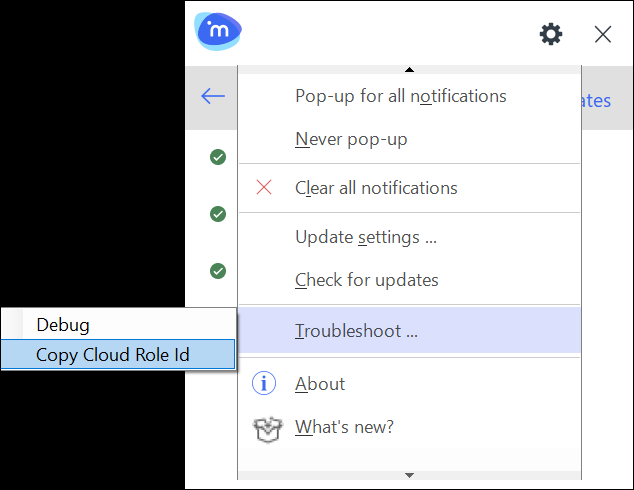
You can capture this Cloud Role Id from the Work Agent’s settings menu to the clipboard. Select Troubleshoot menu, then select Copy Cloud Role ID.
You may be asked to provide this Cloud Role ID when corresponding with iManage Support.