To connect to iManage Work from any Microsoft Office application:
On the iManage tab, select Connect, then select Choose from the list.
Figure: Connect to iManage Work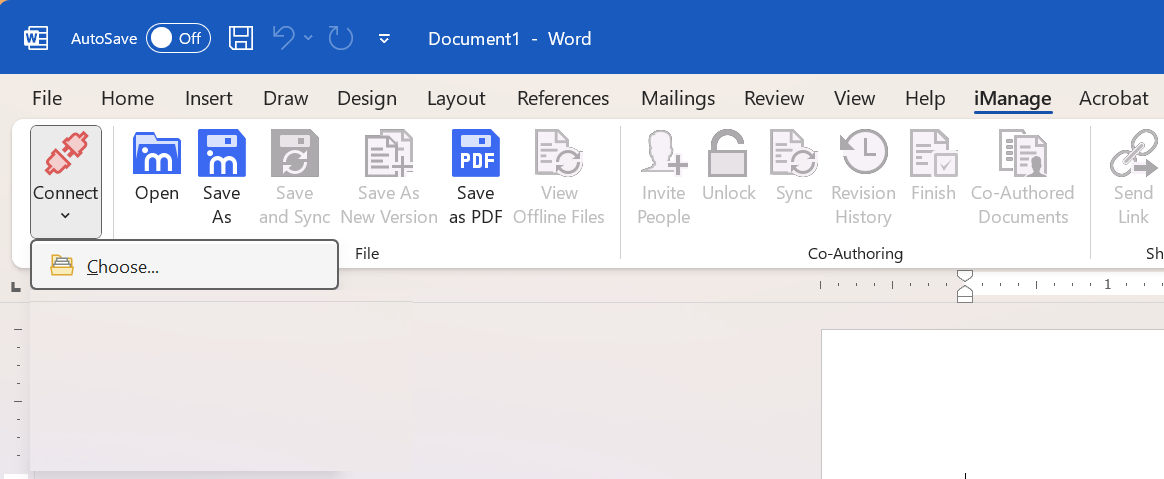
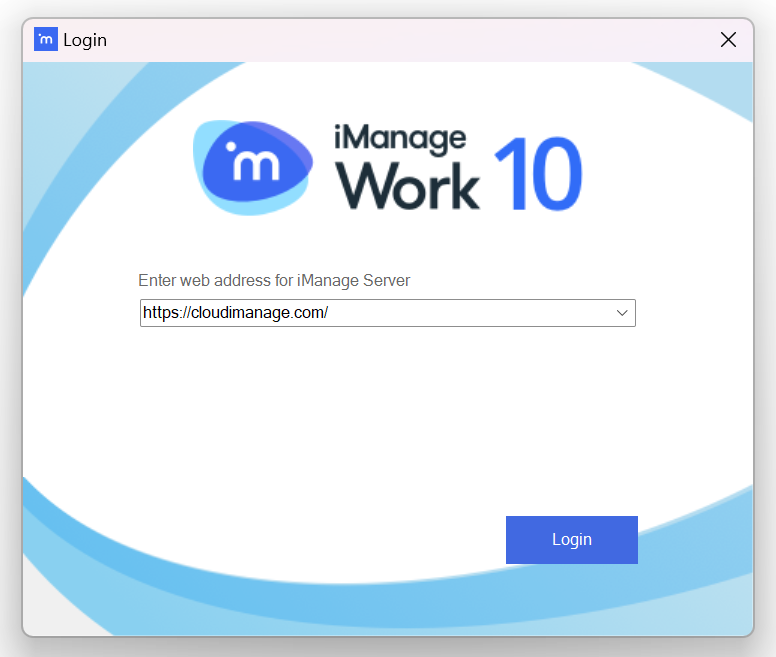
In the Login dialog, enter the iManage Work address (for example, cloudimanage.com), and select Login.
In the iManage Work dialog, enter your iManage Work credentials, and then select Login.
NOTE: This login screen may open within your default browser. This is configurable by your iManage Administrator.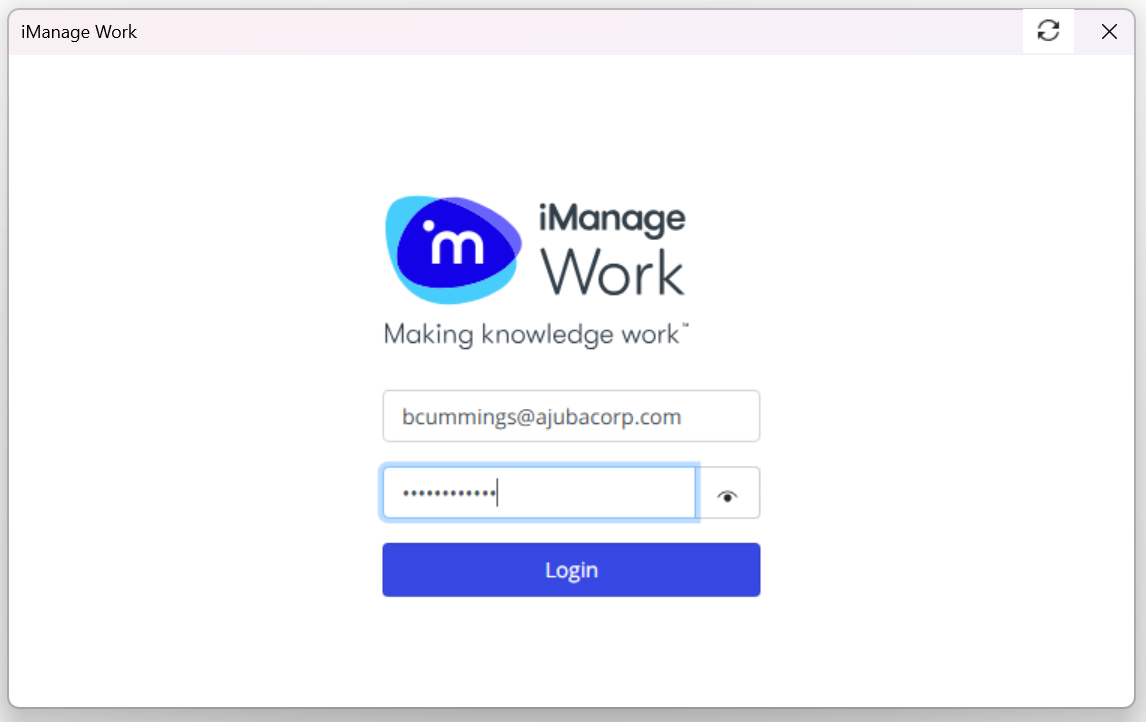
The Connect button changes to show you are now connected to iManage Work.

The iManage Work system (or server) also appears in the Connect list. For more information, refer to Delayed sign in.
Repeat the steps to connect to other iManage Work environments.
A green tick mark appears next to the iManage Work environment that you are currently connected to.
NOTES:
If you have already signed in to iManage Work from within Microsoft Outlook or Adobe Acobat, you are already connected. There’s no need to sign in again within Microsoft Office.
By default, your login session is valid for four hours. This is configurable by your iManage administrator. If your session expires, the session will automatically attempt to reconnect.
You can only connect to a single iManage Work environment at one time across all iManage Work applications. However, in some iManage Work dialogs, you can temporarily switch to another iManage Work environment to access documents across multiple iManage Work systems. For more information, refer to Switching Server View in iManage Dialog Boxes.