New features for the new iManage Open and Save experience
Keyboard shortcuts
The new Open and Save Experience now supports an extensive set of keyboard shortcuts, enabling power users to work faster and streamline everyday workflows.
For browsing
You can now use keyboard shortcuts to browse the new Open and Save Experience dialog more quickly. This is especially helpful if you prefer keyboard-first workflows. The table below identifies the browsing keyboard shortcuts and their descriptions for reference.
Table: Browsing shortcut keys for the new Open and Save experience
Shortcut | Action |
|---|---|
Alt+P | Show/Hide the Details Panel |
Alt+Left Arrow or Backspace | Go backward (if control is enabled) |
Alt+Right Arrow | Go forward (if control is enabled) |
Alt+Up Arrow | Go up a level in the breadcrumb (if enabled) |
Ctrl+E/Ctrl+F | Open and focus on search (basic or advanced per user preference) |
Ctrl+L/Ctrl+D | Focus on the highest node in the breadcrumb (if visible) |
Ctrl+Shift+N | Create a new folder in the current location (if allowed) |
Alt+F4 or Esc or Ctrl+W | Close the active window |
F5 | Refresh the current view |
Alt+Underlined command letter | Perform the command/action associated with the underlined letter. For example, Alt+O for Open. |
For more details, refer to Keyboard shortcuts for the new Open and Save experience.
For searching
Searching for what you need is now faster in the new Open and Save experience dialog. The table below defines the new quick search features and functions.
Table: Browsing shortcut keys for the new Open and Save Experience
Shortcut | Action |
|---|---|
First letter of first word | With your pointer in a list of items, press a letter to browse to the first available item in the list of items (documents, folders, or workspaces) that begins with the letter pressed. Pressing the letter again, browses to the next matching item. Example: Looking for a document named Analytics Report? Press A once to browse to the first instance of an item starting with A. Press A again to move to the next item starting with A, and so on. |
For more details, see Keyboard shortcuts for the New Open and Save experience.
Collaboration Links Shared documents identified
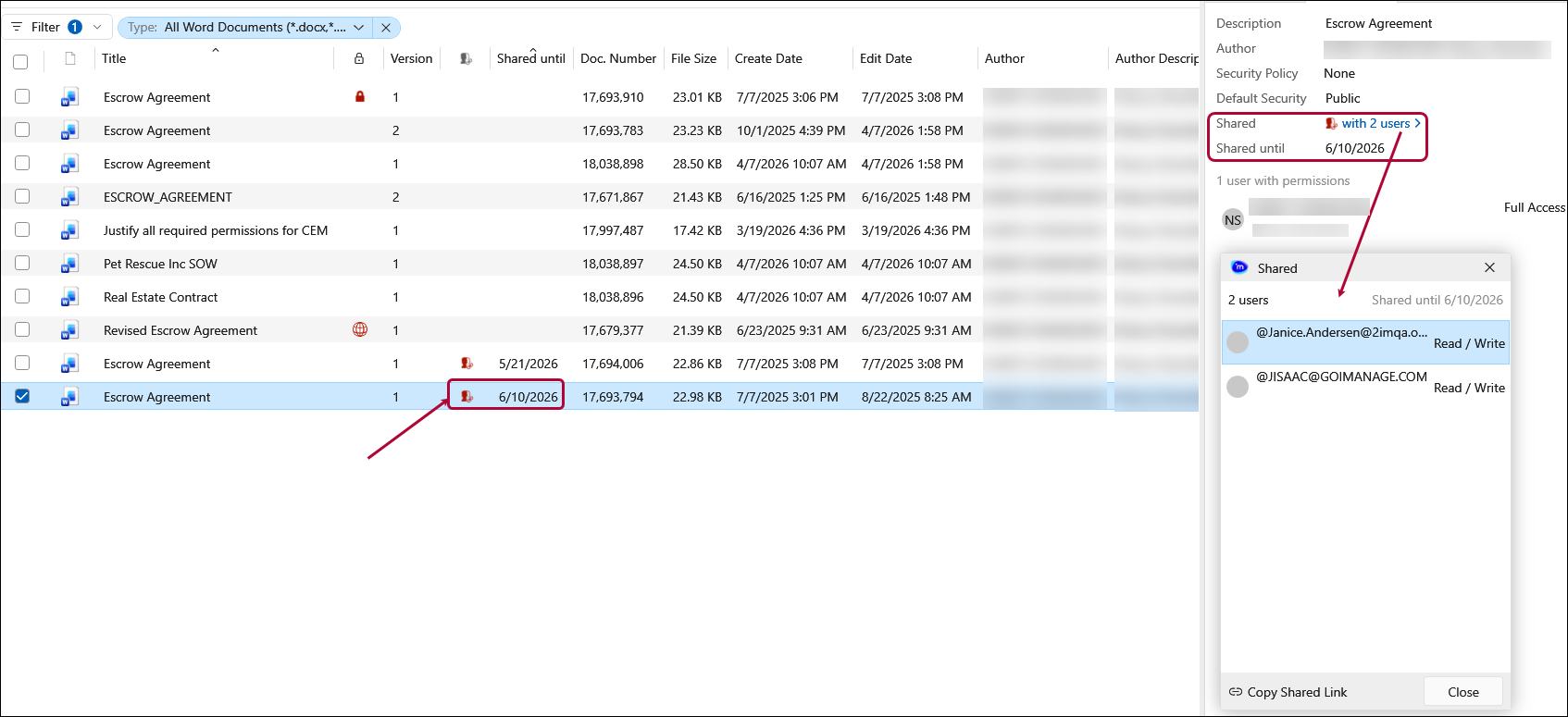
The Open and Save experience now provides the Collaboration Links Shared status icon and expiration date information for files shared using Collaboration Links. Additionally, from the Properties pane or the Shared icon column for the file, select the icon or link to identify the list of users with whom the document is shared. Refer to the following figure for an example of the new additions.
New view settings in the new Open and Save experience
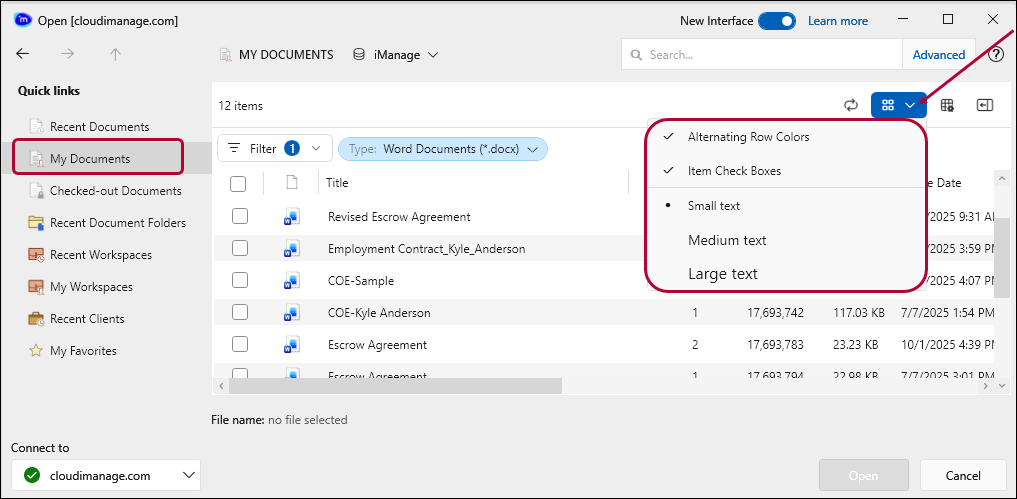
New to this release, you can adjust the way the new Open and Save experience dialog presents the content (including menu options) to adjust settings for the following:
Alternating row colors: Toggle on or off for easier row scanning (enabled by default).
Row check boxes: Enable check boxes for each row, plus a check-all option (enabled by default).
Font size: Choose from small, medium, or large to match your Windows font size settings.
Quick link for My Documents added to the new Open and Save Experience
A new view labeled My Documents, shown in the figure above, lists all documents authored or operated on by the user. This Quick link, located after Recent Documents, opens the My Documents view, sorted by edit date with the most recent first.
Support for contrast themes
The updated Open and Save experience aligns with the Windows Contrast Theme configured on the user’s device, ensuring consistency with other applications and presenting content in the most accessible way for the user.
Security update: Sensitive field encryption in the iManWork.config file
Sensitive fields, that is, user_id, user_email, user_fullname, stored in the iManWork.config file are now encrypted following an upgrade to this release.
Upon using this version, sensitive fields in the iManWork.config file are automatically encrypted. The backup configuration file (iManWorkBK.config) is also encrypted in sync with the main configuration file to ensure consistency.