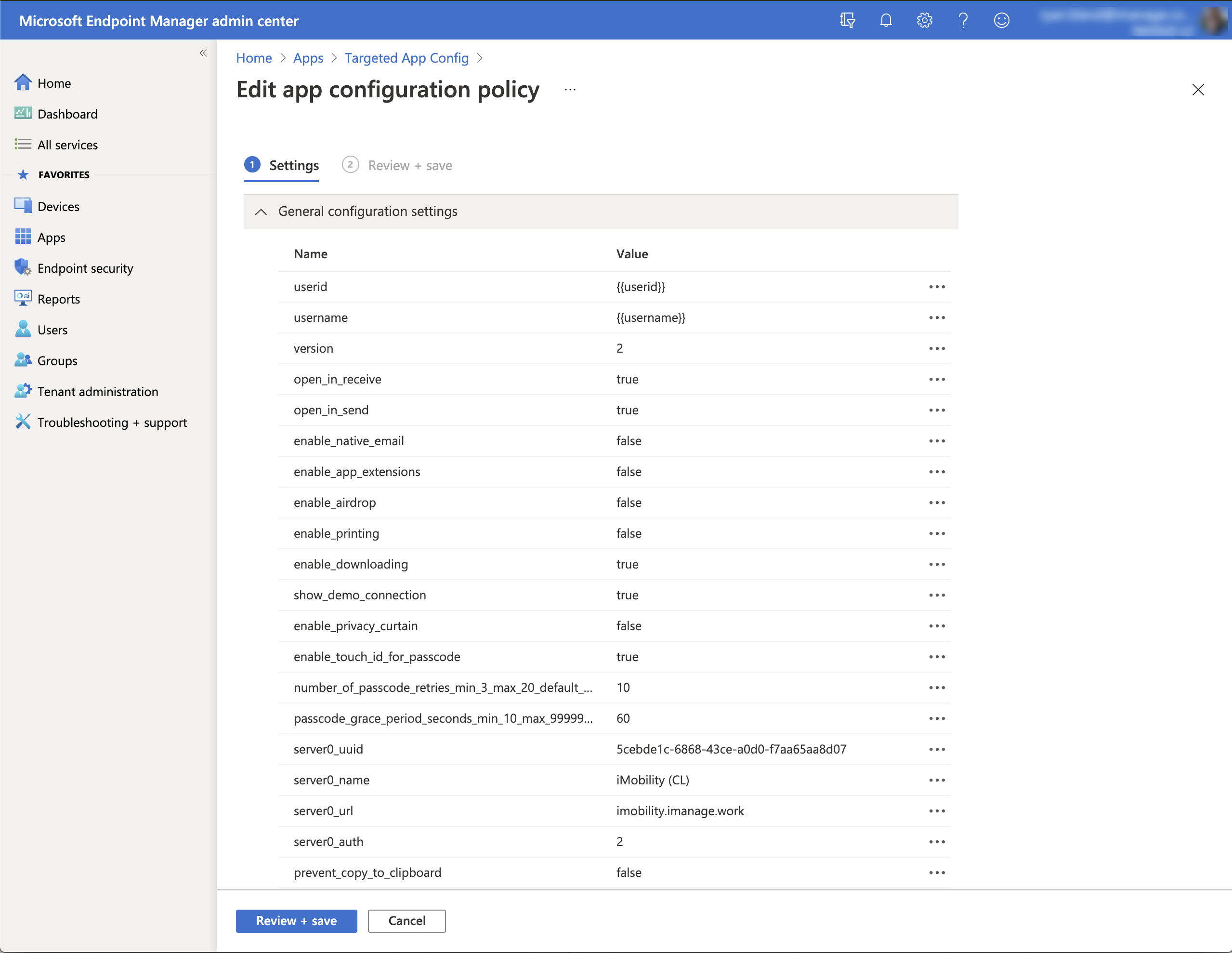
Configure the following iOS Managed App Configuration settings.
In Intune, browse to Apps > Manage apps > Configuration.
NOTE: The following settings must be configured as shown for the iManage Work Mobility for Intune app to be deployed:
For Mobile Device Management (MDM) policies only:
IntuneMAMDeviceID (String) = {{deviceID}}
For either Mobile Application Management (MAM) or Mobile Device Management (MDM) policies, also configure the following:
IntuneMAMUPN (String) = {{userprincipalname}}
IntuneMAMOID (String) = {{userid}}
version = 2
allow_safari_for_login = false
enable_downloading
enable_printing
enable_airdrop
enable_native_email
open_in_send
open_in_receive
enable_privacy_curtain
enable_touch_id_for_passcode
number_of_passcode_retries_min_3_max_20_default_10
passcode_grace_period_seconds_min_10_max_999999999_default_60
show_demo_connection
server0_uuid
server0_name
server0_auth
server0_url
The following table lists all of the key-value pairs settings that can be specified:
NOTE: Identifiers are case-sensitive and must match exactly as defined.
Table: Key-value Pairs
Identifier | Type | Default | Description |
|---|---|---|---|
IntuneMAMUPN | String | - | iManage Work Mobility for Intune is supported on managed devices or can be configured as a Managed App within the Device Enrollment Type settings in Intune. Include this application policy setting and set it to {{userprincipalname}} For more information, go to: |
IntuneMAMOID | String | - | Include this application policy setting and set it to {{userid}} There must be no spaces after {{ or before }} |
IntuneMAMDeviceID | String | - | Include this application policy setting and set it to: {{deviceID}} There must be no spaces after {{ or before }} NOTE: Configure this setting only when defining a Mobile Device (MDM) policy. |
version | Integer | 2 | Specifies the format version for configuration and is required. It must be set to 2. |
open_in_receive | Boolean | true | Use this policy to restrict users from receiving document(s) in iManage Work Mobility from other applications.
NOTES:
|
open_in_send | Boolean | true | Use this policy to prevent users from sending document(s) in iManage Work Mobility for Intune to other applications.
NOTES:
|
enable_native_ | Boolean | true | Use this policy to prevent users from sending documents as email attachments from iManage Work Mobility for Intune through the native email (Mail app) application.
NOTES:
|
enable_airdrop | Boolean | true | Use this policy to prevent users from sharing documents in iManage Work Mobility for Intune using AirDrop. Apple's AirDrop feature enables the transfer of files between supported Macs and iOS devices without using mail or a mass storage device.
NOTES:
|
enable_printing | Boolean | true | Use this policy to prevent users from printing documents from iManage Work Mobility for iOS.
NOTES:
If your MDM policy configuration prevents emailing documents out of iManage Work Mobility for iOS, users can use Print Preview of a PDF as a workaround, as it can be distributed through the iOS Mail app. For more information, refer to Apple bug report 45524779. |
enable_ | Boolean | true | Use this policy to restrict users from downloading documents to their mobile devices from iManage Work Mobility.
|
enable_privacy_ | Boolean | true | Privacy Curtain is a security feature that obscures the contents of iManage Work Mobility for Intune when the application isn't active. This setting isn't applicable to iManage Work Mobility for Intune. To set this in Intune, access Client Apps > App Protection Policies > Properties > Access Requirements. |
enable_touch_id_ | Boolean | true | Lets users sign in to iManage Work Mobility for Intune through Touch ID or Face ID on their mobile device. This setting isn't applicable for iManage Work Mobility for Intune. To set this in Intune, access Client Apps > App Protection Policies > Properties > Access Requirements. |
show_demo_ | Boolean | true | NOTES:
Controls the visibility of a public iManage Work demonstration environment, which can be used to test the iManage Work Mobility for iOS application before it's deployed in your environment.
|
number_of_ | Integer | 10 | The number of times the application passcode can be entered before all locally stored data is erased from the device (no data is impacted on the server). This setting isn't applicable to iManage Work Mobility for Intune. To set this in Intune, access Client Apps > App Protection Policies > Properties > Access Requirements. |
passcode_grace_ | Integer | 10 | When switching away from the application, there's a time delay before the App Lock is enforced, requiring the user to enter the application passcode (or if configured, Touch ID). The minimum is 10 seconds and the maximum is 999999999 seconds (effectively requiring the user to enter the application passcode or use Touch ID only when the application starts or restarts). This setting isn't applicable for iManage Work Mobility for Intune. To set this in Intune, access Client Apps > App Protection Policies > Properties > Access Requirements. |
prevent_copy_to_clipboard | Boolean | false | Use this policy to prevent users from copying content in iManage Work Mobility for Intune, and pasting it into a clipboard or pasteboard. This policy configuration secures iManage Work data.
NOTE: This feature may be restricted or disabled due to MDM policies. |
view_mode | Boolean | false | Use this policy to offer users a View-Only experience in iManage Work Mobility. Disabled (default): This allows the user to:
Enabled: This setting prevents the user from performing the following activities:
NOTE: Having open_in_send enabled (with View-only Mode also enabled) allows for previewing files in an external application. Any edits made to the document won't get saved to iManage Work.
When enabled, this setting supercedes the open_in_receive and enable_app_extensions settings. Even if they're enabled, the app won't honor the settings when view_mode is enabled. NOTE: After this policy is enabled, when users edit a document and try saving it back to the iManage Work Mobility app, the following error message is displayed: |
web_authentication_mode | Integer | For existing deployments, no default (not set). For new deployments, the default is 2 (ASWebAuthenticationSession). | Use this policy setting to control which web-based authentication controller (embedded browser) is used when users are prompted to sign in to iManage Work.
Figure: Sign-in screen for WKWebView 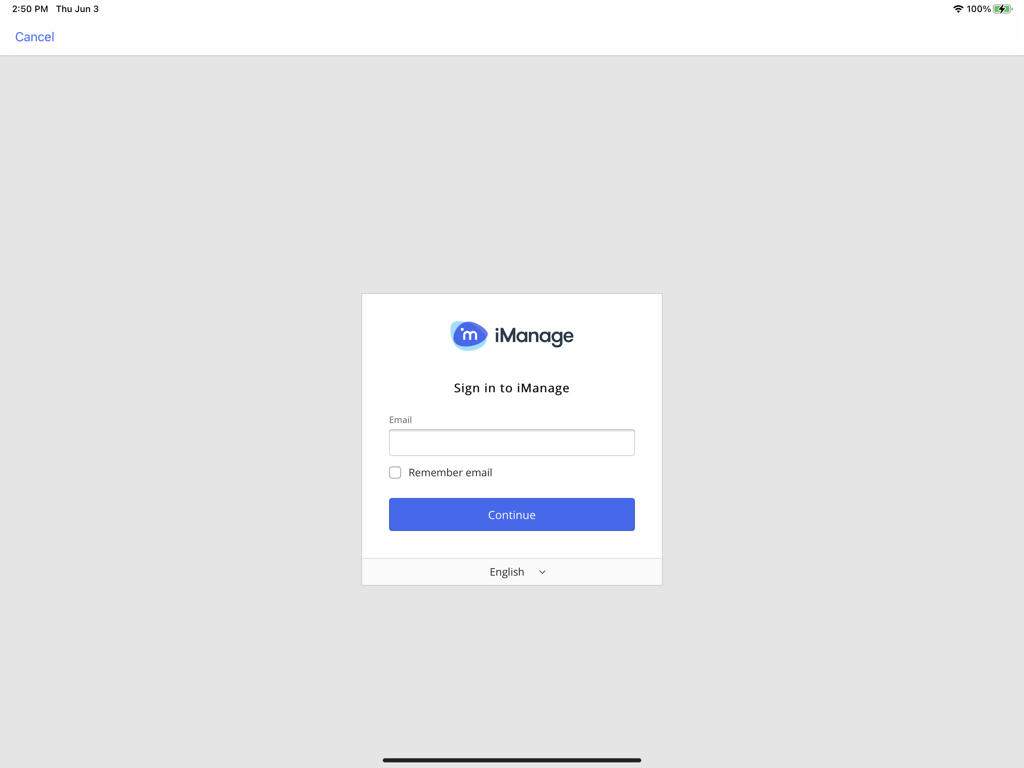
Figure: Sign-in screen for SFSafariViewController 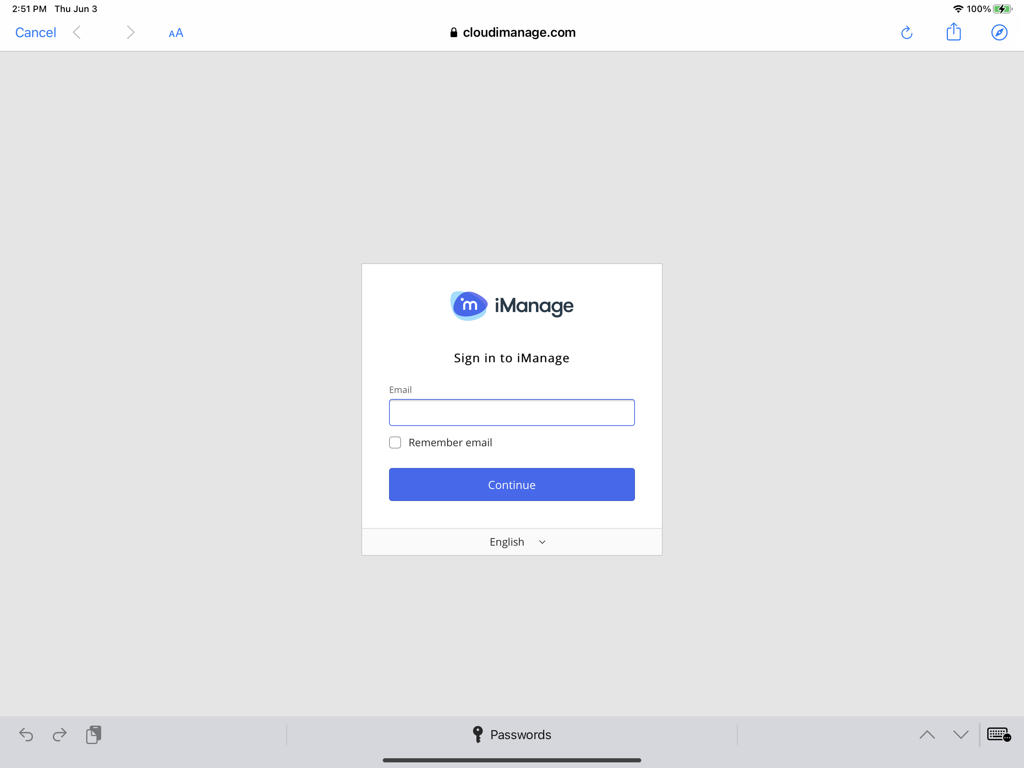 The primary difference to the user is the addition of the browser buttons at the top of the screen.
NOTE: With option 2, the first time a user attempts to sign in to iManage Work, they're presented with a prompt. Users must tap Continue to proceed to the iManage Work sign in screen, as shown in the second figure below. Figure: User confirmation prompt during initial sign-in - ASWebAuthenticationSession 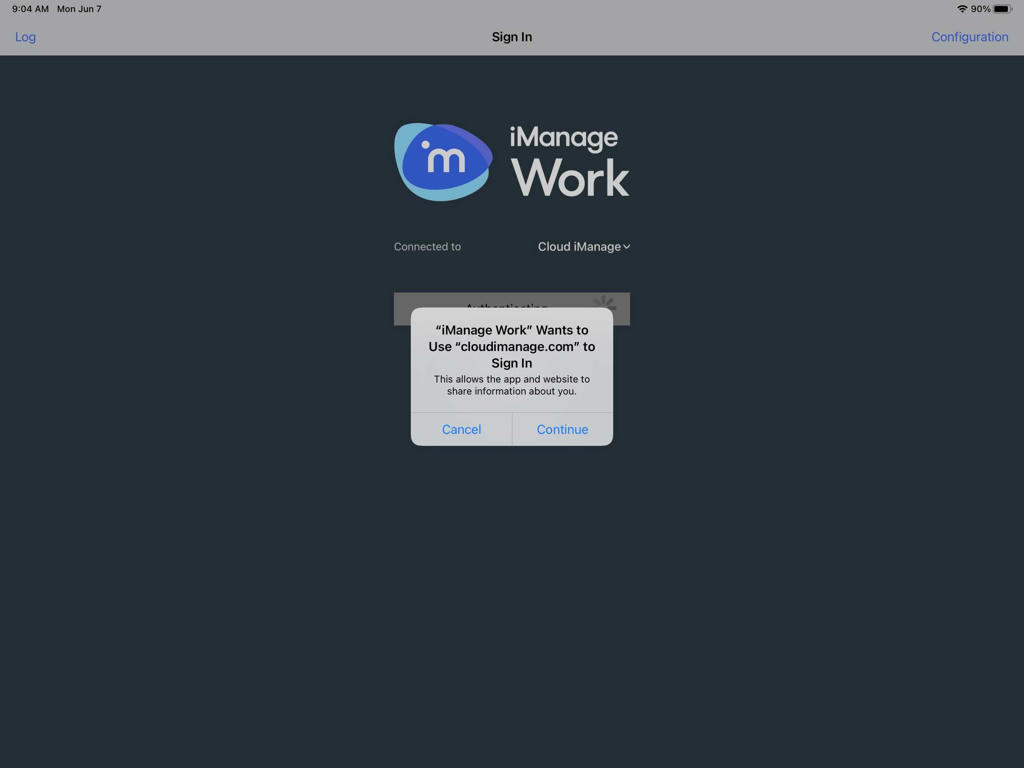 Figure: Sign-in screen for ASWebAuthenticationSession 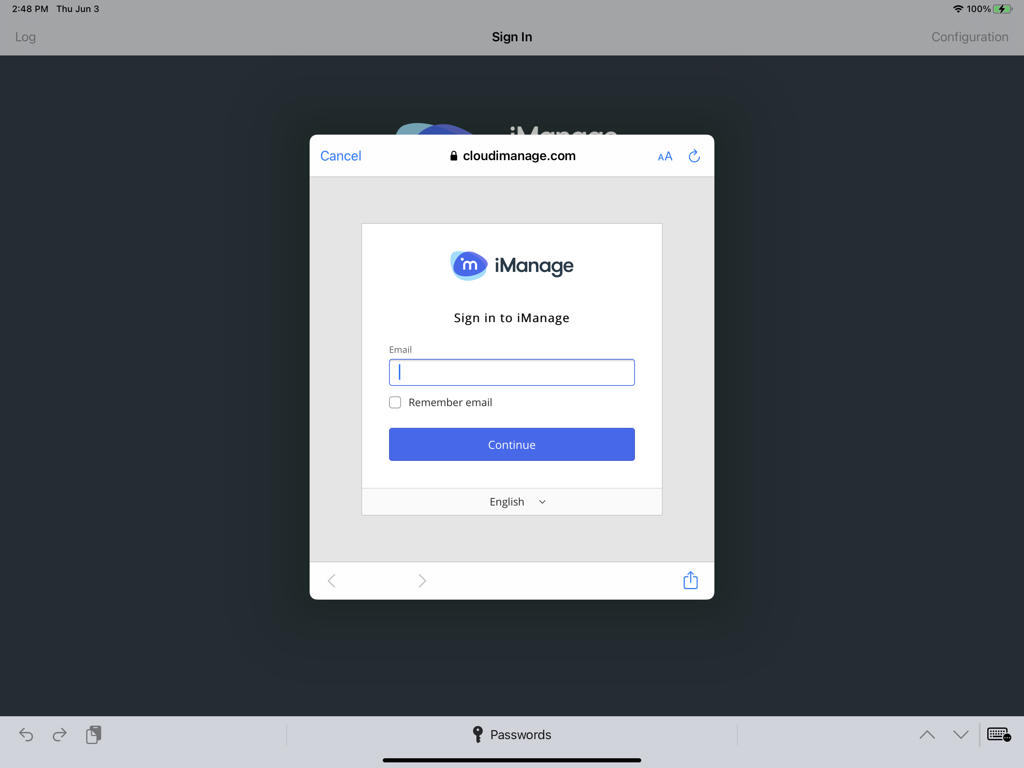
When set, this web_authentication_mode policy setting replaces the allow_safari_for_login policy setting. For customers who have already deployed iManage Work Mobility:
For customers deploying iManage Work 10.20.2 or later for the first time:
NOTES:
|
allow_safari_for_ | Boolean | true | IMPORTANT: For Intune deployments using web-based authentication (serverx_auth=1,2.3), you must set allow_safari_for_login to false. Intune doesn't support allow_safari_for_login. Use this policy to prevent users from signing in to the application using Safari in iManage Work Mobility for Intune. NOTE: If web_authentication_mode is set to any value, this allow_safari_for_login setting is ignored.
NOTE: When set to true, Safari allows users to save their credentials in the secure iOS Keychain.
|
enable_analytics | Boolean | true | This policy controls whether a user will be prompted to opt in or out of sending analytics to iManage. It doesn't explicitly set up analytics on the app. This option is enabled by default. NOTES:
|
login_user_account_auth0_only | String | - | Allows you to optionally enter a user ID in the sign-in dialog. This applies only when Server Authentication is set to 0 - Standard/Explicit. |
force_user_interaction_on_edit_in_place | Boolean | false | Use this policy to control how the app responds when a user saves edits back to iManage Work. This setting is available in iManage Work 10 Mobility version 10.23.4 and later. false: The default setting. After editing a document opened from iManage Work, navigating back to the iManage Work Mobility app automatically saves the user's changes as a new version of the document. Additional edits to the open document are saved to the same version. When finished with their changes, the user must manually check in the file in iManage Work. true: After editing a document in iManage Work, navigating back to the iManage Work Mobility app prompts the user with the following dialog. This gives the user control over how they want to save their edits.
Figure: Unsaved document dialog 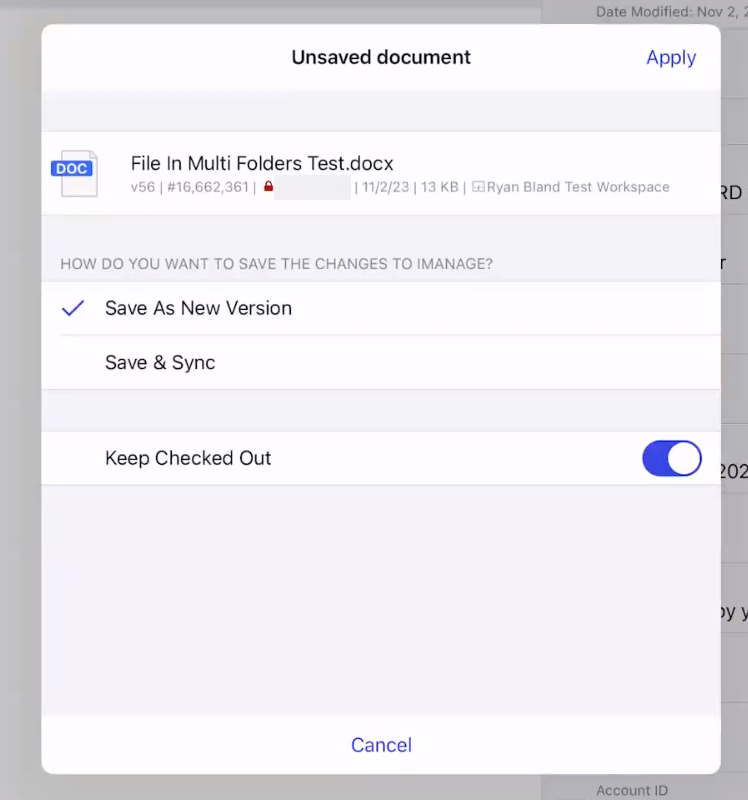 |
SERVER CONFIGURATION
These settings define the iManage Work environments to which users can connect. Multiple connections may be configured, including cloud and on-premises environments.
These are displayed in numerical order based on the integer in the identifier, starting with 0. For example, server2_uuid is the third connection option displayed.
NOTE: You must define at least one entry (server0) to allow users to connect to iManage Work.
Identifier | Type | Default | Description |
|---|---|---|---|
server0_uuid | String | - | A universally unique identifier to uniquely identify this entry. These can be generated by visiting https://www.uuidgenerator.net/version4. Example: b985dc4b-3232-4719-9d1d-cf0162badc30 NOTES:
|
server0_name | String | - | The name that'll be displayed in the app in the list of available iManage Work connections. |
server0_auth | Integer | - | The authentication type for the server. The valid values are: 0 - Standard: Supports both Work credentials and domain/username and password for explicit network authentication. 1 - ADFS (on-premises ADFS Server): Displays an embedded web view where the user must follow whatever authentication procedures the company has defined for the ADFS implementation. 2 - Common login: Provides single-sign-in for iManage Work 10 client applications. The login UI maintains information about the currently signed-in user in its session cookie. 3 - Use Oauth2 Refresh Token and Access Tokens: For more information, refer to Enable access request tokens. This option minimizes the number of times a user is prompted to sign in. Username, password, and access tokens and refresh tokens are stored in the iOS Keychain. |
server0_url | Text | - | The iManage Work URL for users to access iManage Work via this app.
NOTE: Adding HTTPS or ports such as :8000 to this value is ignored. HTTPS and port 443 are always used. SSL/TLS is always used, in accordance with the most secure settings of iOS security. |
The following figure shows an example of the configured settings in Intune.