The following section describes how to collect, view, and share log files.
Three types of logs can be collected:
Internal logs collect information about a user's interactions within the iManage Work Mobility app.
Intune logs collect information specific to Microsoft Intune.
External logs (called a Sysdiagnose file) collect system-level information about Apple iOS device, including iManage Work Mobility's external interactions.
Internal logs
iManage Work 10 Mobility can collect logs based on the specific actions the user has taken while using the app.
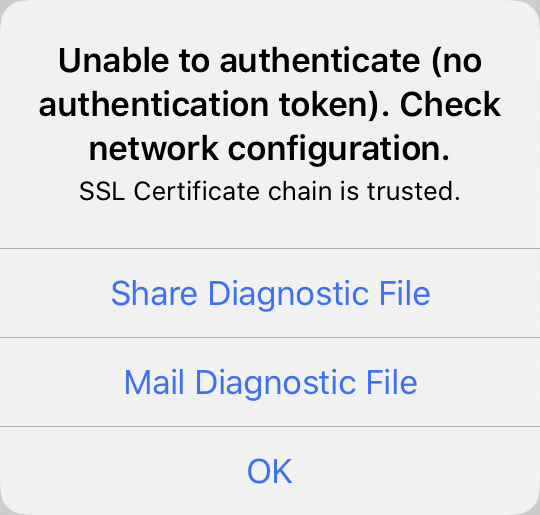
For any authentication issues, iManage Work Mobility produces a Share Diagnostic File alert. In the alert, the user can choose to share or mail the report.
When encountering an issue within the app, tap Settings, then one of the following options:
Tap View Log File to open the the log file for viewing. Tap the Share
 icon to share the file.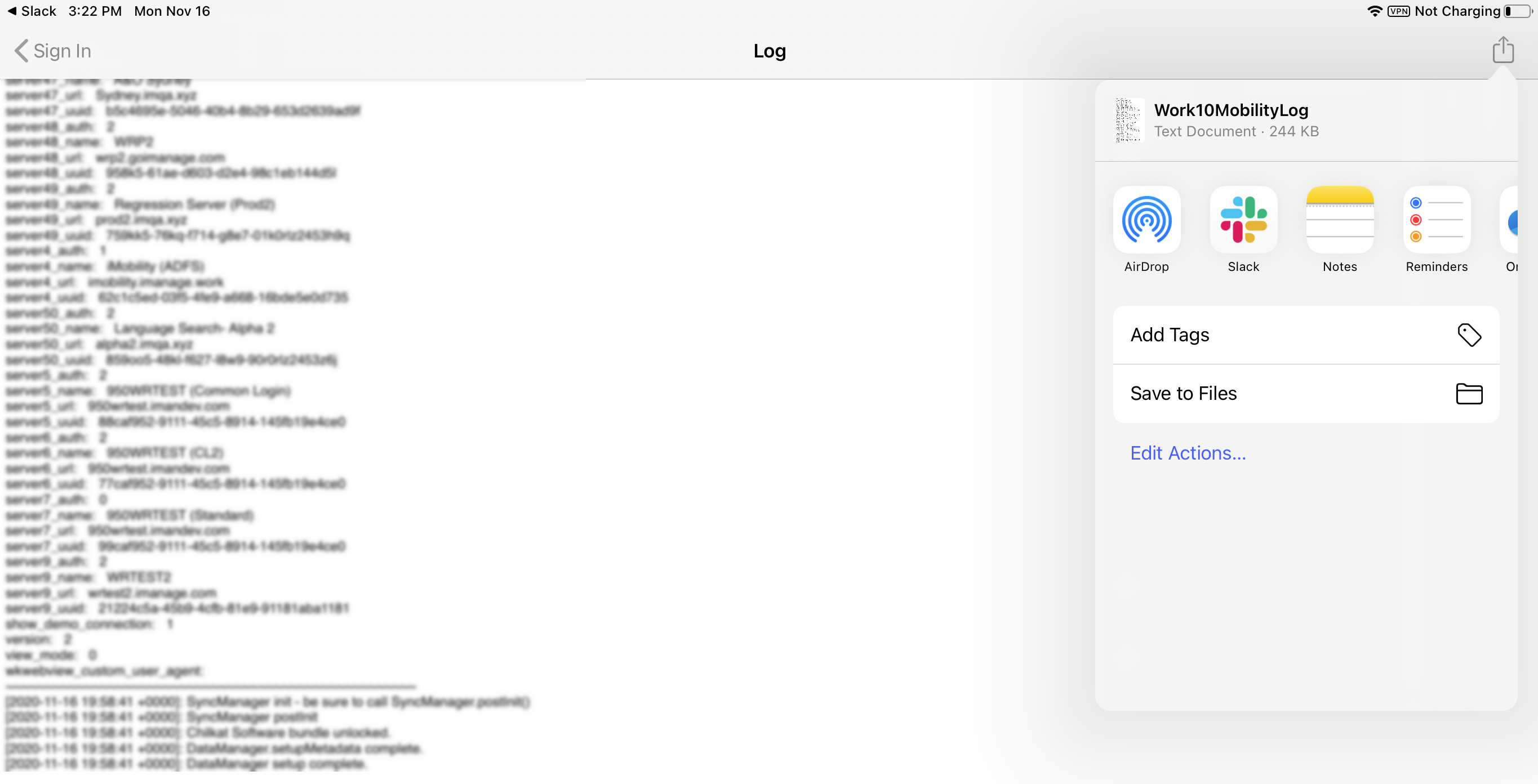
Tap Share Diagnostic File to send the log file to another app.
Tap Mail Diagnostic File to open an email and attach the log file to the email. This option is available only if the user has the Mail app configured and the app allows it.
Intune logs
For troubleshooting Microsoft Intune issues, under Intune Diagnostics, tap Share Intune Diagnostics to send the log file to another app.
External logs
The following instructions describe how to enable external iOS logs (Sysdiagnose). See the Apple iOS developer documentation for more details.
Enable external logging
To trigger the Sysdiagnose log file, simultaneously press and release both Volume buttons and the Power (side or top) button. Always add the date and time to the bug report to indicate when the issue occurred.
The Sysdiagnose is triggered when you release the buttons. If you're using an iPhone, it briefly vibrates when the Sysdiagnose is successfully triggered.
Allow some time (about 10 minutes) for the diagnostics to complete the information gathering.
Sync the mobile device with iTunes on your host computer, or AirDrop the file to your Mac computer.
Use the Log Location instructions below to generate and attach the file to your bug report.
NOTES:
Provide the names of the affected applications in the bug report.
It's recommended that Sysdiagnose is triggered as soon as the sign-in issue occurs, even if the logs are synced later.
Sharing the log file
Please retrieve Sysdiagnose log file from the user's iOS device by sharing the following instructions:
Tap to open Settings.
Tap Privacy > Analytics, and select Analytics Data.
Various system log files are listed.Tap Sysdiagnose to view the logs, and tap
to share the file.
If you have multiple Sysdiagnose files listed, scroll down to the file with today's date, and share it.
TIP: You can ask user(s) to Airdrop the Sysdiagnose file from their mobile device to a Mac device. When the transfer completes (which can take several minutes), the file is located at:
/Users/[Your Username]/Downloads folder
The file name is in the format:
sysdiagnose_YYYY.MM.DD_HH-MM-SS-XX
Parsing the log file
Unzip the
Sysdiagnose_*.zipfile.Open
system_logs.logarchivefrom the unzipped contents.
A searchable Console tool appears.Search using Process = "volter".
For network issues, search for the iManage Work URL. For example: test.imanage.com.