You can move single or multiple folder shortcuts using the right-click context menu or kebab menu and also using drag-and-drop action as explained below:
Source | Target | Context Menu | Drag-and-drop |
|---|---|---|---|
Workspace/Tab/Folder | Workspace shortcut under My Matters |
|
|
Workspace shortcut under a Category in My Matters |
|
| |
Workspace under Recent Matters |
|
| |
Workspace shortcut under My Favorites |
|
| |
Workspace shortcut under a Category in My Favorites |
|
| |
Tab under a workspace |
|
| |
Folder under a workspace |
|
| |
Sub-folder under a workspace |
|
| |
Search folder |
|
|


To move folder shortcuts using the the right-click context menu or kebab menu:
- Select the folder shortcut you wish to move.
- Right-click and then select Move Shortcut.
or
From the kebab menu , select Move Shortcut.
Figure: Move Shortcut in right-click context/kebab menu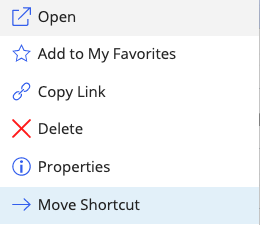
If you select multiple folder shortcuts, the option is available on the toolbar.
Figure: Move option on the toolbar
- Select the target container.
- Select Move. A progress dialog box appears.
Figure: Progress dialog box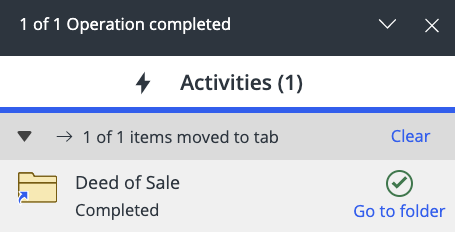
Select Go to folder in the progress dialog box to navigate to the new location of the folder shortcut.
To move folder shortcuts using drag-and-drop:
Select the folder shortcut for which you wish to move.
Hover over the tree nodes to expand the containers within.
- Drop the folder shortcut on the target container.
Figure: Moving folder shortcuts using drag-and-drop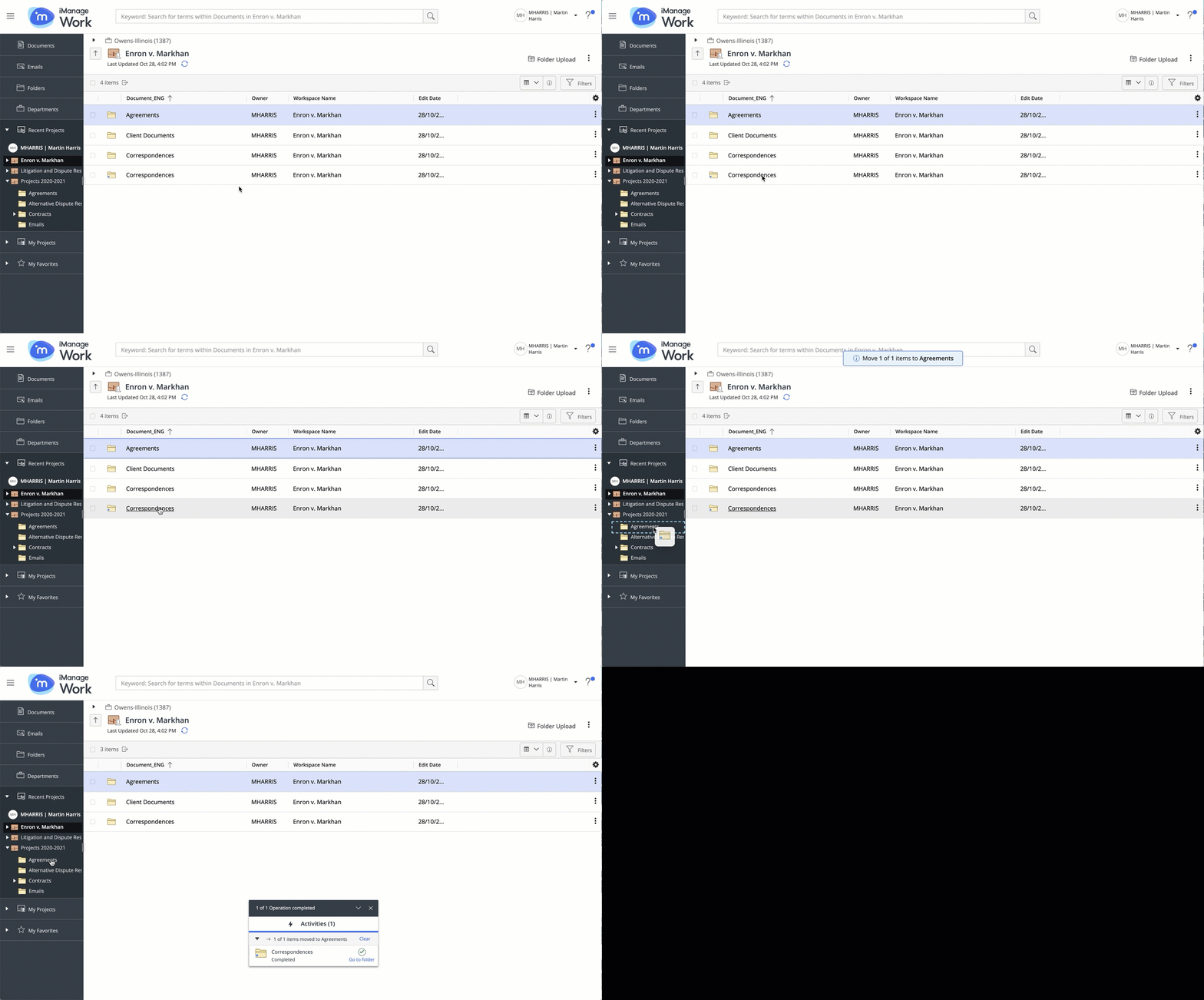
- A progress dialog box appears.
Selecting Go to folder directs you to the new location of the folder shortcut.