Select a document and then select Show Details.
The details panel opens to the right of the document list.On the context or kebab menu for the document version which you want to copy, select the Versions tab and then select Copy > Copy item.
Figure: Copying document version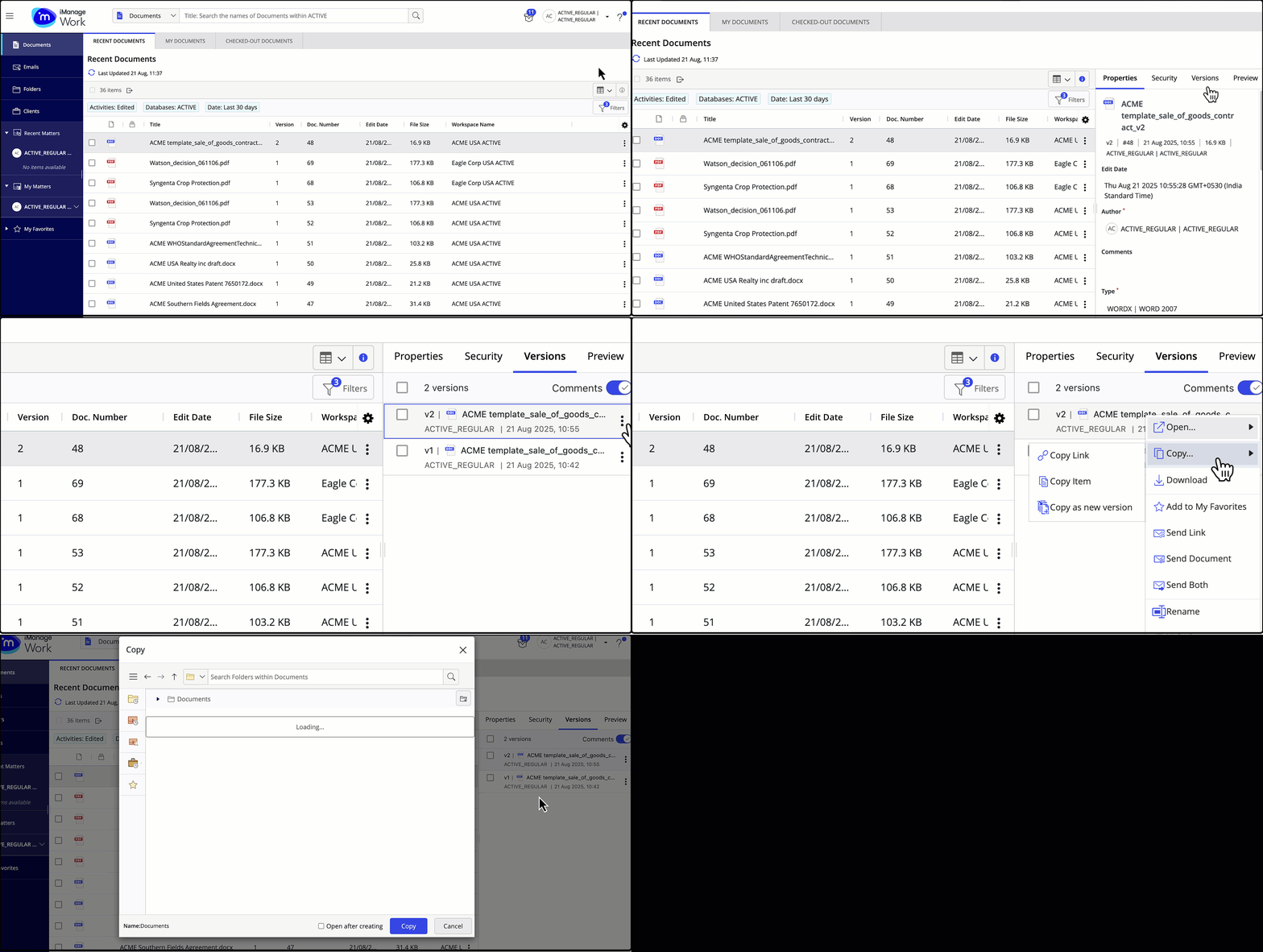
In the Copy dialog, browse to the destination folder where you want to paste the document.
You can now either choose to proceed with just copying the document to a new location or copy the document to a new location and have it opened immediately after creation:
To copy a document version, select Copy. To browse to the location where you’ve copied the document version, select Go to folder in the progress dialog.
Figure: Just Copying document version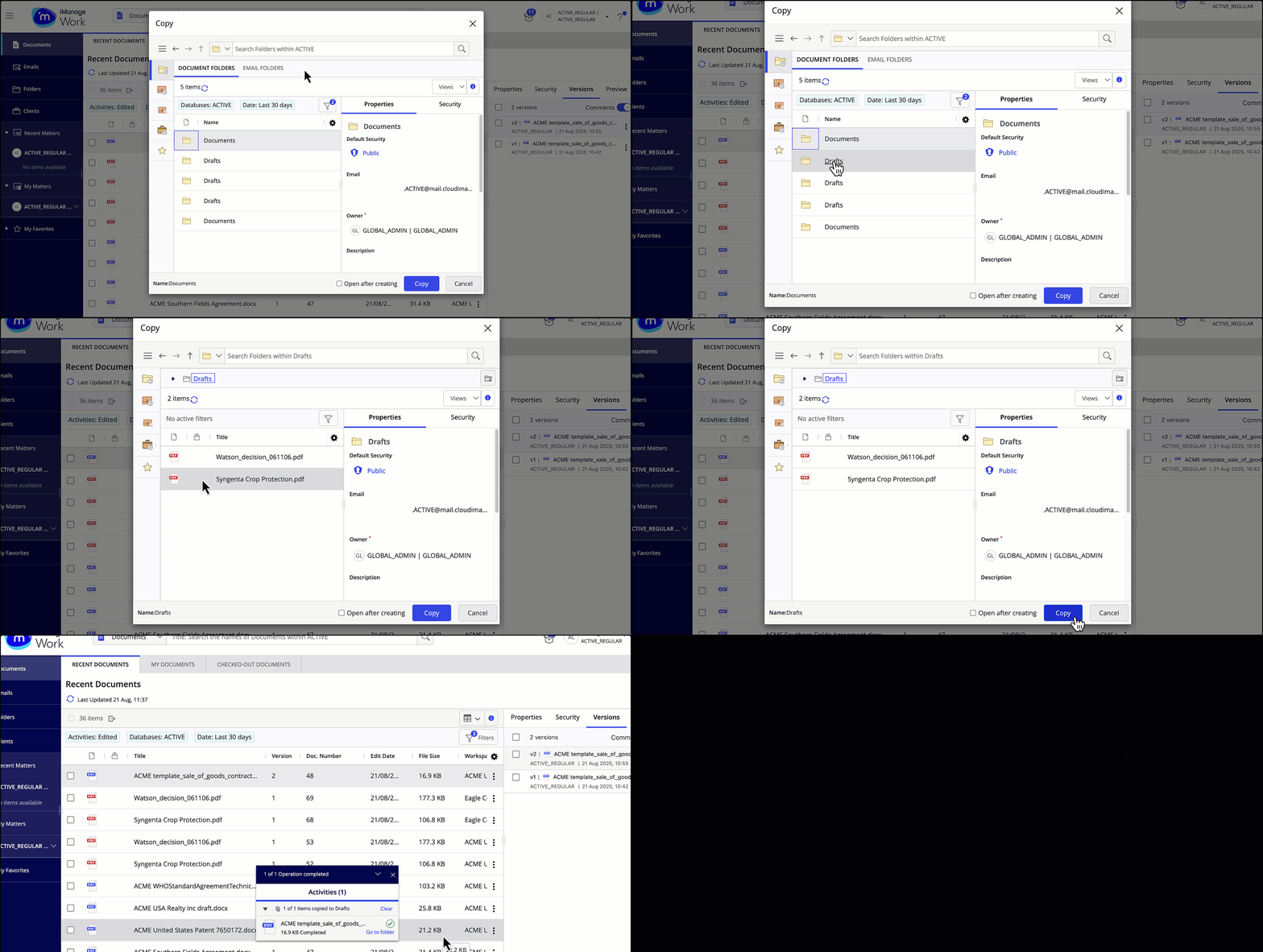
To copy a document version and open it after creating, select the Open after creating check box and then select Copy & open.
Figure: Copying document version and opening it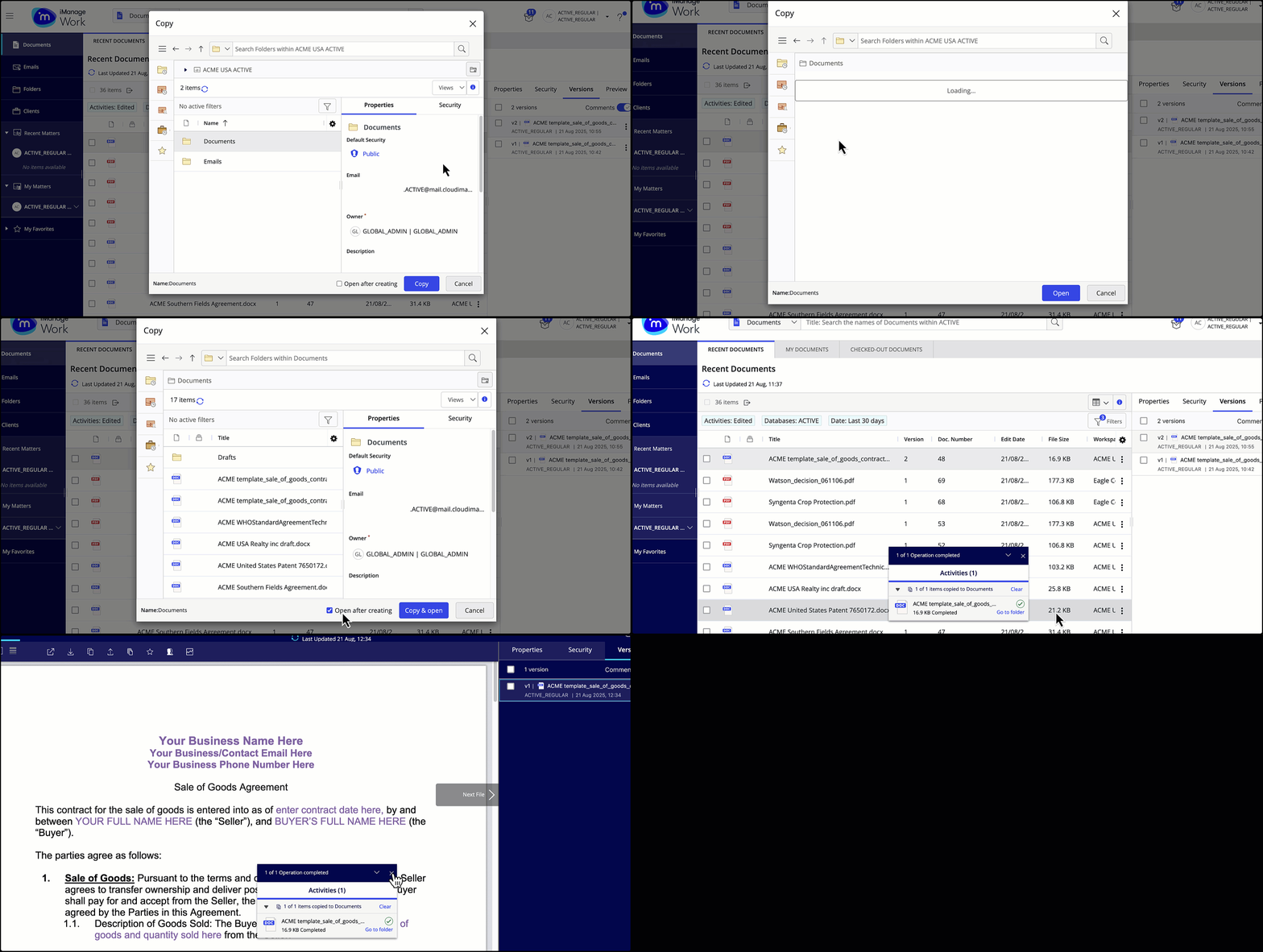
NOTE: The open action follows your Title click settings for the File open or Microsoft 365 file open option as configured under User Settings in iManage Work. For more information, refer to Configuring title and row double-click actions.