NOTE:
Duplicate shortcuts to the same target aren't allowed in the same container.
When creating a folder shortcut using drag, dropping the selected folder on a search folder or folder shortcut on the tree isn't supported.
Template-based (Flexible Folders) restrictions apply when creating or moving folder shortcuts.
Document folder shortcuts can be created from the right-click context menu or kebab menu and also using the dragging action under the following locations:
Workspace
Tab
Folder
Sub-folder
To create document folder shortcuts using the the right-click context menu or kebab menu:
Select the document folder for which you wish to create a shortcut at another location.
Right-click and select Create shortcut.
or
From the kebab menu, select Create shortcut. The Create shortcut dialog opens.
If you select multiple document folders, the option is available on the toolbar.
Figure: Create shortcut on the toolbar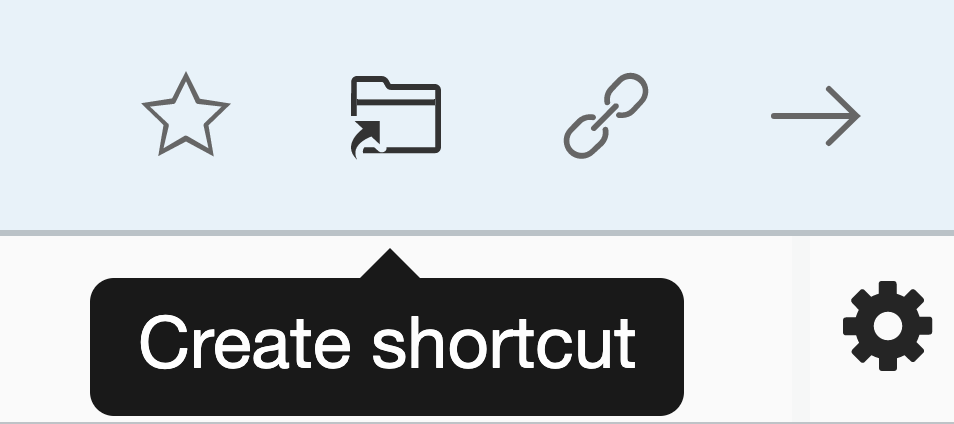
Browse to the desired location.
Select Add Shortcut. A progress dialog opens.
Select Go to location in the progress dialog to browse to the newly created document folder shortcut in the workspace/tab.
To create document folder shortcuts by dragging:
Select the document folder(s) for which you wish to add a shortcut.
Hover over the tree nodes in the left navigation panel to expand the containers within.
When you locate the target container where you wish to add a shortcut to the document folder(s), press the Shift key and then drop. A progress dialog opens
Figure: Creating folder shortcuts using drag-and-drop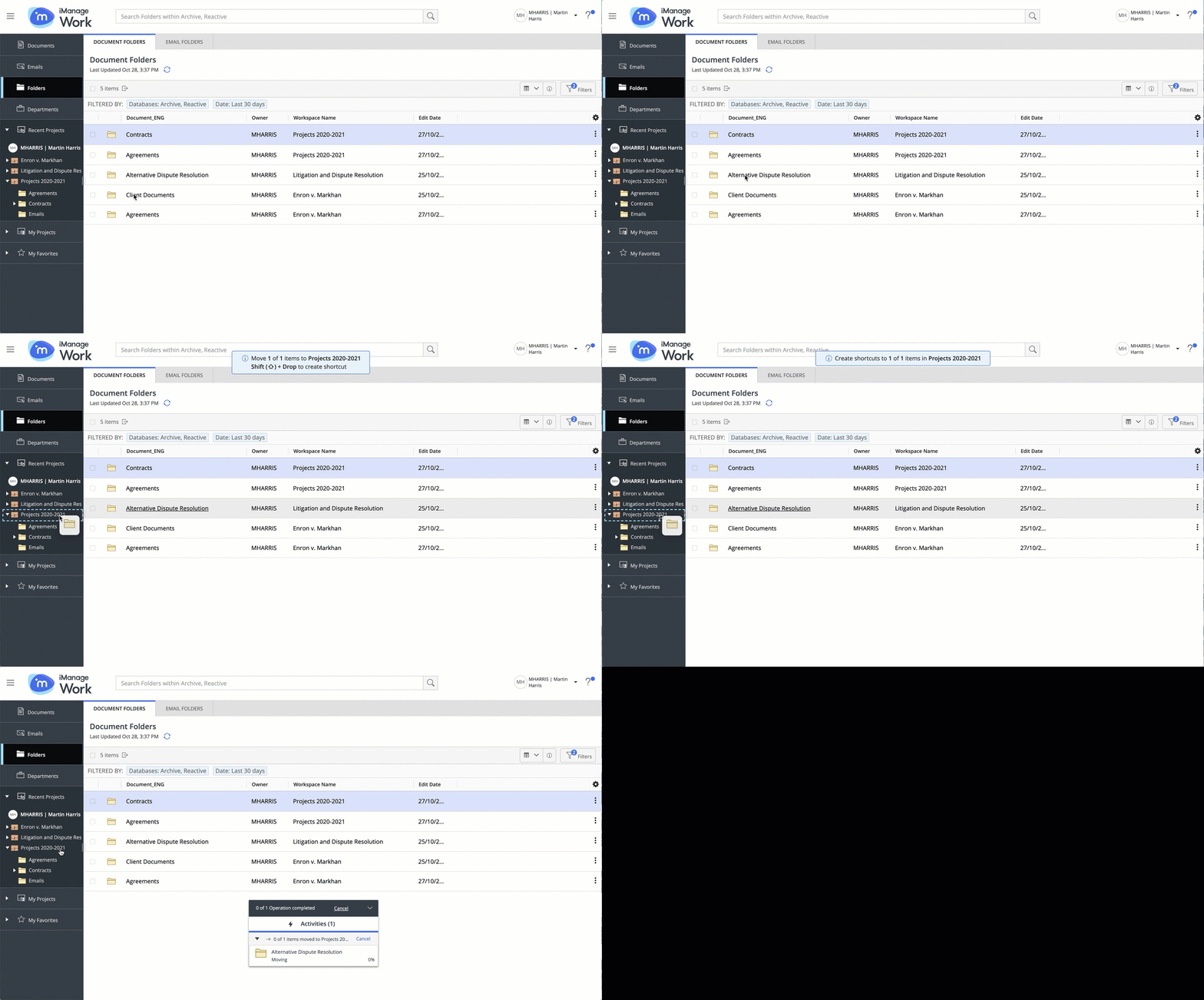
Selecting Go to location directs you to the container containing the newly created folder shortcut and the newly created shortcut is highlighted.