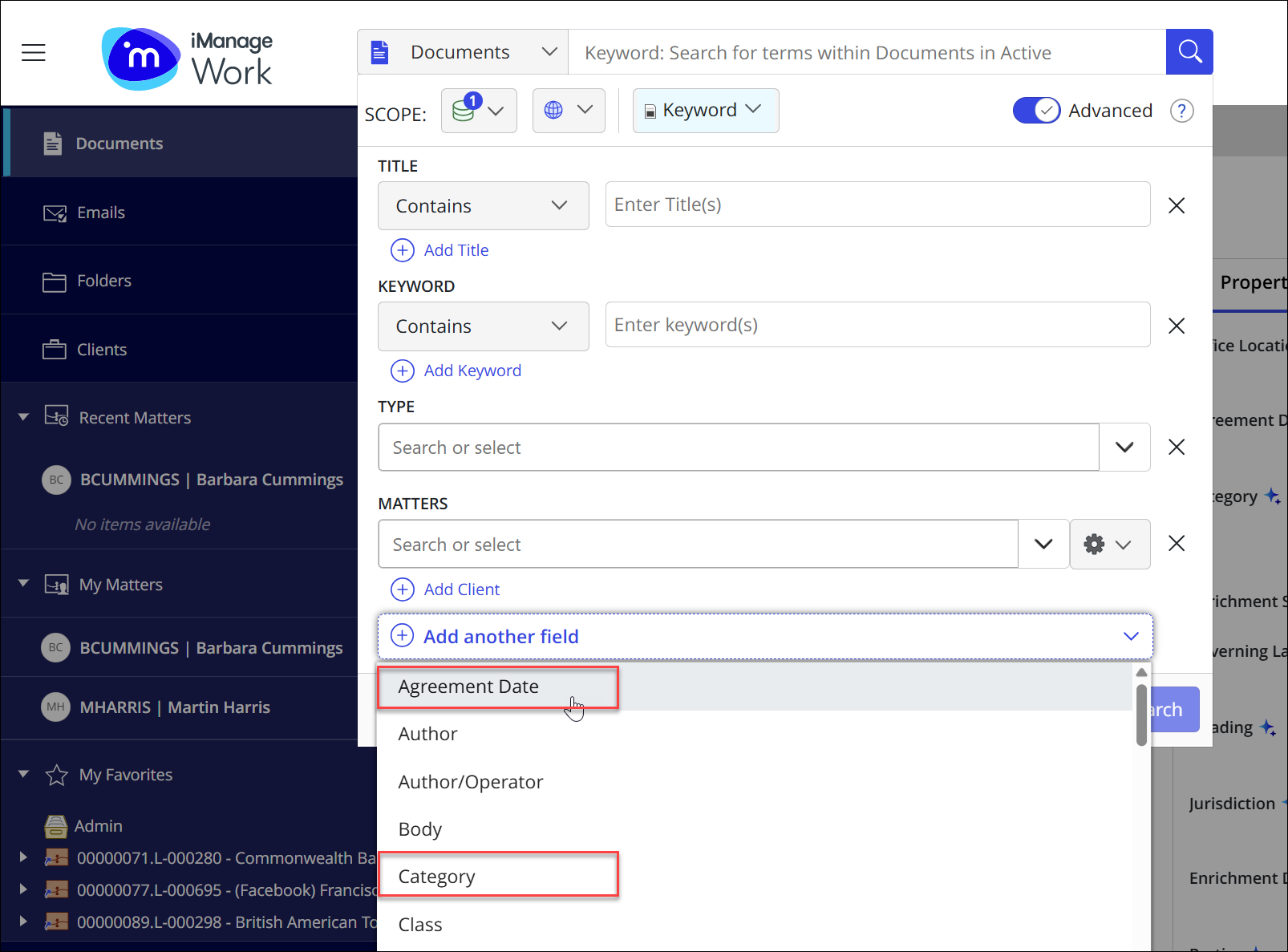
To add iManage AI Enrichment properties to the Advanced Search form in iManage Work Web, letting users search for documents using these properties:
At the top of the Forms page, select the Search tab.
In the Document and Email Search Properties section, select the edit
icon.
Add each of the following properties:
Category (
imanage_ai.category)Agreement Date (
imanage_ai.agreement_date)Parties (
imanage_ai.parties)Governing Law (
imanage_ai.governing_law)Jurisdiction (
imanage_ai.jurisdiction)Heading (
imanage_ai.heading)(Optional) Enrichment Date (
imanage_ai.enrichment_date)(Optional) Enrichment Status Code (
imanage_ai.enrichment_status_code)(Optional) Enrichment Version (
imanage_ai.enrichment_version)
NOTE: The Enrichment Disabled property isn't searchable, so it isn’t included in the properties added in this step.
Drag these properties into the desired order in the dialog.
TIP: If you have existing properties for some of this information, it’s useful to arrange these together for easy comparison. For example, place Parties (imanage_ai.parties) before or after an existing property that shows internal parties.
Select Save.
If you have multiple iManage Work libraries, perform the same steps in every library.
To switch to a different library, use the library drop-down menu at the top of the Forms page.Sign in to iManage Work in a browser and confirm that the properties you added are now available in the Advanced Search when you select Add another field.
NOTE: If newly configured properties don't appear immediately, refresh the browser to ensure the latest configuration is displayed.