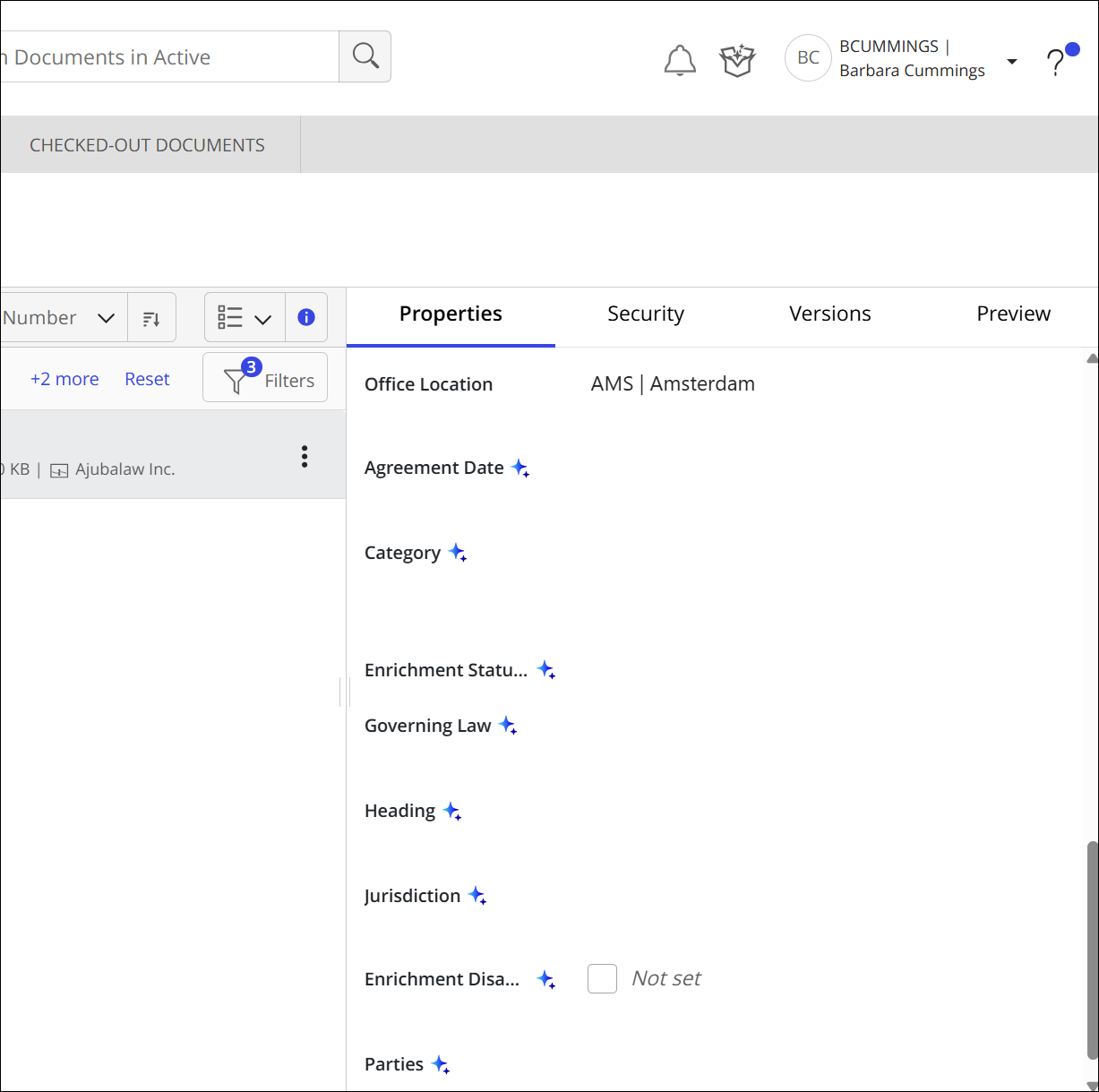
To add iManage AI Enrichment properties to the Properties panel in iManage Work Web, letting users view enriched metadata for each document:
In iManage Control Center, select Settings > Forms > Properties tab.
NOTE: To view or perform operations on the Forms page, a user must have a global role with the Settings Management privilege and also:
Be a member of the NRTADMIN group in at least one library, or
Be assigned to a library role with Tier 2 Control Center privileges.
In the Document and Email Properties section, select
Edit.
At the bottom of the Edit Document and Email Properties window, select +Add New.
Add each of the following properties:
Category (
imanage_ai.category)Agreement Date (
imanage_ai.agreement_date)Parties (
imanage_ai.parties)Governing Law (
imanage_ai.governing_law)Jurisdiction (
imanage_ai.jurisdiction)Heading (
imanage_ai.heading)Enrichment Disabled (
imanage_ai.locked)Enrichment Date (
imanage_ai.enrichment_date)Enrichment Status Code (
imanage_ai.enrichment_status_code)Enrichment Version (
imanage_ai.enrichment_version)
Drag these properties into the desired order in the dialog.
Select Save.
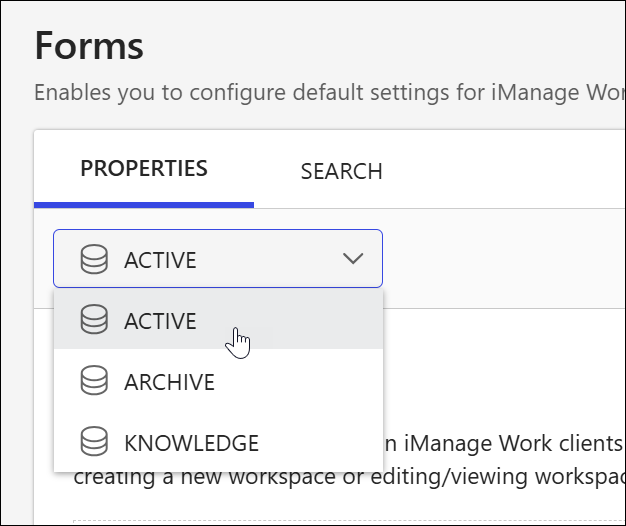
If you have multiple iManage Work libraries, perform the same steps in every library. Use the library drop-down menu at the top of the Forms page to switch to a different library.
In a browser, sign in to iManage Work and confirm that the properties you added are displayed in the Properties panel. Values for these properties won't be displayed until the document has been enriched.
NOTES:
If newly-configured properties don’t appear immediately, refresh the browser to ensure the latest configuration is displayed.
The read-only administrative properties Enrichment Date, Enrichment Status Code, and Enrichment Version confirm whether a document was enriched successfully. Making them visible to end users in the Properties panel is optional; they display there only if you’ve configured them to appear and they contain content.