The User Engagement Report provides usage metrics for Ask iManage.
To view this report, you must be a member of the ASK_IMANAGE_ANALYTICS global group in iManage Control Center.
For more information, contact your administrator or refer to the Setting up the user engagement report.
Accessing the Report
In iManage Work at cloudimanage.com, select Ask iManage from the left navigation panel.
On the Ask iManage home page, select Ask iManage Usage
.
Report Components
The report displays the following components.
A Date Range selector. You can change this to Last 7 days, Last 30 days, or Last 90 days.
Total questions asked and Average questions per user.
Figure: Total questions asked and average questions per user
Active vs. Inactive Users: A pie chart of the user base.
Figure: Total number of users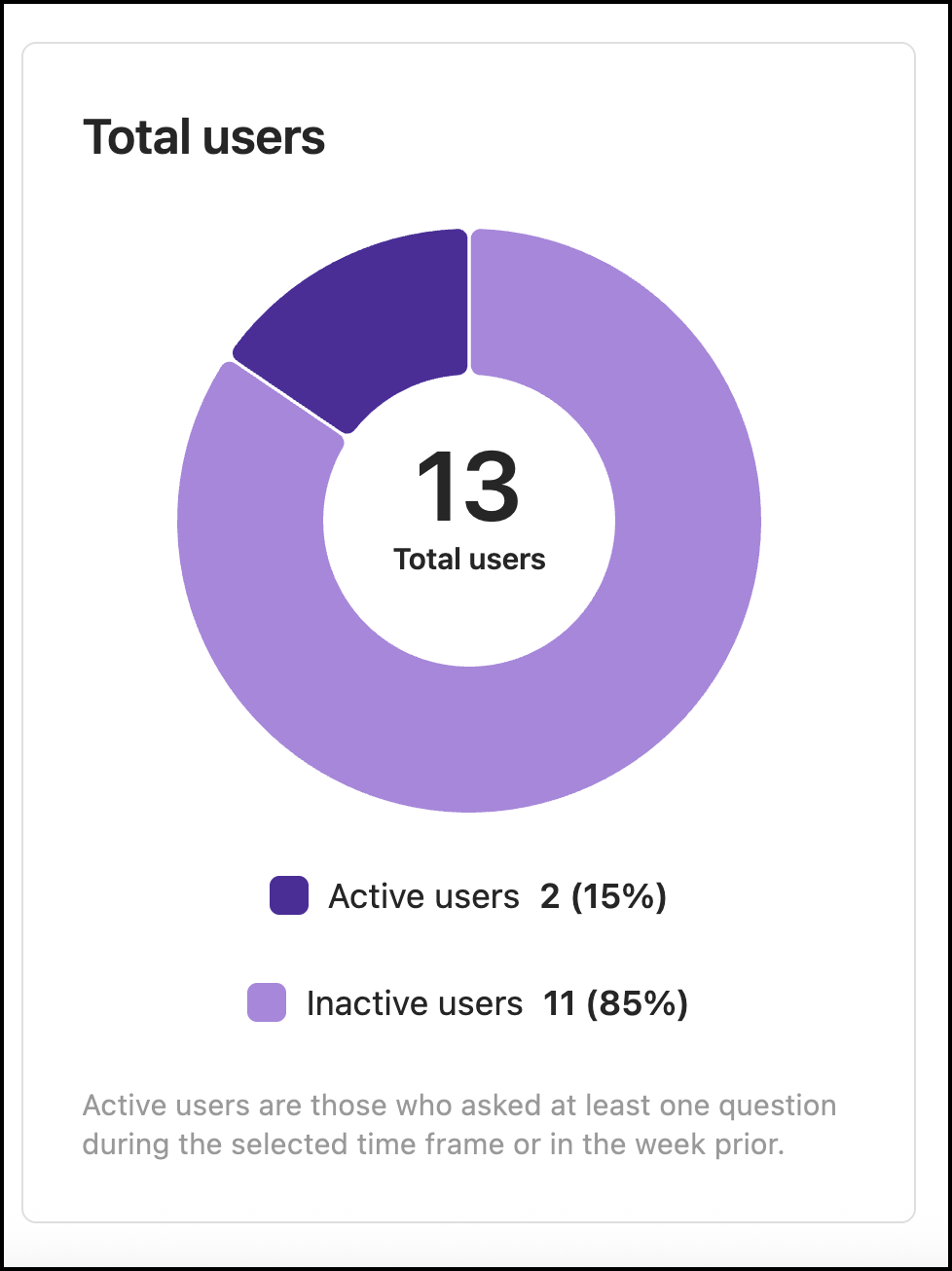
Active Users Over Time: A line or bar chart view.
Figure: Active users in line chart format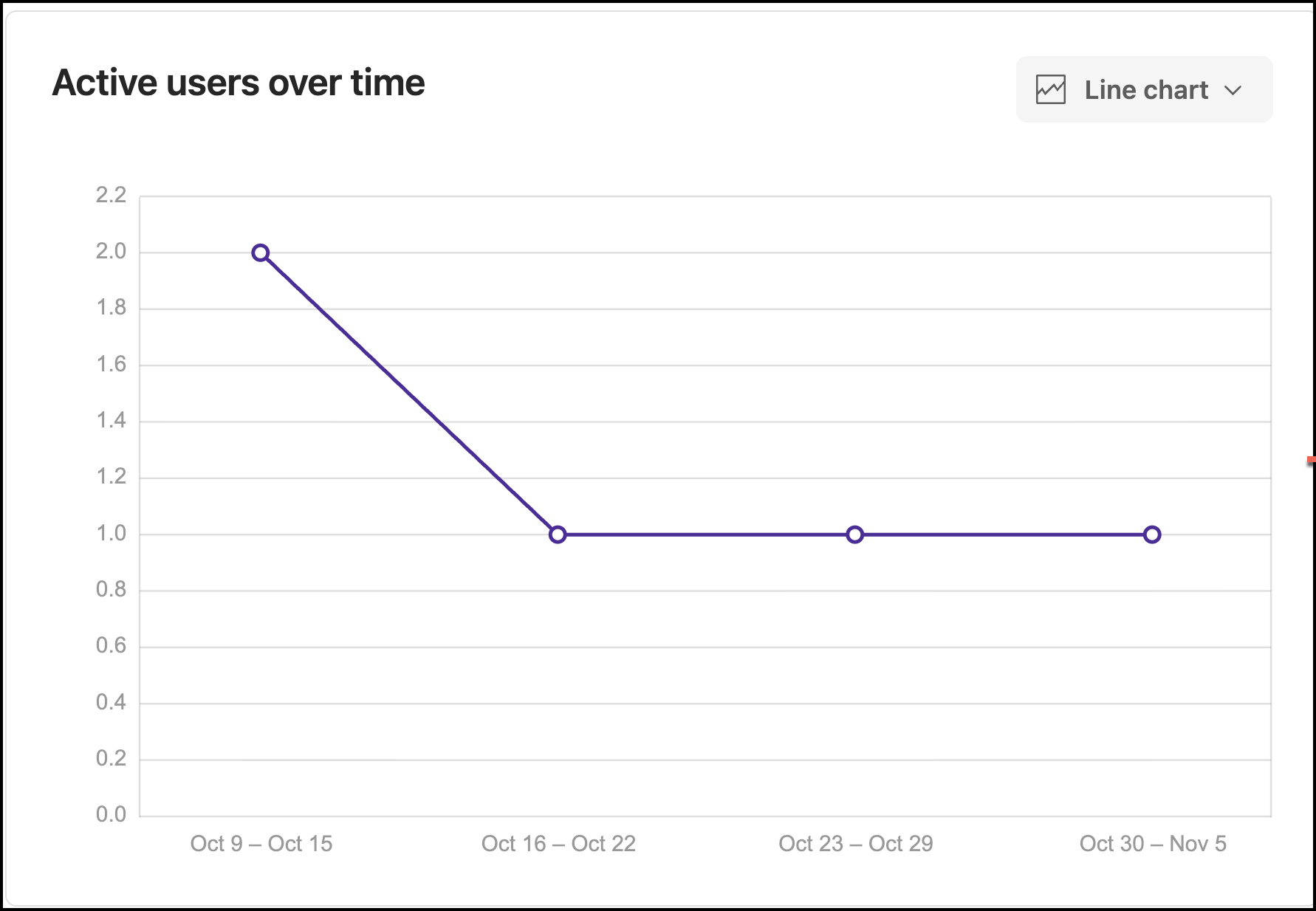
Questions Asked Over Time: A line or bar chart view.
Figure: Questions asked over time in bar-chart format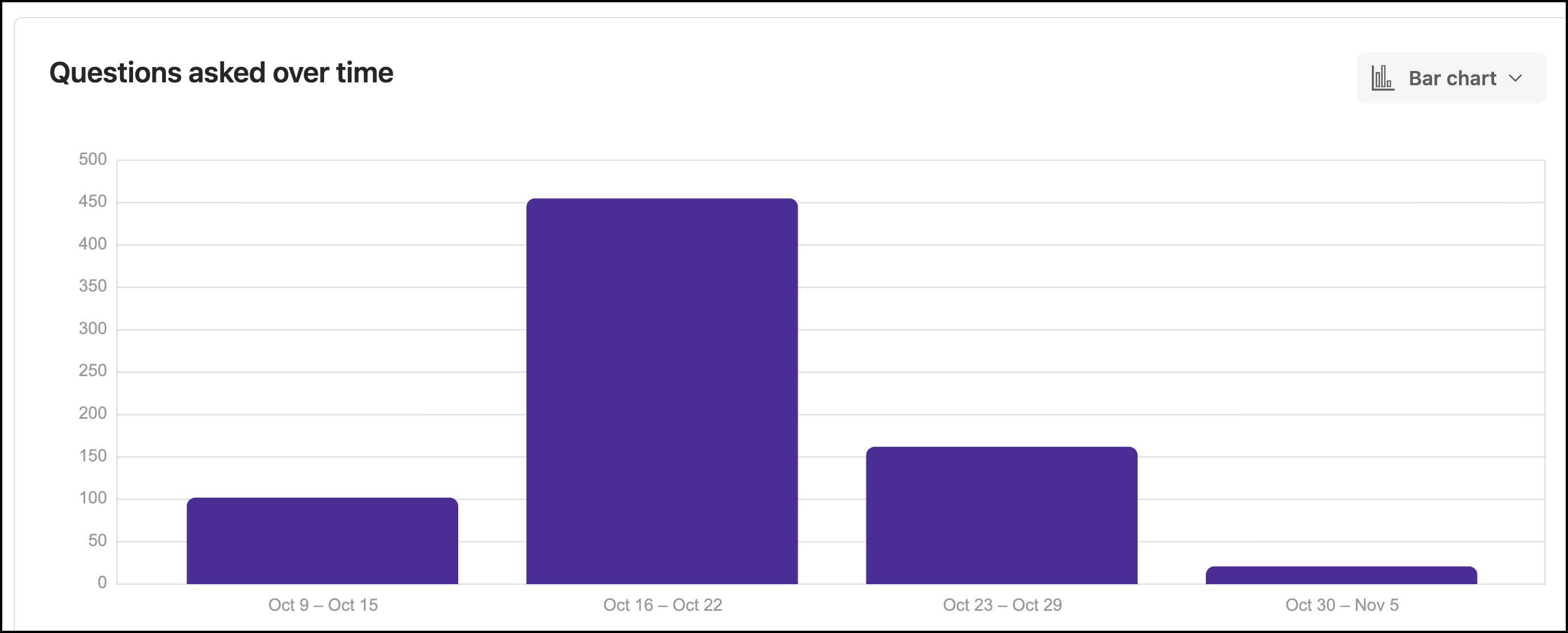
User Usage:
Name
Email address
Last active date
Questions asked
Figure: User usage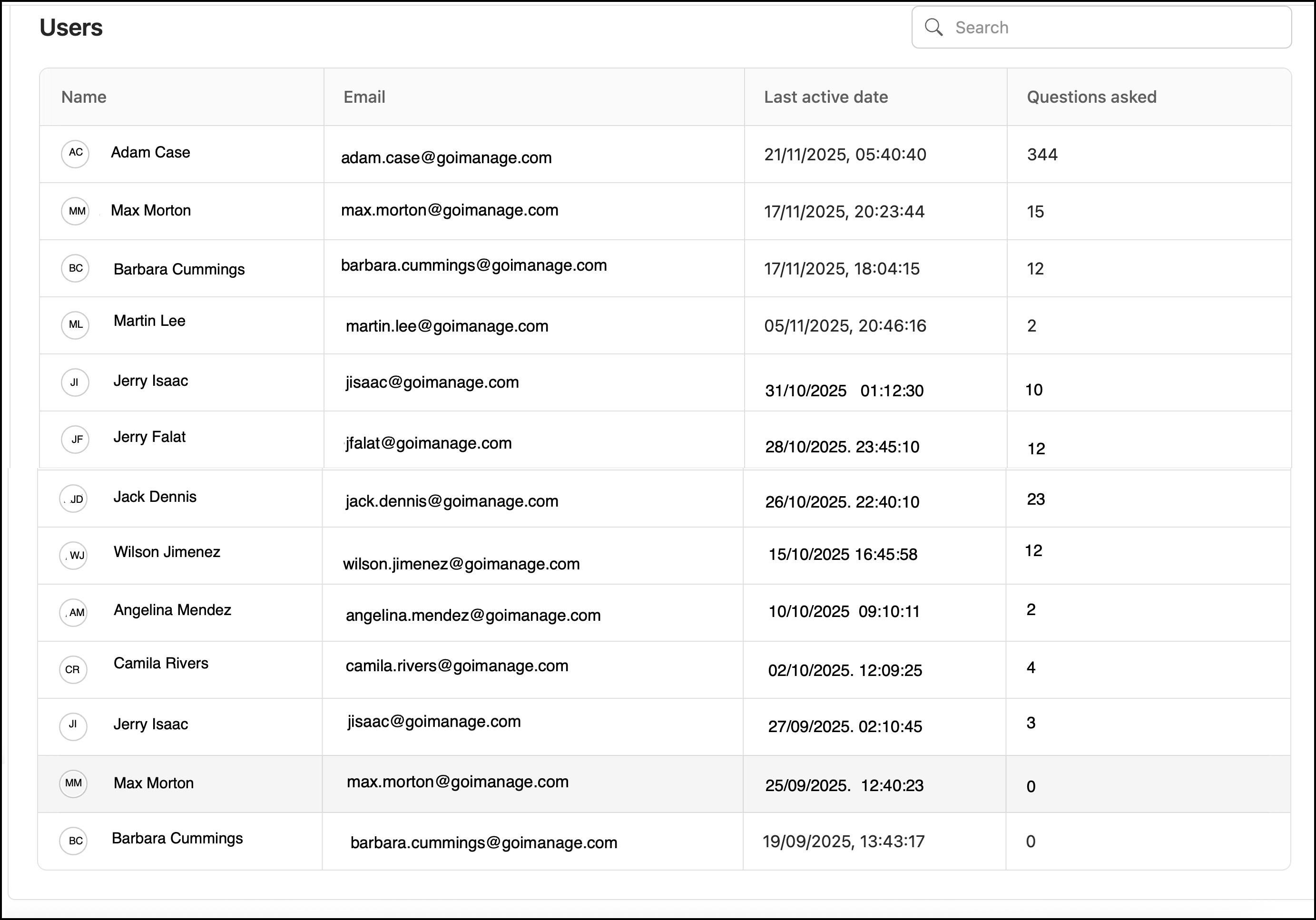
Actions
Export: Downloads the user details table as a Microsoft Excel file.
Back to Projects: Returns to the Projects page.
How Questions Asked is Calculated
The "Total questions asked" metric is calculated by multiplying the number of questions in a query by the number of documents the query runs against.
Example 1: A single question on 1 document = 1 question counted.
Example 2: A question list with 10 questions on 1 document = 10 questions counted.
Example 3: An "Ask Across" task on 10 documents = 10 questions counted.