When the iManage Ask iManage Web Extension and Microsoft 365 for the desktop applications are added in iManage Control Center, they are enabled by default, implying that users can access the applications. These applications are listed on the Applications page in iManage Control Center.
If you’re assigned a global management role with App Management privileges, you can alternatively, disable and enable the extensions. Disabling the extensions makes them unavailable for users in iManage Work at cloudimanage.com and they won't be able to access Ask iManage.
To enable or disable an application in iManage Control Center:
On the iManage Control Center home page, select Settings > Applications. The list of added applications is displayed in the content pane.
Search iManage Ask iManage Web Extension using the search field or go to the extension using the Previous and Next buttons.
Select the check box next to the extension and then select Disable Application or Enable Application. The option to disable or enable is displayed based on the current state of the application.
Figure: Enable/Disable option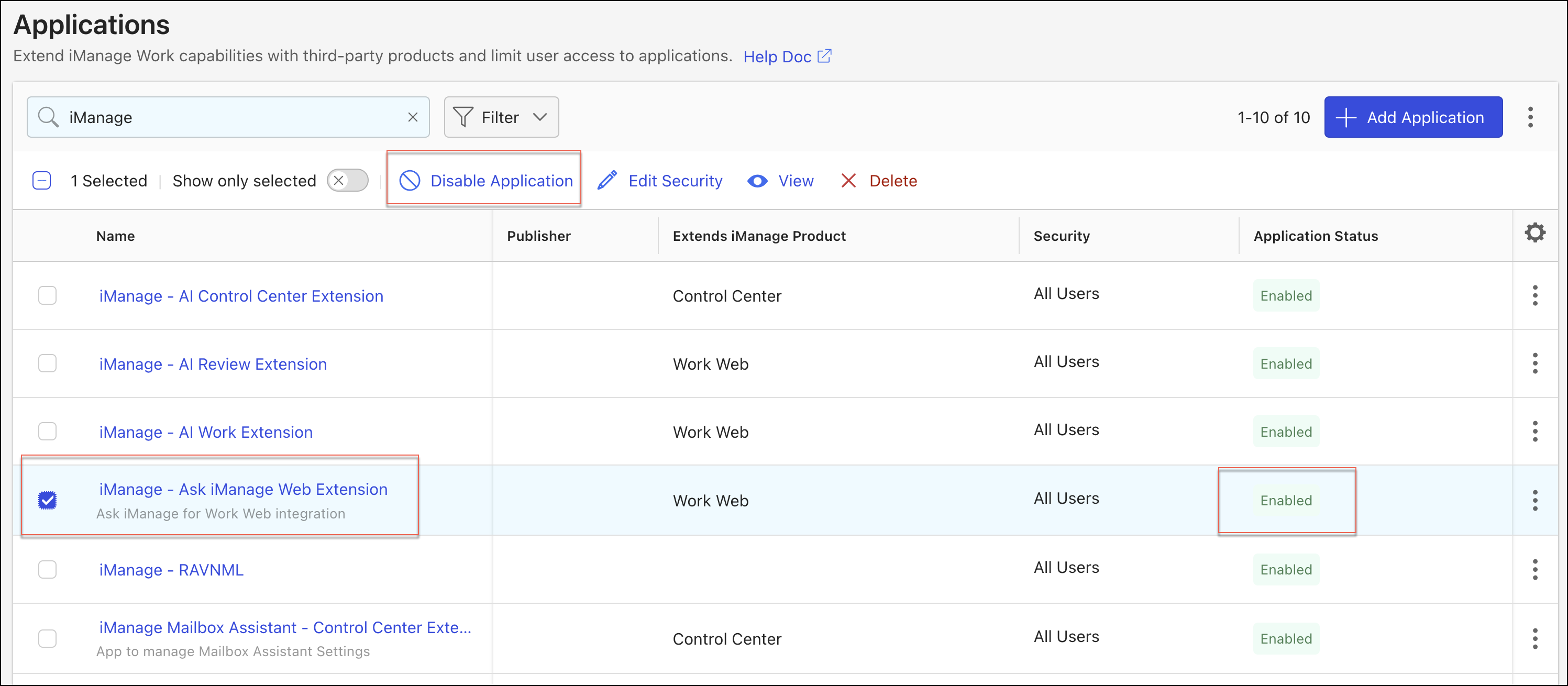
Alternatively, use one of the following methods:
Select the more options
 icon next to the extension, and from the drop-down menu, select Disable Application or Enable Application. Figure: Enable/Disable application from the right-click menu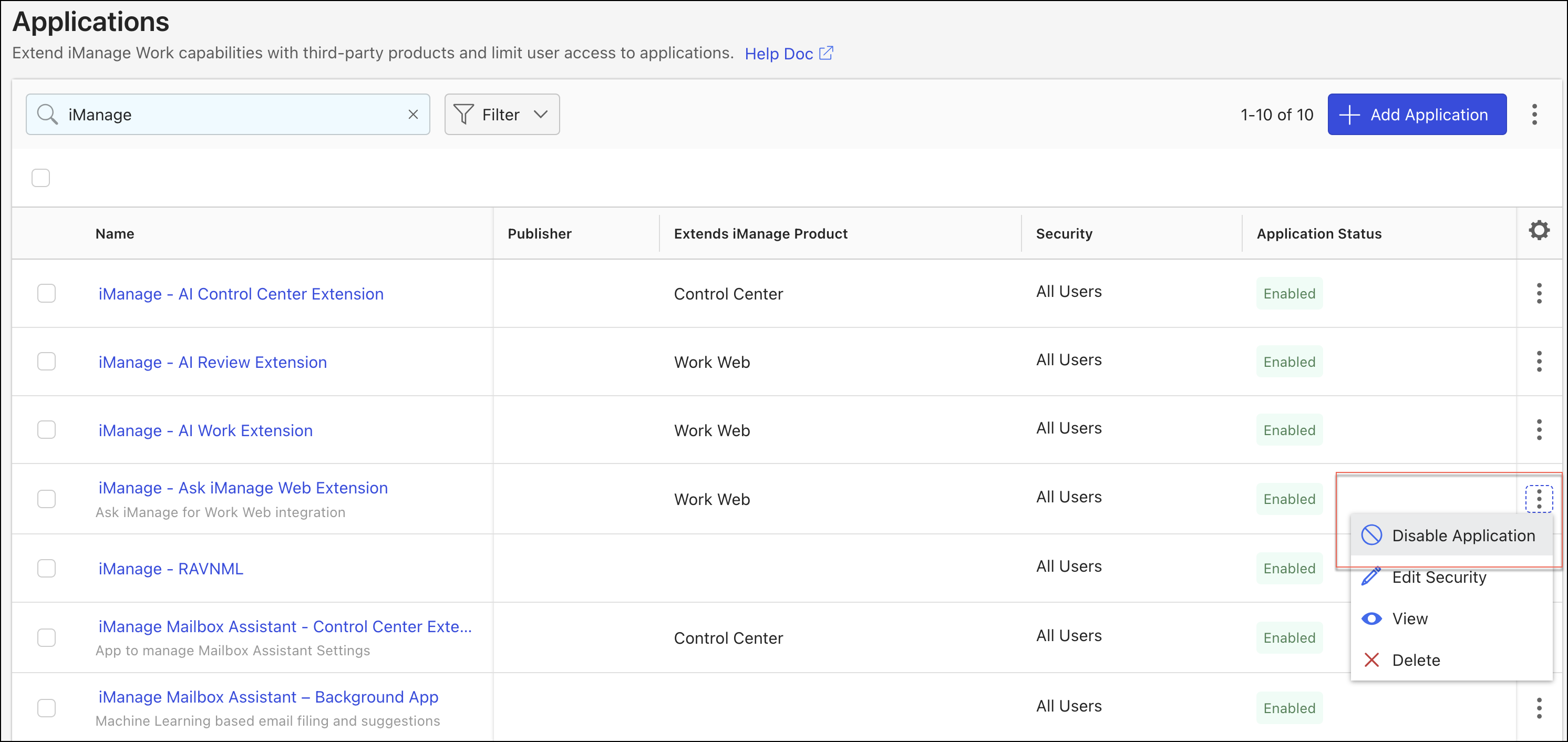
Right-click the extension name and then select Disable Application or Enable Application.
Figure: Right-click extension to enable/disable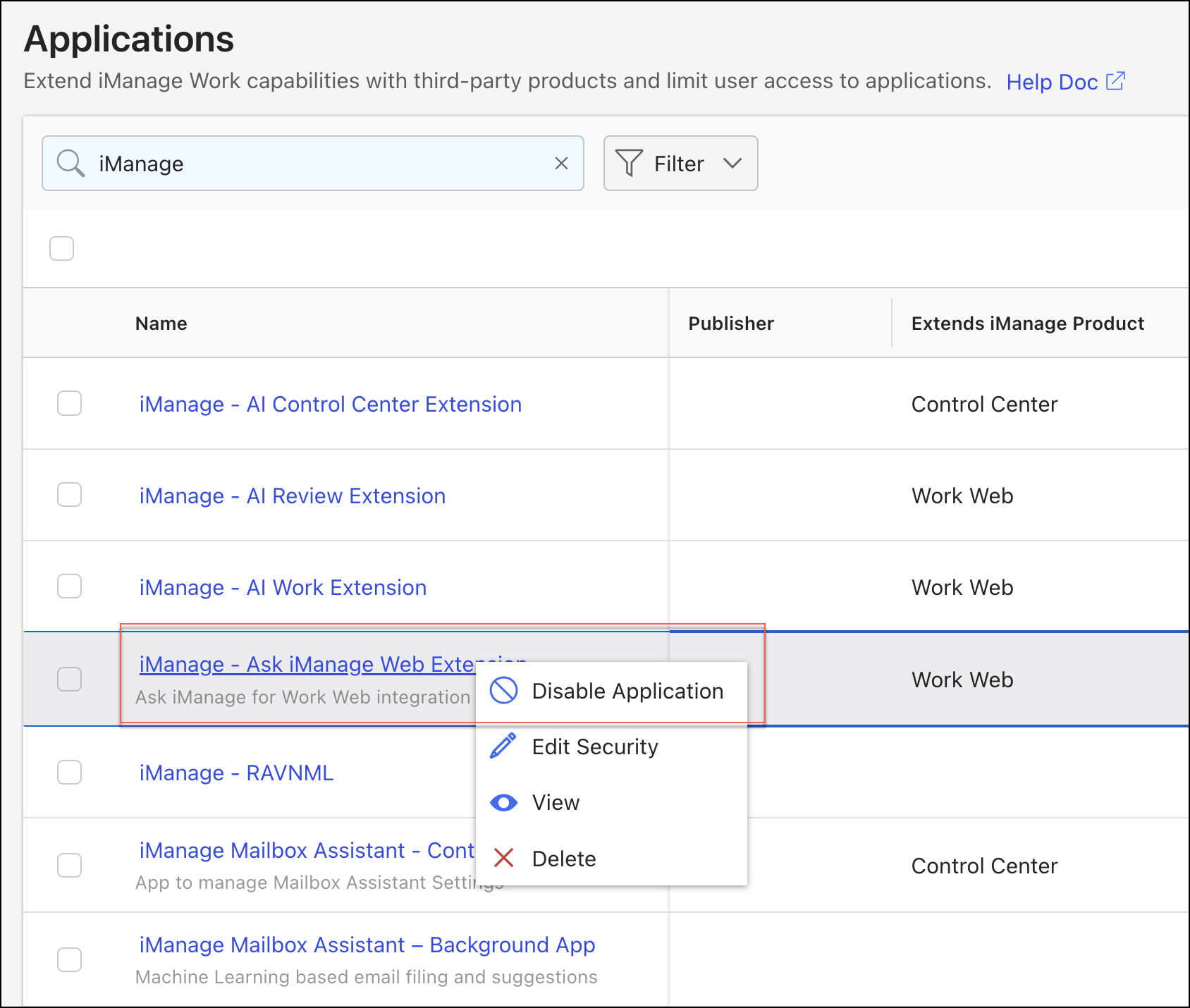
Repeat the above steps to enable/disable Microsoft 365 for the web application.