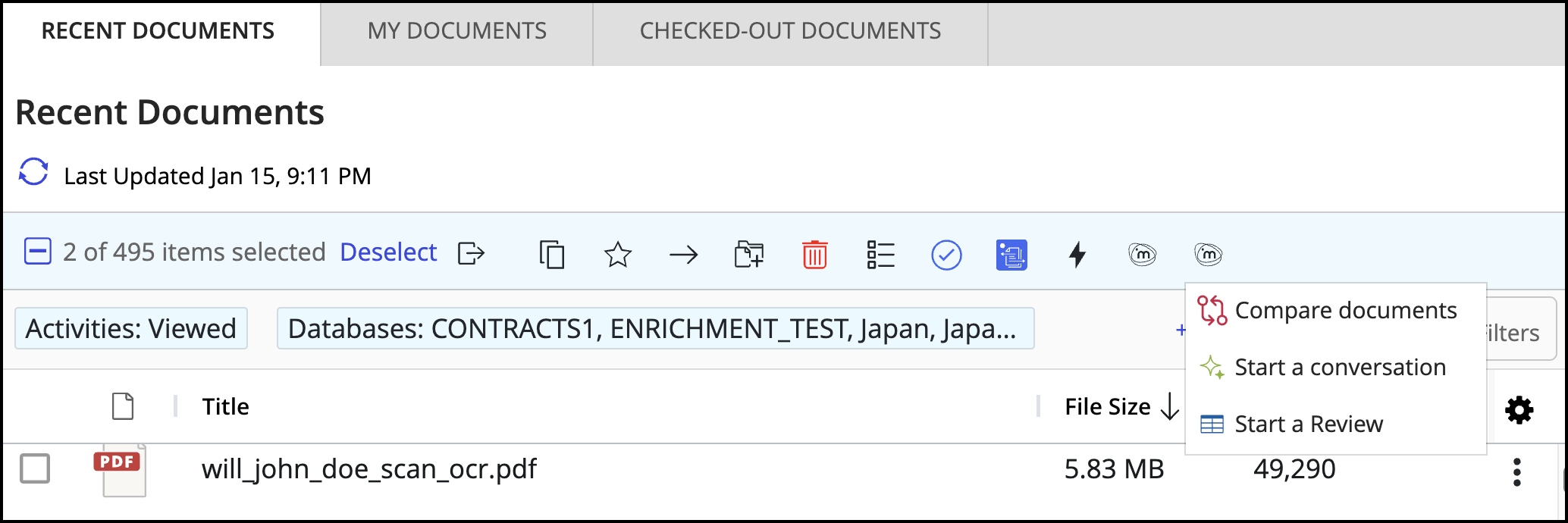
This action helps users view the Ask iManage right-click option s in iManage Work at cloudimanage.com.
In iManage Control Center, select Work Clients > Web Client.
Figure: Work Clients > Web Client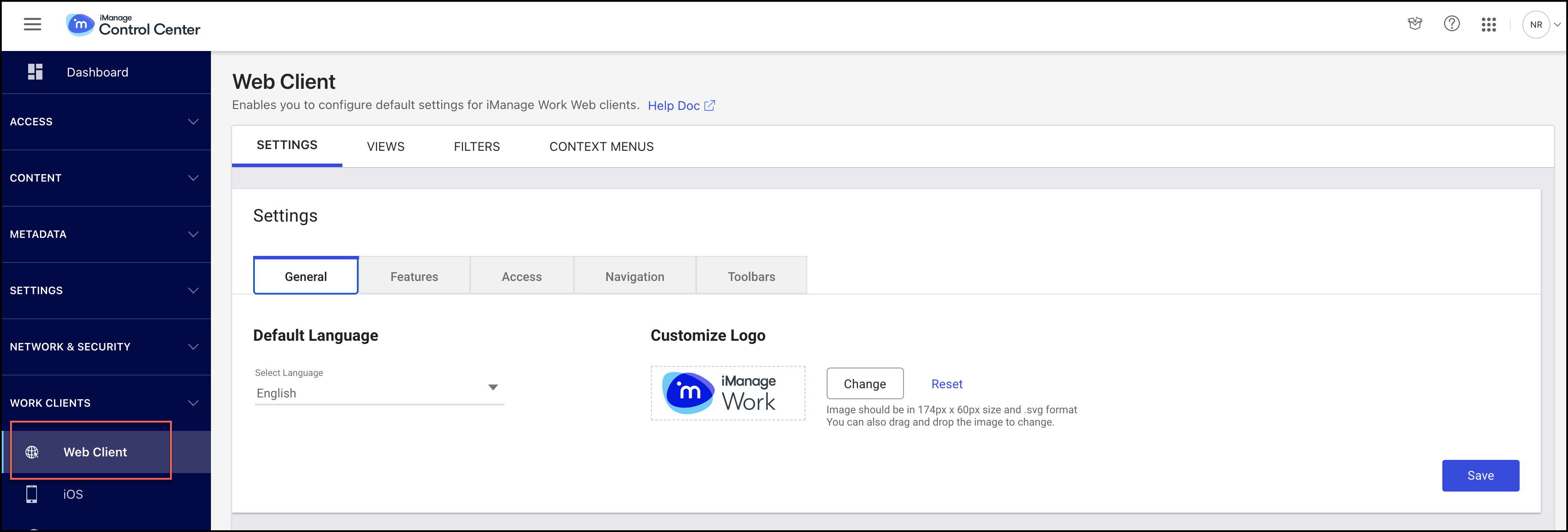
In the Settings tab, select Context Menus.
Figure: Context Menus tab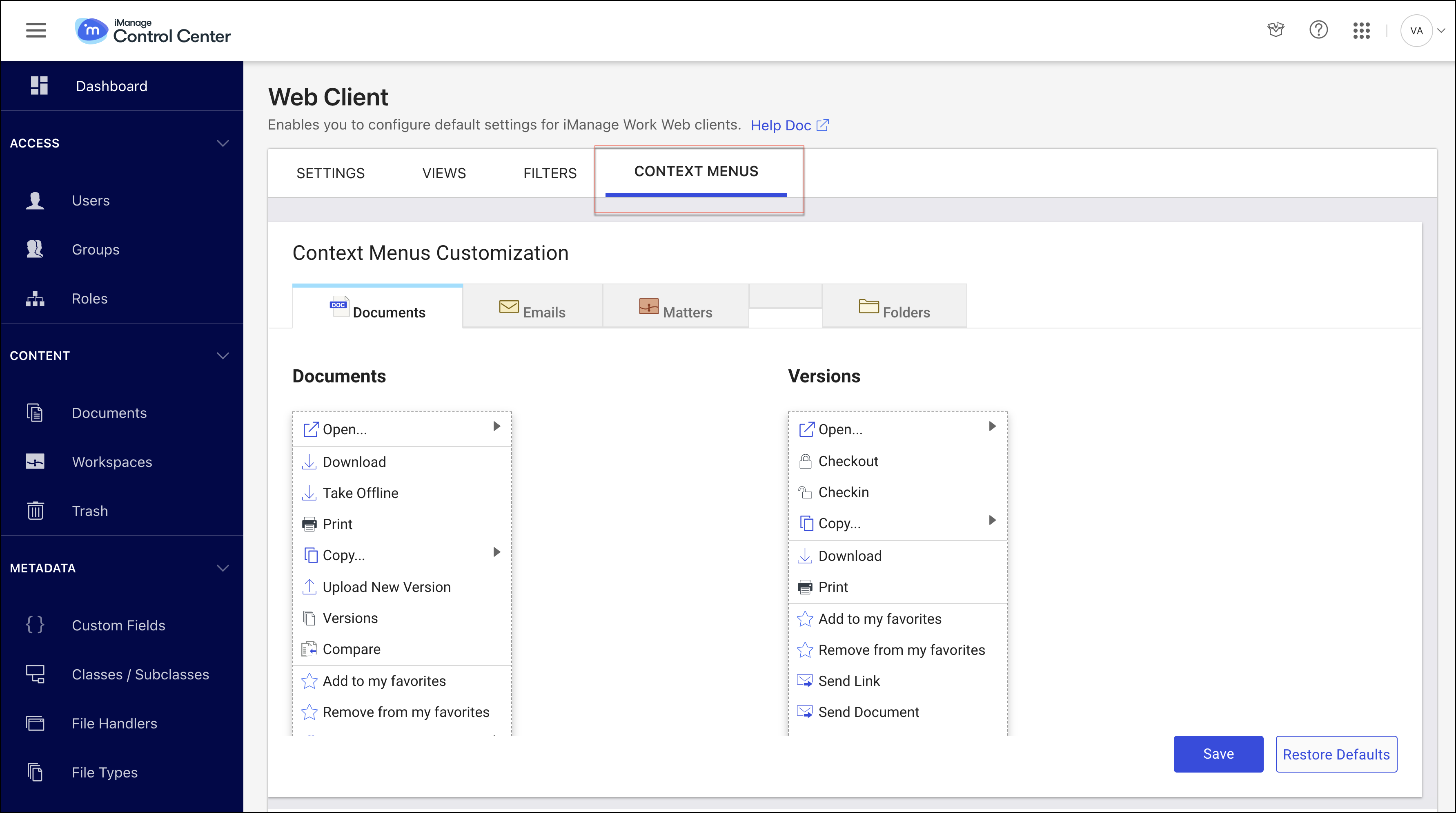
On the Context Menus Customization page, select the
 pencil icon in the Documents pane. Figure: Selecting the pencil icon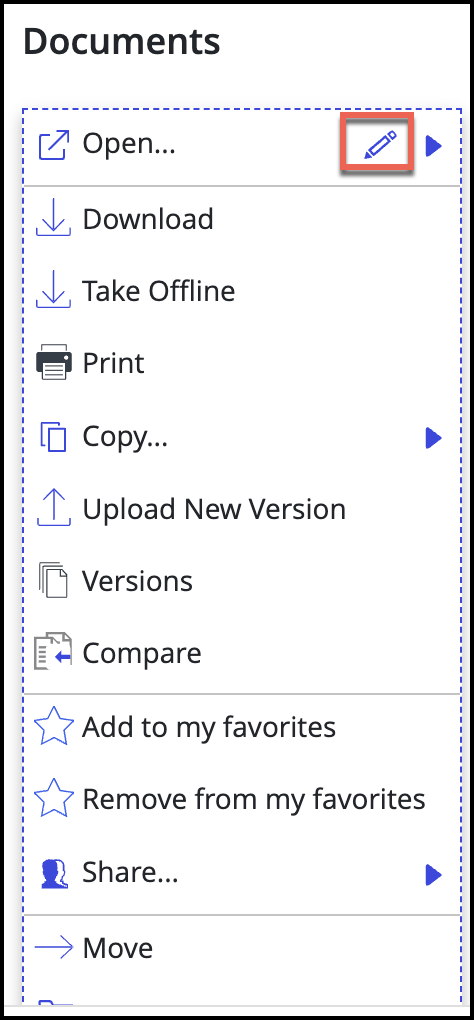
The Add action option is displayed.
Figure: Context menu customization options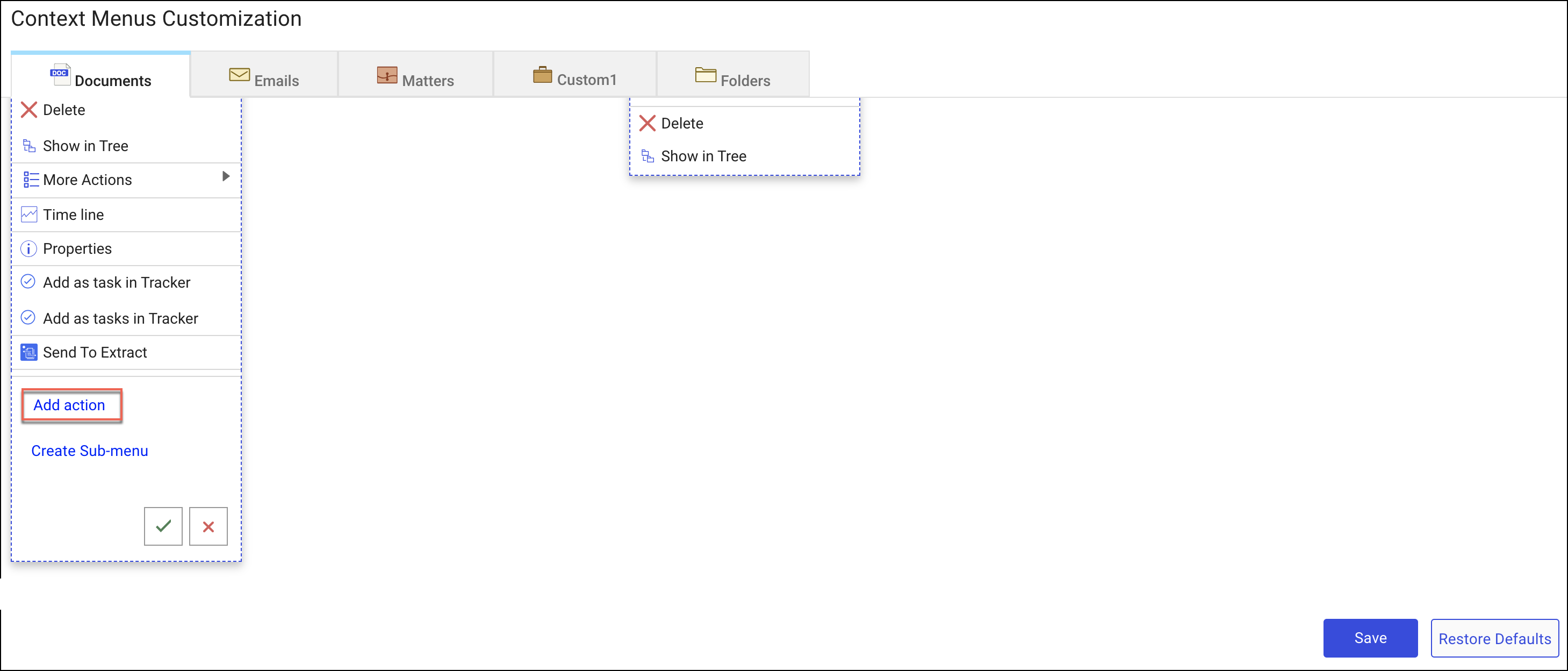
Select Add action and from the list displayed, select Ask iManage. Add the Compare Documents, Start a conversation, and Start a Review actions.
Figure: Add Ask iManage actions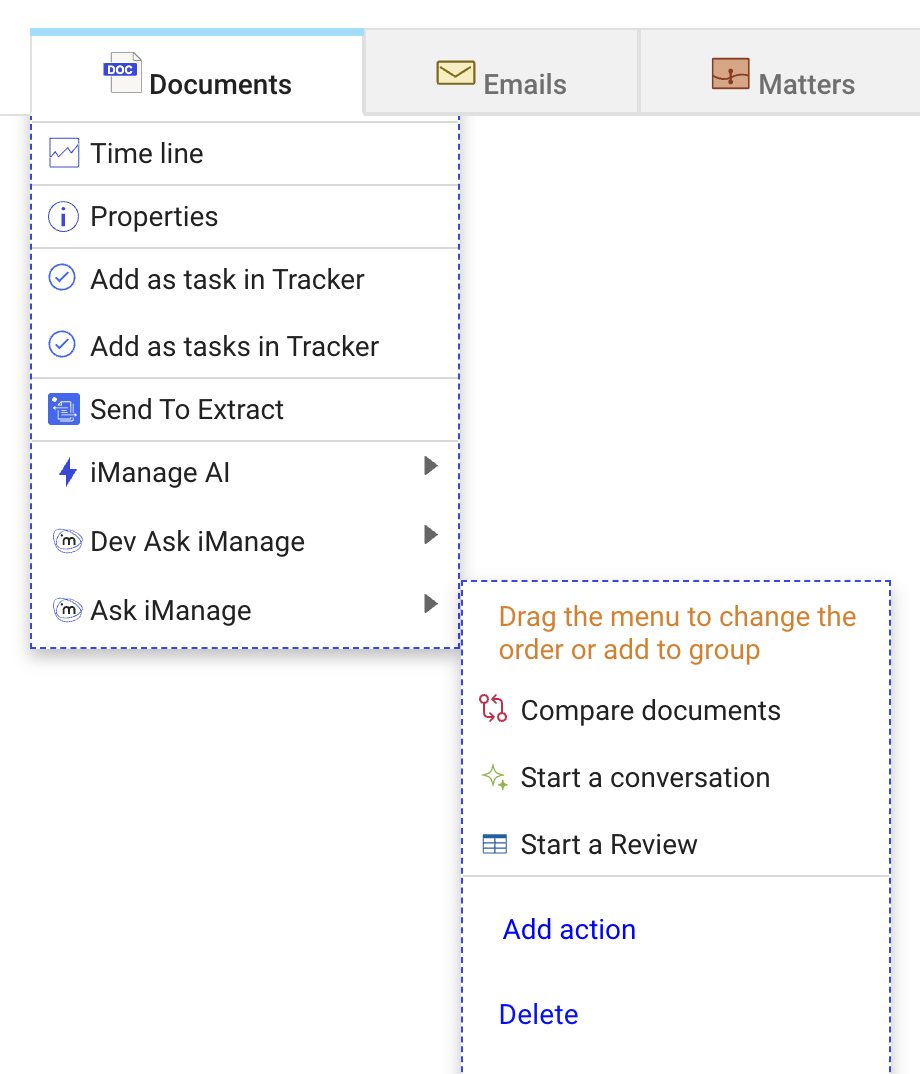
Select the
 icon and then select Save to complete the action. The option is now displayed on the right-click menu in iManage Work at cloudimanage.com.Figure: Confirm addition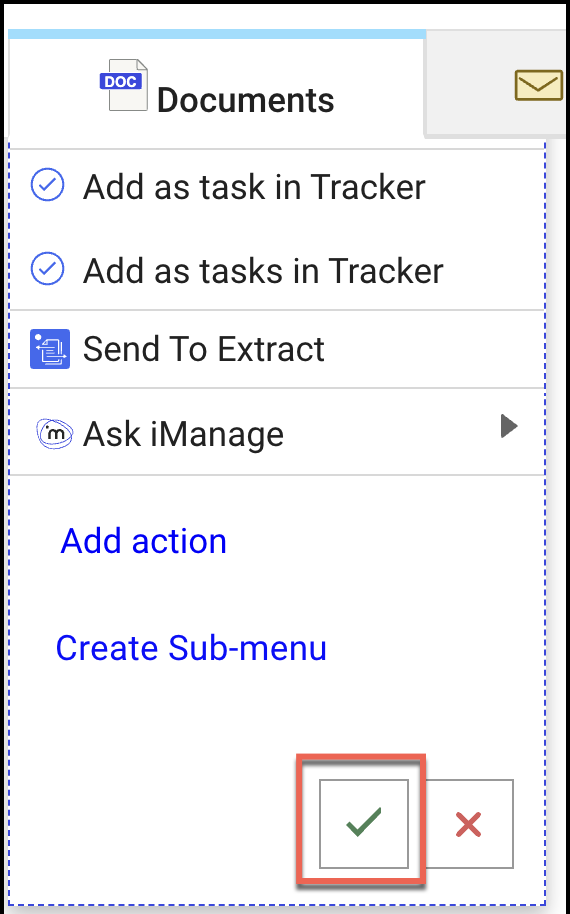
IMPORTANT: The pencil icon is not available if all the actions are already added. Additionally, if the Ask iManage options are already added, then these options aren't visible.
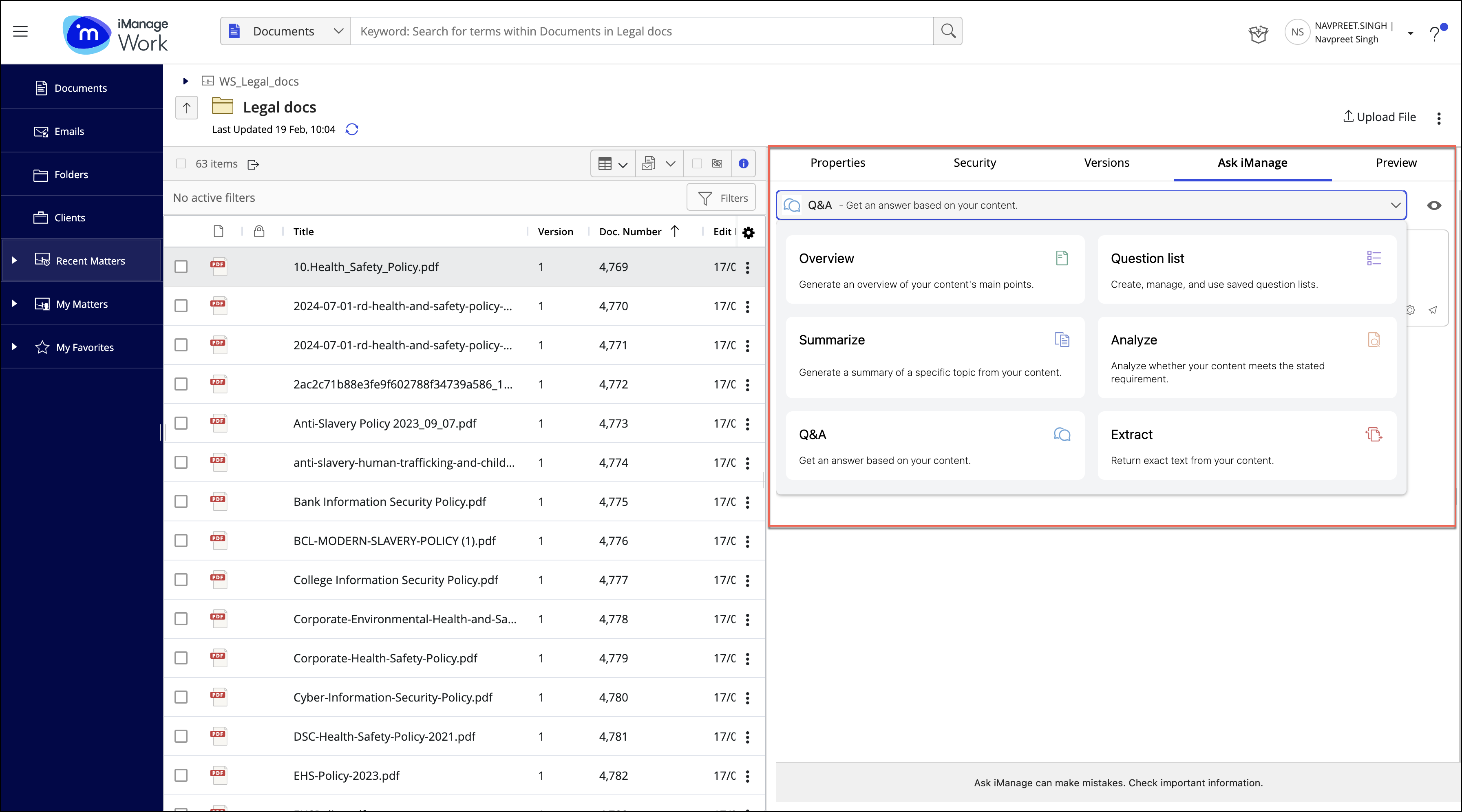
Go to iManage Work at cloudimanage.com and view the Ask iManage panel.
NOTE:
Repeat steps 3 to 5 for Emails & Matters
Note that only ‘Start a conversation’ can be added for Matters
If the Ask iManage panel isn’t displayed, refresh the web client twice or clear the local cache.
Sign into iManage Work and check if the Ask iManage icon is available in the blue banner when users select documents or emails.
Figure: Ask iManage icon in iManage Work blue banner