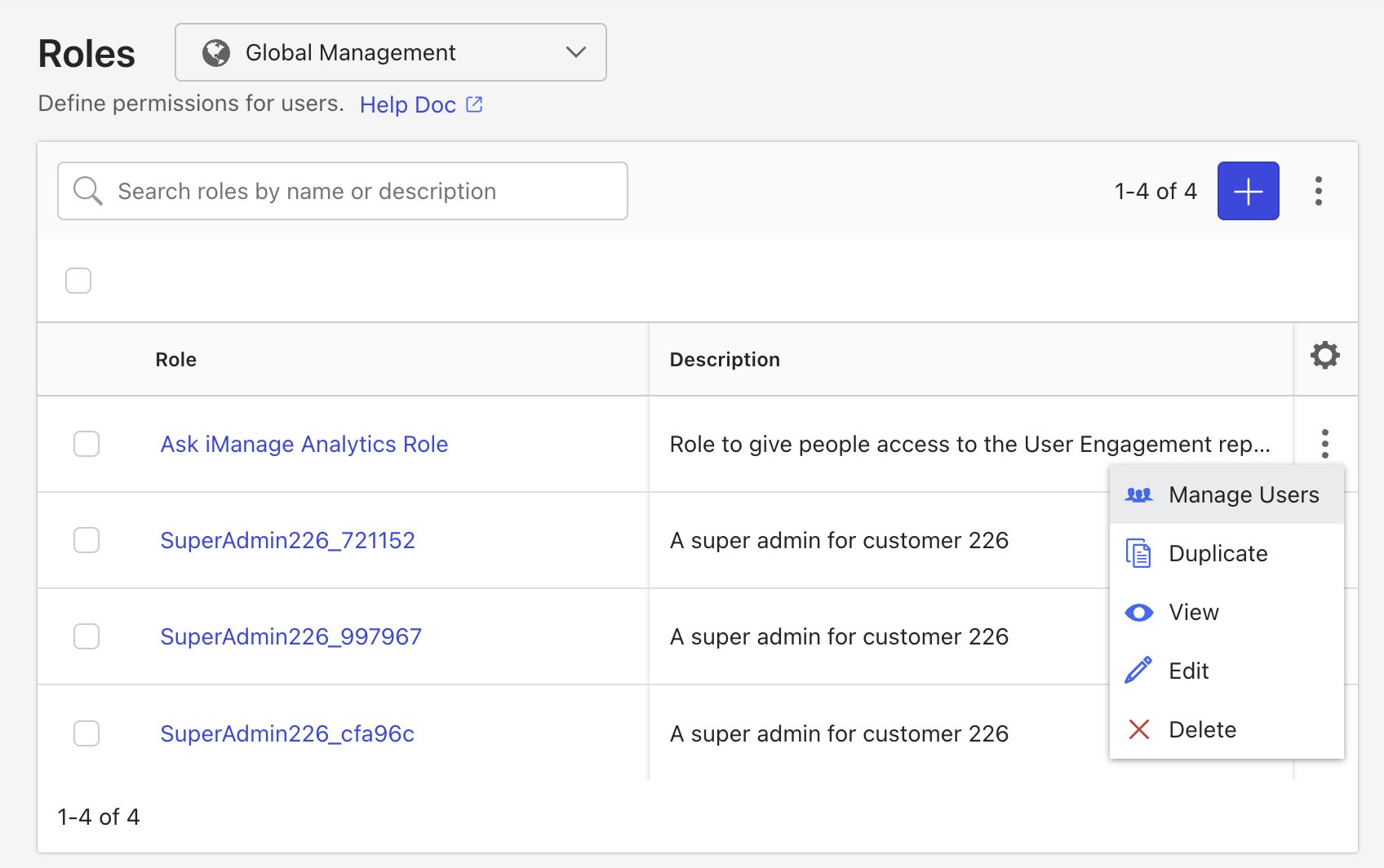
To ensure specific users have access to the user engagement report, you have to create the ASK_IMANAGE_ANALYTICS global group in iManage Control Center and then add users to it.
Creating the global group
Sign into iManage Control Center.
Select Groups.
In the Groups page that appears, select Global Management.
Select Create Global Group.
In the Create Group dialog that appears, enter:
Group ID as ASK_IMANAGE_ANALYTICS.
Name as Ask iManage Analytics.
Set Group status to Enabled.
Slide External Group to No.
Figure: Creating global group
Adding users to Ask iManage Analytics group
In Groups, select Ask iManage Analytics and then select Members.
Select Add Members.
In the Ask iManage Analytics group that appears, search for the user name. For example, Barbara Cummings.
Select the user name and then select Add.
Figure: Adding users to groups
The user is added as shown in the following figure:
Figure: Users added to the groups
Creating a user role
When you create a group for making the Ask iManage application accessible, a role needs to be created for users to see the user engagement report. Perform the following steps to create a role, set permissions, and add users.
Sign into iManage Control Center.
Select Roles and then select Add.
Make sure Global Management is selected.
Figure: Creating roles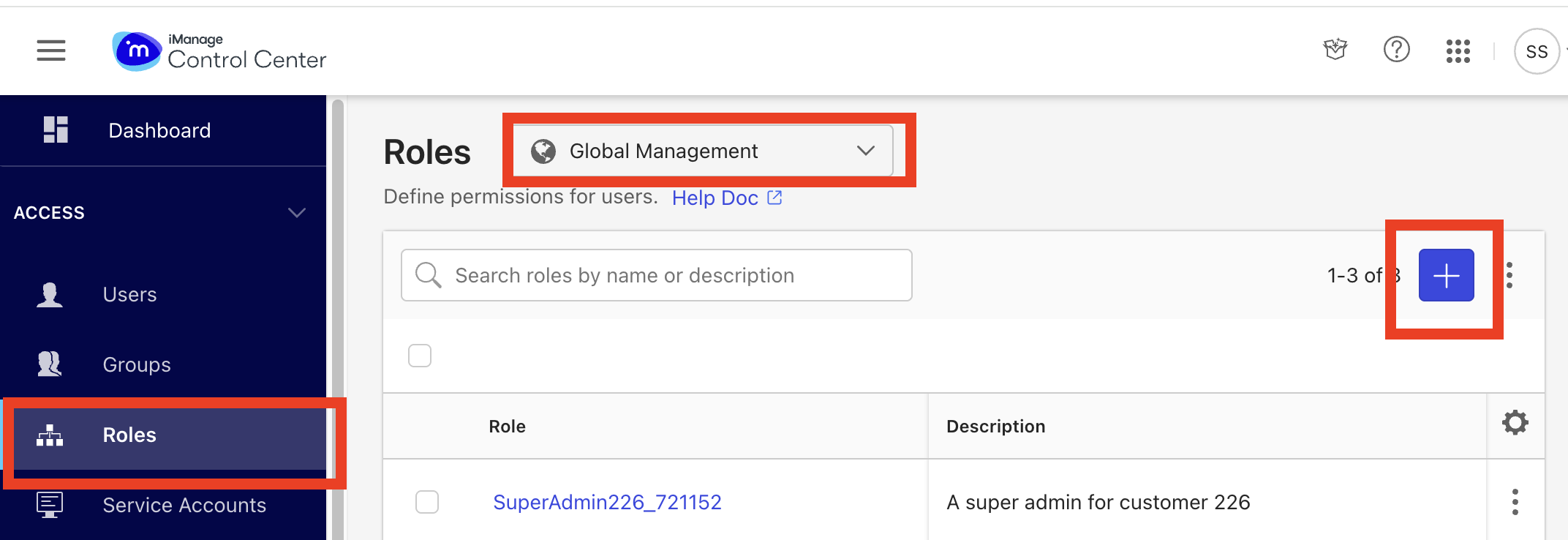
Enter the role name, description (optional).
Slide Group management to right to enable it.
Figure: Enable group management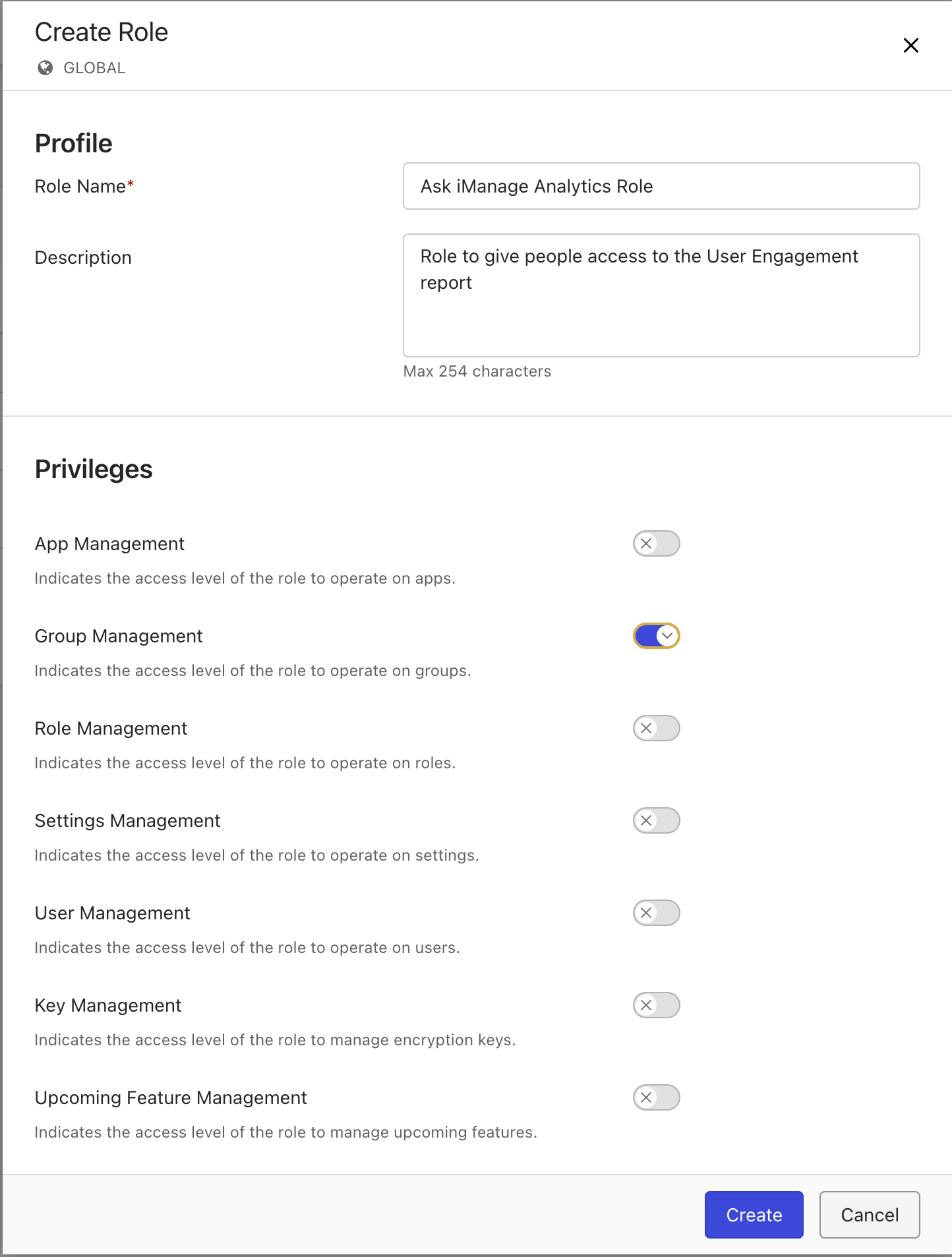
Select on the Manage Users in the role and add the users that should have access to the engagement report.
Figure: Adding users to user engagement report