While you can add users when enabling the application in Step 1: Add iManage Ask iManage Web Extension in iManage Control Center, you can add additional users by doing the following:
In iManage Control Center, select Applications.
Figure: Select Applications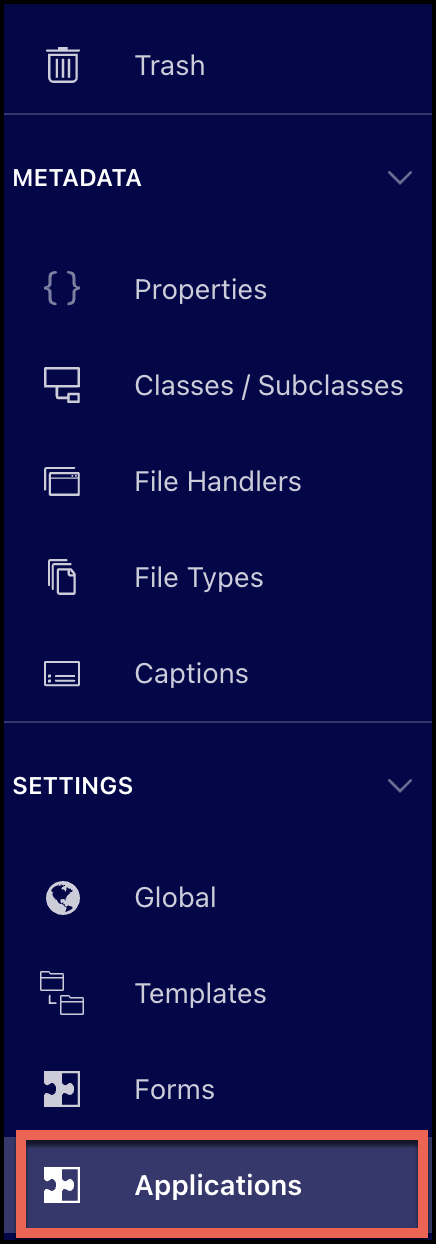
In the Applications page, search or find iManage Ask iManage Web Extension.
Select the
 three dots next to this application and select Edit Security. Figure: Editing security of the Ask iManage plugin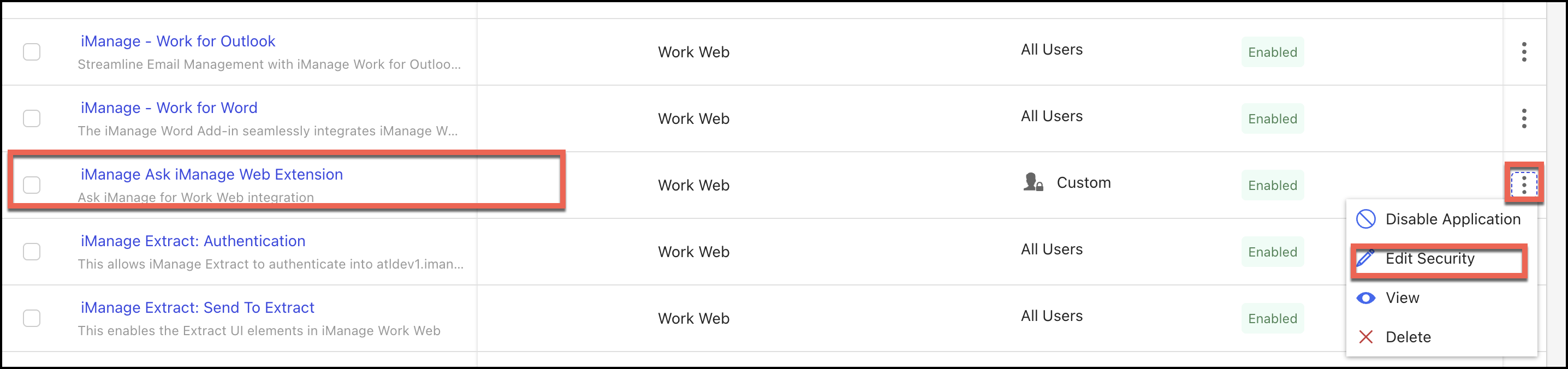
In the Edit Security dialog that opens, select All users or Custom.
When All users is selected, all the users in the organization get access to Ask iManage.
When Custom is selected, search the user or the group you want to add. Select and add the user or group as shown in the following figure. For example, Barbara
Figure: Adding custom users to Ask iManage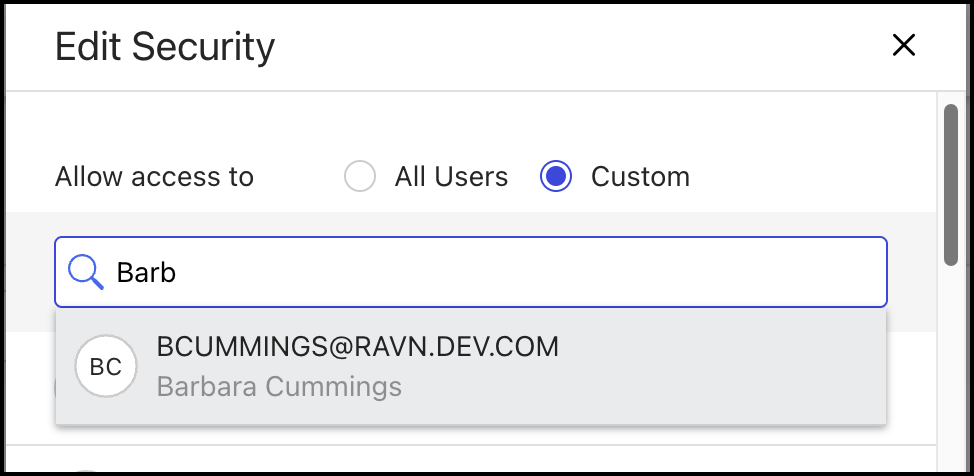
The user is now added.
Figure: User added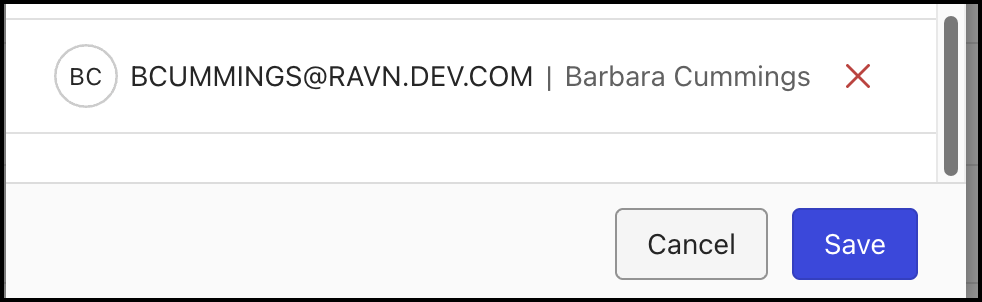
To remove a user or group, select
 next to the user or group, you want to remove. The user or group is removed.
Select Save to save the changes.